
Track Your Enrollment Page Performance with GA4
Want to see how many parents are viewing your enrollment pages and landing pages? Google Analytics 4 (GA4) helps you understand which pages attract the most interest and where families drop off in your enrollment process.
This guide walks you through connecting your Enrollio enrollment pages to GA4 so you can track page views and visitor behavior.
Before You Start
You'll need a Google Analytics account. If you're new to GA4, check out Google's Beginner's Guide to Google Analytics 4 first.
Step 1: Create a GA4 Property
- Log into your Google Analytics account
- Click Admin in the bottom left corner
- Under the Property column, click Create Property
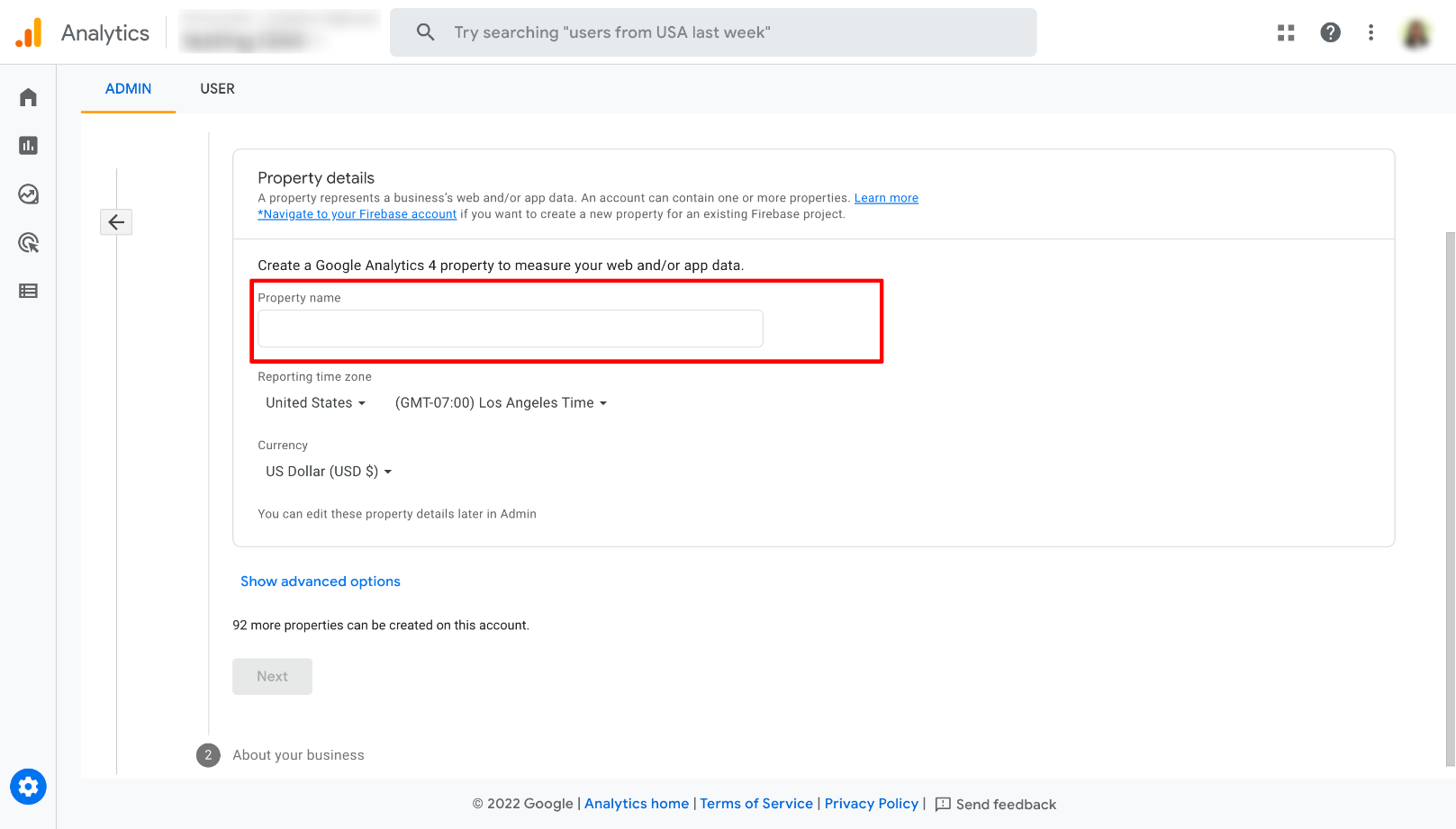
- Enter a property name (like "ABC Childcare Enrollment Pages")
- Complete the property setup by selecting your timezone and currency
Step 2: Set Up a Data Stream
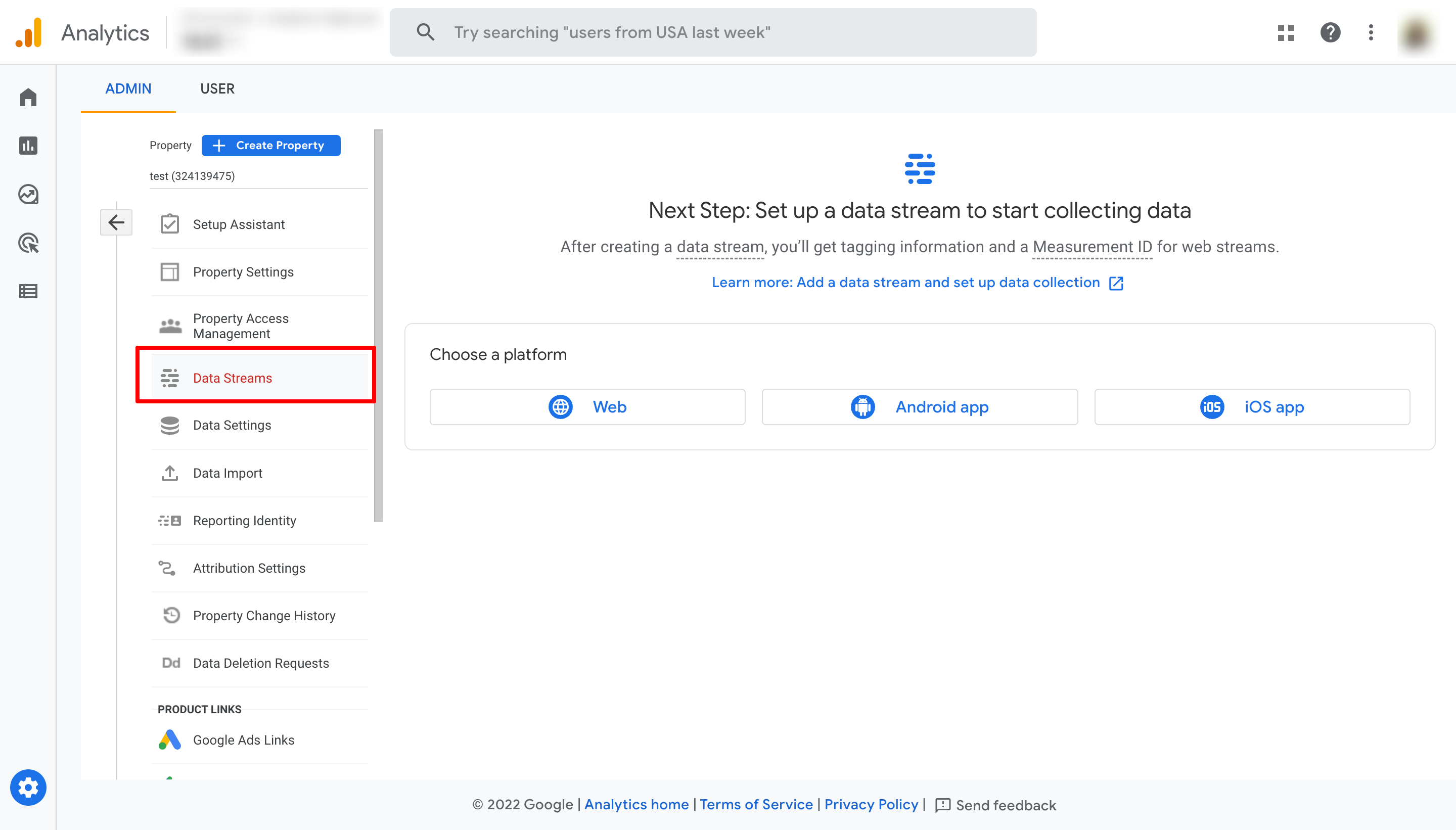
- In your new property, click Data Streams in the left menu
- Click Add stream, then select Web
- Enter your enrollment page URL (example: yourchildcare.enrollio.com)
- Give your stream a name (like "Main Enrollment Site")
- Click Create stream
Step 3: Get Your Tracking Code
After creating your stream, you'll see a screen with your Measurement ID and tracking code.
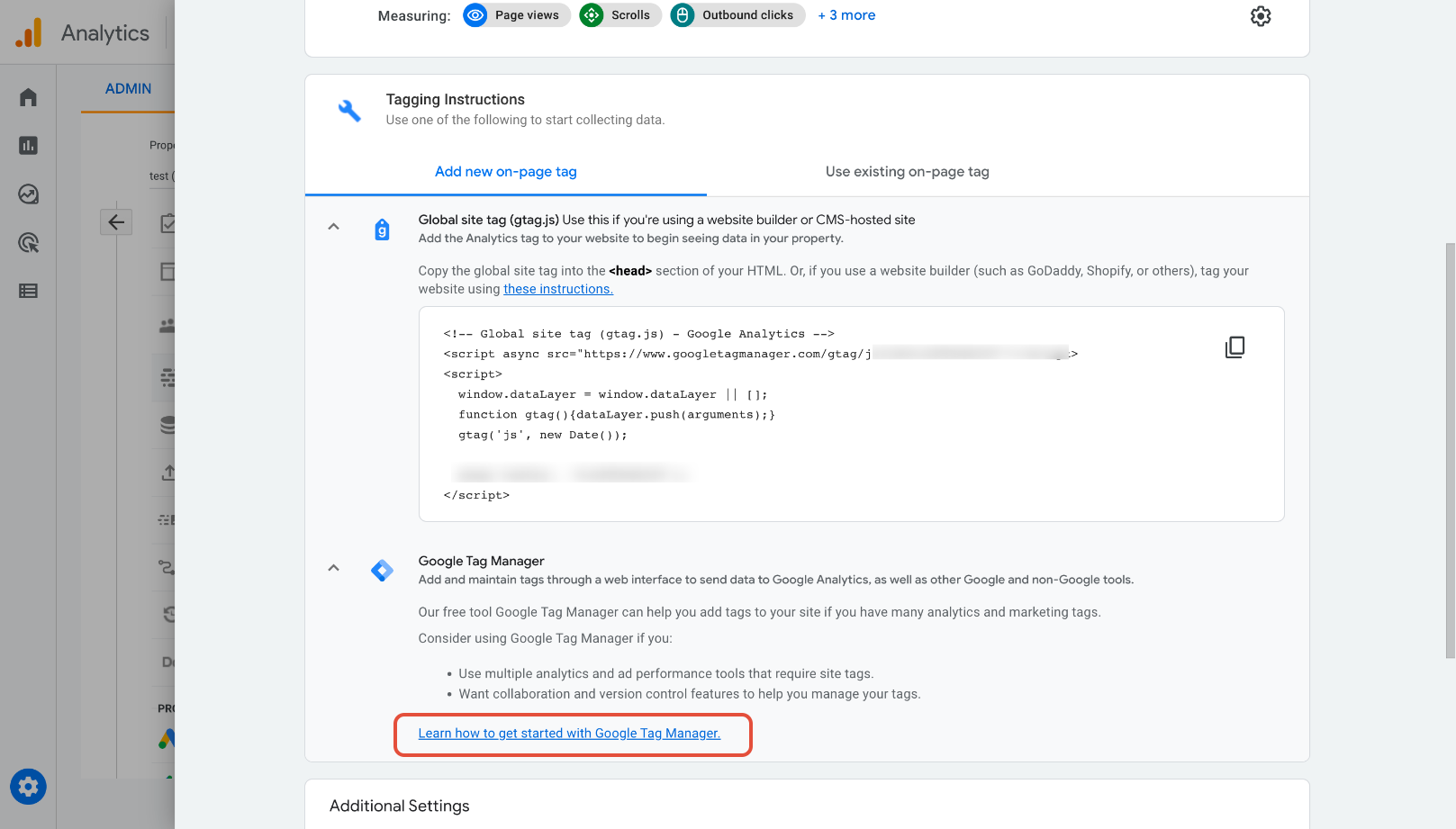
- Look for the section called Google tag
- Click View tag instructions
- Select Install manually
- Copy the entire code snippet (it starts with
<script async src="https://www.googletagmanager.com/gtag/js...)
Step 4: Add Tracking Code to Your Enrollment Pages
- In Enrollio, navigate to Sites
- Select the enrollment page or landing page you want to track
- Click Settings in the page editor
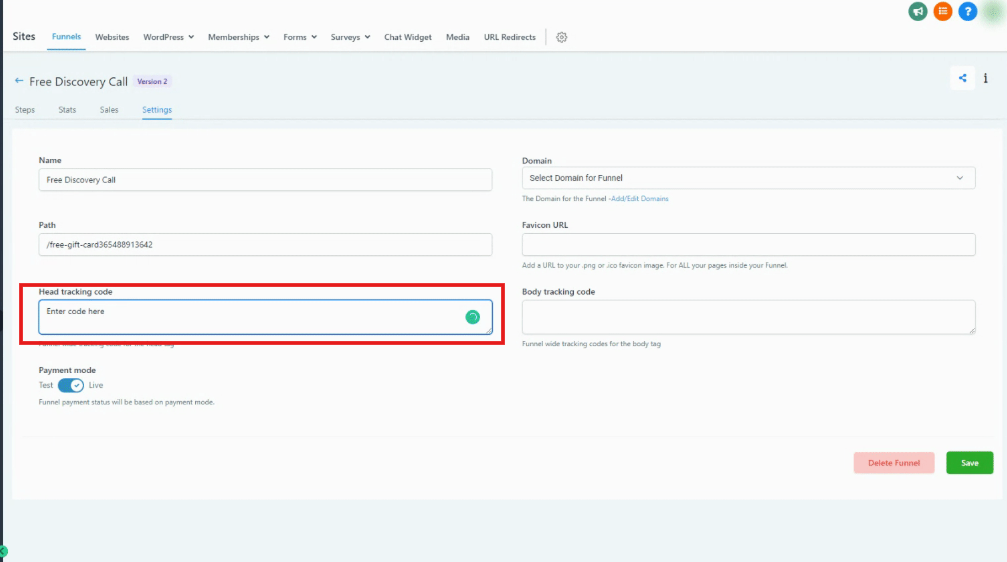
- Find the Tracking Code section
- Paste your GA4 tracking code into the Header Tracking Code field
- Click Save
Step 5: Verify It's Working
- Visit your enrollment page in a new browser window
- Go back to Google Analytics
- Click Reports Realtime
- You should see your visit appear within a few seconds
If you don't see data right away, wait 24 hours. GA4 sometimes takes time to start collecting data for new properties.
What You Can Track
Once set up, you'll be able to see:
- How many parents visit your enrollment pages
- Which pages get the most traffic
- How long families spend on each page
- Where visitors are coming from (Facebook, Google, direct links)
- What devices parents use (mobile vs desktop)
Need Help?
If you're having trouble seeing data in GA4, double-check that:
- You copied the entire tracking code (including the opening and closing script tags)
- You pasted it into the Header Tracking Code field, not the body
- Your enrollment page is published and publicly accessible
- You're looking at the correct property in Google Analytics