
How to Link Enrollment Opportunities with Invoices and Estimates
This article explains how to automatically and manually link invoices and estimates to enrollment opportunities in Enrollio. Keeping these records connected simplifies enrollment tracking, billing, and reporting for your childcare center.
What is Linking Opportunities with Invoices and Estimates?
Linking invoices and estimates to enrollment opportunities allows you to centralize sales and billing data for prospective families. Whether you're creating invoices manually or sending them via automation, each document stays connected to the relevant enrollment opportunity.
This is especially helpful when you're charging registration fees, holding deposits, or sending tuition estimates to families considering enrollment.
Key Benefits of Linking Opportunities with Invoices and Estimates
Connecting billing documents directly to enrollment opportunities ensures nothing gets lost in your enrollment process:
- Automatically associate every invoice or estimate with the relevant enrollment opportunity
- Get a complete financial history for each prospective family
- Reduce manual entry and potential for errors
- Enable seamless automation for registration fees and deposits
- View billing details directly from the enrollment opportunity record
- Keep your team aligned with centralized enrollment and payment visibility
How to Link Invoices and Estimates from an Enrollment Opportunity
Quickly link an invoice or estimate while managing an individual enrollment opportunity.
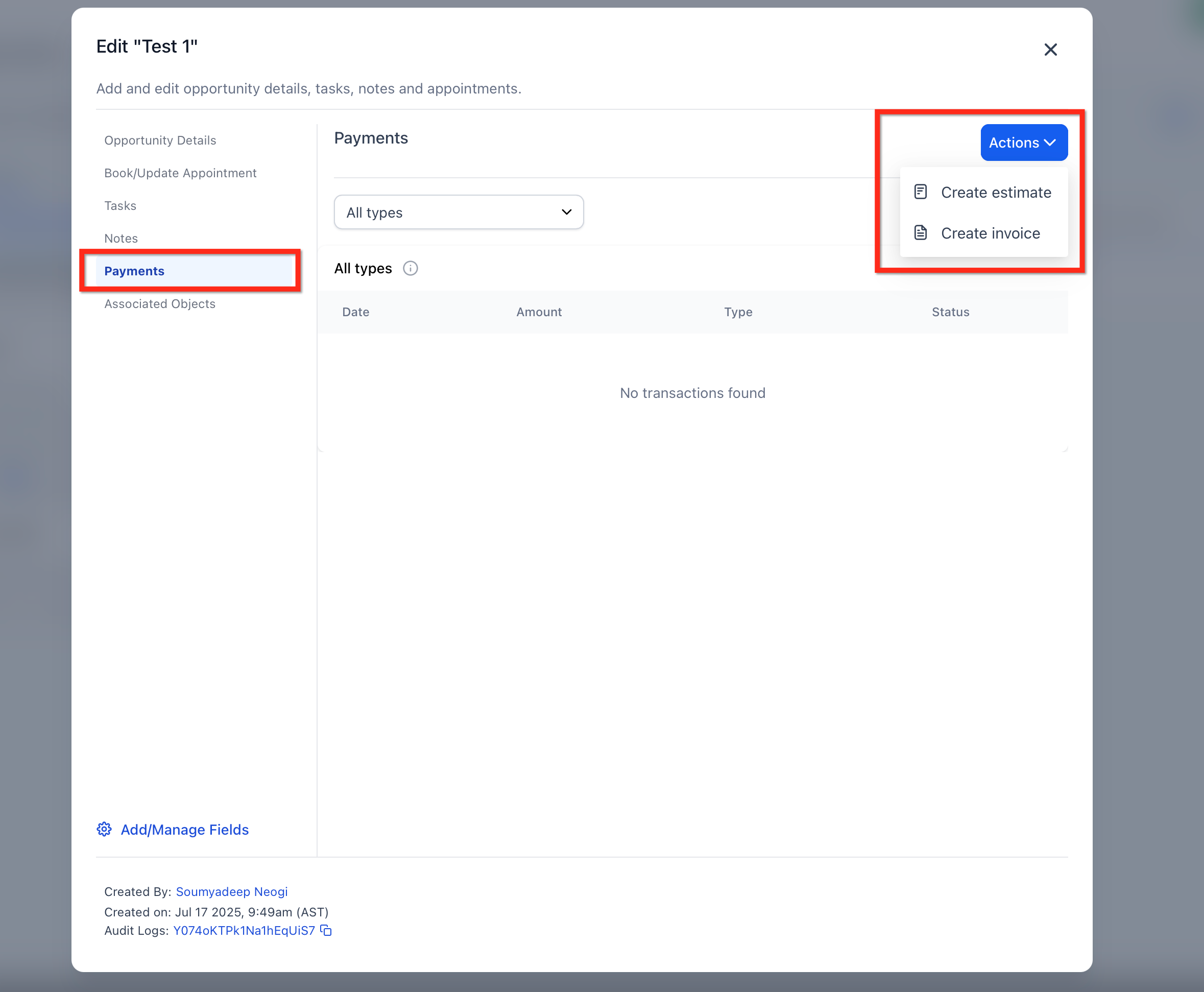
- Navigate to Opportunities and open an enrollment opportunity
- Click the Payments tab
- From the Actions menu, choose Create Invoice or Create Estimate
- You'll be redirected to the invoice/estimate editor with the enrollment opportunity already linked
- Complete the form and send when ready
How to Link via the Payments Tab
Use the main Payments area to manually associate invoices and estimates with enrollment opportunities.
- Go to the Payments tab in your main menu
- Switch to Invoices or Estimates using the dropdown
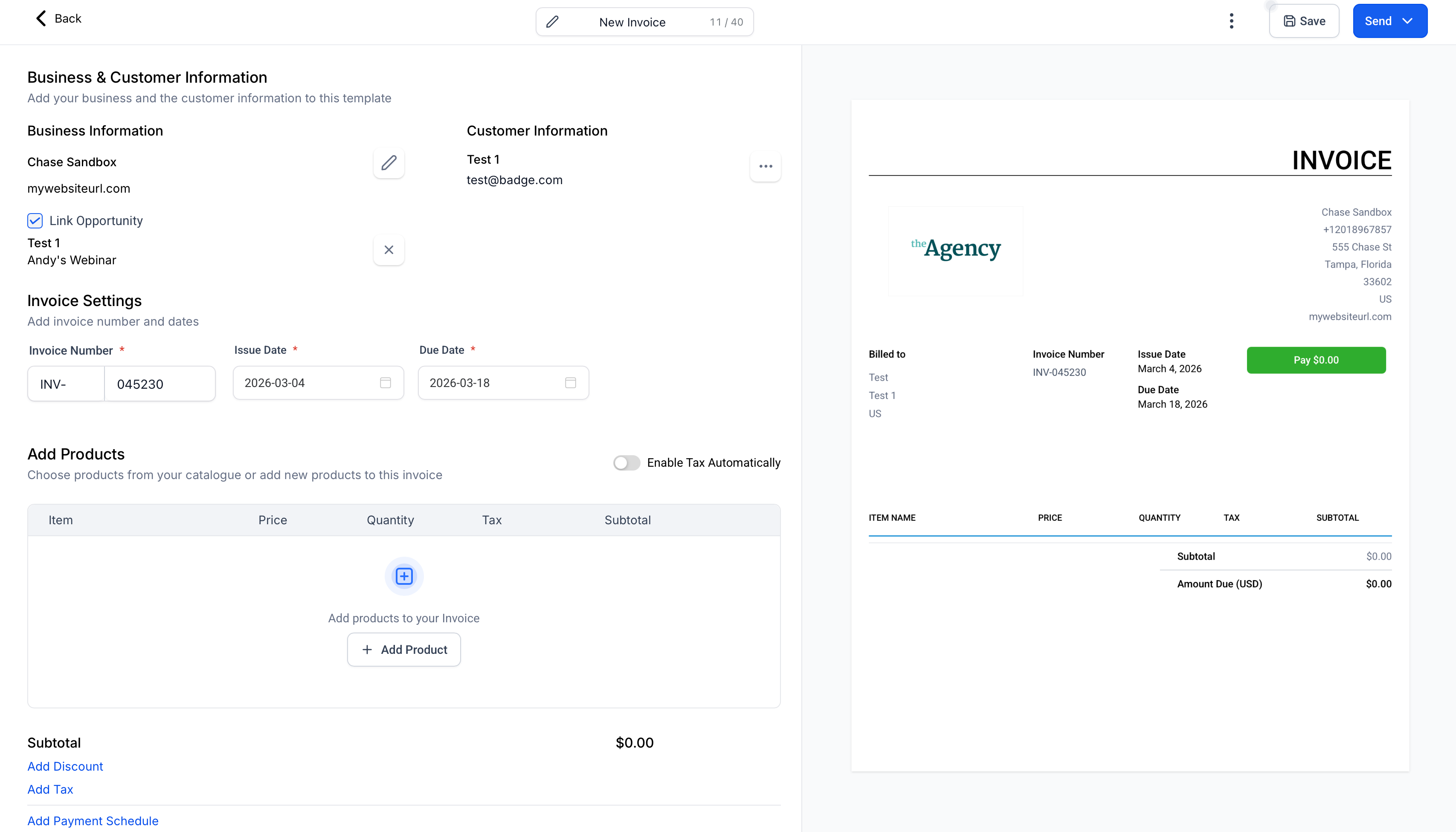
- Click Create Invoice or Create Estimate
- Select a parent or family from your contacts
- In the document editor, choose the relevant enrollment opportunity under "Link Opportunity"
How to Automatically Link via Automations
Automate the entire process so your invoices and estimates are generated and linked without manual effort. This is perfect for automatically sending registration fee invoices when a tour is scheduled or a family moves to a specific enrollment stage.
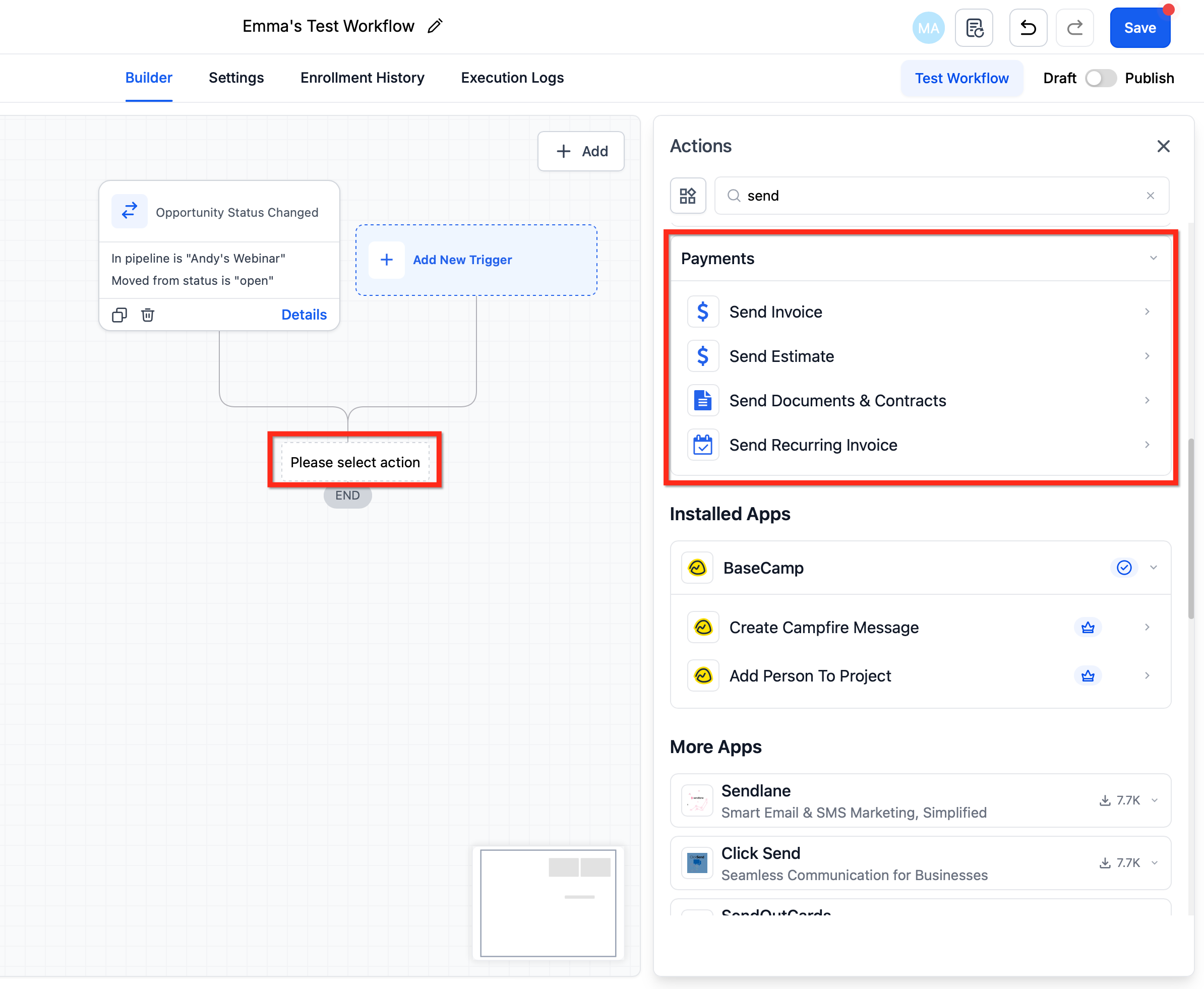
- Go to Automations and create a new one or open an existing one
- Use an enrollment opportunity-based trigger (e.g., stage change or status update)
- Add a Send Invoice or Send Estimate action
- The platform will create, send, and automatically link the document to the enrollment opportunity
Frequently Asked Questions
Can I link multiple invoices or estimates to one enrollment opportunity?
Yes, you can link multiple billing documents to a single enrollment opportunity. This is useful for charging registration fees, deposits, and first month's tuition separately as a family progresses through enrollment.
What happens if I forget to link an invoice?
You can manually edit the invoice later and link it to the correct enrollment opportunity from the Payments tab.
Can I unlink an invoice or estimate from an enrollment opportunity?
Currently, unlinking is not supported after the document is finalized. Consider cloning and reassigning it if needed.
Do automation-linked invoices appear in the enrollment opportunity view?
Yes, any invoice or estimate generated through an automation and tied to an enrollment opportunity will be visible in that opportunity's Payments tab.
Next Steps
- Explore the Automation Builder to streamline more enrollment actions
- Customize your enrollment opportunity stages to align with your billing steps (e.g., Tour Scheduled, Ready to Enroll, Registration Fee Paid)
- Use the Reporting feature to monitor revenue by enrollment opportunity