
Overview
Save time and increase payment completion rates by sending personalized payment links to multiple families at once. When families receive these links, their contact information is already filled in — making it quick and easy for them to complete payment.
What You Can Do with Personalized Payment Links
Send to Multiple Families at Once
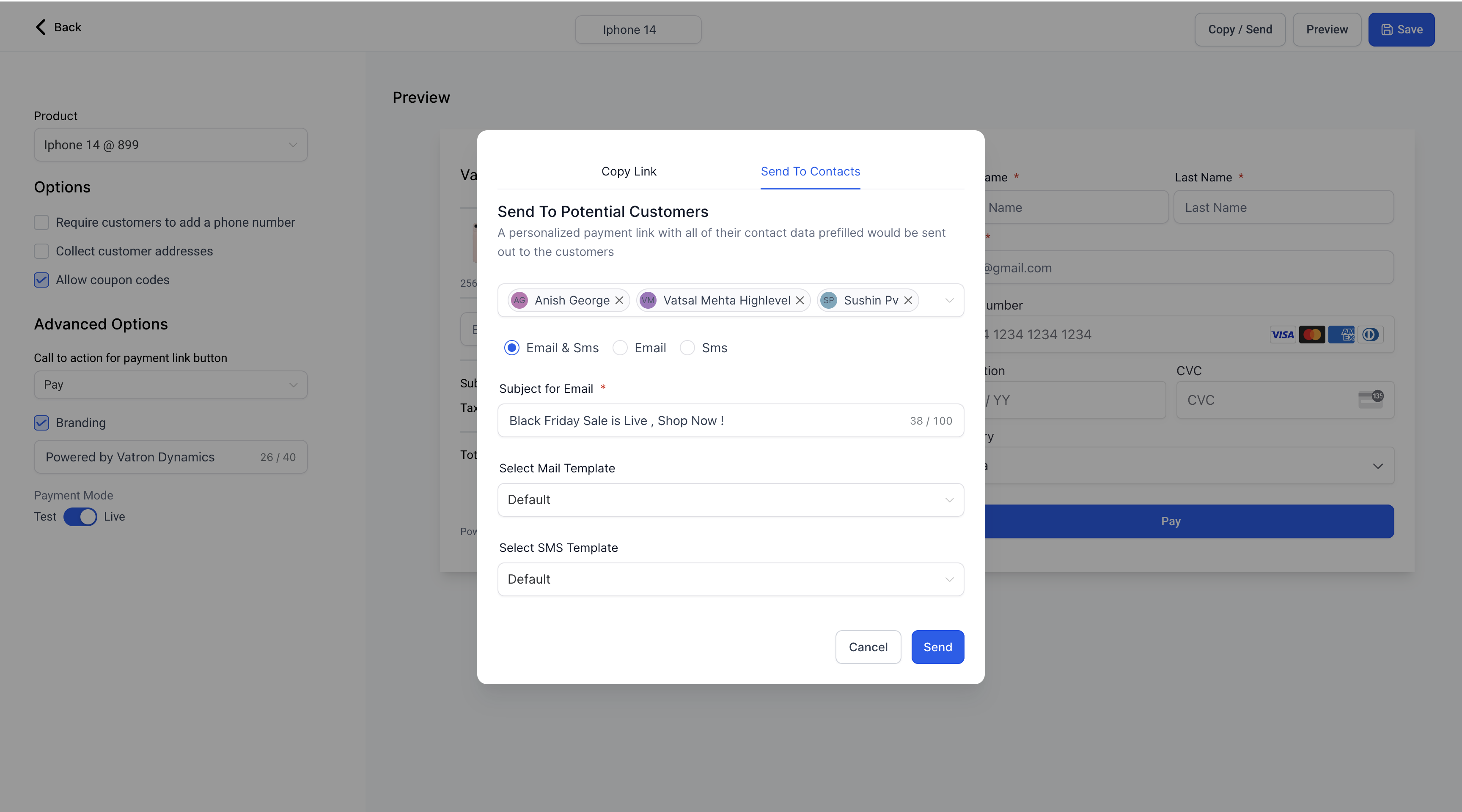
Select up to 50 families and send personalized payment links via email and text message directly from the payment link editor. Click the Copy/Send button in the top right corner to get started.
Customize Your Messaging
Create your own email and text message templates, or use the default templates provided. This lets you add a personal touch that reflects your center's voice.
Copy Individual Links
Need to send a link to just one family? Select a family from the dropdown to generate a personalized payment link you can copy and share however you'd like.
What Families See
When a parent opens their personalized payment link, their name, email, and phone number are already filled in. This creates a smooth payment experience and reduces friction — no typing required on their end.
How to Send Personalized Payment Links
- Go to Payments → Payment Links
- Click on an existing payment link to edit it, or create a new one and save it first
- Click the Copy/Send button in the top right corner
- Select the families you want to send the link to (up to 50)
- Choose whether to send via email, text message, or both
- Review or customize your message template
- Click Send
Note: You must save a payment link before you can send it to families. The Copy/Send button appears after saving.
Important Limitations
Maximum 50 Families Per Send
You can send personalized payment links to up to 50 families at a time. If you need to reach more families, simply repeat the process.
Valid Contact Information Required
Personalized links will only be sent to families who have both a valid email address and phone number in their profile. Double-check your family records if someone doesn't receive the link.
Do Not Disturb Settings
Payment links won't be sent to families who have enabled Do Not Disturb (DND) settings. You'll need to reach out to these families through an alternative method.