
What is QR Code Generation?
The QR Code Generator in Enrollio lets you create scan-ready codes that link to important destinations — like enrollment forms, tour booking pages, payment links, review pages, and more. These QR codes can be customized with your brand colors, logo, and style, then downloaded for use in printed materials or digital campaigns.
Key Benefits of QR Code Generation
Creating QR codes in Enrollio makes it easy to connect families with your childcare center. Whether you're running open house events, sending welcome packets, or promoting your program in the community, QR codes bridge the gap between physical and digital touchpoints.
- Create QR codes inside your client account
- Link to enrollment forms, tour booking pages, payment links, review pages, websites, and more
- Customize with your brand colors, shapes, logo, and style
- Export in PNG, SVG, or PDF formats
- Save and organize QR codes in folders for easy access
- Edit or delete previously created codes anytime
- Share QR code links directly without downloading images
- Test QR codes in real time during creation
How to Generate a QR Code
This section walks you through the full process — from setup to customization to download — using Enrollio's native QR Code Builder.
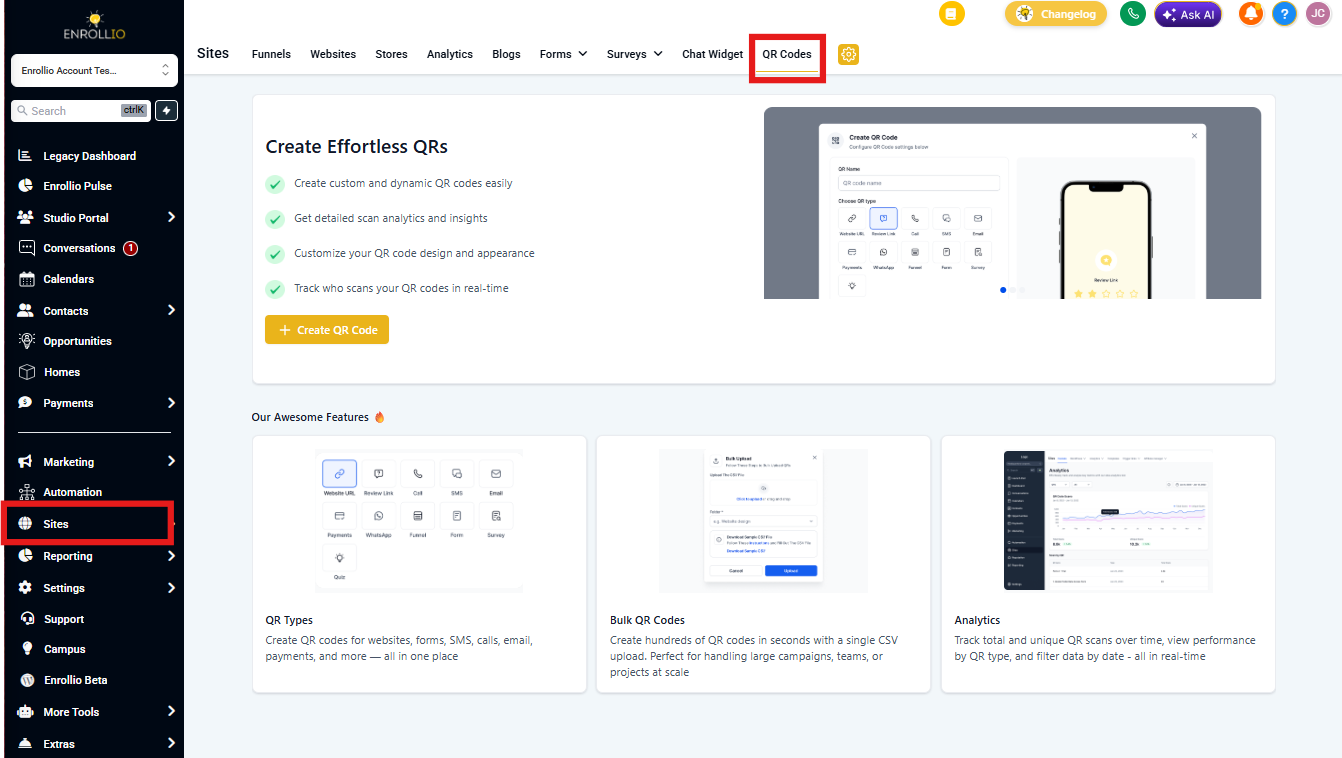
Step 1: Navigate to QR Codes
- From your client account dashboard, click Sites in the left-hand menu
- In the upper navigation ribbon, click QR Codes
- Click Create QR Code in the top right or + Create New in the center of the screen
Step 2: Add QR Name and Choose Type
- Enter a name for your QR code (e.g., "Spring Open House Tour Booking")
- Select the type of QR code you want to generate
- Paste in the URL or relevant input (phone number, review link, etc.)
- Click Next to begin customizing the design
Pro Tip: As soon as you enter your destination details, Enrollio automatically stores the data so you can test the QR code right inside the builder before saving. This means you can scan and confirm everything works without needing to re-edit later.
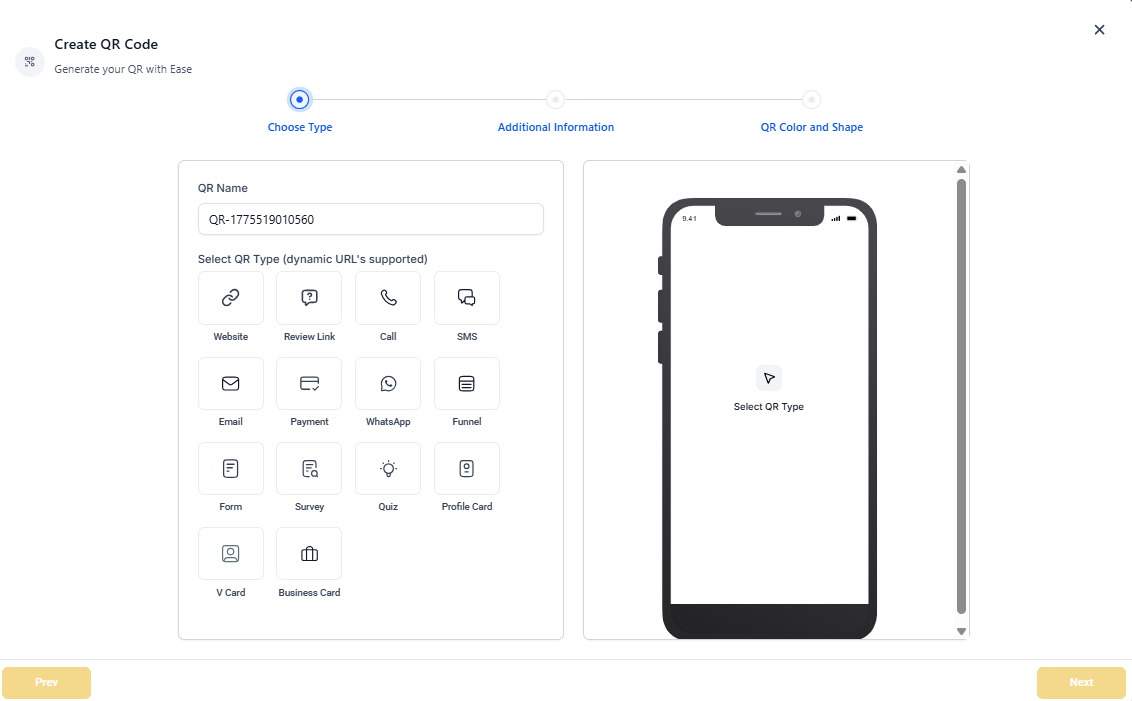
QR Code Types You Can Create
- Website — Link to your childcare center's website
- Landing Page — Direct families to enrollment pages or promotional campaigns
- Form — Connect to contact forms, waitlist forms, or enrollment applications
- Review Link — Make it easy for families to leave Google reviews
- Payment Link — Accept enrollment deposits or tuition payments
- Call — Auto-dial your center's phone number when scanned
- SMS — Pre-populate a text message to your center
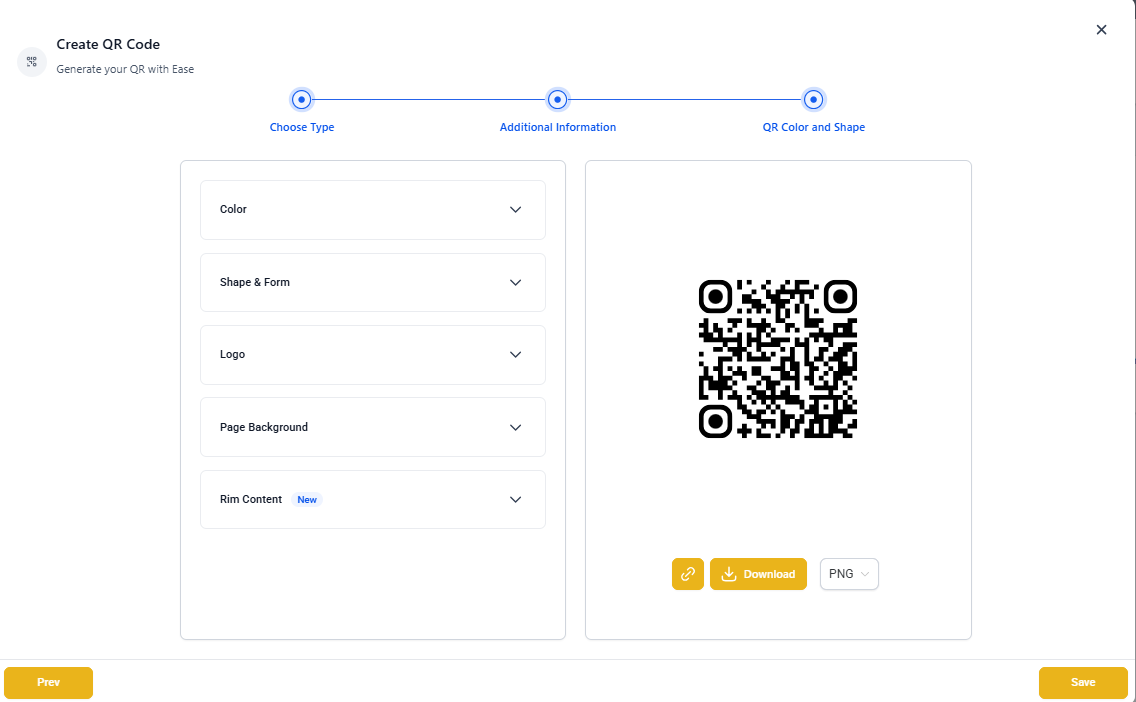
Step 3: Customize QR Code Design
Design flexibility is built into Enrollio's QR Code Builder. Here's how you can tailor your QR code's appearance to match your brand.
- Background Color — Change the background behind the QR elements
- Dot Color — Modify the color of the QR's data dots
- Dot Style — Choose between classic, square, or rounded shapes
- Marker Border & Center — Customize the corner markers' shape and color
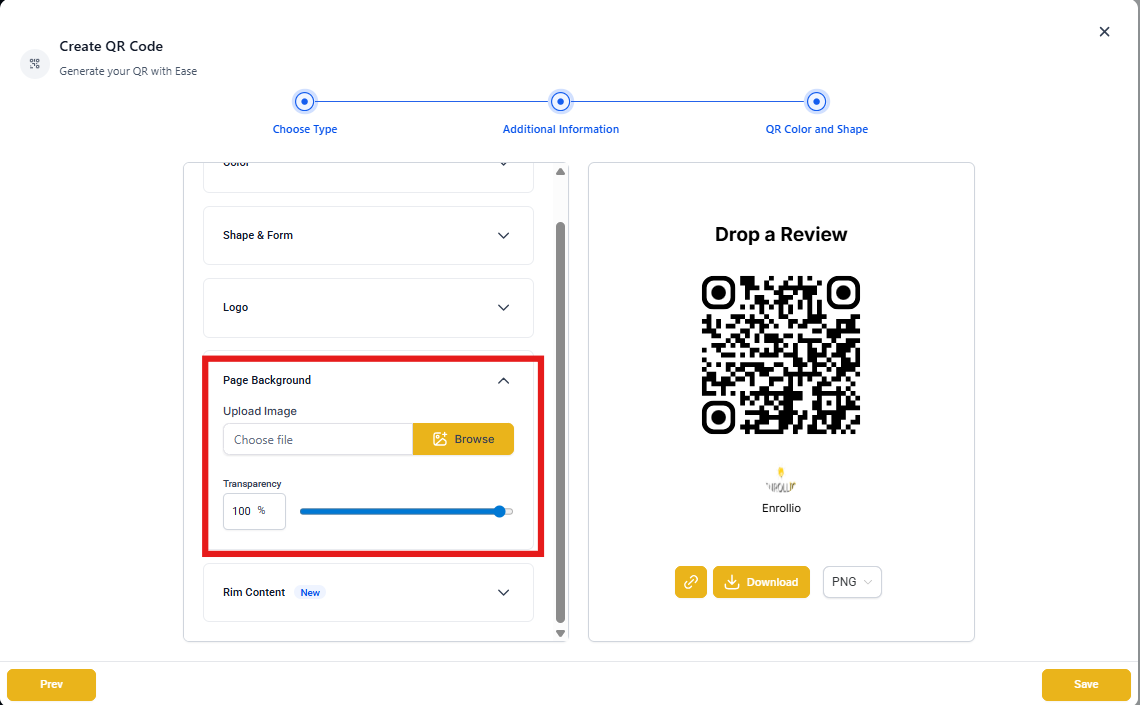
- Logo or Background Image — Add your center's logo in the center of the QR code or overlay a background image
Under the Logo tab, you can choose between no logo, predefined logos (Google, YouTube, etc.), or upload your own logo. You can also remove the background behind the logo if needed.
Downloading, Saving and Sharing QR Codes
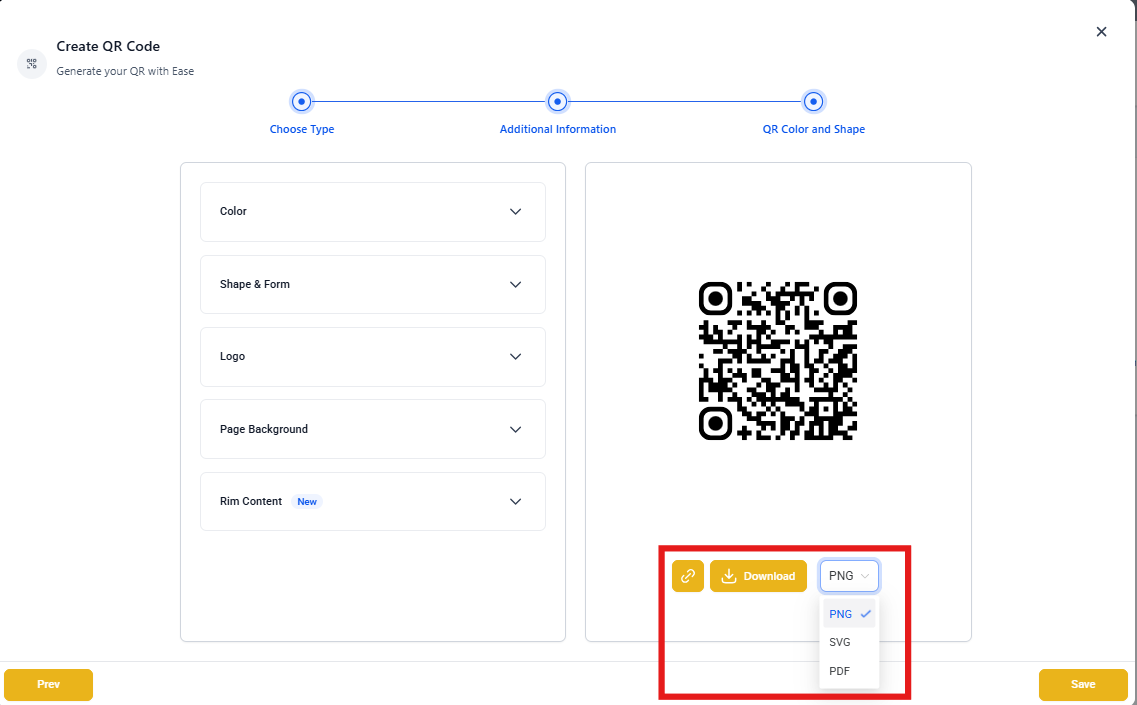
Once your QR code is fully customized, you have multiple ways to use it:
- PNG — Best for websites, email, and digital assets
- SVG — Ideal for responsive or scalable designs
- PDF — Suitable for print materials like brochures and posters
- Copyable Link — Instantly share a link to the QR code without downloading the image
If you're not ready to download, click Save and the QR code will appear under your QR Codes list for later use.
Managing QR Codes
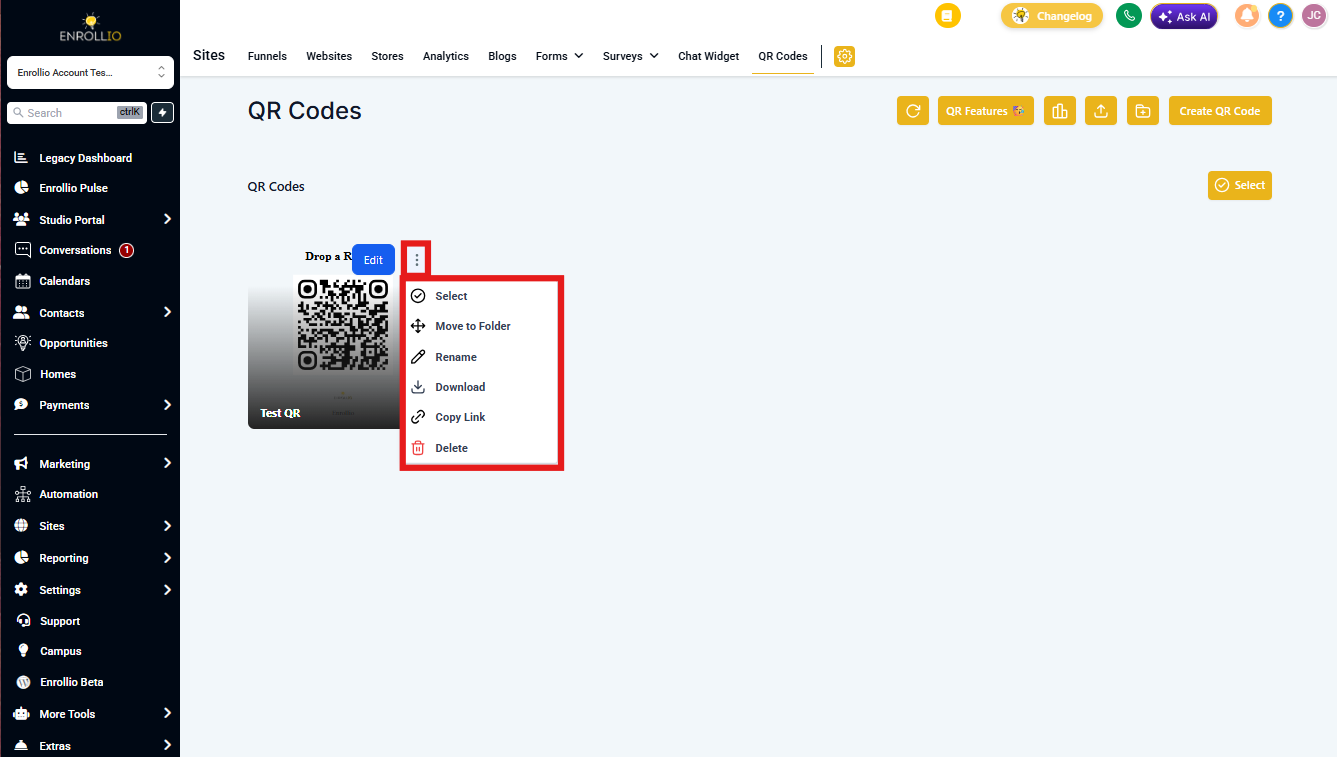
You can view, edit, move, or delete any QR code you've previously created:
- Navigate to the QR Code dashboard
- Hover over any code to see the action buttons
- Click the blue Edit button to edit details
- Click the 3-dot icon to delete, move, or download
- To move the QR code to a new folder, select Move to Folder then select the desired folder
Cropped QR Codes and Transparent PNGs
Automatic Cropping
If no background, header, or footer is added, the QR code is automatically trimmed. This ensures a cleaner, more compact appearance that's perfect for overlaying on existing designs.
True Transparency for PNGs
PNG QR codes can be generated with 100% transparency, making it easy to overlay the QR code onto existing designs or backgrounds in your favorite image editor.
To create a transparent PNG, adjust the background color alpha slider to the far left (0% opacity) within the QR code builder.
Pro Tip: Transparent QR codes are perfect for adding to welcome packets, enrollment folders, or branded materials where you want the code to blend seamlessly with your design.
Frequently Asked Questions
Can I use QR codes to link to things other than websites?
Yes! You can link to enrollment forms, landing pages, review pages, payment links, tour booking pages, and more.
What format should I choose for downloading?
- PNG for general use and digital materials
- SVG for responsive design and when you need to scale without quality loss
- PDF for print materials like brochures, posters, or welcome packets
Can I edit my QR code after I save it?
Yes. Hover over the QR code in your list and click the edit icon to update the destination or styling.
Can I use my own logo in the QR code?
Yes. You can upload your logo by pasting a hosted image file link or selecting from predefined logos.
Why is my QR Code cropped?
If there's no background, header, or footer, extra space is removed automatically to create a cleaner appearance.
Why doesn't my uploaded background image appear clearly?
Try adjusting the transparency slider and ensure the image dimensions are suitable for the QR canvas.
Where can I locate my saved QR codes?
You can find your saved QR codes in the QR Codes section of the platform. Navigate to Sites in the left menu, then click QR Codes in the top navigation. Your saved QR codes will be listed with their unique identifiers, allowing easy retrieval and downloading.
Do I always need to download the QR code to share it?
No. You can share a direct link to your QR code instantly, making it easier to distribute in digital channels like email campaigns or text messages.
Can I test the QR code before saving it?
Yes. The builder lets you scan and test your QR code in real time during creation, so you can confirm everything works before finalizing.
Real-World Use Cases for Childcare Centers
Open House Events
Print QR codes on flyers or posters that link directly to your tour booking page. Families can scan and schedule a visit on the spot.
Welcome Packets
Include a QR code that links to your parent portal login or important enrollment forms.
Review Generation
Place QR codes at your front desk or in parent communication areas that link to your Google review page.
Payment Collection
Send QR codes in enrollment confirmation emails that link directly to deposit or tuition payment pages.
Community Marketing
Use QR codes on yard signs, vehicle magnets, or community board postings to drive traffic to your enrollment site.