
If you don't see a submit button at the end of your survey, it's likely because you've enabled the "One Question at a Time" feature. This feature automatically advances to the next question without needing a traditional submit button.
Understanding Survey Navigation
When you turn on "One Question at a Time" mode, your survey works differently. Instead of showing all questions on one page with a submit button at the bottom, parents see one question at a time and move forward by clicking an arrow or button after each answer.
This creates a more engaging experience for parents filling out enrollment forms or satisfaction surveys, but it changes how the final submission works.
How to Show a Traditional Submit Button
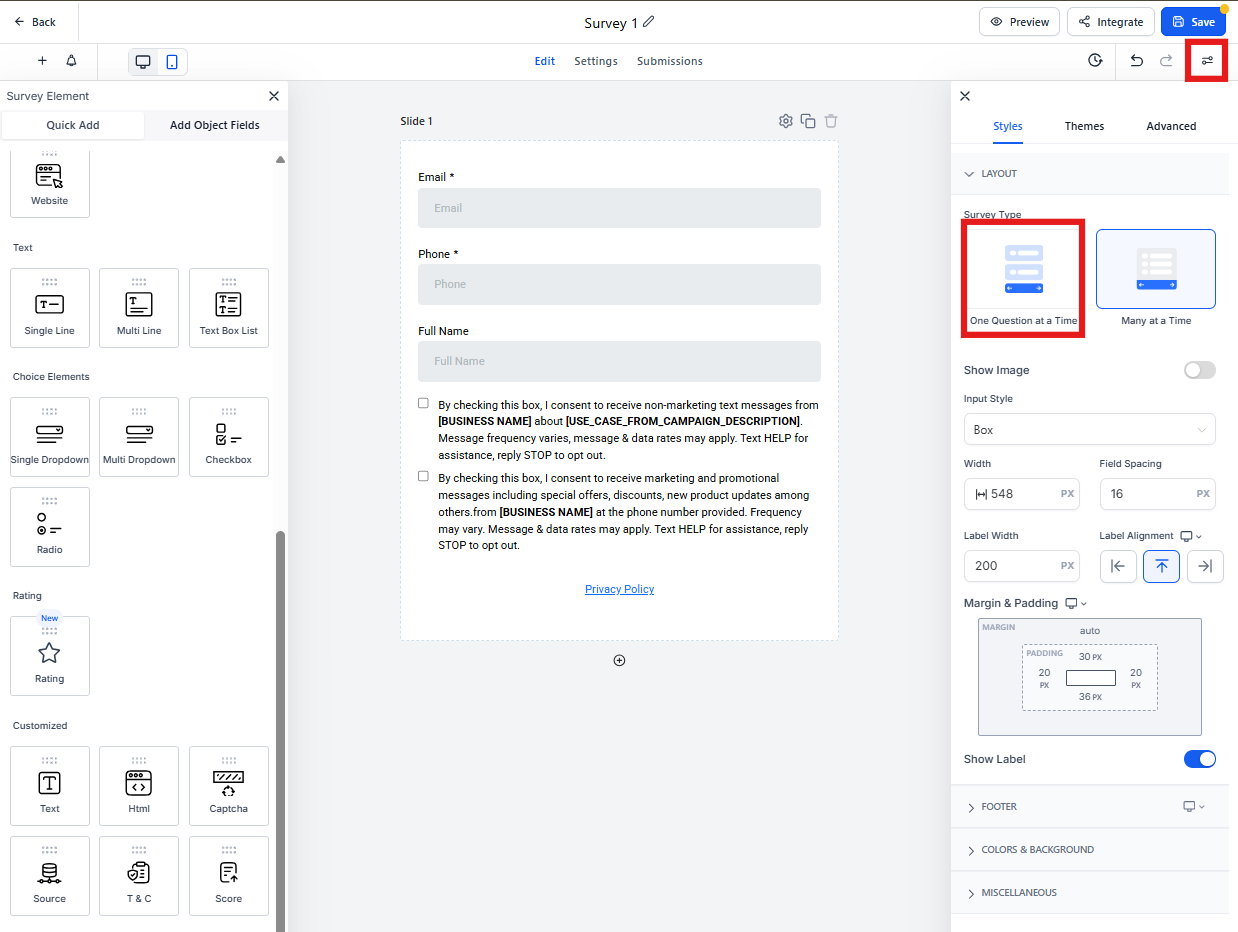
If you want a standard submit button at the end of your survey, you need to turn off the "One Question at a Time" setting:
- Go to Sites in your left navigation menu
- Click on Forms & Surveys
- Select the survey you want to edit
- In the survey builder, look for the Settings tab or gear icon
- Find the One Question at a Time toggle and turn it off
- Click Save
When to Use Each Option
One Question at a Time: Best for enrollment applications or parent surveys where you want to reduce overwhelm and increase completion rates. Parents focus on one question without seeing how many more are ahead.
Traditional Submit Button: Works well for quick forms like tour requests or waitlist sign-ups where parents expect to see all fields at once and submit when ready.
Pro Tip: Test your survey on mobile before sending it to parents. The one-question-at-a-time format often works better on phones, while traditional forms can feel cluttered on small screens.
Customizing Your Submit Button
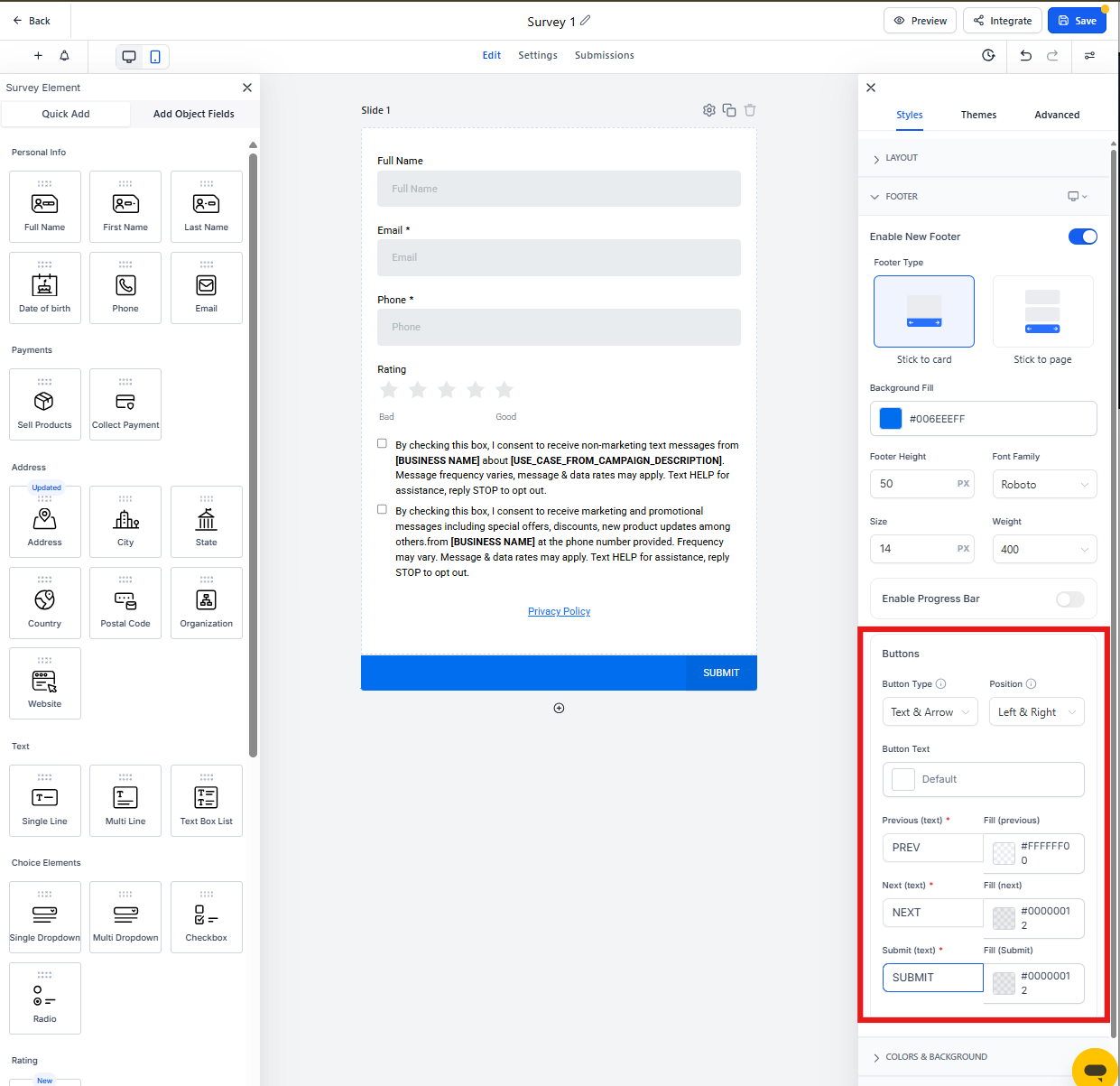
Once you've disabled "One Question at a Time," you can customize what your submit button says:
- In your survey builder, scroll to the bottom of your form
- Click on the submit button element
- Change the button text to something specific like "Submit Enrollment" or "Request Tour"
- Adjust the button color to match your branding
Still Not Seeing a Button?
If you've turned off "One Question at a Time" and still don't see a submit button, check that:
- You've saved your changes and refreshed the preview
- The submit button element hasn't been accidentally deleted from your form
- Your form has at least one question (empty forms may not show the button)
If you're still having trouble, reach out to Enrollio support and we'll help you troubleshoot your specific survey setup.