
Countdown timers create urgency and motivate families to take action by visually counting down to a deadline. They're perfect for limited-time enrollment offers, early bird pricing, or open house registrations.
In Enrollio, you can design custom countdown timers and add them to your enrollment pages with just a few clicks.
What is a Countdown Timer?
Countdown timers visually track the time remaining until a specific event or deadline. In Enrollio, these timers can be reused across multiple pages, styled to match your center's branding, and configured to behave differently depending on your goals.
Use them to drive urgency during enrollment periods, promote limited-time tuition discounts, or remind families about upcoming tour deadlines.
Key Benefits of Countdown Timers
- Create urgency: Display real-time countdowns that encourage immediate action
- Multiple timer types: Choose from Fixed, Recurring, and Dynamic timers to match your campaign style
- Reusable design: Build once and use across multiple enrollment pages without starting over
- Brand control: Customize fonts, sizes, colors, and time units to match your center's look
How to Create a Countdown Timer
Start by designing your countdown timer in the Marketing section before adding it to an enrollment page.
- Navigate to Marketing > Countdown Timers
- Click the blue + New button
- Choose a Countdown Timer template and click Continue with Template
- Under the General tab, choose your Timer Type:
- Fixed – Ends at a specific date and time (great for "spots available until Friday" promotions)
- Recurring – Resets on a regular schedule (perfect for daily enrollment deadlines)
- Dynamic – Personalizes based on when a parent opens your email or visits your page
- Set the Timer End Date, select your Time Zone, and add a Redirect URL (where parents go when the timer expires)
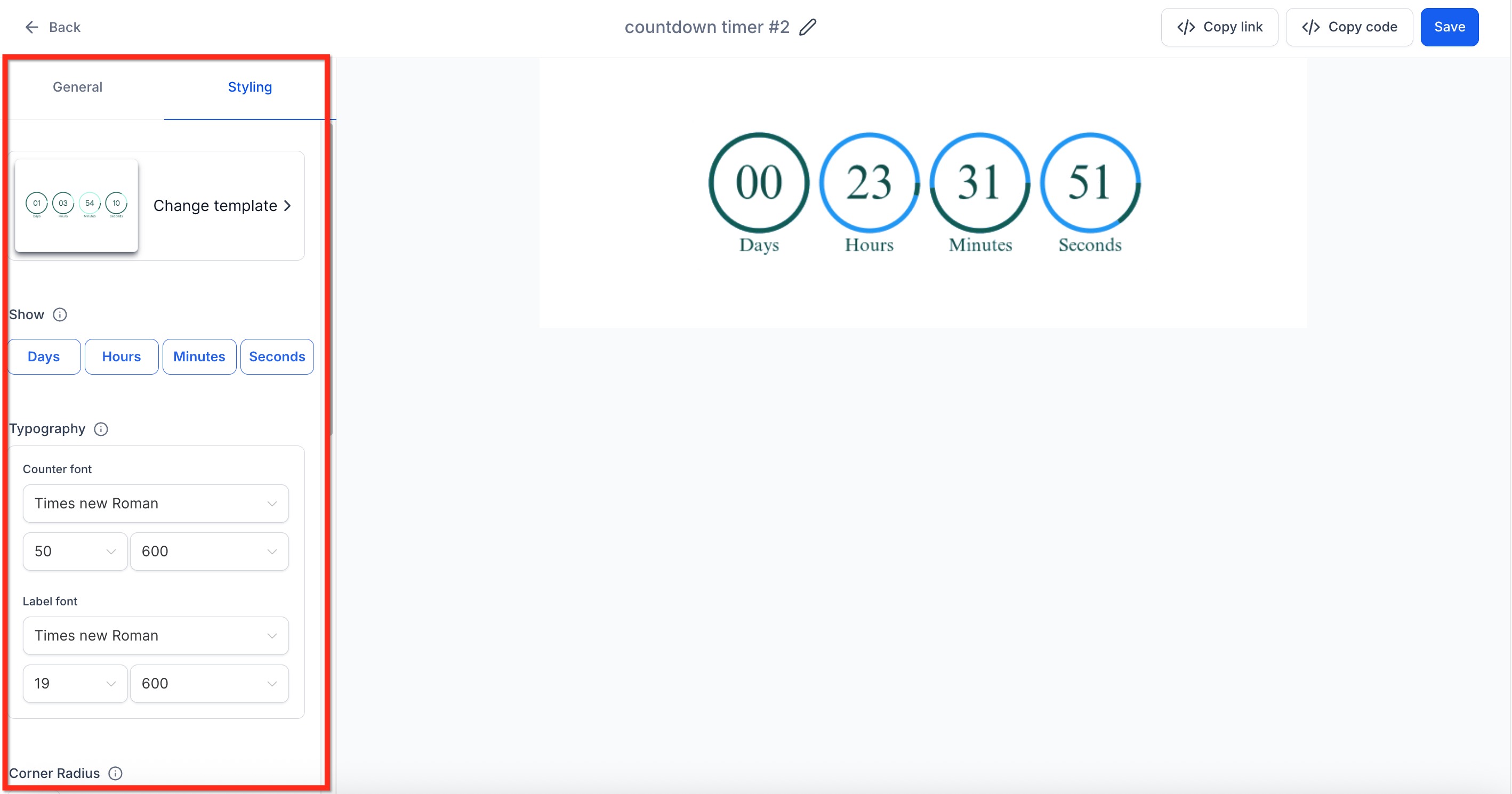
- Under the Style tab, toggle which time units to show (days, hours, minutes, seconds)
- Customize the timer's font, size, and color to match your branding
Add the Countdown Timer to an Enrollment Page
You can add your countdown timer using two methods: the HTML Countdown Timer element (recommended for most users) or the Code Block element (for advanced users or third-party platforms).
Using the HTML Countdown Timer Element
This is the easiest method for building enrollment pages inside Enrollio.
- Navigate to Sites > Funnels
- Select your enrollment site, then click Edit Page on the page you want to update
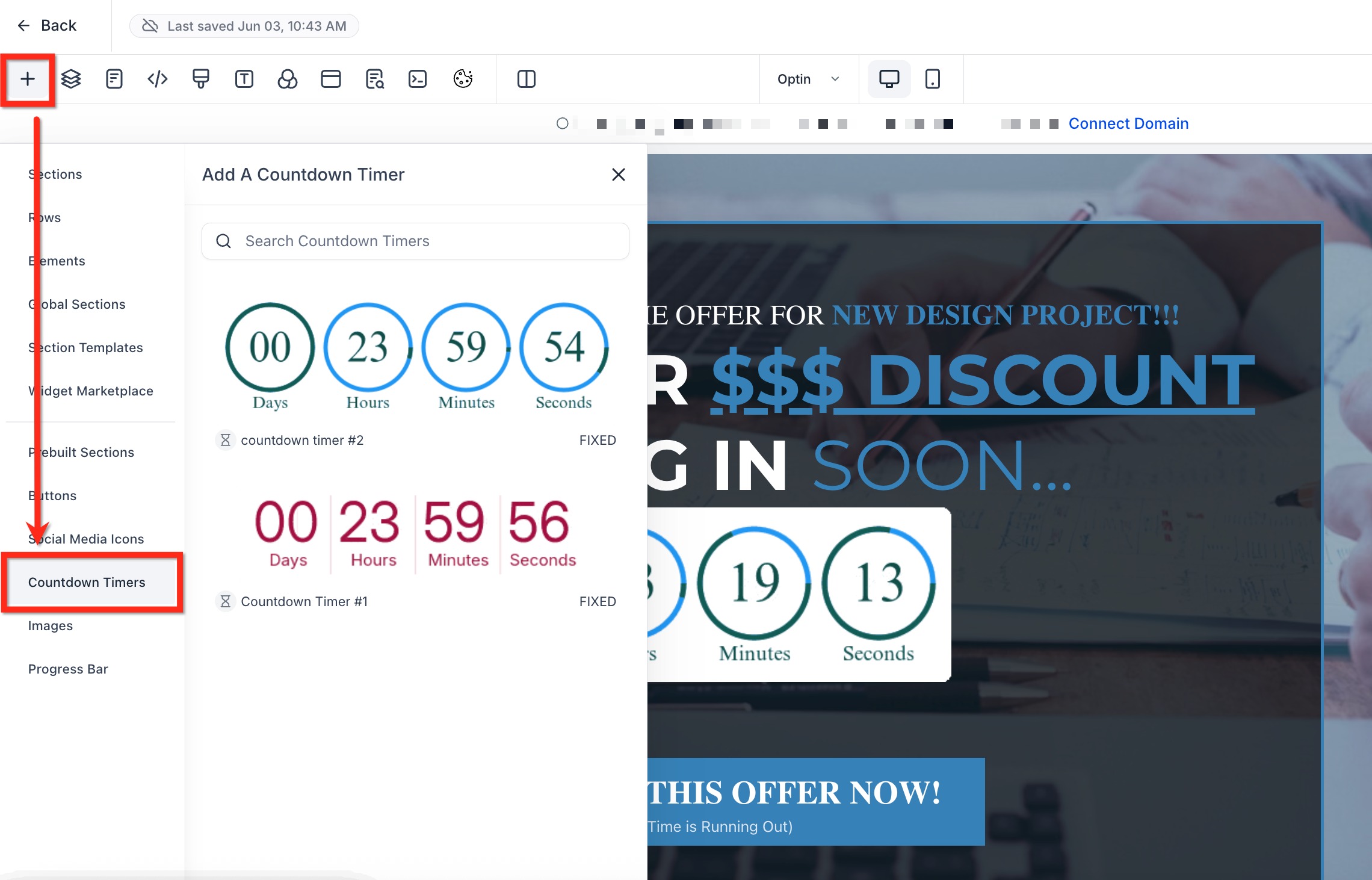
- In the top-left of the page builder, click the plus (+) icon to open the Add Element panel
- Select the Countdown Timers element
- Choose from your list of previously created timers
- Drag the timer into the correct section of your page
Using the Code Block Element
Use this method if you need to embed your countdown timer on a third-party platform or want more control over placement.
- Go to Marketing > Countdown Timers and click on the timer you want to use
- In the top right, click the Copy Code button
- Click the blue Copy button on the popup
- Open your enrollment page under Sites > Funnels
- Click the plus (+) icon in the top-left to open the element panel
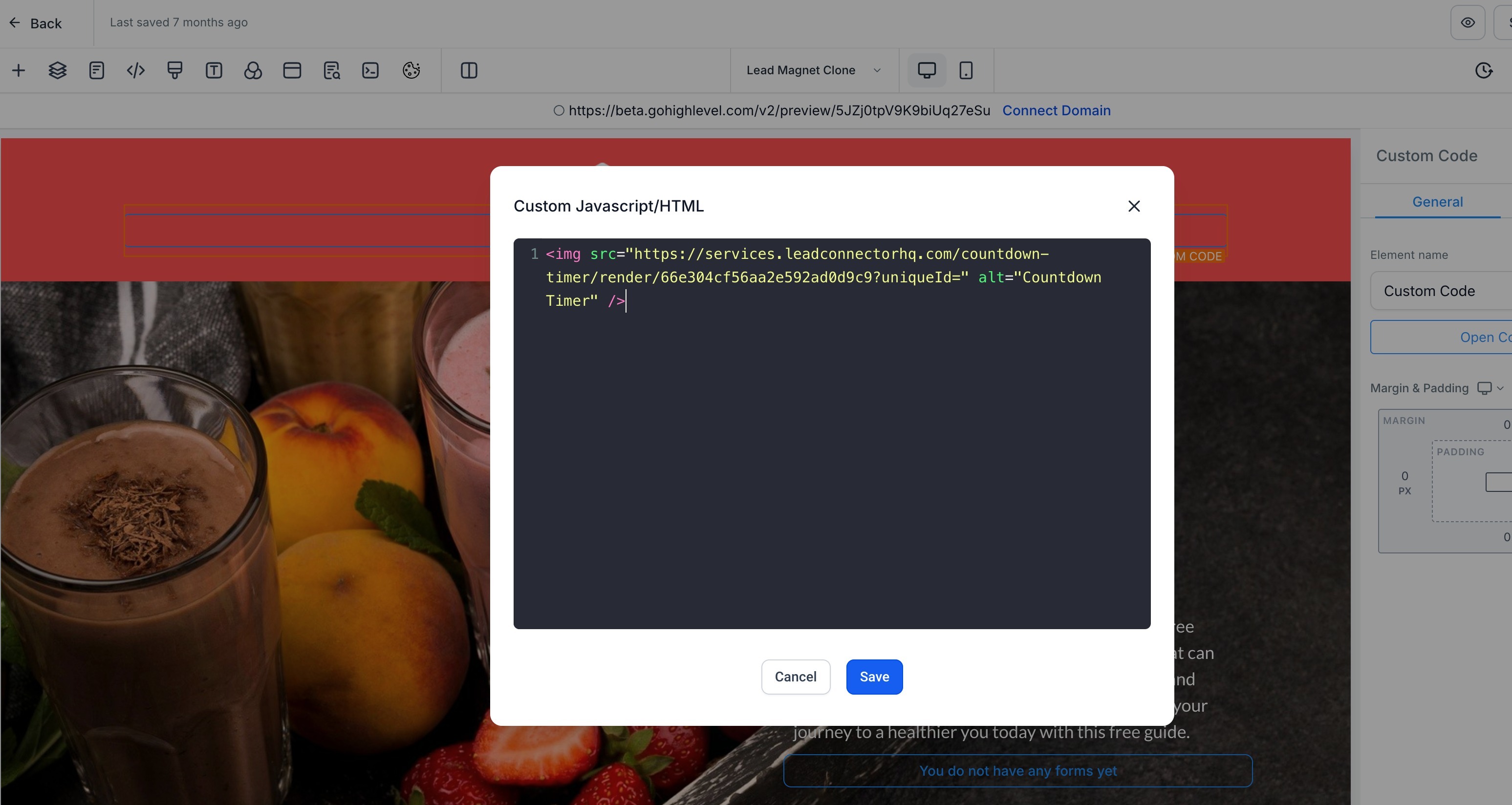
- Select the Code element and drag it where you want the timer to appear
- Click on the code block to open the editor, then paste the custom code you copied earlier
Pro Tip: Use Fixed timers for one-time enrollment campaigns ("Register by Friday for 10% off"), Recurring timers for ongoing daily deadlines ("Spots released every morning at 9 AM"), and Dynamic timers in email campaigns to personalize urgency for each family.
Frequently Asked Questions
Q: What's the difference between Fixed, Recurring, and Dynamic timers?
Fixed timers end at a specific global date/time. Recurring timers reset after a defined interval (e.g., every day at 9 AM). Dynamic timers create personalized countdowns that begin when a parent opens an email or visits a page.
Q: Can timers be used on multiple enrollment pages?
Yes, once you create a timer, you can reuse it on any enrollment page or website using either method.
Q: Can I use timers on third-party website builders?
Yes. Use the Copy Code feature and paste the snippet into your preferred platform.
Q: Can I update the timer without breaking it on existing pages?
Yes. Any updates you make to the timer will automatically reflect wherever it's been placed. To update a countdown timer, navigate to Marketing > Countdown Timers then click Edit on the timer you want to change.