
Enrollio's granular payment permissions let you delegate payment-related tasks safely by controlling exactly who can view, create, edit, refund, export, or configure each area of Payments. This guide defines every permission category, explains common role presets, and shows how to set up access the right way. Use it to speed up onboarding while protecting revenue operations and auditability.
What Are Granular Payment Permissions?
Granular payment permissions divide the former single Payments access into focused categories—Orders, Subscriptions, Transactions, Taxes, Products, and Payment Settings—each with standardized actions. This structure gives you precise control so your team members get only the access they need without exposing sensitive operations.
These are role-based access controls at the Client Account level that determine which users can View, Create, Update, Delete, Export, and Configure items across the Payments module. You can combine categories to tailor access for support, accounting, fulfillment, and management teams.
Key Benefits of Granular Payment Permissions
Understanding the benefits helps you decide which actions to allow per team. The goal is to reduce risk without slowing down day-to-day work.
- Minimize risk: Restrict high-impact actions (like refunds, product deletion, or tax configuration) to trusted users only.
- Faster onboarding: Assign just the categories and actions each role needs so new staff can start safely.
- Cleaner audits: Narrow permissions make it easier to trace who changed what and when using Audit Logs.
- Operational clarity: Clear categories reduce confusion about where tasks live (e.g., refunds vs. order edits).
- Better control: Bulk, import, and export capabilities are restricted based on permissions, protecting data quality.
What's New & Changed in Payments Permissions
Understanding what changed from the previous single Payments toggle helps you migrate confidently and set accurate expectations for staff. These updates streamline assignment, improve auditability, and reduce the risk of granting overly broad access.
- Permissions re-organized: Existing capabilities such as Refund Transactions and Manage Subscriptions now live inside their dedicated categories (Transactions and Subscriptions), making it easier to grant research access without refund rights, or subscription oversight without full payments access.
- Standardized actions: Each category now uses a consistent action set—View, Create, Update, Delete, Export, Configure—so roles are simpler to compare, train on, and audit across Payments.
- Smart dependencies: Certain high-impact tools depend on foundational permissions. For example, bulk product actions and CSV imports require Create/Update access, preventing accidental multi-record changes by read-only users.
- Tighter control of sensitive operations: You can explicitly decide who may issue refunds, edit subscriptions, or adjust tax settings, increasing financial control while preserving day-to-day efficiency.
Orders Permissions
Orders permissions govern one-time orders and charges created through Payment Links, checkout pages, stores, and point-of-sale. Use these for teams that process orders and need read/export access, with editing reserved for responsible owners.
Recommended for: Fulfillment or support teams that need to look up orders, export lists, and perform limited adjustments.
| Action | What It Controls |
|---|---|
| View | See order details, customer info, and payment status |
| Create | Process new orders manually |
| Update | Edit order details, add notes, update fulfillment status |
| Delete | Remove orders (high-risk action—use sparingly) |
| Export | Download order data for reporting |
Subscriptions Permissions
Subscriptions permissions cover recurring billing lifecycles—creating plans, assigning subscriptions to families, pausing/resuming, canceling, and making updates like payment method changes. Grant these to roles responsible for subscription health and retention.
Recommended for: Finance/Billing teams and Account Managers who own subscription health and retention; grant View to support and limit Create/Update/Cancel to designated owners.
| Action | What It Controls |
|---|---|
| View | See subscription details, billing history, and status |
| Create | Set up new subscription plans or assign them to families |
| Update | Pause, resume, or modify subscription details |
| Delete | Cancel subscriptions permanently |
| Export | Download subscription data for analysis |
Transactions Permissions
Transactions permissions apply to completed payments and refunds. These are sensitive because they allow refunding money and downloading official receipts, so keep tight control and separate "view" from "refund" when possible.
Recommended for: Billing Support for research (View/Export/Receipts) and Controllers/Accountants for refunds; restrict refund rights to finance leads only.
| Action | What It Controls |
|---|---|
| View | See transaction history and payment details |
| Create | Process manual transactions |
| Update | Issue refunds and adjust transaction records |
| Export | Download transaction data and receipts |
Taxes Permissions
Taxes permissions control who can configure or adjust tax behavior, including manual rates and automatic tax calculation features. Because tax settings impact compliance, reserve these permissions for finance owners.
Recommended for: Accountant/Controller or Finance Admin responsible for compliance; avoid granting Configure/Delete to non-finance users.
| Action | What It Controls |
|---|---|
| View | See tax rates and configurations |
| Create | Add new tax rates or rules |
| Update | Modify existing tax settings |
| Delete | Remove tax configurations |
| Configure | Adjust automatic tax calculation settings |
Products Permissions
Products permissions determine who can create, edit, duplicate, import/export, or delete products—changes that cascade to Payment Links, stores, and enrollment pages. Limit destructive actions and require review for catalog changes.
Recommended for: Store Manager or Product/Catalog Owner for day-to-day updates; reserve Import/Export/Delete for administrators.
| Action | What It Controls |
|---|---|
| View | See product catalog and details |
| Create | Add new products, tuition plans, or registration fees |
| Update | Edit product details, pricing, and descriptions |
| Delete | Remove products from catalog |
| Export | Download product data |
| Import | Bulk upload products via CSV |
Payment Settings Permissions
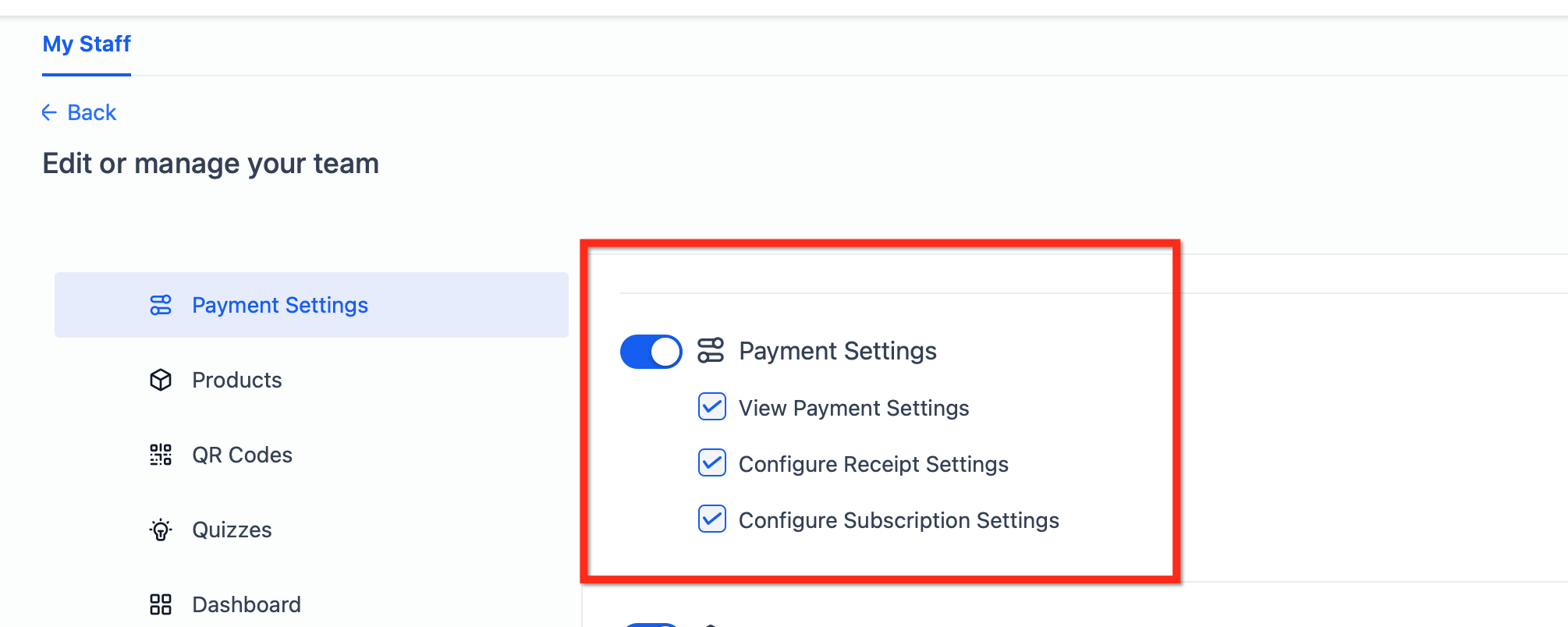
Payment Settings permissions cover global payment preferences such as receipts, subscription defaults, and payment-related notifications. These shape the family experience and should be restricted to administrators and brand owners.
Recommended for: Administrators or Brand/Finance Owners who manage receipts, defaults, and notifications; keep configuration centralized.
| Action | What It Controls |
|---|---|
| View | See payment configuration and defaults |
| Configure | Adjust receipt templates, notification settings, and payment defaults |
How To Set Up Granular Payment Permissions
Proper setup ensures users can complete their tasks without unnecessary risk. Follow these steps to assign only the access required and verify the results.
- Go to Client Account Settings → My Staff, locate the user, and click the pencil (edit) icon.
- Expand the Roles & Permissions section and select the required category.
- For each category—Orders, Subscriptions, Transactions, Taxes, Products, Payment Settings—toggle the actions the role needs (View, Create, Update, Delete, Export, Configure).
- Click Save.
- (Optional) Click Copy Permissions to apply the same configuration to another user.
- Have the user sign out and back in (if needed) and validate access using a test record (e.g., open a product, view a transaction).
Recommended Role Presets
These presets are recommendations that map common job functions to safer permission sets. Always adapt to your organization's policies and compliance requirements.
Center Director / Administrator
Access level: Full access to all payment categories
Use case: Oversees all financial operations, configures payment settings, manages refunds and sensitive data
| Category | Permissions |
|---|---|
| Orders | View, Create, Update, Delete, Export |
| Subscriptions | View, Create, Update, Delete, Export |
| Transactions | View, Create, Update, Export |
| Taxes | View, Create, Update, Delete, Configure |
| Products | View, Create, Update, Delete, Export, Import |
| Payment Settings | View, Configure |
Billing / Finance Team
Access level: Full transaction and subscription management, limited product editing
Use case: Processes refunds, manages subscriptions, handles billing inquiries, exports financial reports
| Category | Permissions |
|---|---|
| Orders | View, Export |
| Subscriptions | View, Create, Update, Delete, Export |
| Transactions | View, Update (refunds), Export |
| Taxes | View, Configure |
| Products | View |
| Payment Settings | View |
Enrollment Coordinator
Access level: Create orders and subscriptions, view-only for most other areas
Use case: Enrolls families, sets up tuition plans, processes registration fees, needs limited refund access
| Category | Permissions |
|---|---|
| Orders | View, Create, Update, Export |
| Subscriptions | View, Create, Update, Export |
| Transactions | View, Export |
| Taxes | View |
| Products | View |
| Payment Settings | View |
Front Desk / Support Staff
Access level: View-only access for research and family inquiries
Use case: Looks up payment status, answers billing questions, cannot process refunds or modify records
| Category | Permissions |
|---|---|
| Orders | View |
| Subscriptions | View |
| Transactions | View |
| Taxes | View |
| Products | View |
| Payment Settings | None |
Marketing / Product Manager
Access level: Full product management, view-only for orders and transactions
Use case: Manages tuition plans, registration fees, and catalog; monitors sales performance
| Category | Permissions |
|---|---|
| Orders | View, Export |
| Subscriptions | View |
| Transactions | View |
| Taxes | View |
| Products | View, Create, Update, Export |
| Payment Settings | None |
Frequently Asked Questions
Can I grant refund access without full transaction permissions?
Yes. Grant View + Update in the Transactions category. Update includes refund capabilities, so you can give someone refund rights without allowing them to create new transactions.
What happens if I remove someone's payment permissions?
They'll lose access immediately. Any payment-related pages or actions will show permission errors. Make sure to communicate changes before adjusting access.
Can I copy permissions from one user to another?
Yes. After configuring permissions for one user, click Copy Permissions and select the target user. This saves time when setting up similar roles.
Why can't my staff member use bulk product actions?
Bulk actions and CSV imports require Create/Update permissions in the Products category. This prevents read-only users from accidentally modifying multiple records.
How do I track who made changes to payment settings?
Use the Audit Logs feature to see a complete history of who changed what and when. This is especially useful for financial compliance and troubleshooting.
Should front desk staff have any payment permissions?
Most front desk roles only need View access to Orders, Subscriptions, and Transactions so they can answer family questions about billing. Avoid granting Create, Update, or Refund access unless they're responsible for enrollment or billing support.
Can I restrict access to specific products or subscription plans?
Not at this time. Permissions are category-level (all Orders, all Products, etc.). If you need more granular control, consider using separate Client Accounts for different programs or locations.
Related Articles
- Create and Share Payment Links
- Getting Started — Sell Products
- Create or Schedule Subscriptions
- How to Manage Refunds
- User Audit Logs