
QR codes make it easy for parents to access your enrollment site, tour booking page, or reviews instantly. With Enrollio's QR code builder, you can create branded, trackable QR codes in minutes.
Creating a QR Code for Your Enrollment Site
- Navigate to the QR Code builder. Go to Sites > QR Codes > Create QR Code.
-
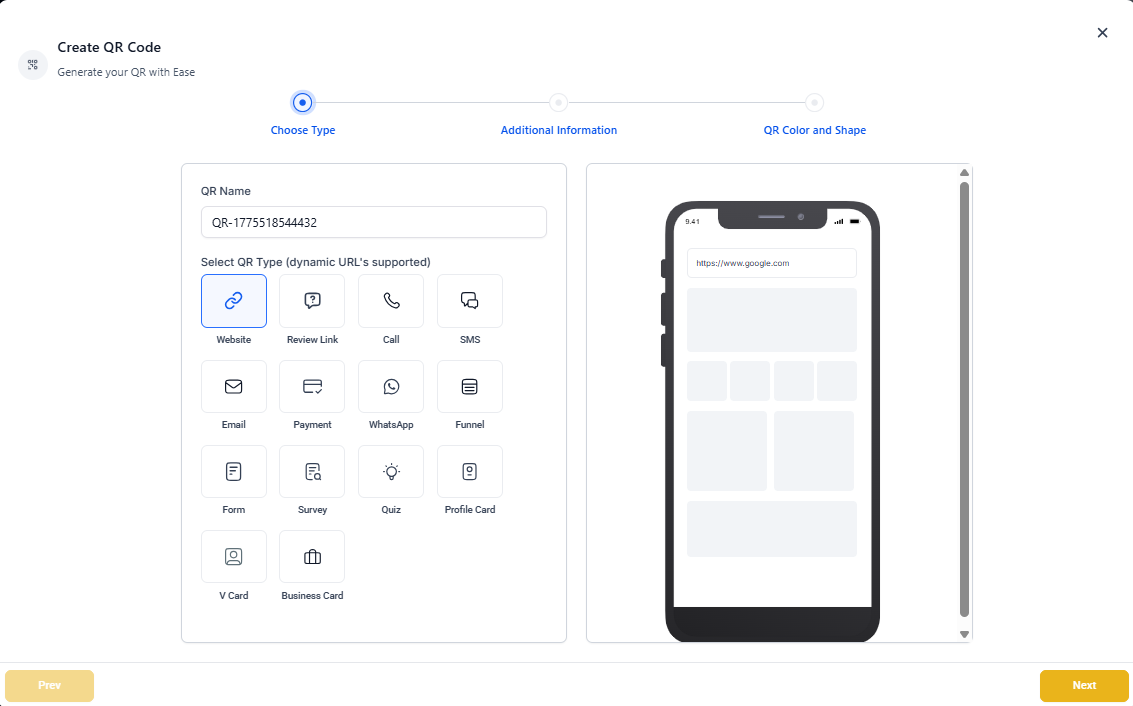
Name your QR code and select type. Add a descriptive name (like "Main Enrollment Site" or "Open House Flyer") and select QR Type as Website. Click Next.
-
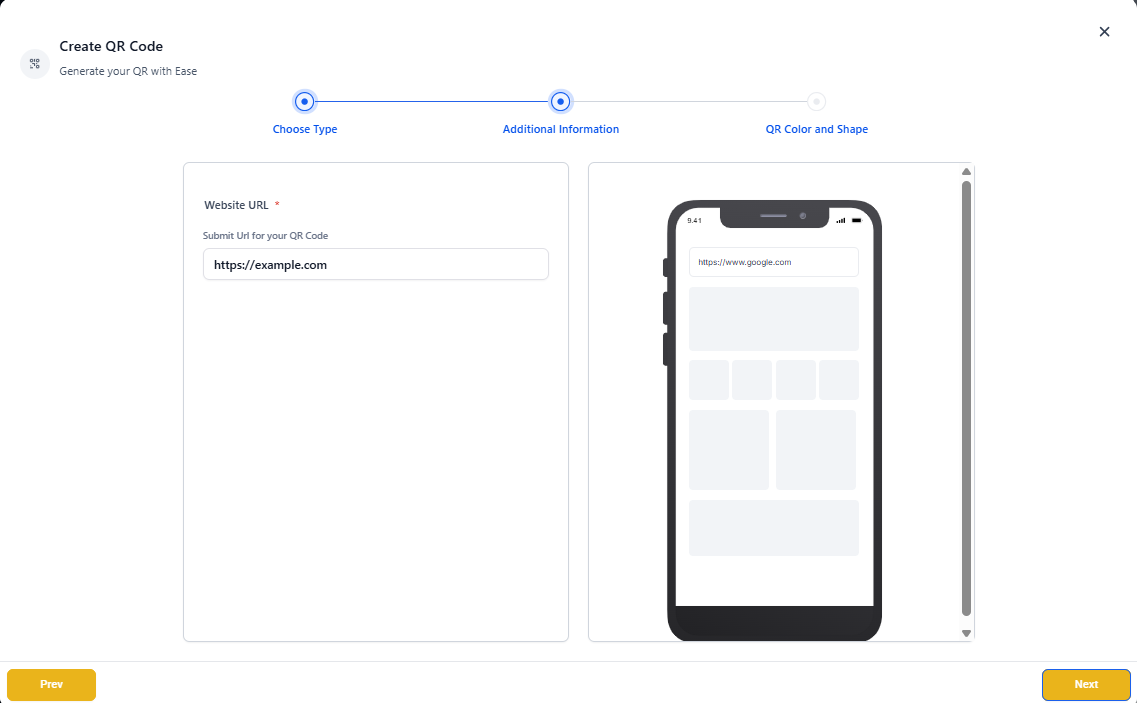
Add your website URL. Enter the full URL of your enrollment site or landing page. Don't worry—you can update this URL later if you need to redirect parents to a different page.
-
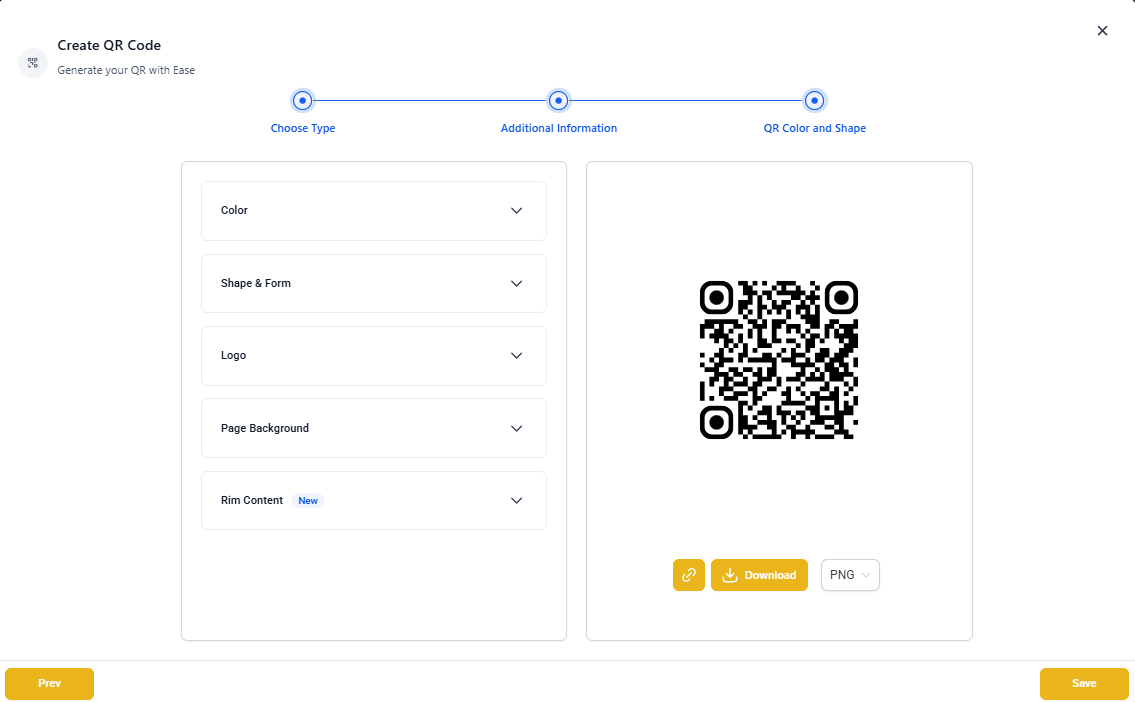
Customize your QR code design. Make your QR code on-brand by adjusting:
- Color: Match your center's branding
- Shape & Form: Choose different corner and dot styles
- Center Logo: Add your logo in the middle
- Background Image: Add a branded background
Use the preview to test your QR code with your phone before saving. When you're happy with the design, download it as a PNG and click Save to publish.
Pro Tip: Print your QR code on open house flyers, yard signs, brochures, or business cards so parents can quickly access your enrollment site or book a tour on the spot.
Tracking QR Code Performance
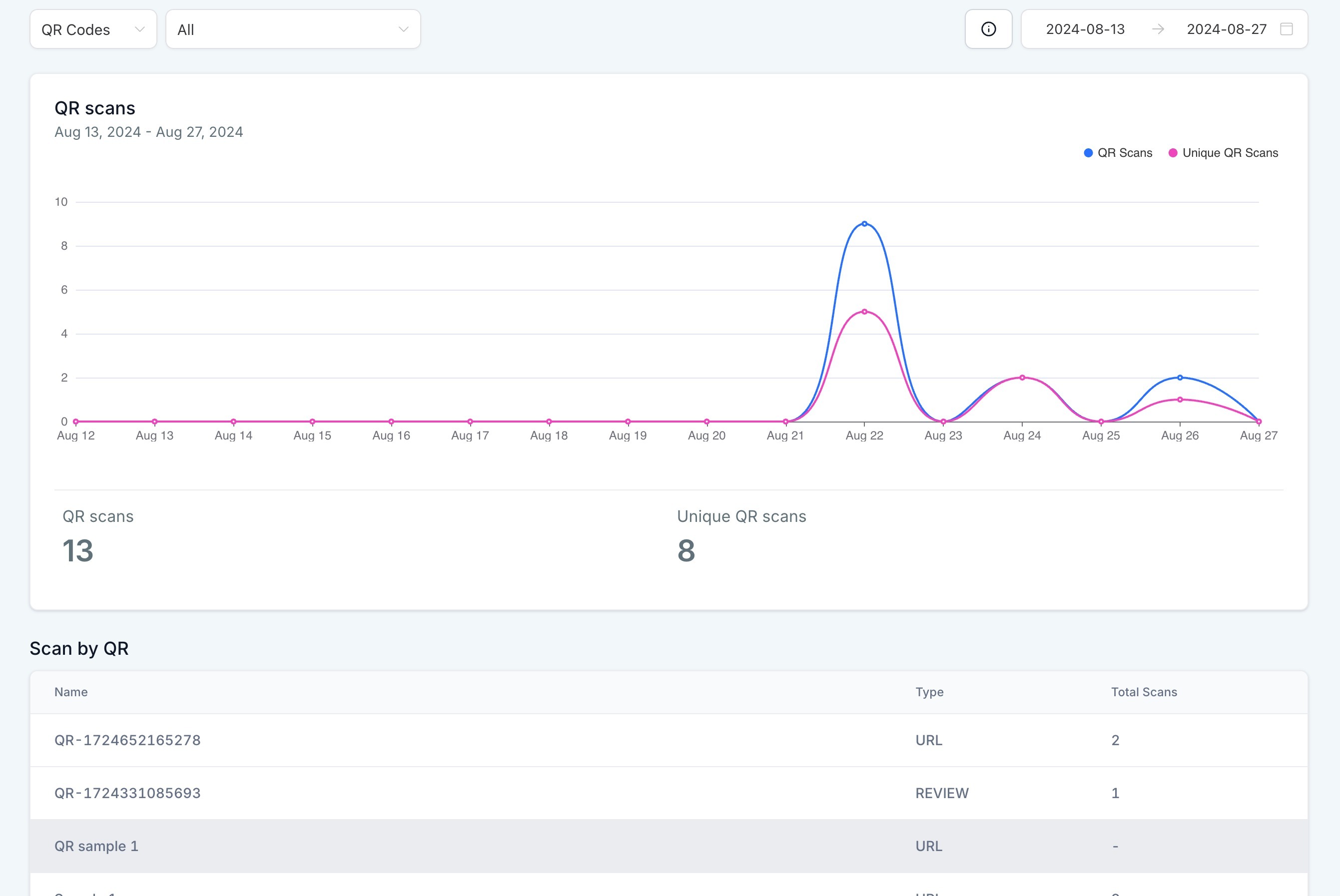
Want to see how many parents are scanning your QR codes? Go to Sites > QR Codes > Analytics.
You'll see total scans and unique scans for each QR code. This helps you understand which marketing materials are driving the most parent engagement.
Pro Tip: Create different QR codes for different marketing channels (flyers, yard signs, mailers) so you can track which brings in the most families.