
What Is the Mobile Progress Bar for Surveys & Forms?
The mobile progress bar adds a visual fill line to multi-step surveys and forms when parents view them on their phones. It stays hidden on desktop and single-step forms, keeping things clean while showing progress where it matters most.
This simple feature helps more parents complete your enrollment forms and surveys by showing exactly how much is left.
Key Benefits of the Mobile Progress Bar
- Visual Guidance: Parents see how many steps remain, reducing drop-off
- Brand Consistency: Pick custom colors for step text, progress fill, and inactive segments to match your center's branding
- Seamless Integration: Works with both "Stick to card" and "Stick to page" footer styles
- Higher Completion Rates: Clear progress feedback encourages parents to finish your form
How to Set Up the Mobile Progress Bar
Follow these steps to activate the mobile progress bar and start improving form completions.
Step 1: Navigate to Sites
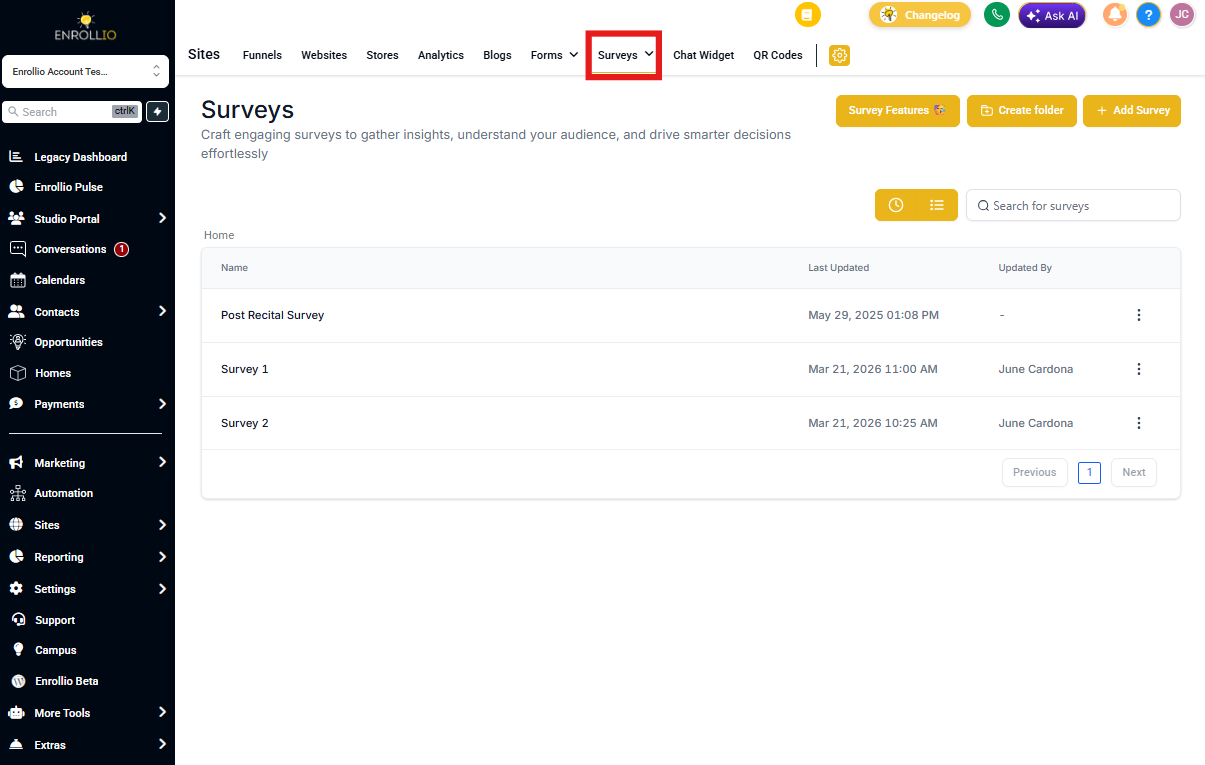
In your side navigation bar, click Sites. Then in the top navigation ribbon, select Surveys.
Step 2: Open Your Survey or Form
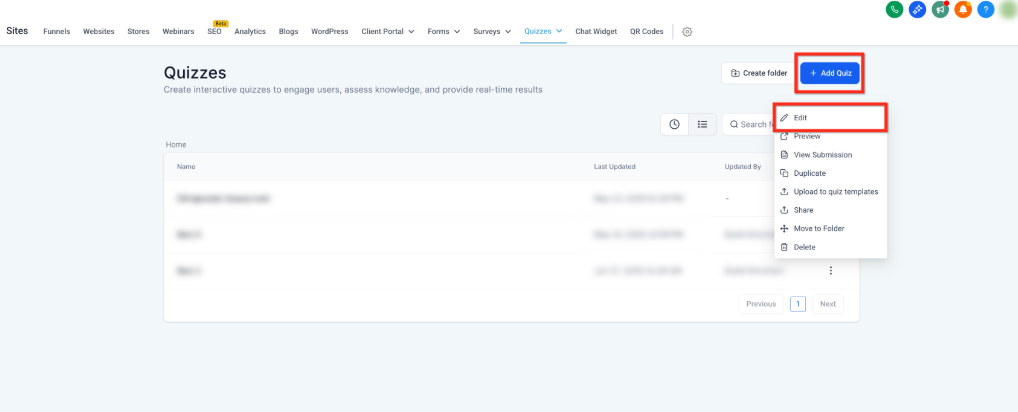
If you're editing an existing survey, click the 3 Dots icon next to the form and click Edit.
To create a new survey, click the blue + Add Survey button in the upper right corner.
Step 3: Open Styles & Options
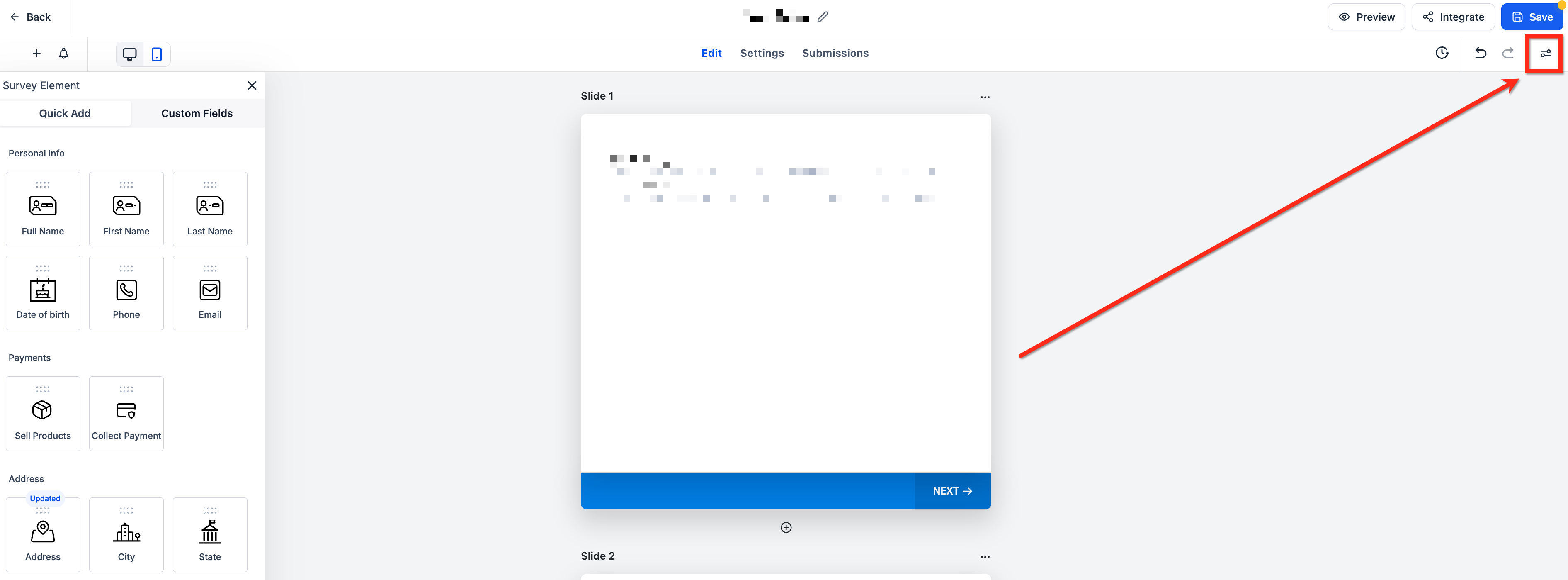
Click Styles & Options at the top-right of the builder.
Step 4: Toggle On Progress Bar
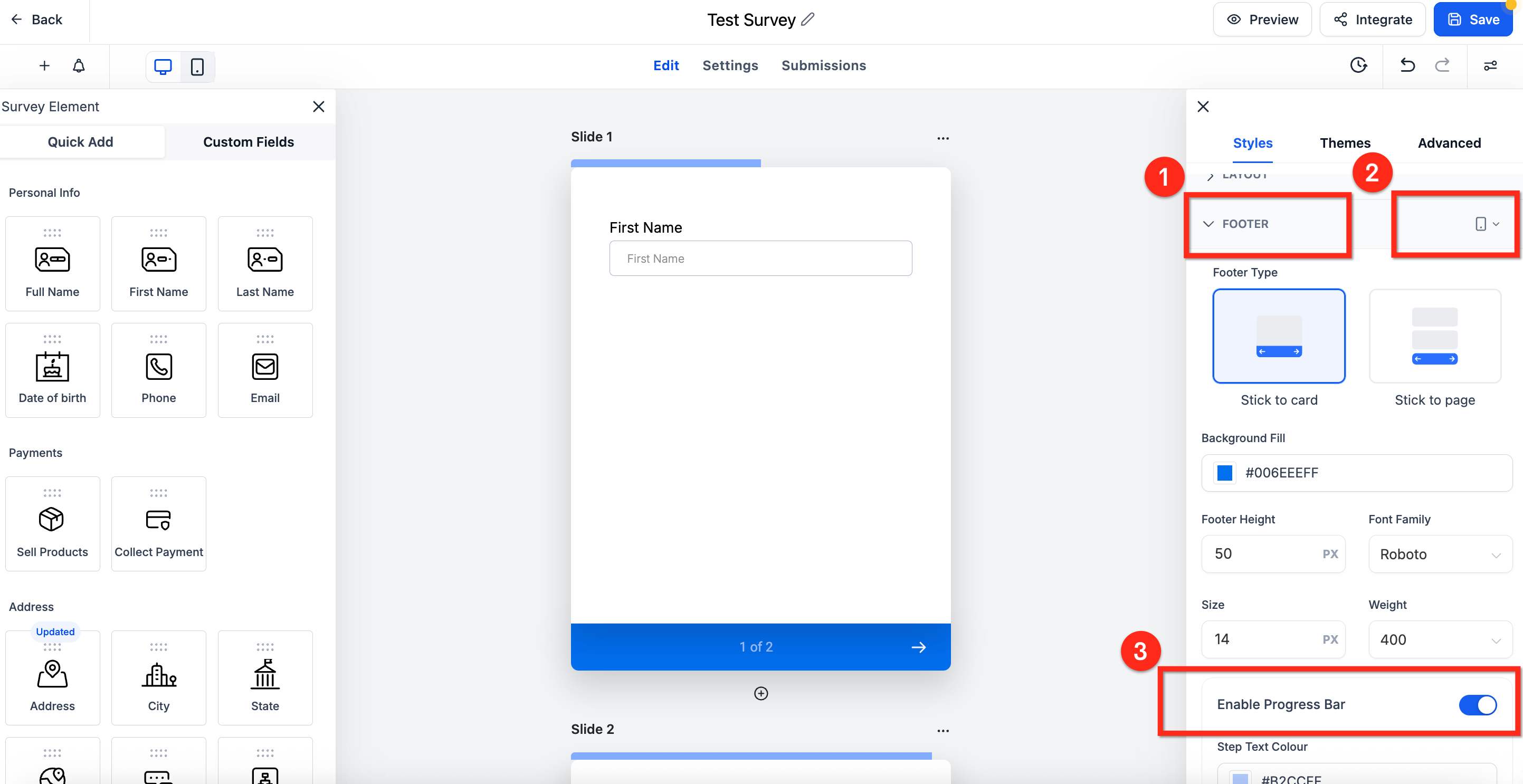
Scroll down and expand the Footer section. Use the device selector drop-down next to Footer to choose Phone. You won't be able to enable the progress bar when in desktop mode.
Toggle Enable Progress Bar on.
Step 5: Customize Colors
Set Step Text Color, Progress Bar Fill, and Progress Bar Inactive colors to match your center's branding. Each color picker accepts HEX values for precise matching.
Once you're done, click the blue Save button.
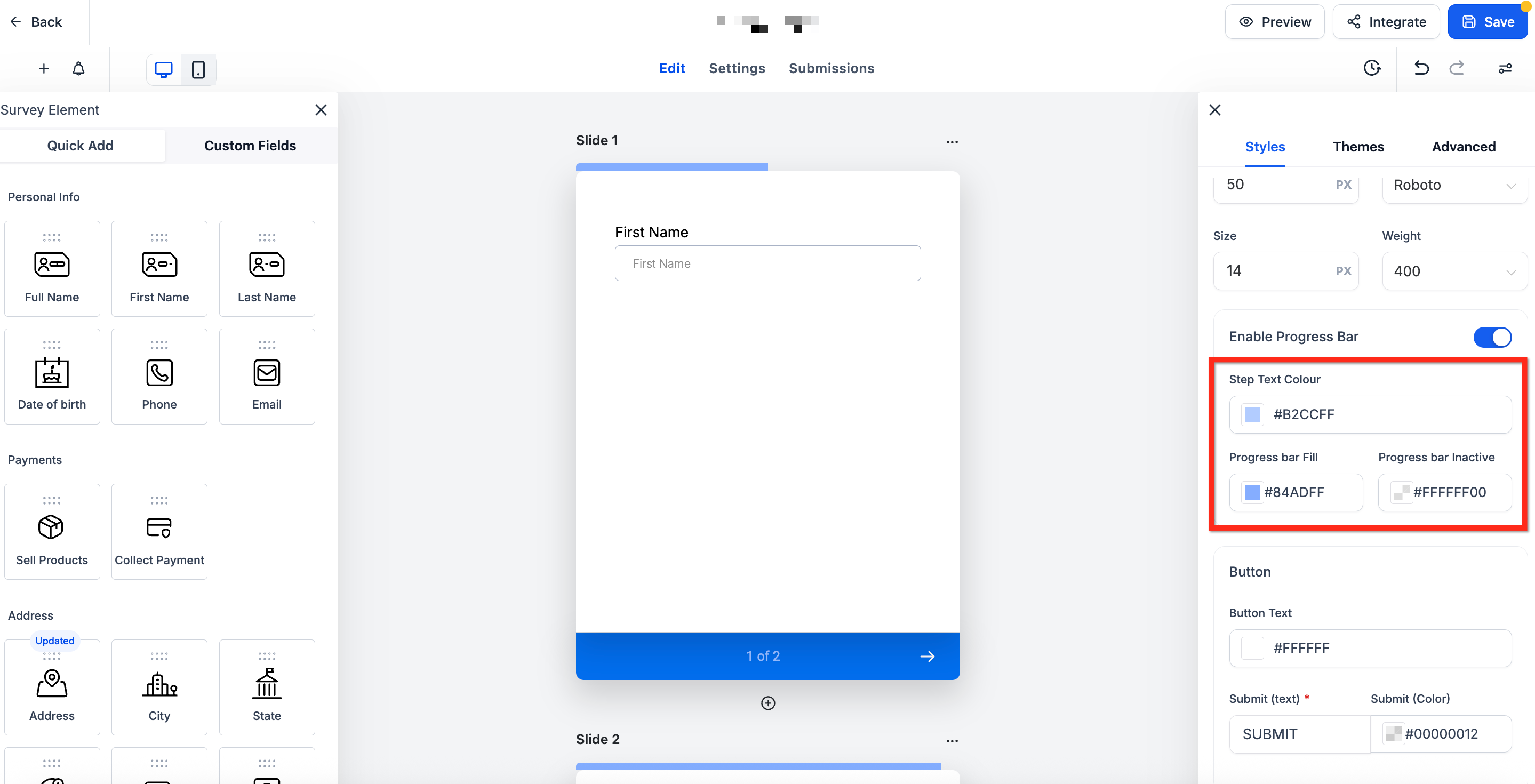
Customize Progress Bar Colors
Match the progress bar to your brand using three flexible color pickers:
- Step Text Color: Controls the step number label (ex. "1 of 3")
- Progress Bar Fill: Sets the filled portion of the bar
- Progress Bar Inactive: Defines the unfilled segment
Frequently Asked Questions
Does the progress bar appear on desktop?
No. It's mobile-only. Desktop users will see the standard indicators.
Why is the Enable Progress Bar toggle grayed out in Footer settings?
Switch the builder's device selector to Phone first. While in desktop mode, the toggle isn't selectable.
What if my survey or form has only one step?
The progress bar is automatically hidden on single-step surveys and forms because there's no progress to show.
Does the progress bar work with both "Stick to Card" and "Stick to Page" footer types?
Yes. It aligns seamlessly with both footer styles.
Will my existing multi-step surveys and forms automatically show the progress bar?
No. The feature is off by default and must be activated individually in each survey and form.