
Themes in Forms and Surveys
Launch polished, on-brand forms and surveys faster with Themes in Enrollio. Themes are ready-made design presets that apply a cohesive look in a single step, so you can focus on collecting parent information instead of tweaking colors.
This article shows you how to apply and customize themes for your enrollment forms and family surveys.
What are Themes in Forms and Surveys?
Themes in the Form and Survey Builder give you professionally crafted design options that match your childcare center's brand identity. With user-friendly controls and real-time previews, you can create visually stunning and responsive forms without any design experience.
These themes streamline the design process, saving you time and ensuring a consistent, professional look across all your parent-facing forms. Regular updates to the themes library keep your forms looking fresh and modern.
Key Benefits of Themes
- Consistency: Creates a cohesive look across your entire form with one selection
- Speed-to-Launch: Reduces setup time by starting from a polished preset
- Responsive by Default: Automatically adapts to mobile, tablet, and desktop so parents can fill out forms on any device
- Real-Time Previews: Validate changes instantly before publishing or embedding
How to Apply a Theme to a Form or Survey
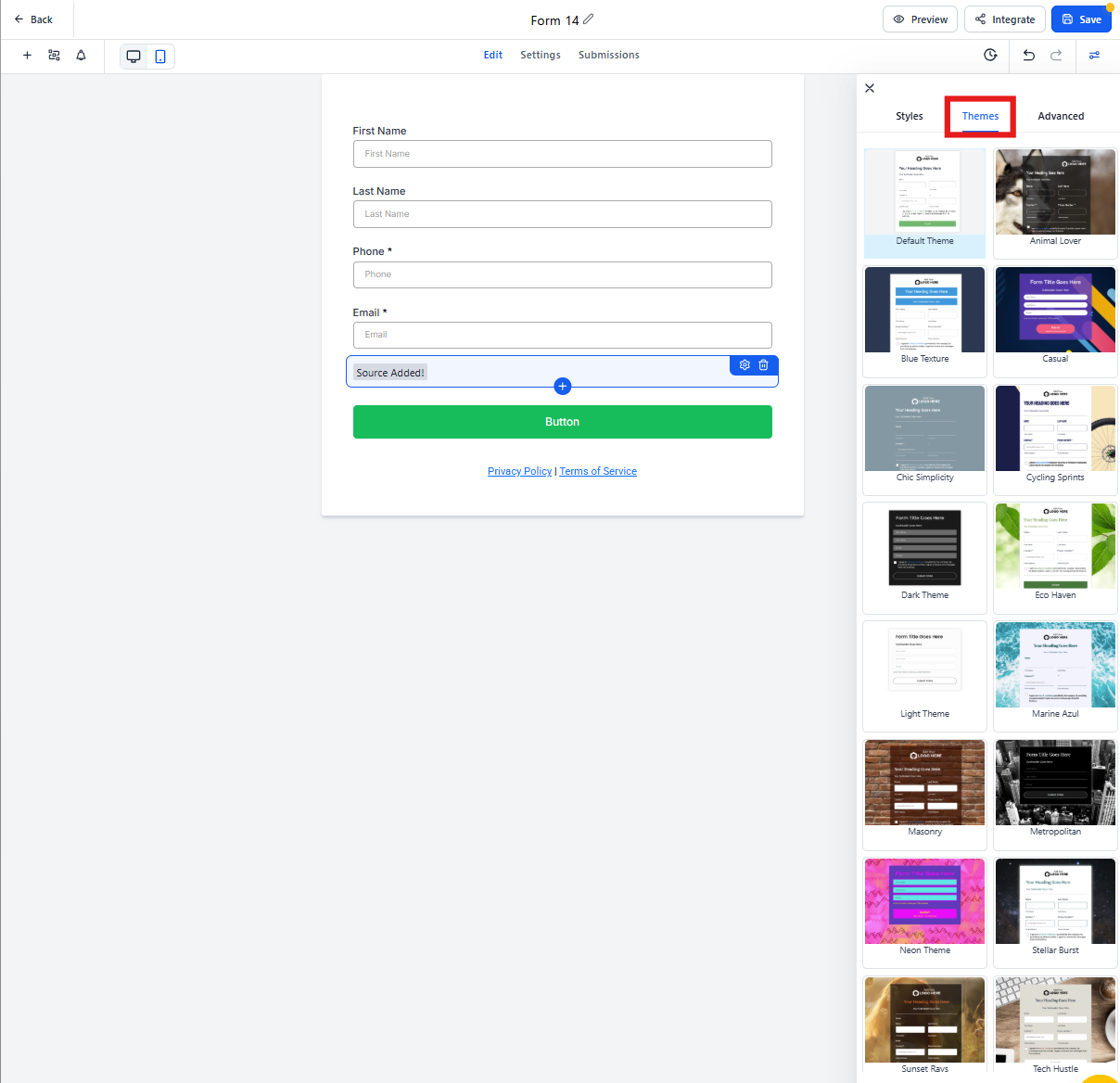
- Open your Form or Survey in the builder
- Click Styles & Options (top-right) to open the Right Sidebar
- Select the Themes tab
- Choose your preferred Theme from the gallery
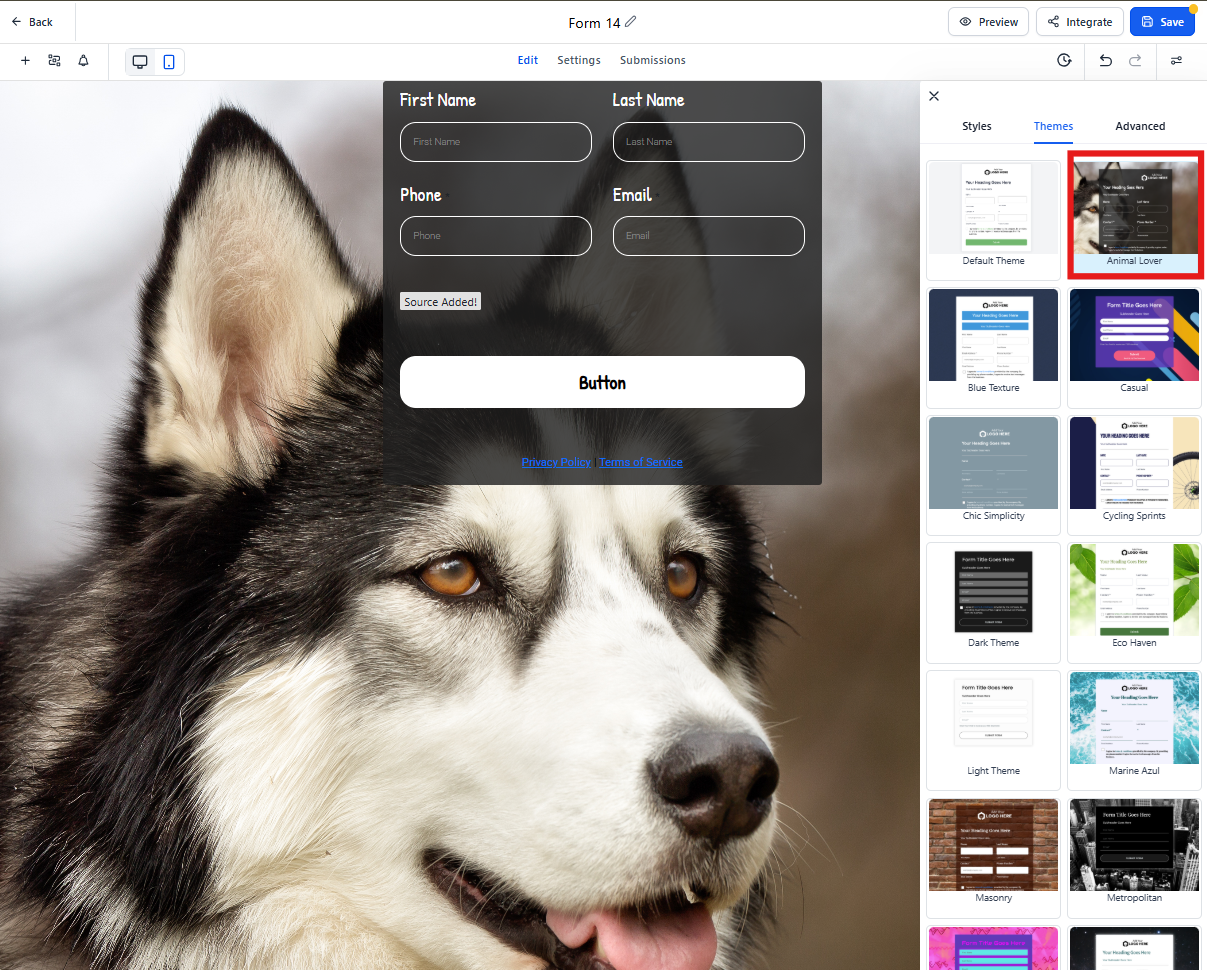
Your form immediately updates with the new theme. Preview how it looks on different devices using the device toggle at the top of the builder.
How to Customize a Theme
After selecting a theme, you can refine colors and imagery to match your center's exact branding.
Adjust Colors and Backgrounds
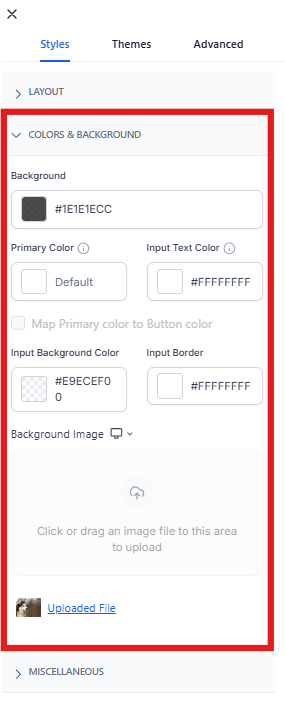
Navigate to Styles & Options → Styles → Colors & Backgrounds. Here you can adjust:
- Background colors
- Text input colors
- Input border colors
- Primary brand color
Make sure your color choices meet accessibility contrast guidelines so all parents can easily read your forms.
Change the Background Image
If your selected theme includes a default background image and you want to use your own:
- Delete the theme's default background image first
- Click below Background Image to upload your file
Note: The upload control remains disabled until you delete the existing image.
Customize Button Themes
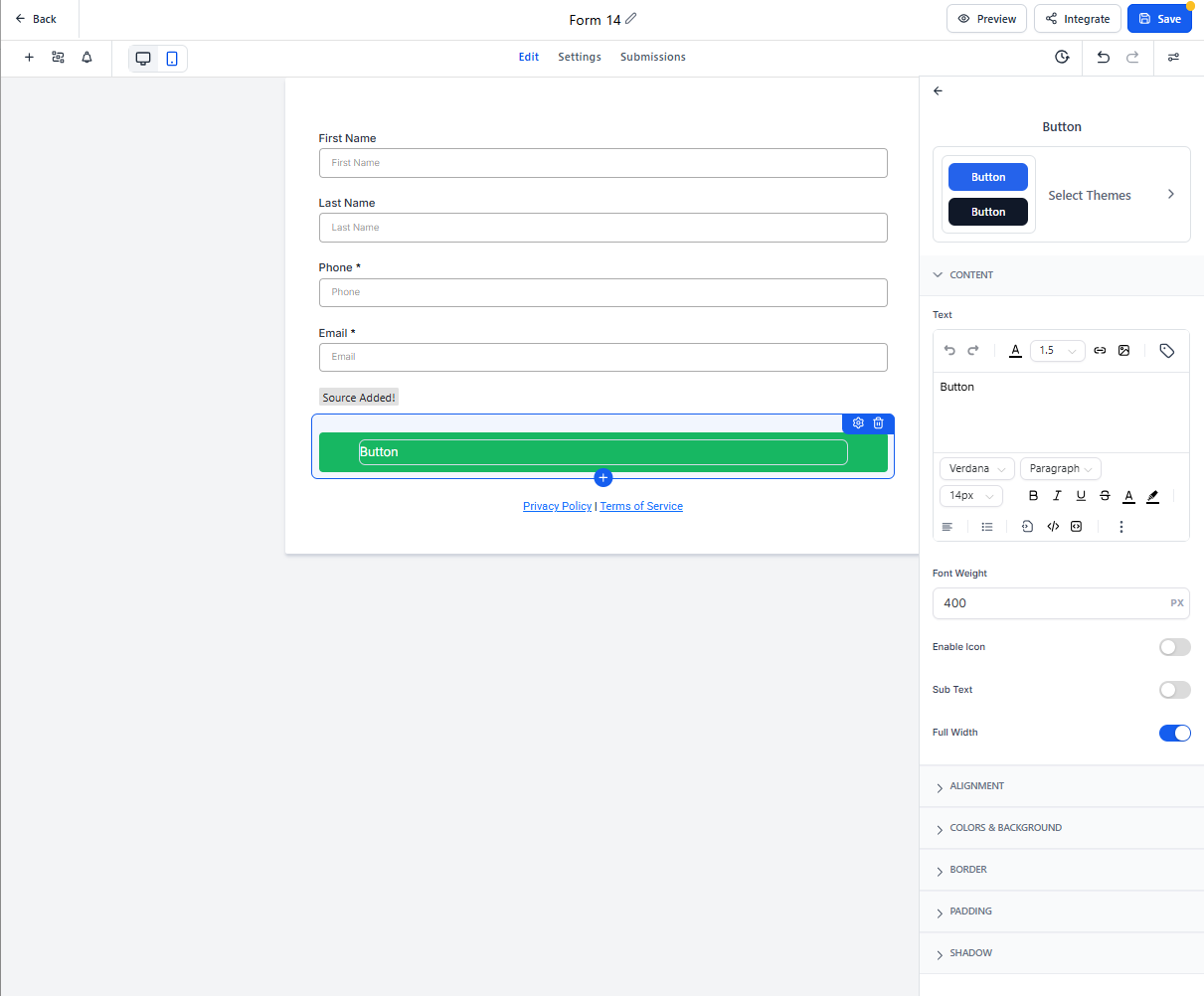
Button Themes provide curated presets—Filled, Border, and Text Only—that apply best-practice color, typography, and spacing. Start with a theme for speed, then refine with the Button Styling Panel.
- Select a button theme from the gallery
- Close the gallery to return to the Button Styling Panel
- Use the following controls to refine the look:
- Colors & Background: Adjust button fill, border, and text colors
- Typography: Change font, size, and weight
- Layout & Alignment: Position button elements
- Padding: Add space inside the button
- Border & Corner Radius: Adjust button edges
- Shadow: Add depth to your buttons
- Toggle Full Width if you want buttons to span the entire form width
Revert or Try Another Theme
Changed your mind? No problem.
- Open Select Themes to switch to a different preset
- Use Reset/Revert in the panel to undo your customizations
Keep Multiple Forms Consistent
To maintain a consistent look across all your enrollment forms and family surveys, apply the same theme to each asset and mirror your color settings. While themes are applied per form, copying your exact color values ensures parents experience the same professional branding throughout their enrollment journey.
Frequently Asked Questions
Why is the "Upload New Background" button disabled?
You need to delete the theme's default background image first. The upload option becomes available once you remove the existing image.
Can I reuse the same theme across multiple forms?
You apply themes per form or survey. To keep multiple forms consistent, choose the same theme on each one and use the same color settings.
Will my themed forms work on mobile devices?
Yes! All themes are responsive by default and automatically adapt to mobile, tablet, and desktop screens. Parents can fill out your forms on any device.
Related Articles
- Forms, Surveys & Quizzes: Inline Editing
- Create Forms & Surveys Inside the Site Builder
- Analytics for Forms and Surveys
- Where Do Form Responses Show Up?