
What Are Forms & Surveys in Enrollio?
Forms and surveys in Enrollio let you build and manage enrollment forms, parent questionnaires, and registration surveys without leaving your page editor. Design everything in a large modal window, reuse forms across multiple pages, and keep your workflow smooth while building enrollment experiences.
Whether you're collecting tour requests, processing enrollment applications, or gathering parent feedback, you can build, customize, and manage forms directly inside your enrollment pages.
Why Use the In-Builder Form Editor?
Understanding these benefits helps you decide when to create new forms versus reusing existing ones, and how to work faster while building pages.
Stay in Your Design Flow
Work in a large editor without switching tabs or losing momentum. Build forms right where you need them on your enrollment pages.
Reuse Existing Forms
Add any existing form or survey through the Form Picker to keep branding and logic consistent across all your enrollment pages. No need to rebuild the same tour request form twice.
Start from Templates
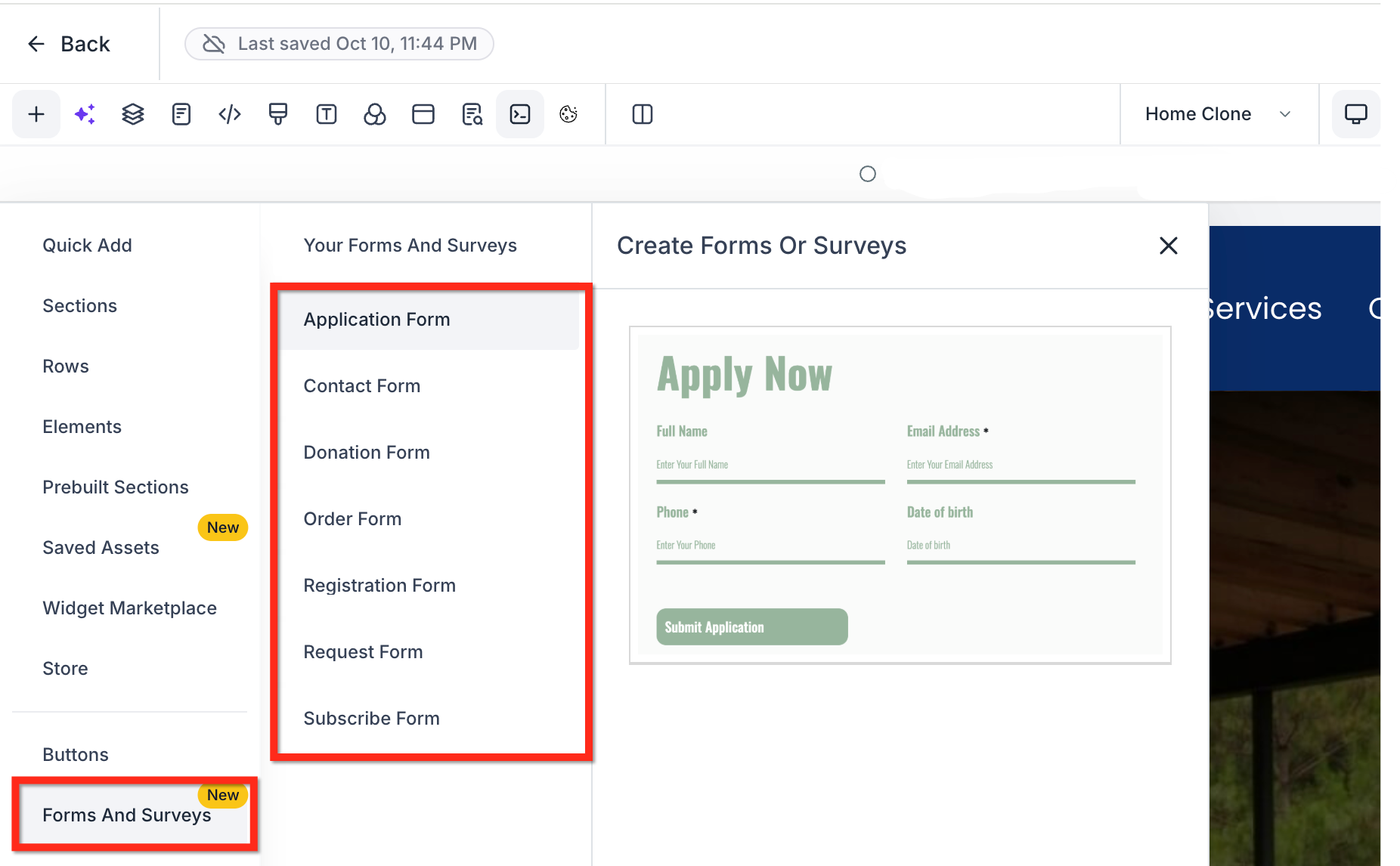
Jump-start your forms with curated templates designed for childcare: Application, Contact, Donation, Order, Registration, Request, and Subscribe. Customize from there instead of building from scratch.
Edit in One Click
Drag a form onto your canvas and open the editor instantly to refine fields, styles, and behavior.
Accept Payments
Use order-style templates with the Payment element to collect enrollment deposits, registration fees, or program payments directly from your form.
Keep Everything Organized
Every form you create is automatically saved to a central list, making it easy to find, duplicate, and reuse across your enrollment pages.
Templates vs. Themes: What's the Difference?
Templates provide ready-made form structures (like Tour Request or Enrollment Application), while Themes are visual presets for styling.
Templates (structure): Application, Contact, Donation, Order, Registration, Request, Subscribe. These give you the right fields and layout to start.
Themes (visual styles): Quickly apply a polished look. Note: switching Themes will replace your current style changes, so choose carefully.
Using the Form Picker
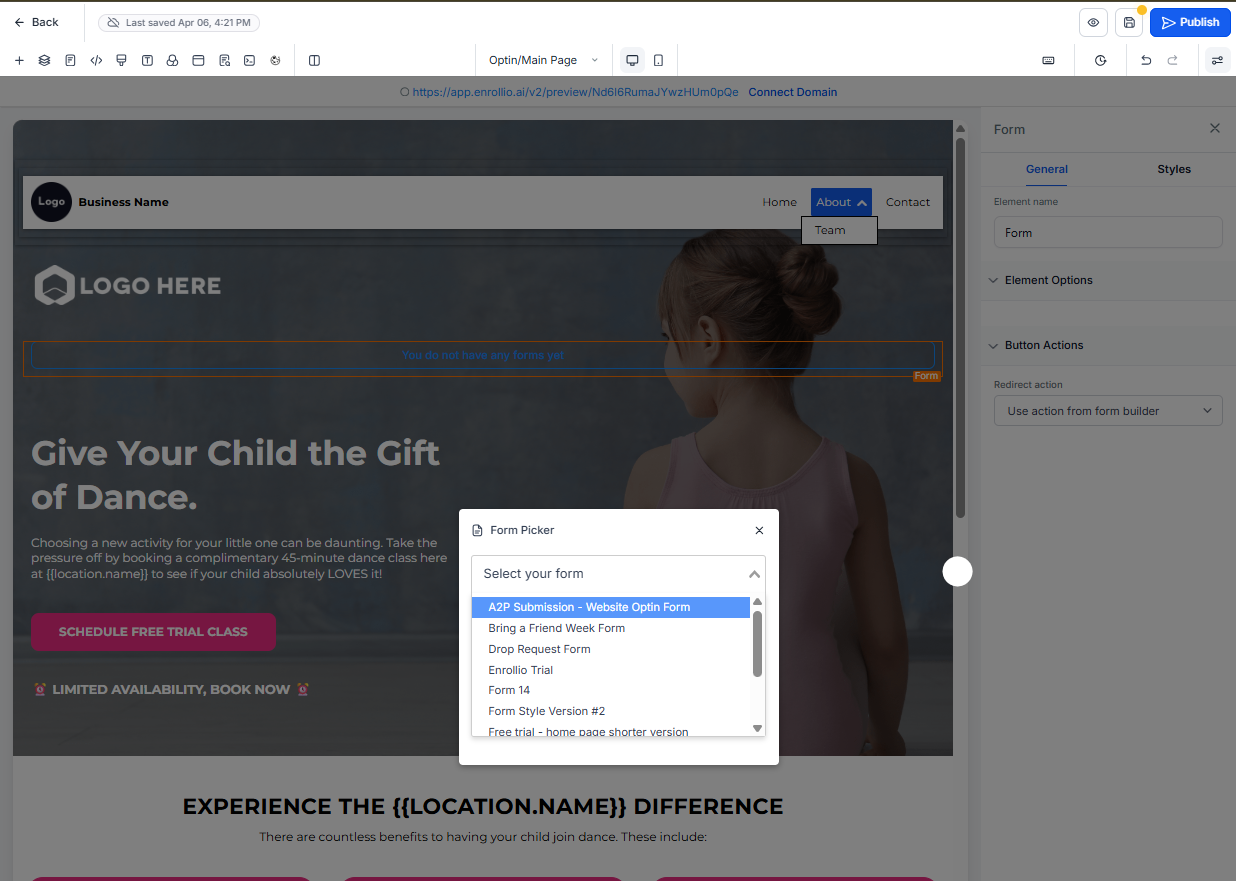
The Form Picker lets you reuse existing forms across multiple enrollment pages, keeping parent experiences consistent and data centralized.
Search and preview any form you've already created. Select one, drag it to your canvas, and click Edit to customize for the current page.
Managing All Your Forms (List View)
Forms and surveys you create are automatically collected in a unified list under Sites → Forms and Sites → Surveys. This single source of truth makes it easy to find, duplicate, and track all your parent-facing forms.
Keep your naming conventions consistent (like "Tour Request - Main Page" or "Enrollment Application - Infants") for easier analytics and reuse.
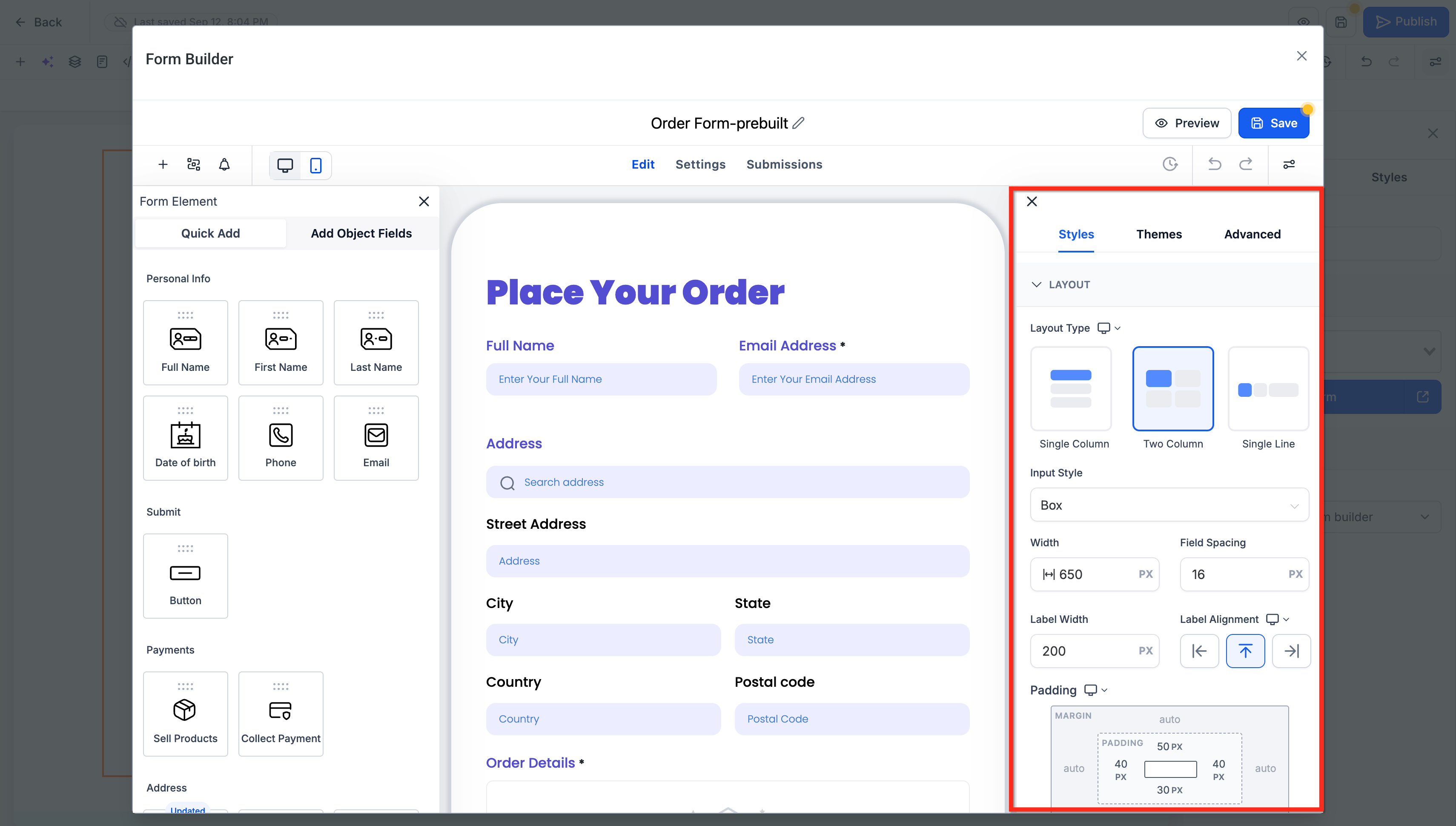
Design Controls (Right Sidebar)
The right sidebar of the Form Builder centralizes all your design and behavior controls.
Fields: Add, remove, and reorder fields. Map to custom fields for parent records where needed.
Styles: Adjust fonts, spacing, borders, backgrounds, and button styles to match your brand.
Advanced: Set up confirmation messages, redirects, tracking, and other behavior options.
How to Set Up Forms & Surveys
Follow these steps to create or reuse forms quickly, customize them in context, and verify they capture submissions correctly.
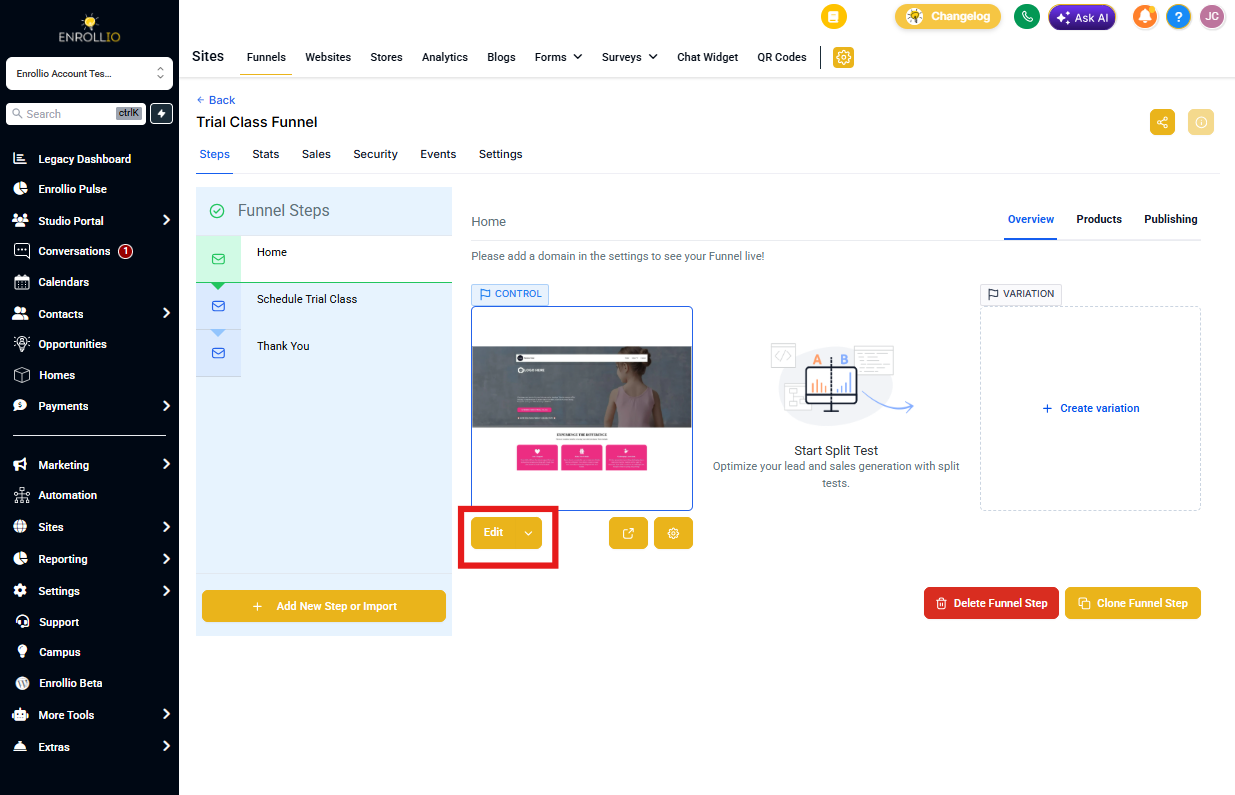
Step 1: Open Your Page Editor
Navigate to Sites and open the enrollment page or landing page where you want to add a form. Click Edit to enter the page builder.
Step 2: Open Forms & Surveys
In the left sidebar, click the Forms & Surveys icon. You'll see three options:
- Create New: Build a form from scratch or start from a template
- Prebuilt Categories: Choose from curated form types
- Add Existing: Open the Form Picker to reuse a form you've already created
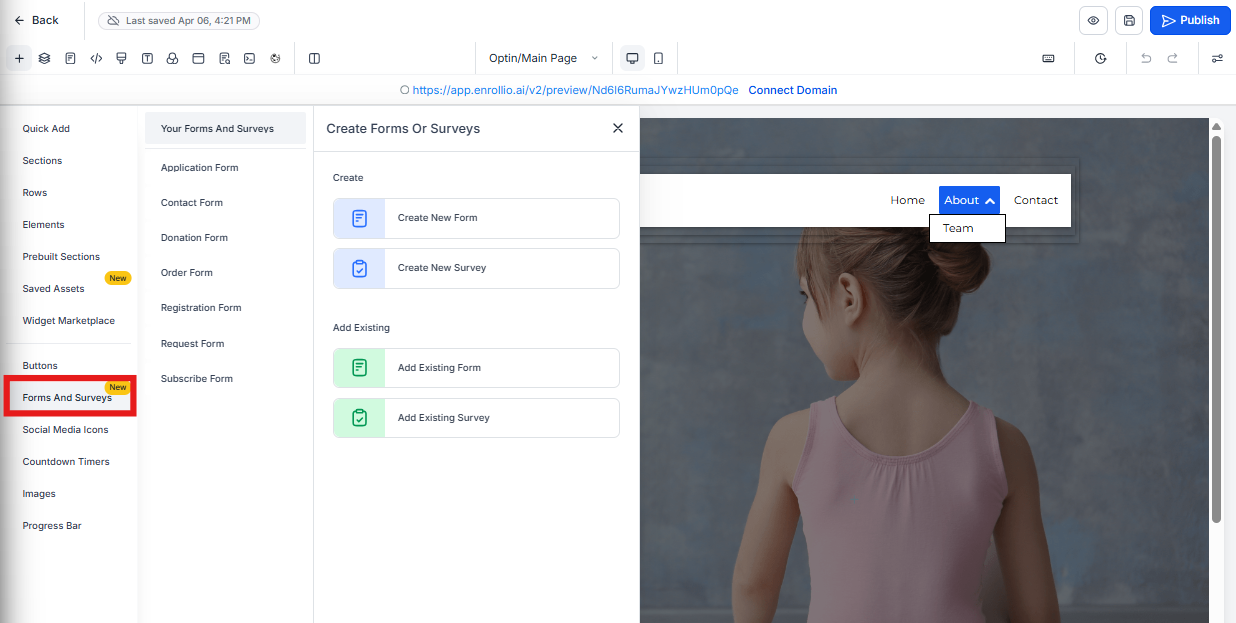
Step 3: Create or Select Your Form
To create a new form: Click Create New. A large modal editor opens where you can add fields, customize design, and configure settings. Choose a template category (like Registration or Contact) to start with a structure.
To reuse an existing form: Click Add Existing. Use the Form Picker to search and select a previously created form. Drag it onto your canvas.
Step 4: Customize Your Form
Whether you created new or selected existing, click Edit to open the full editor. Add or remove fields, adjust styles, and configure behavior in the right sidebar.
For enrollment forms, common fields include parent name, child information, program interest, preferred start date, and contact details.
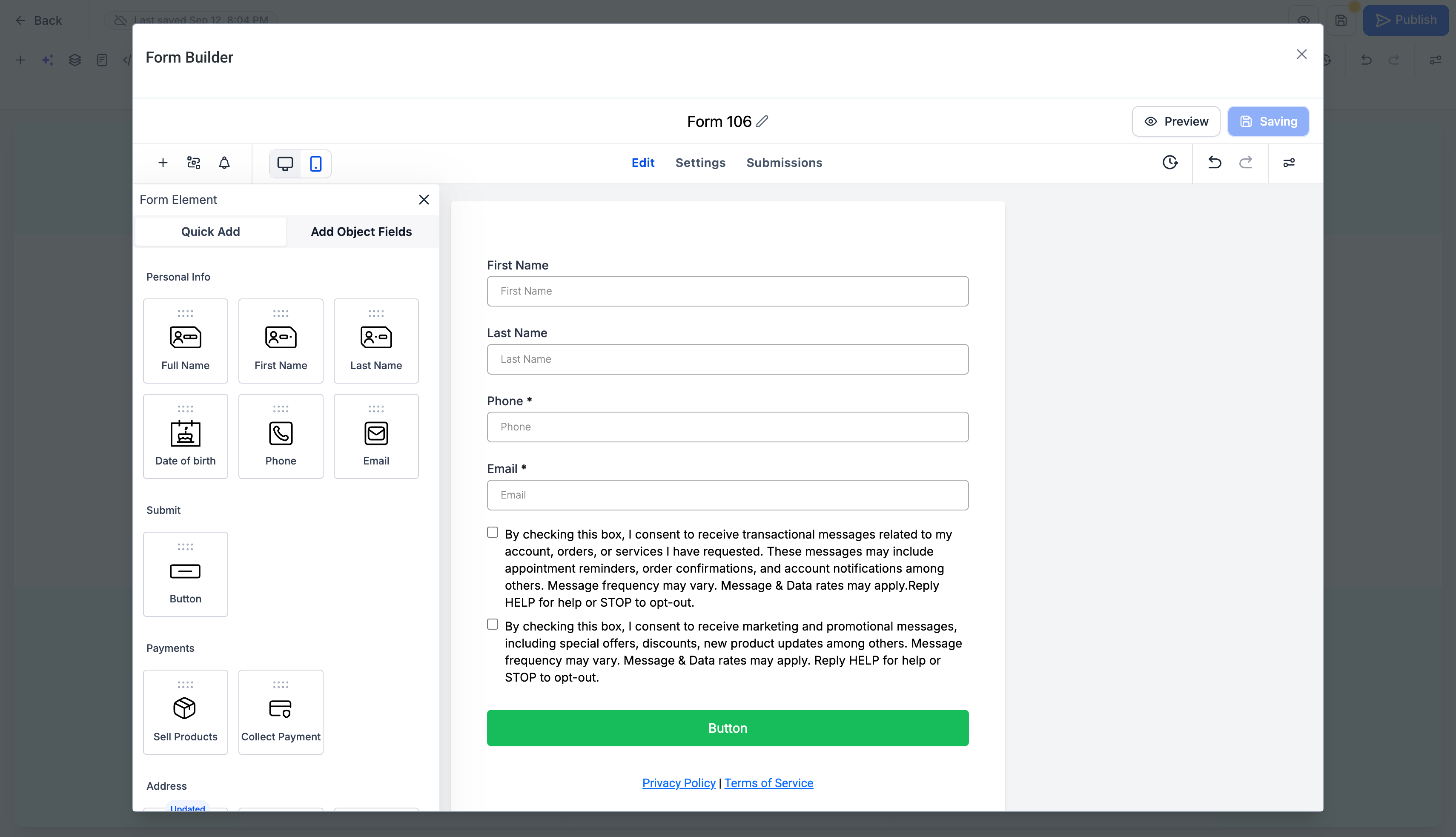
Step 5: Configure Payment (If Needed)
If you're collecting enrollment deposits or registration fees, use an Order-style template and add the Payment element. Connect your payment gateway and configure your products before going live.
Step 6: Save & Test
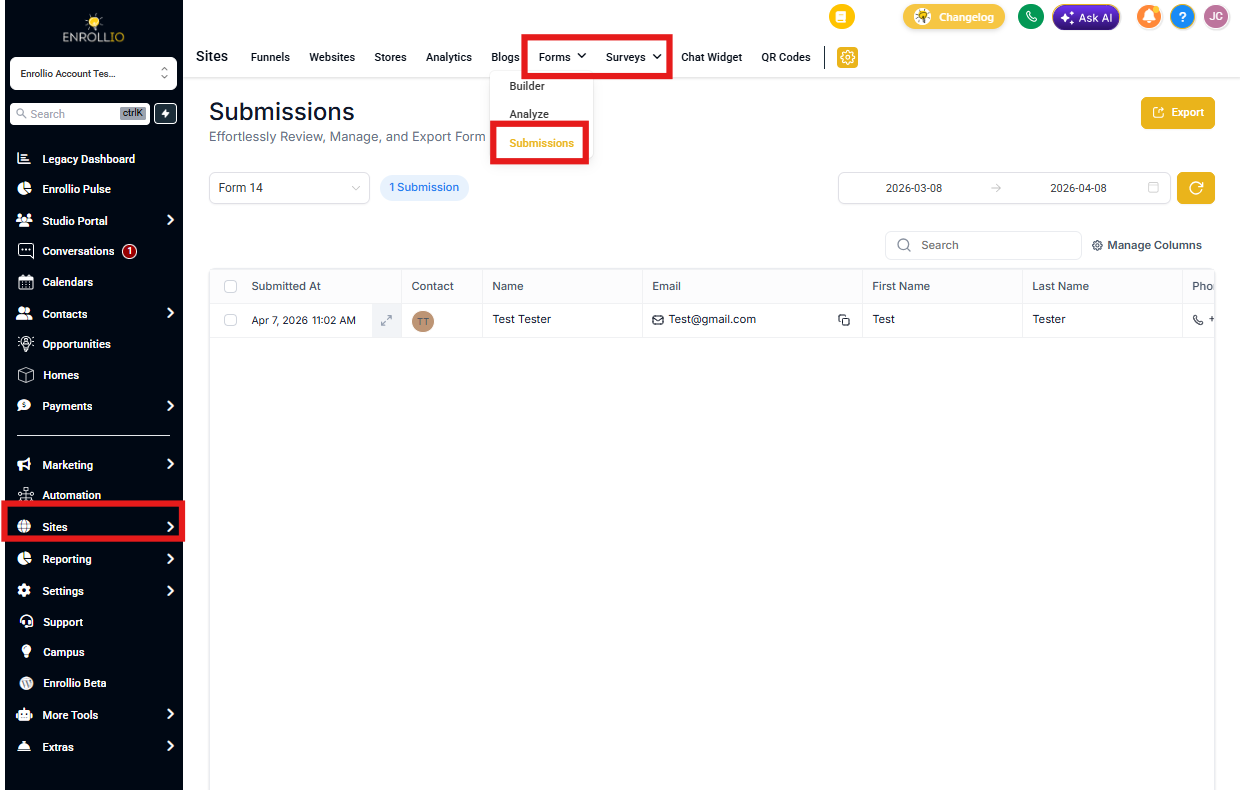
Save your page, then preview it to submit a test entry. Confirm submissions appear under Sites → Forms → Submissions or Sites → Surveys → Submissions.
Frequently Asked Questions
Can I customize the prebuilt templates?
Yes. Start from any template, then modify fields, styles, and behaviors in the editor. Templates are just starting points—make them yours.
What's the difference between Templates and Themes?
Templates give you the structure (like Tour Request or Enrollment Application). Themes are visual presets. Note that switching Themes will replace your existing style changes.
How do I accept payments on a form?
Use an Order-style template, add the Payment element, and connect your payment gateway. Configure your enrollment fees or program pricing in Products, then test before sharing with parents.
Where do form submissions appear?
View all entries under Sites → Forms → Submissions or Sites → Surveys → Submissions. Each submission creates or updates the parent record in your system.
Can I convert a form to a survey (or vice versa)?
Converting between types isn't supported. If you need both versions, duplicate the original and rebuild it in the other format to preserve data integrity.
Can I use the same form on multiple pages?
Absolutely. Use the Form Picker to add the same form to multiple enrollment pages or landing pages. This keeps your parent experience consistent and centralizes all submissions in one place.
How do I track form performance?
Open Analytics to see conversion rates, drop-off points, and submission trends. This helps you optimize your enrollment forms for better completion rates.