
Click-to-Call, Click-to-Text, and Click-to-Email Links & Buttons for Enrollment Pages and Sites
Make it easy for prospective families to contact your childcare center with a single tap. This article shows you how to add click-to-call, click-to-text, and click-to-email links and buttons to your enrollment pages and sites.
These clickable actions improve conversions and reduce friction—especially on mobile devices where parents are browsing during pickup or bedtime.
What are Click-to-Call, Click-to-Text, and Click-to-Email Links?
Clickable links that initiate a phone call, text message, or email make it easy for parents to take immediate action. When configured correctly, clicking these links opens their phone dialer, messaging app, or email client with your contact info pre-filled.
These links are commonly used on enrollment pages and sites to boost engagement and make it easier for families to reach you.
Key Benefits of Using Click-to Actions
Click-to links simplify communication by making it easy for prospective families to reach out with a single tap:
- One-Tap Communication: Parents can instantly call, text, or email without copying or typing
- Higher Mobile Engagement: Mobile users are more likely to interact with clickable actions
- Time-Saving for Families: Auto-fills phone numbers, message body, or email content
- Trigger-Ready Automations: Can be combined with Trigger Links to start follow-up automations
- Flexible CTA Design: Click-to links work on both text and button elements
How to Add Click-to-Call Links
To create a link that parents can click to call your center:
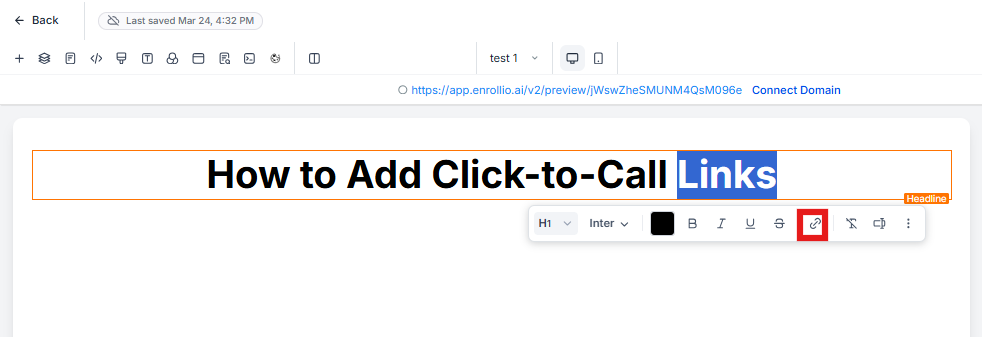
- Highlight the text in your page builder
- Click the link icon
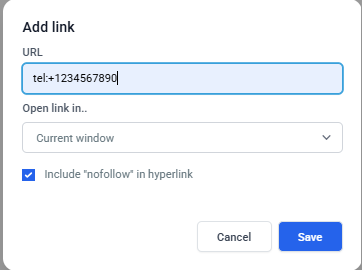
- Enter your link using the format:
tel:+1234567890 - Click Save and test it on a mobile device
How to Add Click-to-Email Links
To create a link that opens a parent's email client:
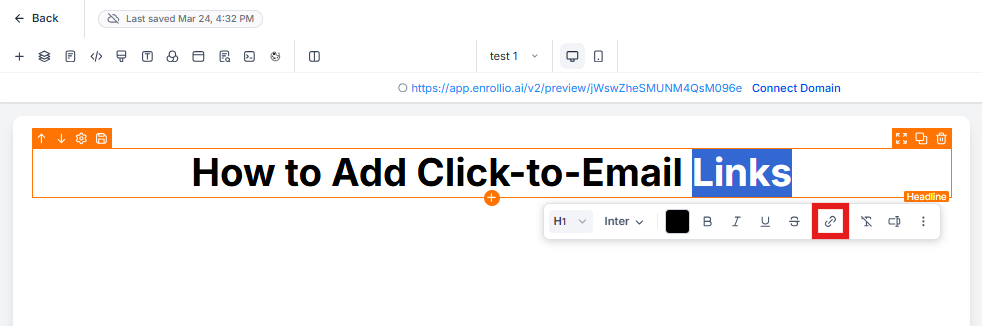
- Highlight the text in your page builder
- Click the link icon
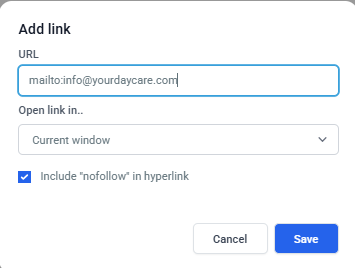
- Enter your link using the format:
mailto:info@yourdaycare.com - Click Save and test the link
How to Add Click-to-Call Buttons
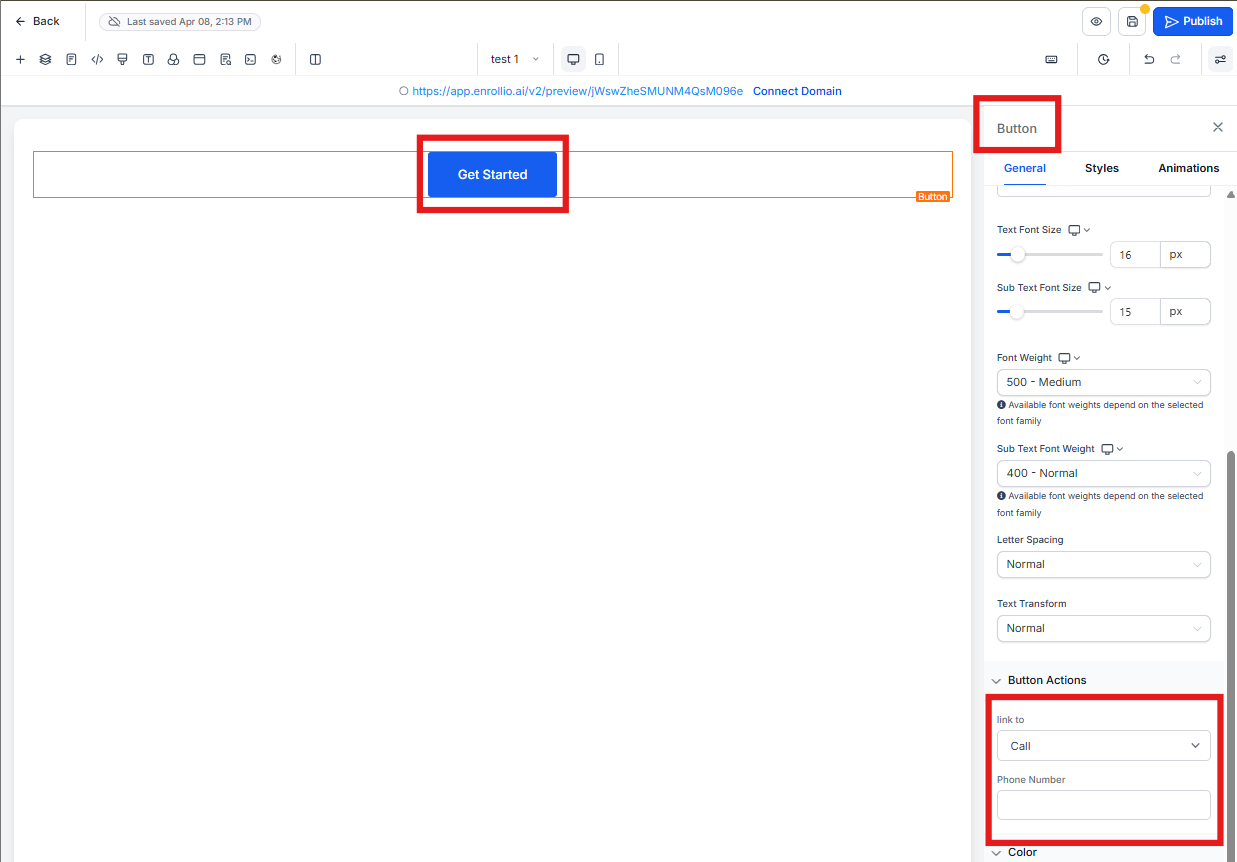
To create a button that initiates a phone call:
- Click on the button in your page builder
- On the right side under Button Actions, use the Link to dropdown to select Call
- Enter the phone number
- Click Save and test the button
How to Add Click-to-Text Buttons
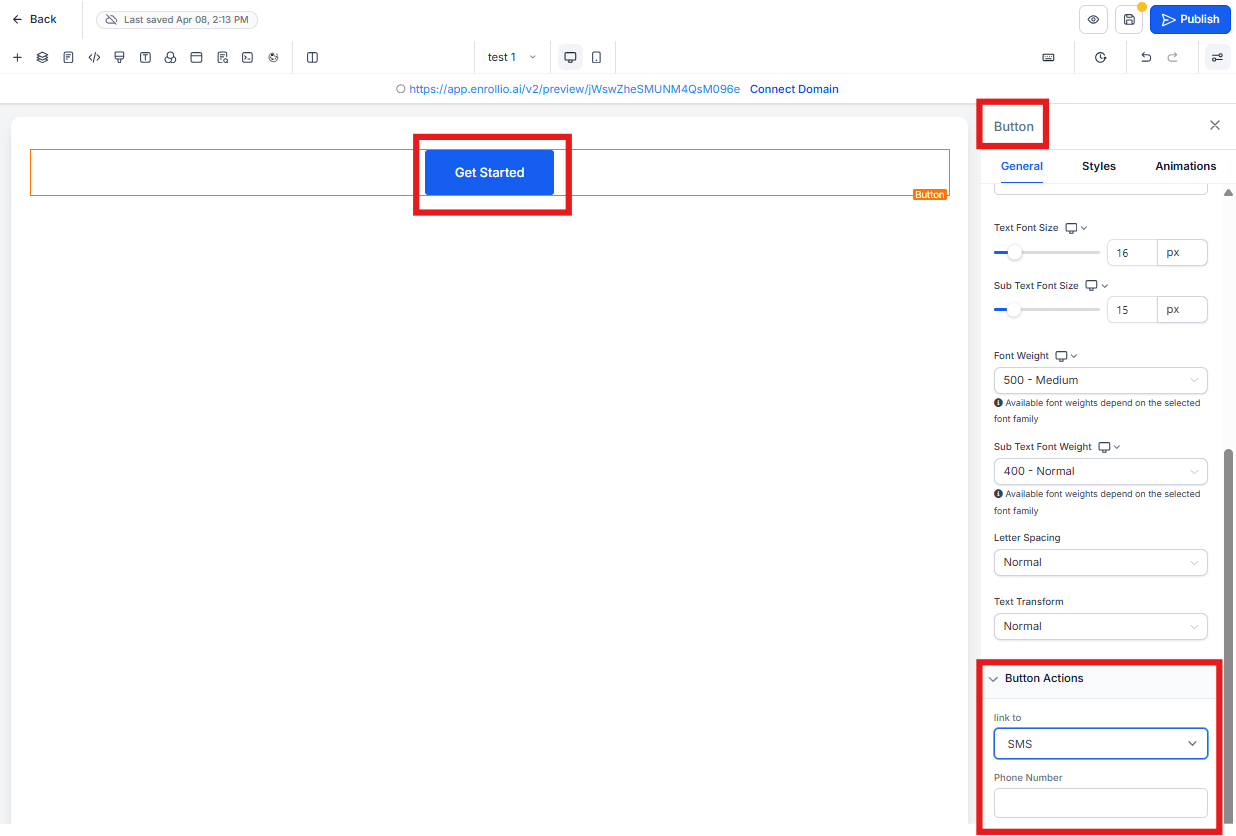
To create a button that opens a parent's text messaging app:
- Click on the button in your page builder
- On the right side under Button Actions, use the Link to dropdown to select SMS
- Enter the phone number
- Click Save and test the button
How to Add Click-to-Email Buttons
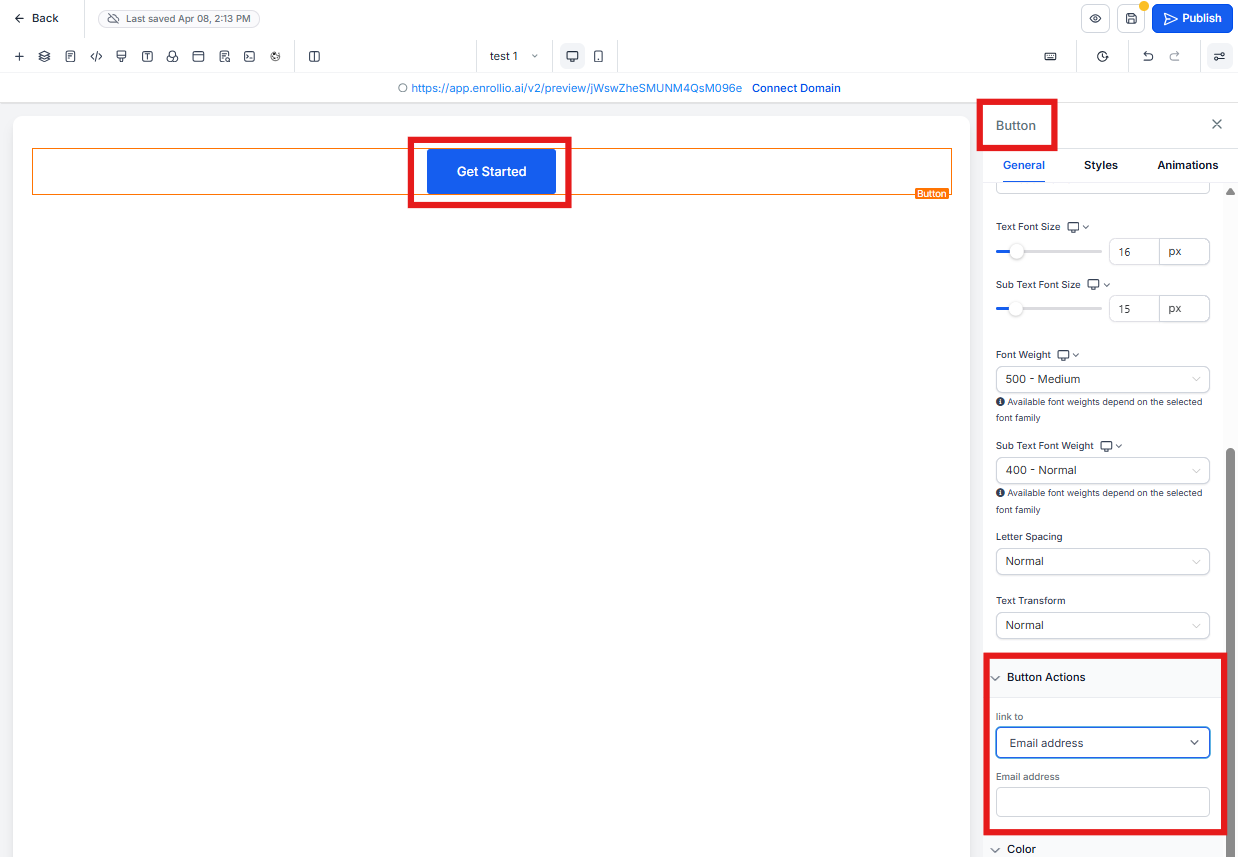
To create a button that initiates an email:
- Click on the button in your page builder
- On the right side under Button Actions, use the Link to dropdown to select Email
- Enter the email address
- Click Save and test the button
Frequently Asked Questions
Q: How can I track clicks on these links?
Use Trigger Links to track and automate actions based on clicks. This lets you follow up automatically when a parent clicks to call or text.
Q: What happens if a device doesn't support the click-to link?
If a device doesn't support the protocol (like SMS on desktop), nothing will happen when clicked. Test your links on different devices and consider including alternative contact information.
Q: Can I add multiple actions in one link (like call and text)?
No. Each link can only perform one action at a time—either call, text, or email. To offer multiple options, use separate links or buttons for each action.
Q: Can I use click-to links inside images or icons?
Yes. In the page builder, you can hyperlink images or icons using the same formats. This is useful for visual CTAs like phone or message icons.