
When you're building enrollment pages and websites in Enrollio, you'll often need the same elements across multiple pages — like your header, footer, contact forms, or call-to-action buttons.
Instead of manually updating each page when something changes, use Global Sections to make updates in one place that automatically reflect everywhere.
What Are Global Sections?
Global Sections are reusable page elements that stay in sync across all your enrollment pages and sites. When you edit a Global Section, the changes appear on every page where you've used it.
This is perfect for:
- Headers and navigation menus
- Footers with your contact information
- Tour request forms
- Call-to-action buttons
- Staff bios or program highlights
How to Create a Global Section
- Open your page in the Page Builder
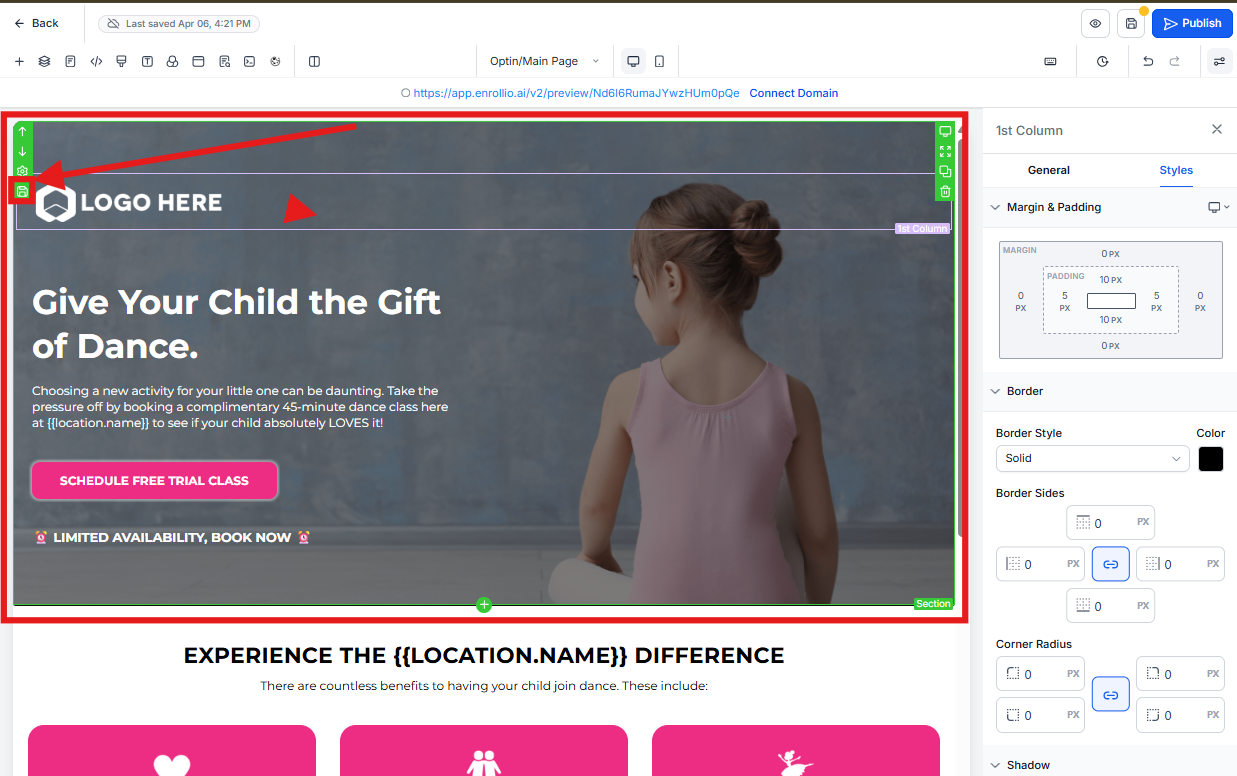
- Select the element or section you want to make global
- Click the settings icon for that section
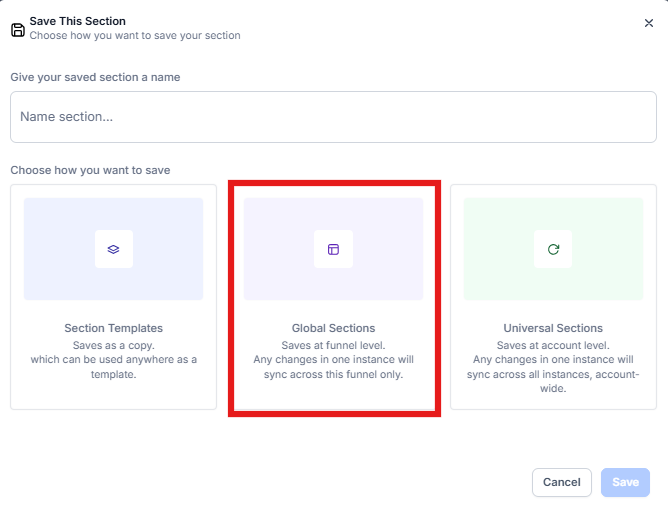
- Choose Save as Global Section
- Give it a clear name (like "Main Header" or "Tour Request Form")
How to Use a Global Section on Another Page
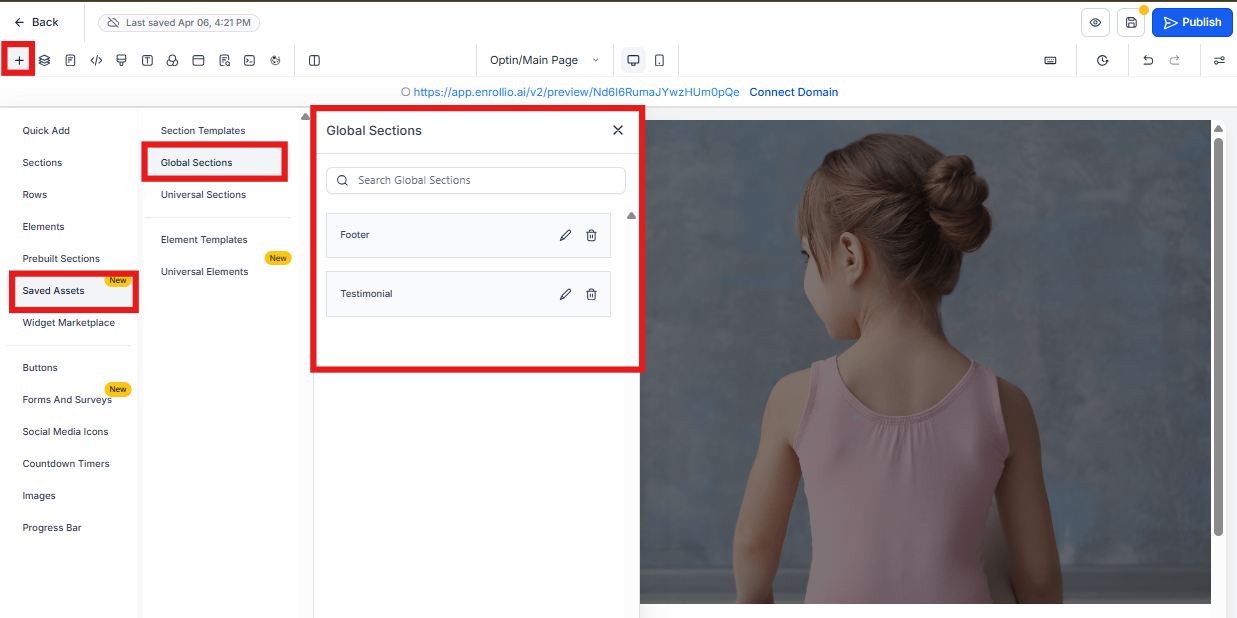
- Open the page where you want to add the Global Section
- In the Page Builder sidebar, click the Global tab
- Drag your saved Global Section onto the page
Editing a Global Section
When you need to update a Global Section:
- Click on the Global Section on any page where it appears
- You'll see a notification that this is a Global Section
- Click Edit Global Section
- Make your changes
- Click Save
Your changes will automatically appear on every page using that Global Section.
Converting a Global Section Back to a Regular Section
If you need to make a page-specific change without affecting other pages:
- Click on the Global Section
- Select Detach from Global
- The section becomes a regular element you can edit independently
Using Element Templates
Element Templates work similarly to Global Sections, but they're not synced. When you save an Element Template, you're creating a reusable starting point that you can customize on each page.
Use Element Templates when you want consistency in design but need to customize content for each page — like program descriptions or staff profiles.