
How to Create a Fixed Countdown Timer
A countdown timer creates urgency and excitement for upcoming events, enrollment deadlines, or special promotions at your childcare center. It visually shows families exactly how much time remains before an important date, encouraging them to take action quickly.
Where Can You Use a Countdown Timer?
Open House or Tour Registration
Build anticipation for your upcoming open house or facility tours. Display the timer on your enrollment pages, in emails to prospective families, and on social media to show exactly when registration closes or when the event begins.
Enrollment Deadlines
When you have limited spots available or a registration deadline, a countdown timer reminds families how much time they have left to enroll. Place the timer on your enrollment pages and in follow-up emails to keep interested families informed.
Special Promotions
For limited-time enrollment discounts or waived registration fees, a countdown timer shows families exactly how long they have to take advantage of your offer. Feature the timer on your landing pages, in marketing emails, and on your enrollment site to drive urgency.
Waitlist Campaigns
When running a campaign to convert waitlist families to enrolled students, a countdown timer highlights the deadline for accepting their spot. Include the timer on your outreach pages and in promotional materials to prompt families to register before time runs out.
How to Create a Countdown Timer
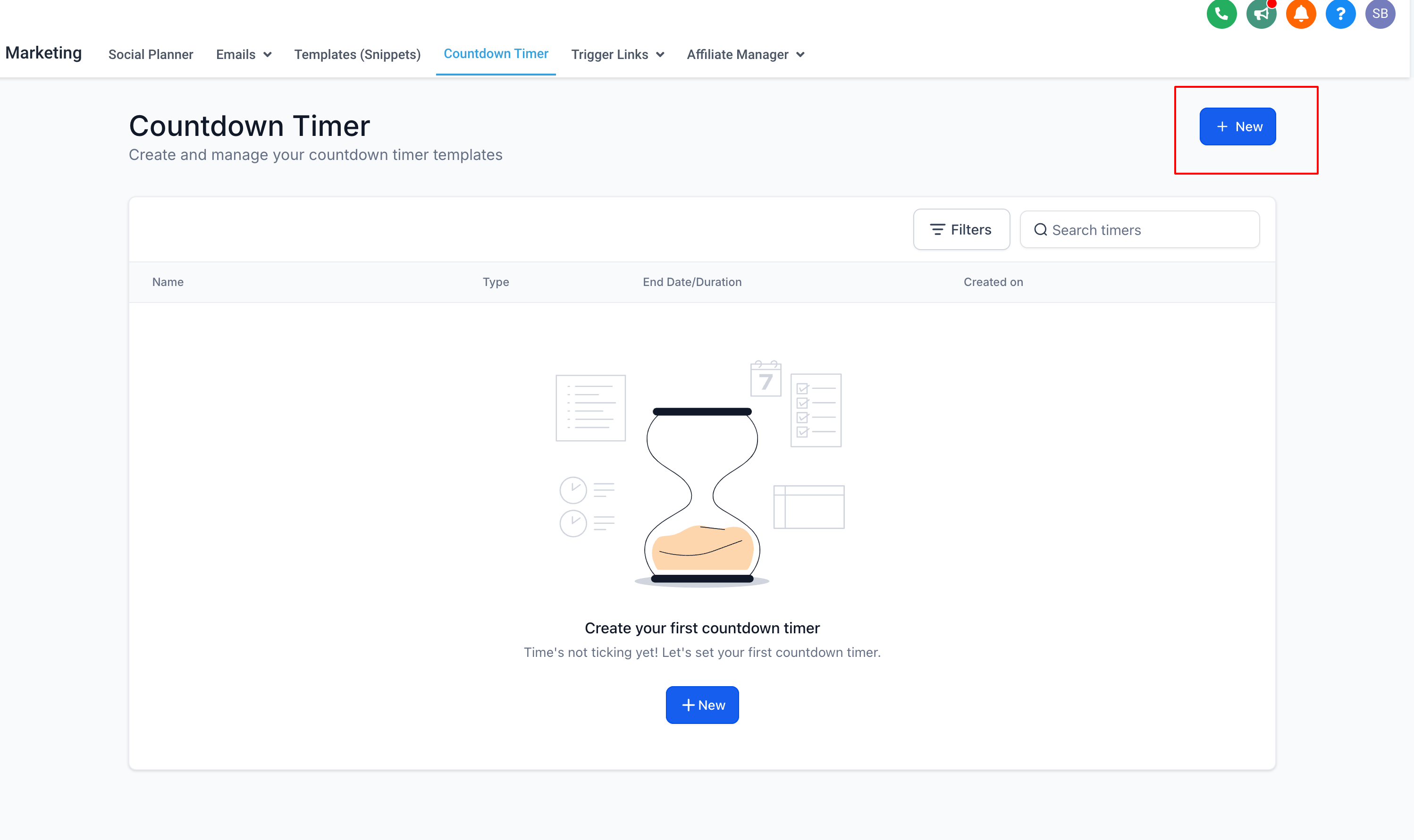
- Navigate to Marketing: Go to the "Marketing" section in your Enrollio dashboard and select "Countdown Timer."
- Click New: Click the "New" button to start creating your timer.
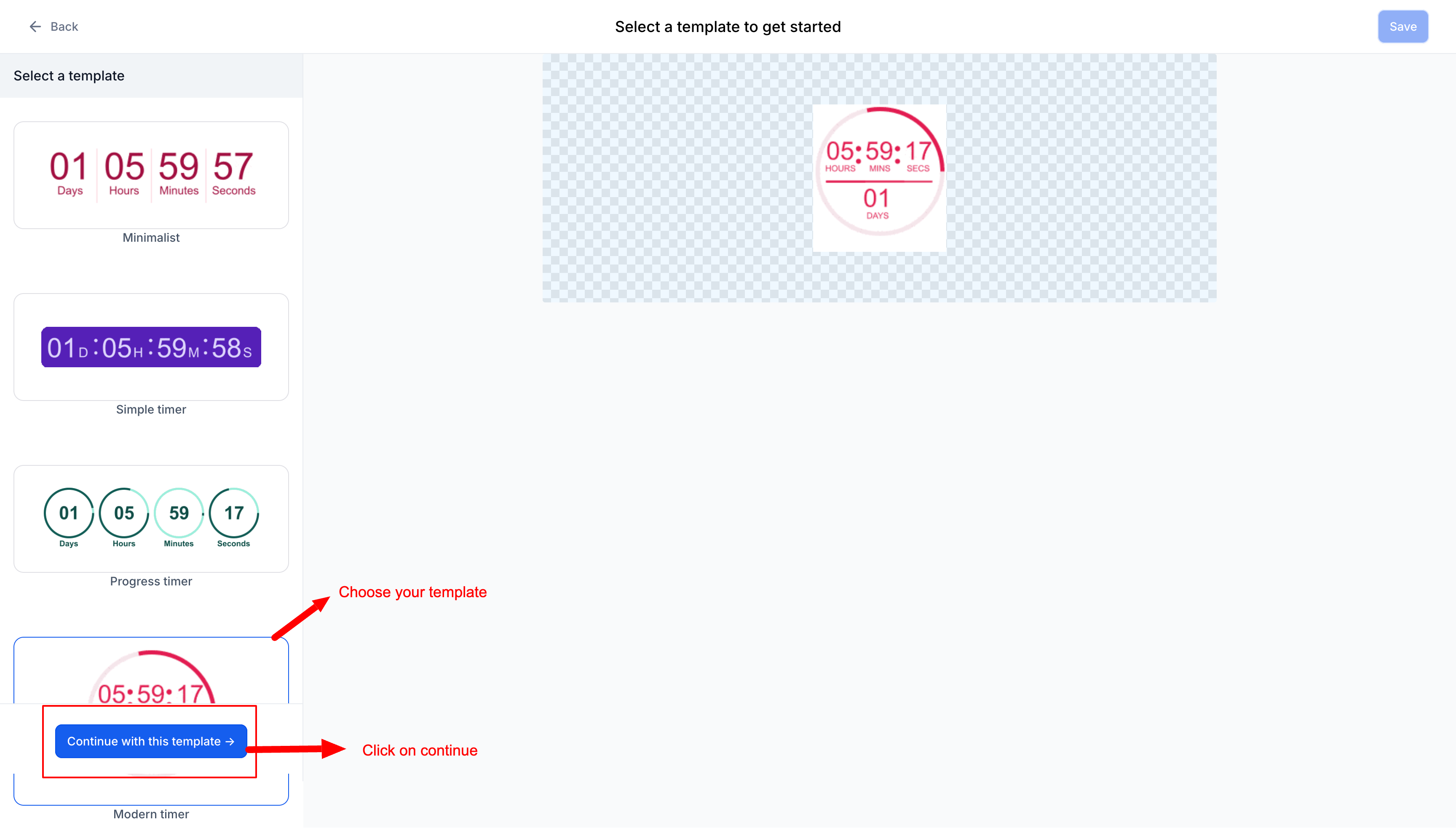
- Select a Template: Choose a design template that matches your brand and click "Continue with this template."
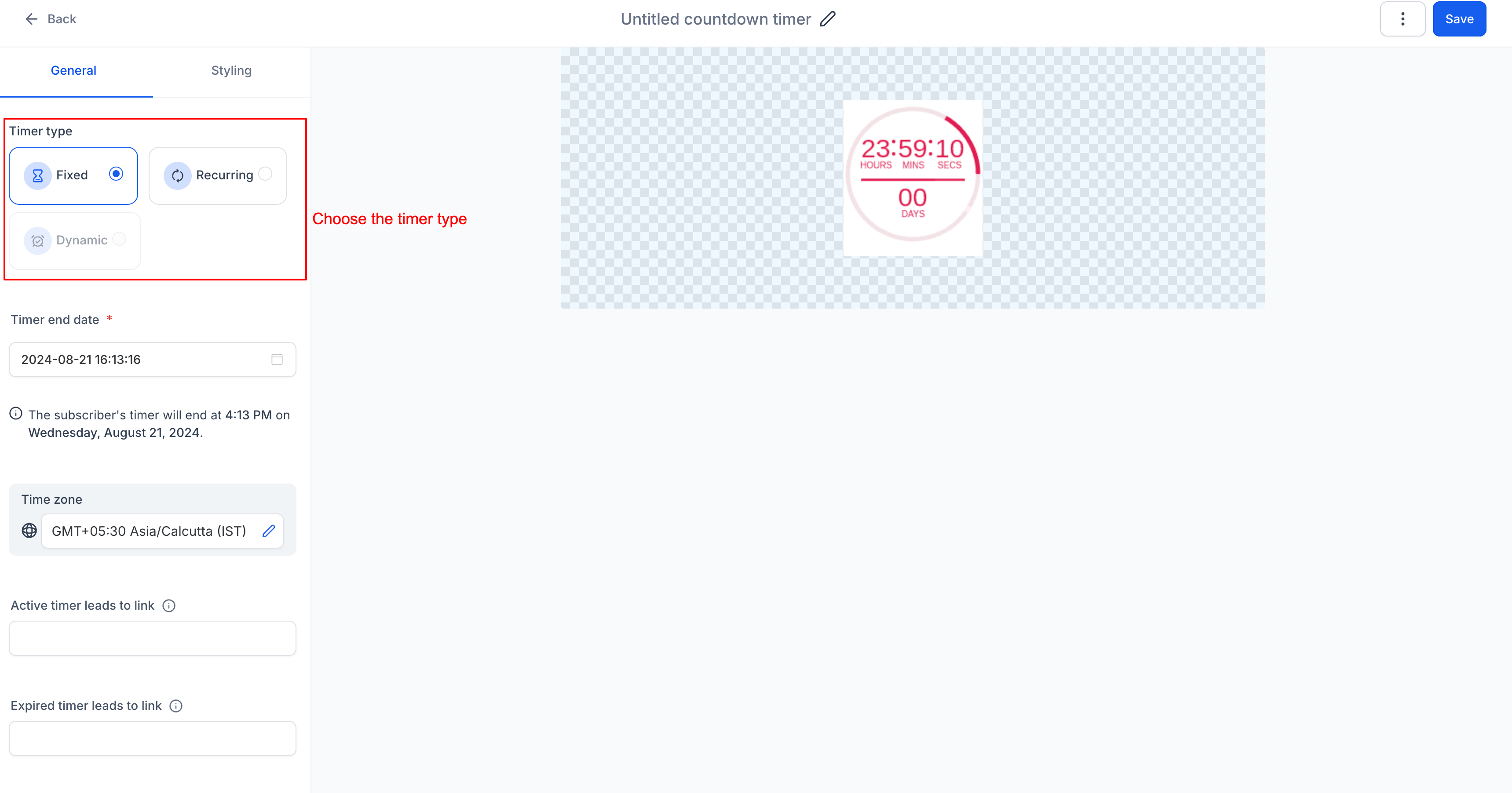
- Choose Timer Type: Select "Fixed" as your timer type.
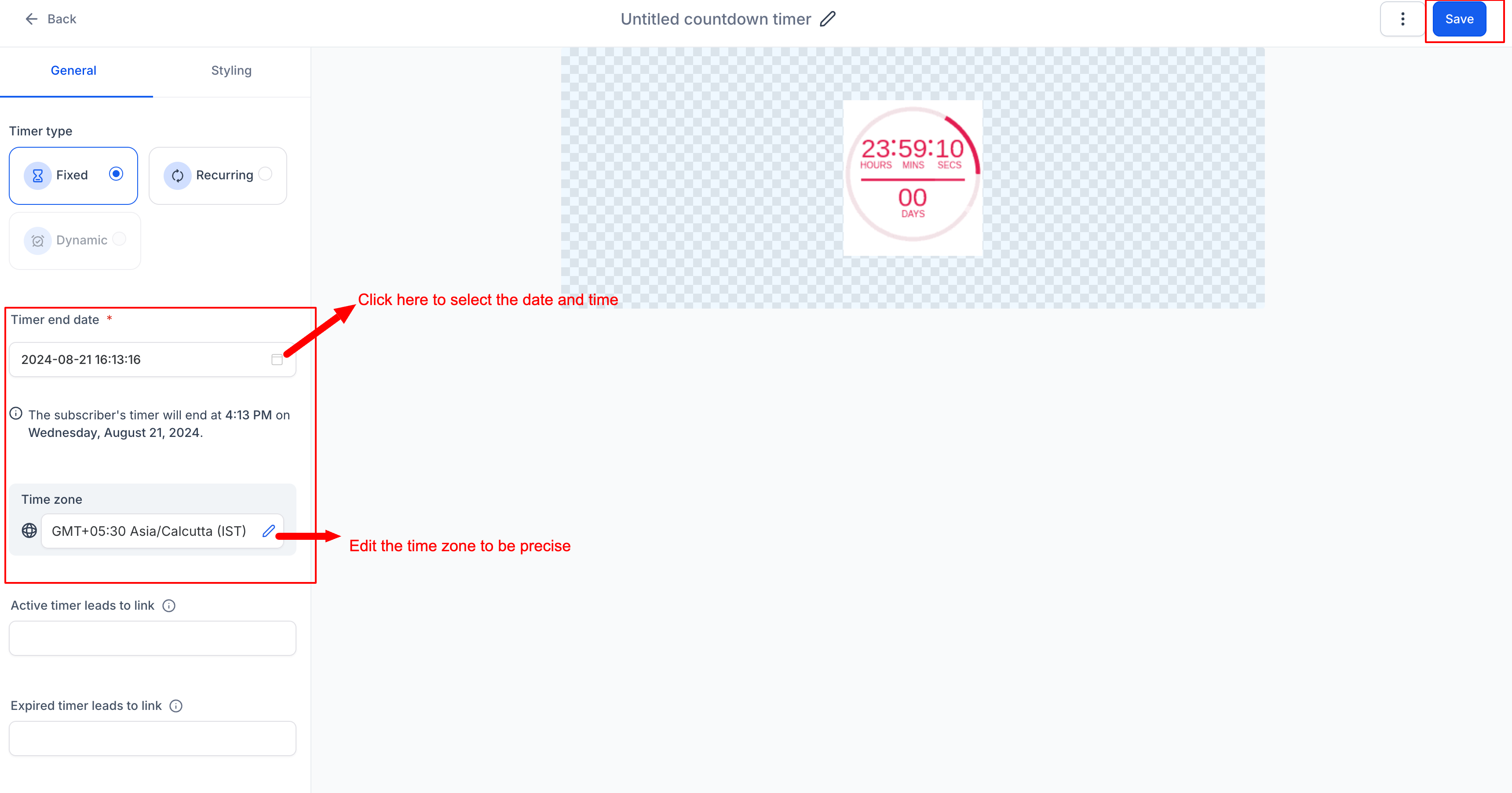
- Configure Timer Details: Set the end date and time for your countdown.
-
Add Links:
- Active Link: Enter the URL where families should go while the timer is still running (like your enrollment form).
- Expired Link: Enter the URL where families land after the timer expires (like a "promotion ended" page).
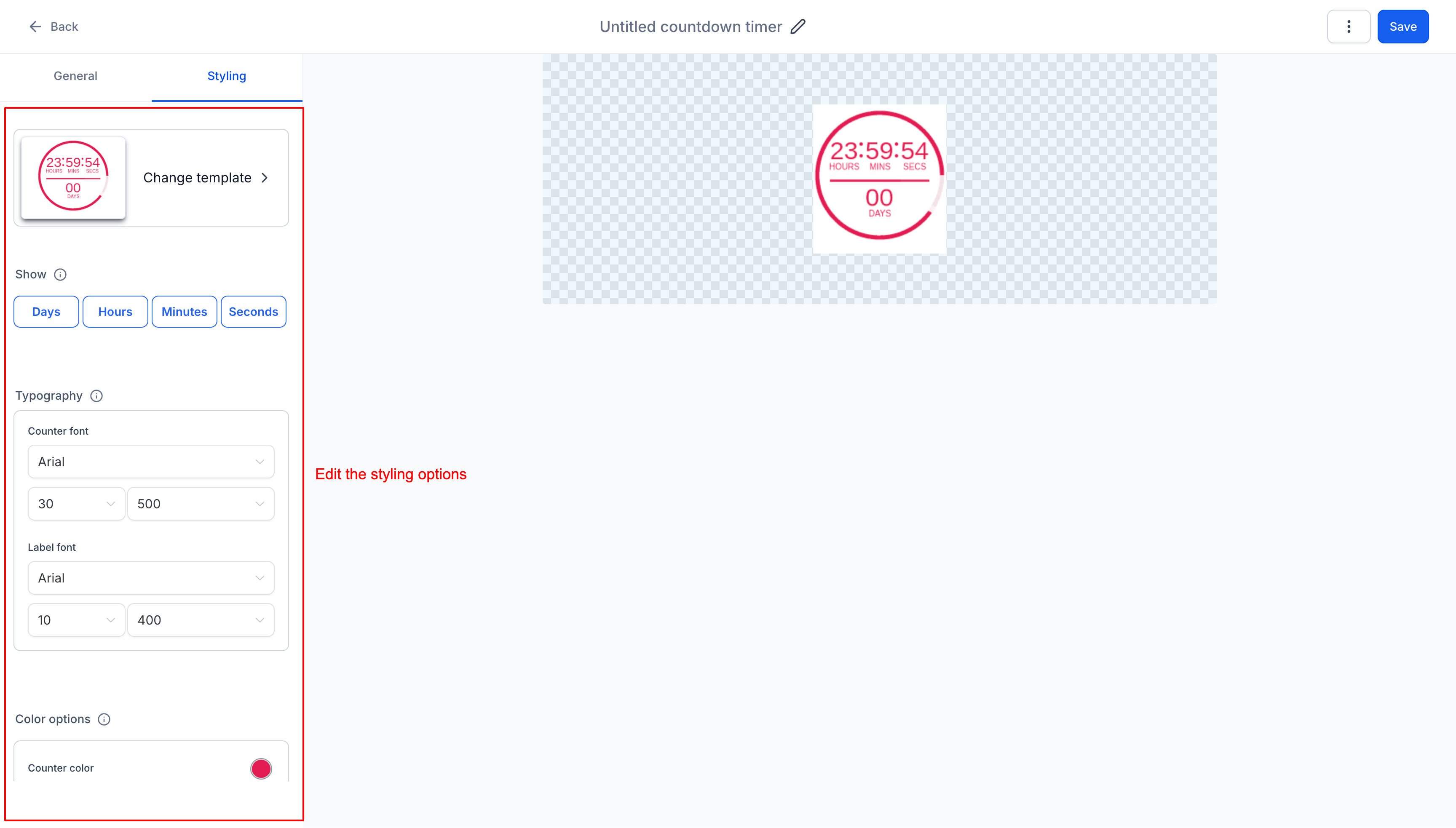
- Customize Styling: Click on "Styling" and adjust the timer's appearance, including colors, fonts, expiry image, and time display format to match your center's branding.
- Rename Timer: Give your timer a descriptive name by clicking at the top (like "Summer Enrollment Deadline" or "Open House Registration").
- Save: Click "Save" to finalize and activate your countdown timer.
Related Articles
- How to Use Countdown Timers in Emails
- How to Add a Countdown Timer to Your Enrollment Pages
- How to Create a Recurring Timer