
Key Benefits of the Optional End Time Feature
The latest update to the Dynamic Timer feature gives you greater control over countdown timers in your email campaigns. You can now set a timer that ends after a specific duration from when an email is opened or sent, rather than being restricted to a fixed end time.
This enhancement improves your ability to create urgency and drive action from prospective families and current parents.
- Greater Flexibility – The timer ends after the duration you choose, not at a specific time of day
- Improved Customization – Create personalized countdown timers based on when each family opens your email
- Enhanced Campaign Performance – Encourage timely action by creating urgency that starts when families engage with your message
Example Use Cases
Here are some ways childcare centers are using dynamic timers:
- Limited-Time Enrollment Offers – A 2-hour discount that starts when a family opens your enrollment reminder email
- Tour Booking Deadlines – A 24-hour countdown to schedule a tour before spots fill up
- Flash Enrollment Sales – A countdown that starts only when the email is read, ensuring every family sees the full offer period
- Waitlist Priority Windows – Give families a limited time to claim their spot when one opens up
How to Create a Dynamic Timer with Optional End Time
Follow these steps to set up your countdown timer:
- Navigate to Marketing in your Enrollio dashboard
- Click Countdown Timer
- Click Create a New Timer
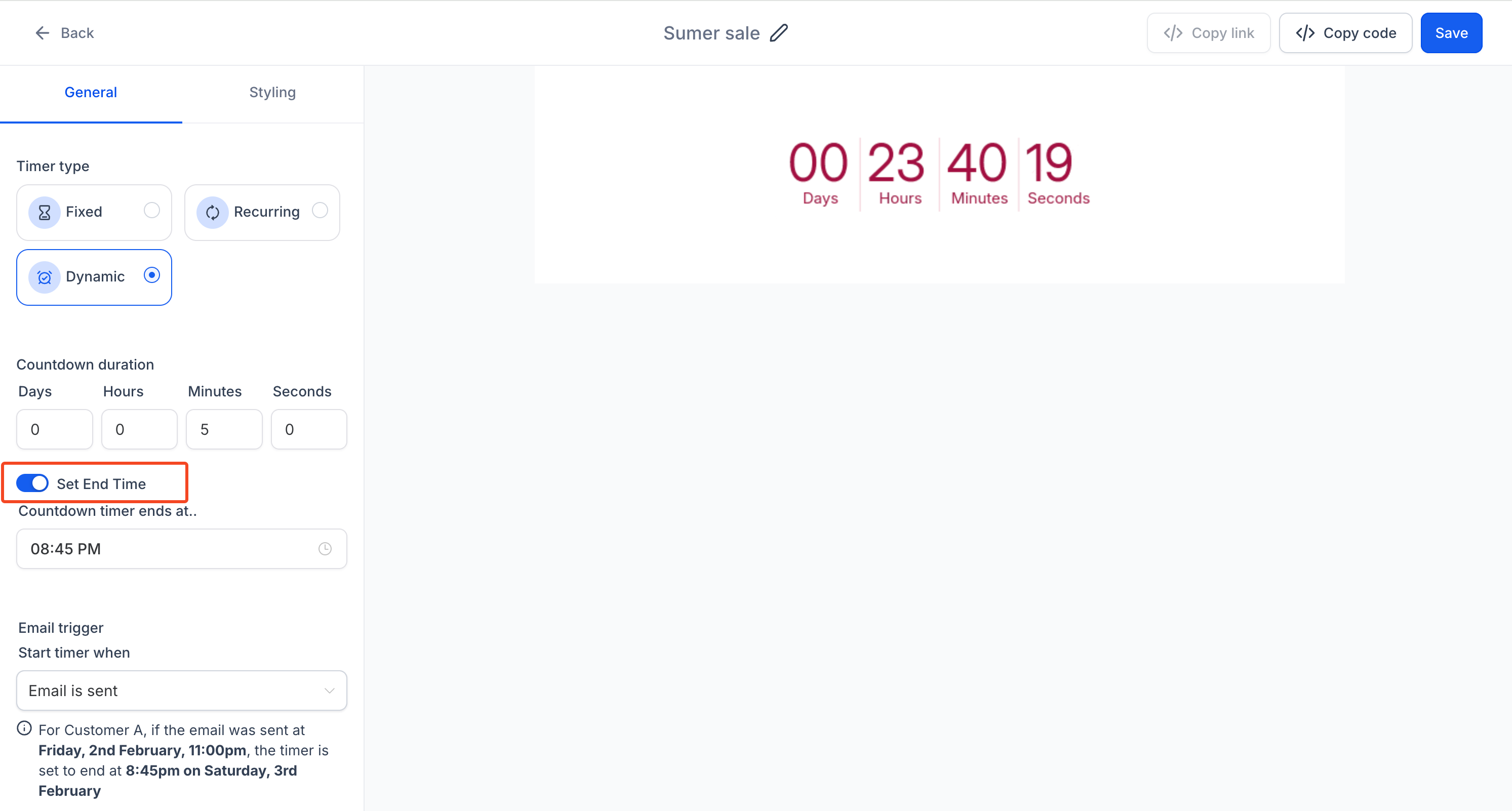
- Select the Dynamic timer option
- Set the Duration for your timer (how long you want it to run)
- Disable the Set End Time option to allow the timer to end after your chosen duration from when the email is opened or sent
- Save your settings and add the timer to your email campaign
Important Considerations
One-Time Use Per Family – A Dynamic Timer is triggered only once per family contact. If you need to reuse it for the same family in different email templates, clone the timer before reusing it.
This ensures each timer instance tracks independently and doesn't conflict with previous uses.
Frequently Asked Questions
Q: Can I set multiple dynamic timers in one email?
A: Yes, but each timer will function independently based on when the email is opened or sent.
Q: What happens if a parent opens the email multiple times?
A: The timer starts counting down from the first time they open it. If they open the email again later, they'll see the remaining time from that first open.
Q: Can I reuse a Dynamic Timer in different campaigns?
A: No, Dynamic Timers are one-time use per family contact. You should clone the timer before using it in another campaign to ensure it works properly.
Q: Does this feature work with automated sequences?
A: Yes, Dynamic Timers work seamlessly within your automated email sequences and nurture campaigns.