
How to Create a Facebook Lead Form in Ad Manager
Facebook lead forms are a powerful way to capture prospective families directly from your Meta ads. In this guide, you'll learn how to create, customize, and manage lead forms in Enrollio's Ad Manager to maximize your enrollment opportunities.
Table of Contents
- How to Create a New Facebook Lead Form
- How to Use Custom Fields in Ad Manager
- How to Review, Map, and Duplicate Existing Forms
How to Create a New Facebook Lead Form
When you create a Lead Generation campaign in Ad Manager, you can build a custom Facebook lead form that captures information from prospective families.
Step-by-Step Instructions
-
Start Your Campaign
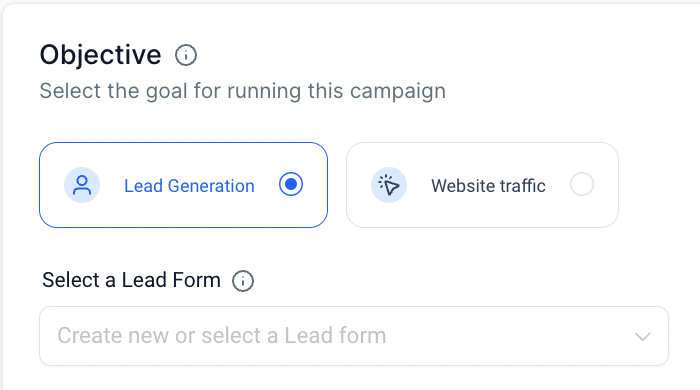
In Ad Manager, create a new ad campaign and select Leads as your objective. -
Create Your Form
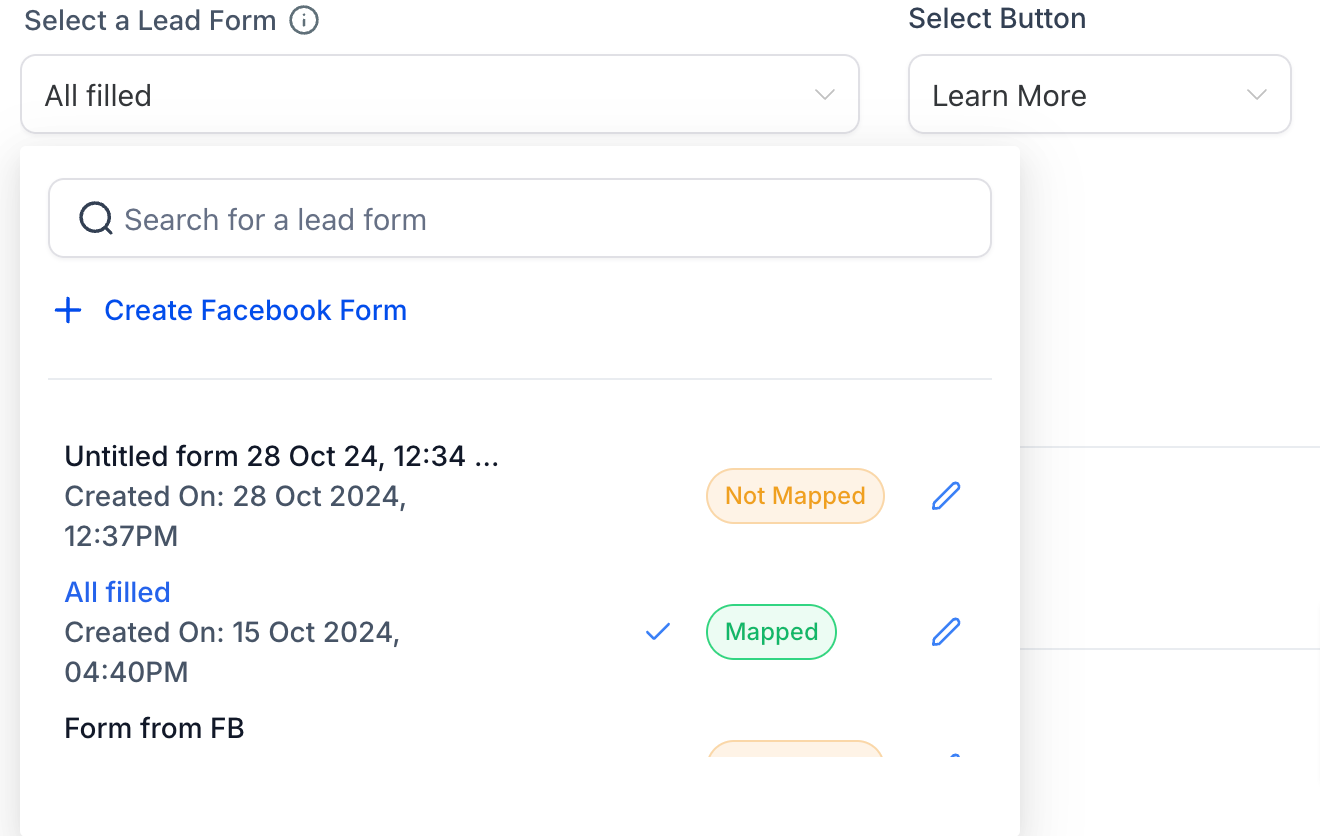
Click the dropdown to create or select a lead form, then choose Create Facebook Form. -
Name Your Form
Give your form a clear, descriptive name (e.g., "Fall Enrollment Interest" or "Tour Request Form"). -
Choose Form Type
Select between two options:- More Volume — Simpler, faster form completion
- Higher Intent — Adds a review step where families confirm their information before submitting
-
Add Greetings
Create a welcome message that tells families why they should complete your form. Include a headline (required) and optional paragraph or bullet points. -
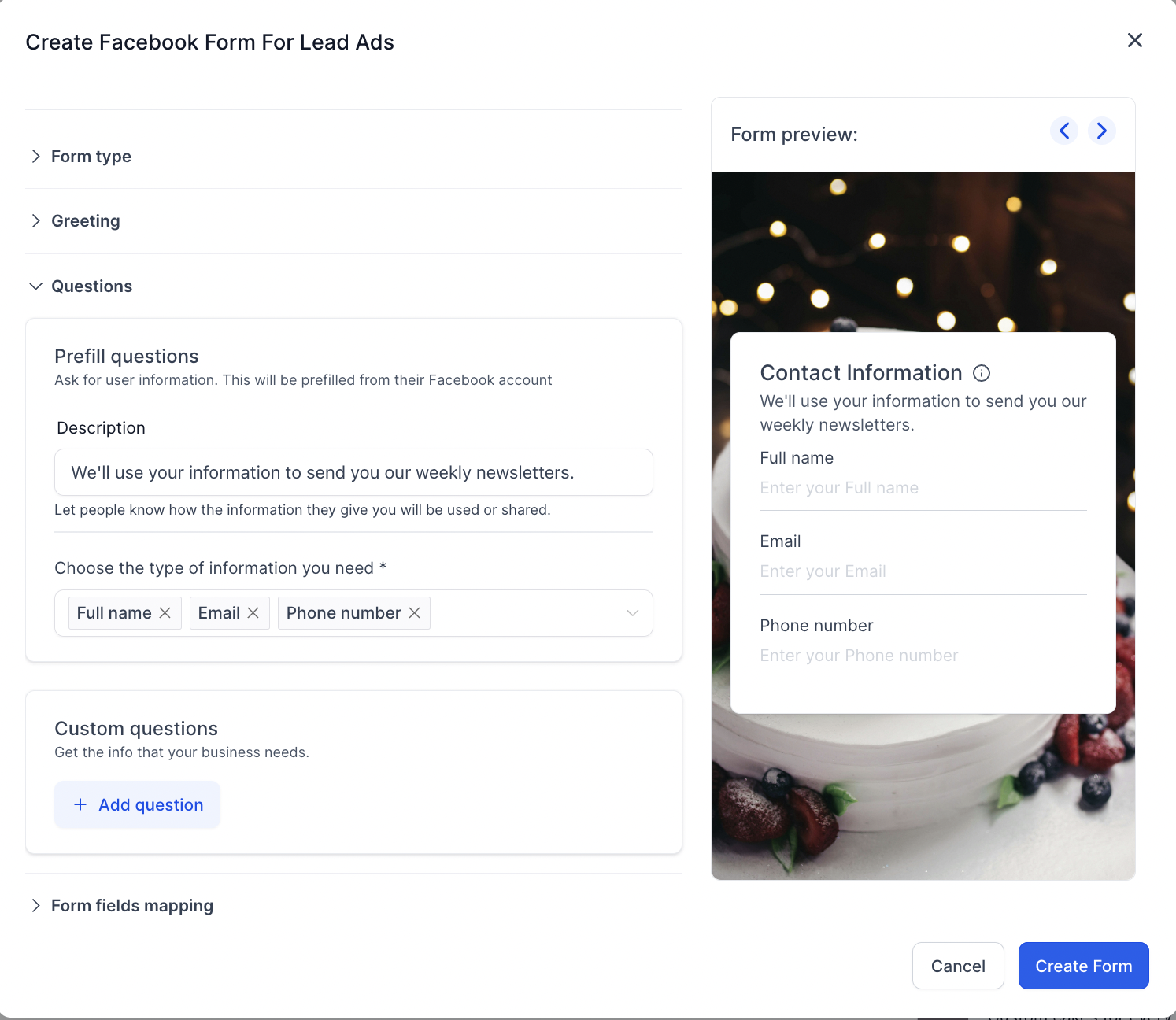
Configure Questions
- Add a description to provide context
- Select the information types you need (name, email, phone, etc.)
- Add custom questions with short answers or multiple choice options to gather childcare-specific details like age of child, preferred start date, or program interest
-
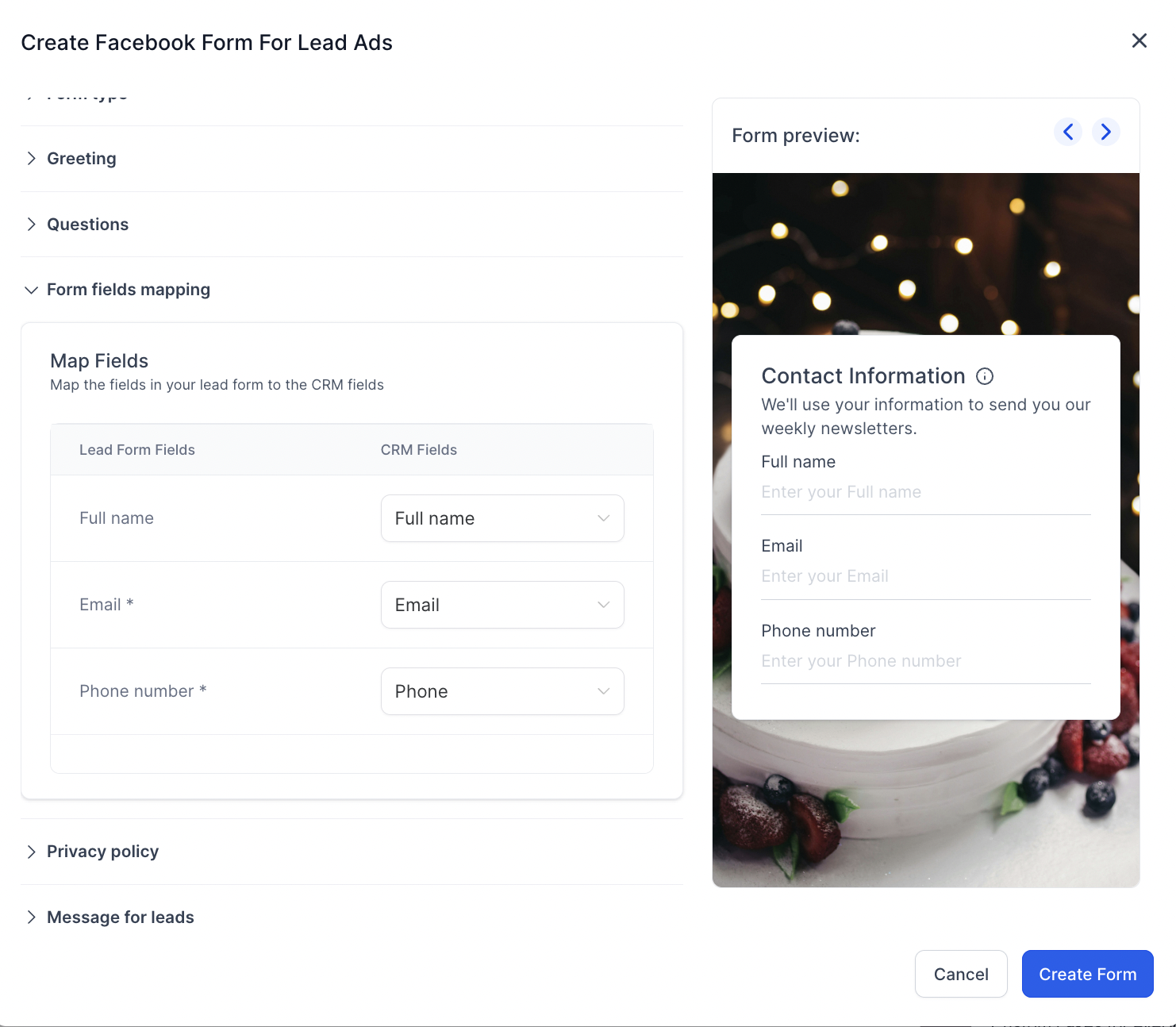
Enable Form Field Mapping
Map your form fields to parent contact fields in Enrollio. This ensures that when families submit the form, their information flows directly into your CRM with all details properly organized. -
Add Privacy Policy
Link to your center's privacy policy. You can use your own landing page or reference the Enrollio privacy policy template at https://www.leadconnectorhq.com/privacy-policy. -
Create Thank You Message
Customize what families see after completing the form. Add a headline, description, and call-to-action button (like "Visit Our Website" or "Call Us Now"). -
Save Your Form
Click Save to return to your Lead Generation campaign setup.
How to Use Custom Fields in Ad Manager
Custom fields let you capture childcare-specific information that standard form fields don't cover — like child's age, program interest, or enrollment timeline.
Creating and Mapping Custom Fields
When you create a lead form on Facebook, you can add tracking parameters and custom questions. To sync these with your Enrollio CRM, you need to set up custom fields first.
Steps to create a custom field:
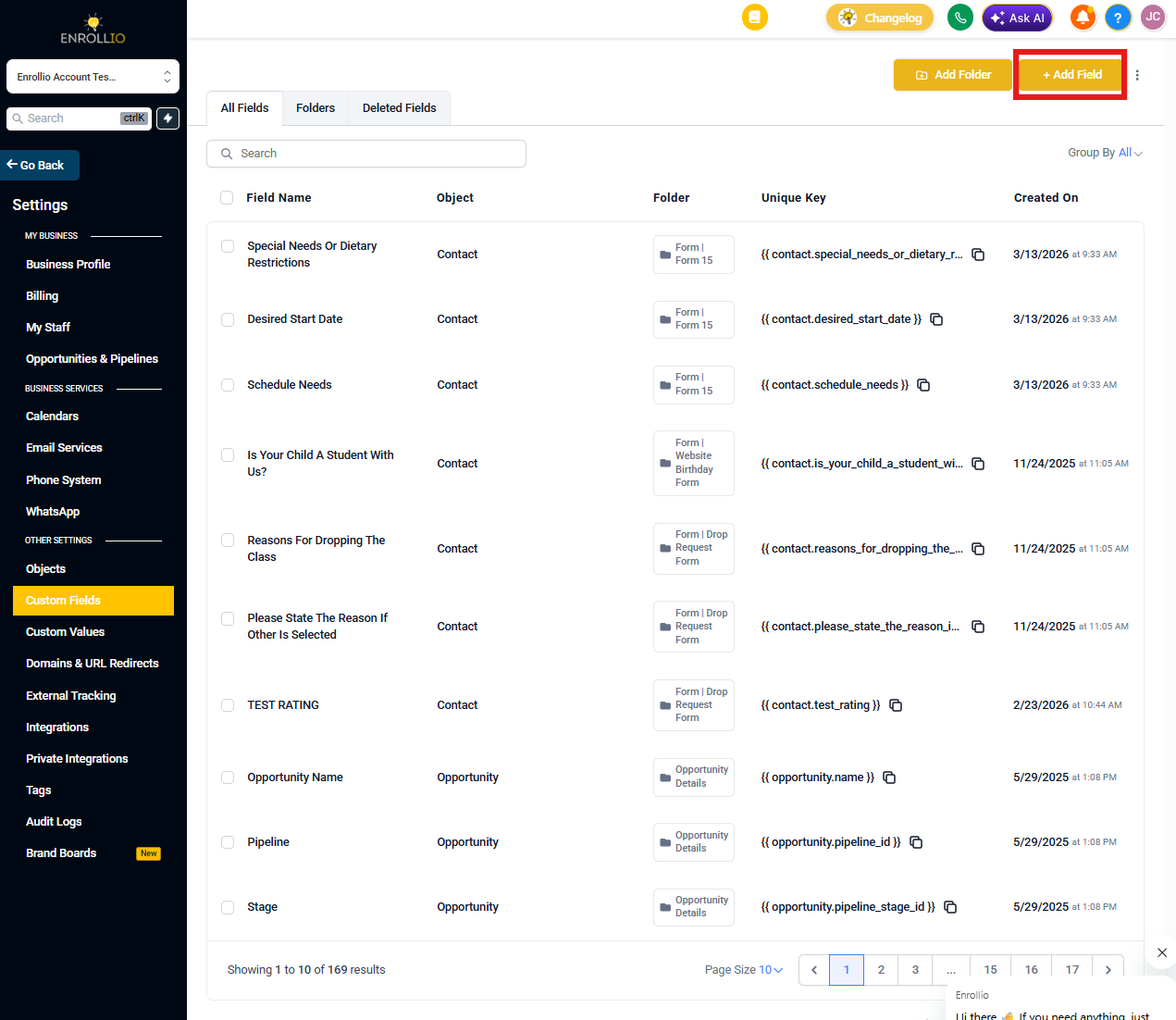
- Go to Settings in your Enrollio dashboard
- Navigate to Custom Fields
- Click Add Custom Field
- Name your field (e.g., "Child's Age" or "Program Interest")
- Choose the field type (text, number, dropdown, etc.)
- Save the field
Once created, your custom field will appear in the form field mapping section when you build or edit lead forms in Ad Manager.
How to Review, Map, and Duplicate Existing Forms
Enrollio makes it easy to manage your Facebook lead forms. You can review existing forms, update field mappings, and duplicate successful forms for new campaigns.
Accessing Form Review and Mapping
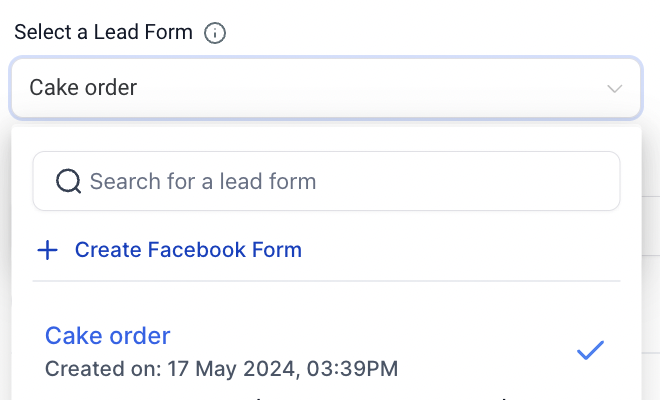
- When setting up a Lead Generation campaign, select an existing form from the dropdown
- Click the pencil/edit icon next to the form name
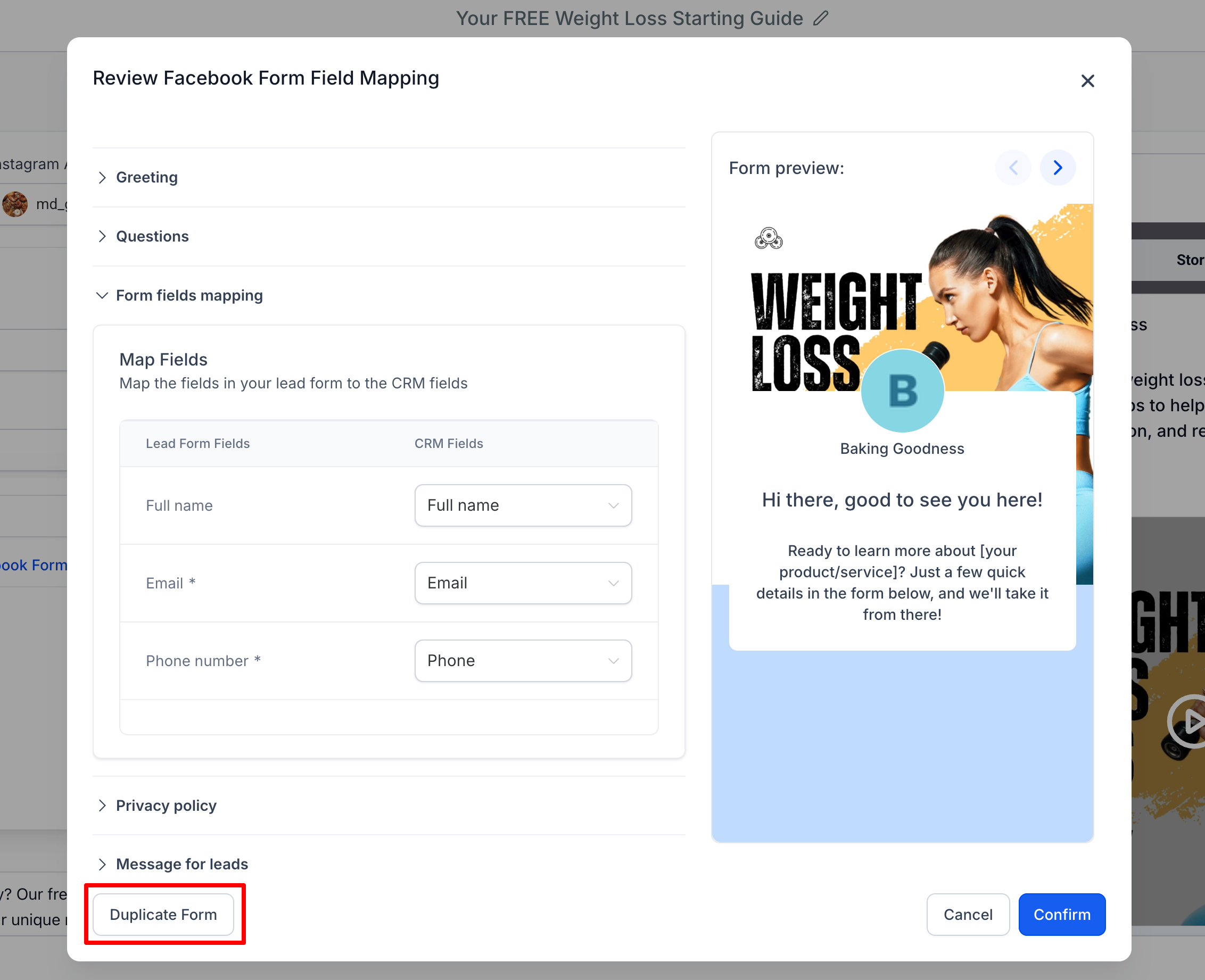
- A modal opens where you can:
- Preview the complete form
- Map or update form fields to parent contact fields in your CRM
- Ensure all information syncs correctly
Duplicating a Facebook Form
Save time by cloning high-performing forms instead of building from scratch.
- Open the form review modal (see steps above)
- Click Duplicate Form at the bottom left
- Review the pre-filled fields from the original form
- Make any changes you need
- Click Create Form to save your new version
Field Mapping Reminder
If you select a form that hasn't been mapped yet, Enrollio will show a message below the form selector: "Form fields of the selected form are not mapped, map now."
Click map now to open the mapping interface and connect your form fields to your CRM. This prevents prospective family information from being lost or incomplete.
Next Steps
Now that you've created your Facebook lead form, you're ready to launch your Lead Generation campaign. Make sure to set up automated follow-up messages to contact prospective families immediately after they submit their information.
Related Articles:
- How to Create a Meta Ad Campaign in Ad Manager
- Setting Up Automated Follow-Ups for New Leads
- Creating Custom Audiences for Your Childcare Center