
QR Code Builder: Redirect Options
Create dynamic QR codes that connect families to your enrollment pages, forms, payment links, and more — all with a single scan. QR codes help you turn offline touchpoints into online enrollments.
What is QR Code Builder?
QR Code Builder lets you create customizable QR codes that direct families to specific destinations in your Enrollio account. Use them on flyers, open house signage, business cards, or anywhere families might see them.
You can create QR codes that link to enrollment pages, registration forms, payment links, WhatsApp chats, surveys, and quizzes — no third-party tools needed.
Why Use QR Codes?
QR codes bridge the gap between your physical marketing and digital enrollment process:
- Drive offline-to-online engagement — Turn flyers and posters into enrollment opportunities
- Promote specific enrollment pages or forms — Send families exactly where you want them
- Start instant WhatsApp conversations — Make it easy for families to reach out
- Direct to payment links — Simplify registration fee collection
- Update destinations anytime — Change where a QR code points without reprinting
- Match your brand — Customize colors and shapes
How to Create a QR Code
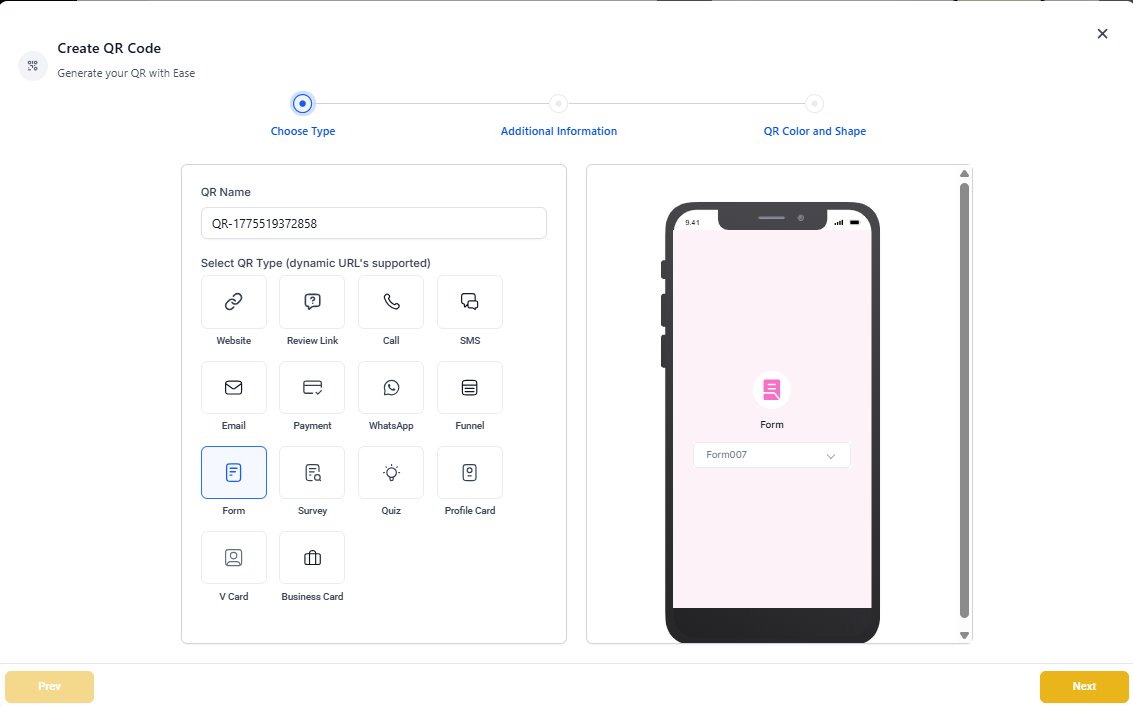
Creating a QR code takes just a few clicks:
- Go to Sites > QR Code Builder
- Click Create QR Code
- Select your QR type from the dropdown: Payment, WhatsApp, Enrollment Page, Form, Survey, or Quiz
- Configure the destination:
- Choose an enrollment page
- Select a form, survey, or quiz
- Enter a payment link
- Add WhatsApp number and message
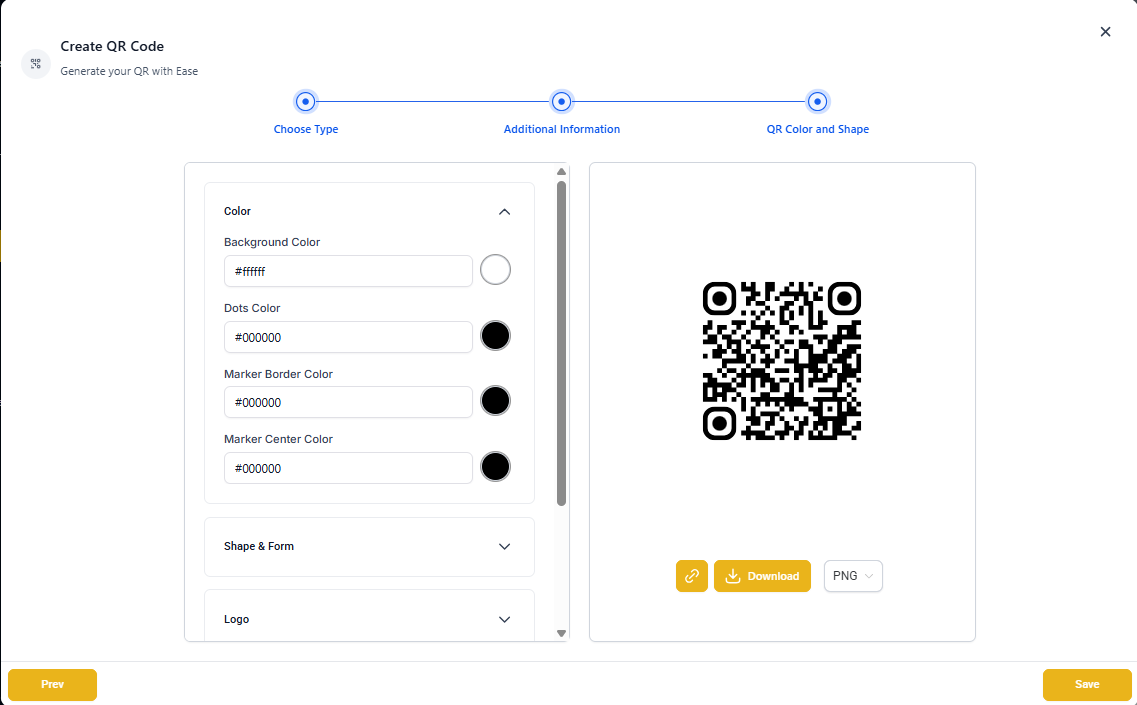
- Customize your QR code design (color, shape)
- Click Next and generate the QR code
- Download the QR image or embed it where needed
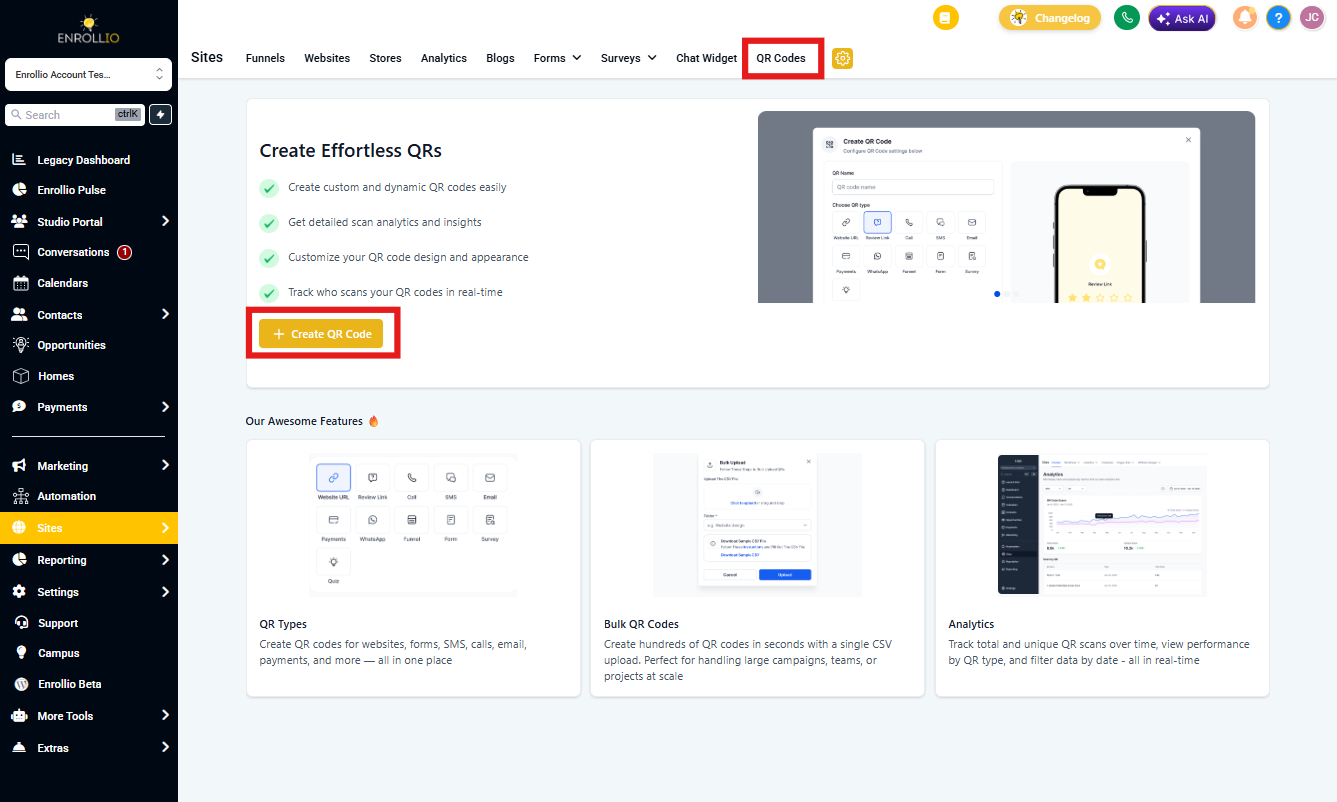
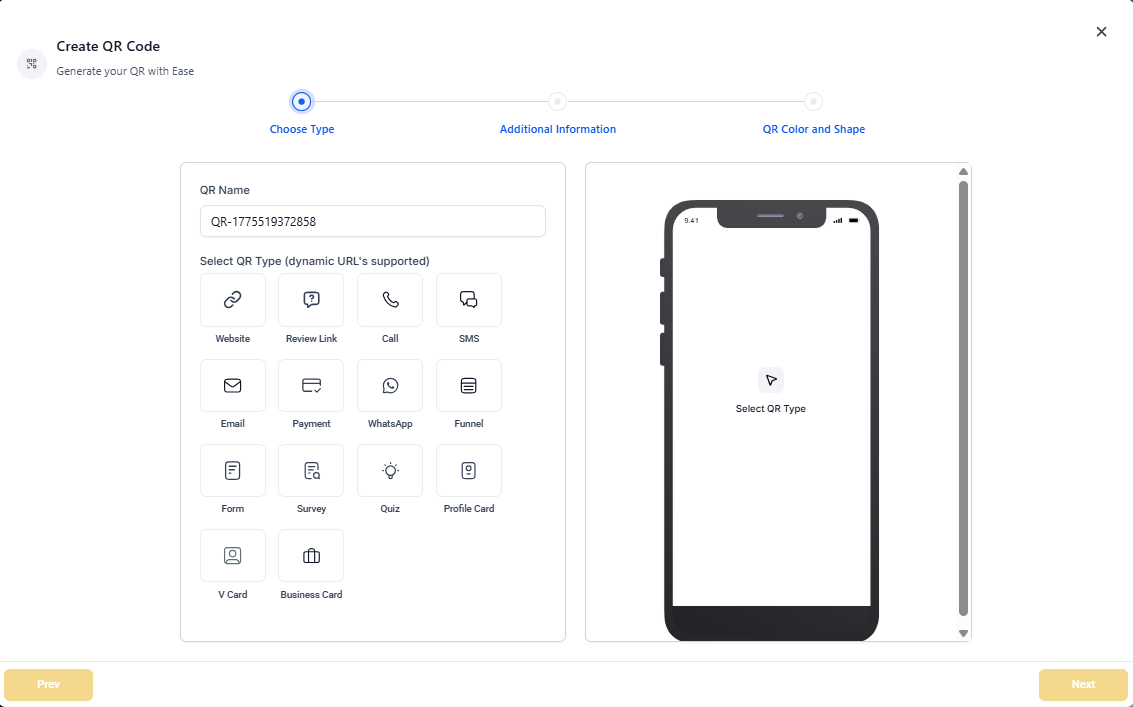
QR Code Types
Each QR code type serves a different purpose in your enrollment journey.
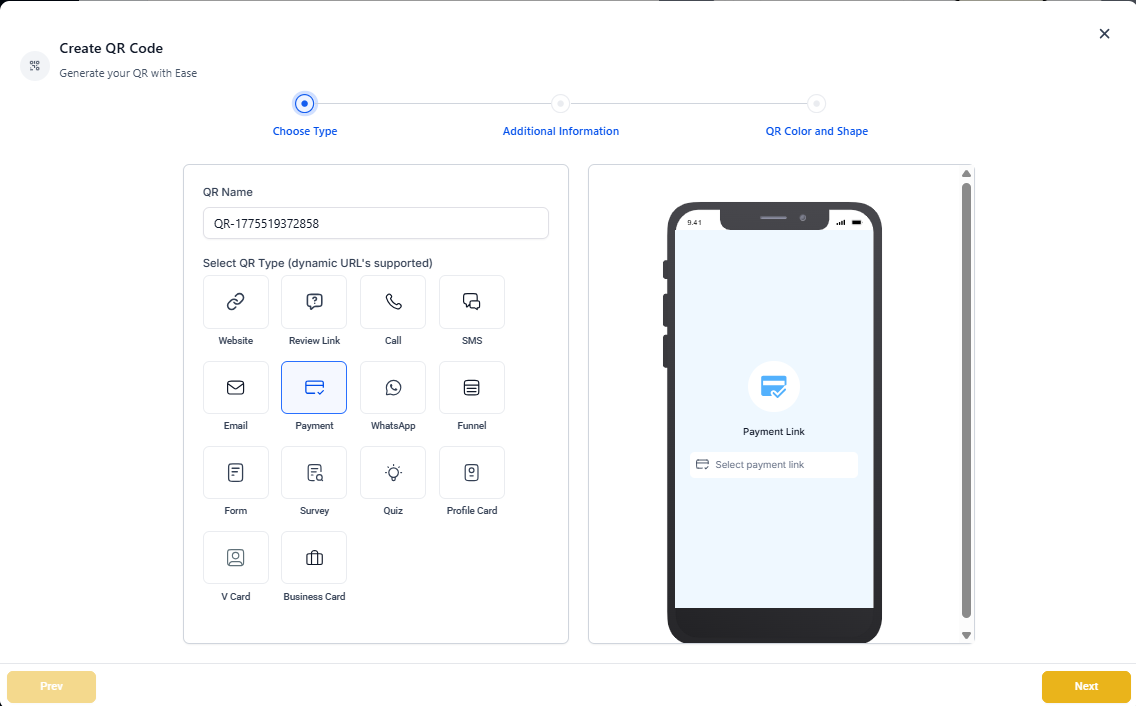
Payment QR Codes
Drive families directly to a payment link — perfect for registration fees, tuition deposits, or event payments.
- Select an existing payment link or create a new one
- Families scan and go straight to checkout
- Great for "Pay Registration Fee Here" signage at open houses
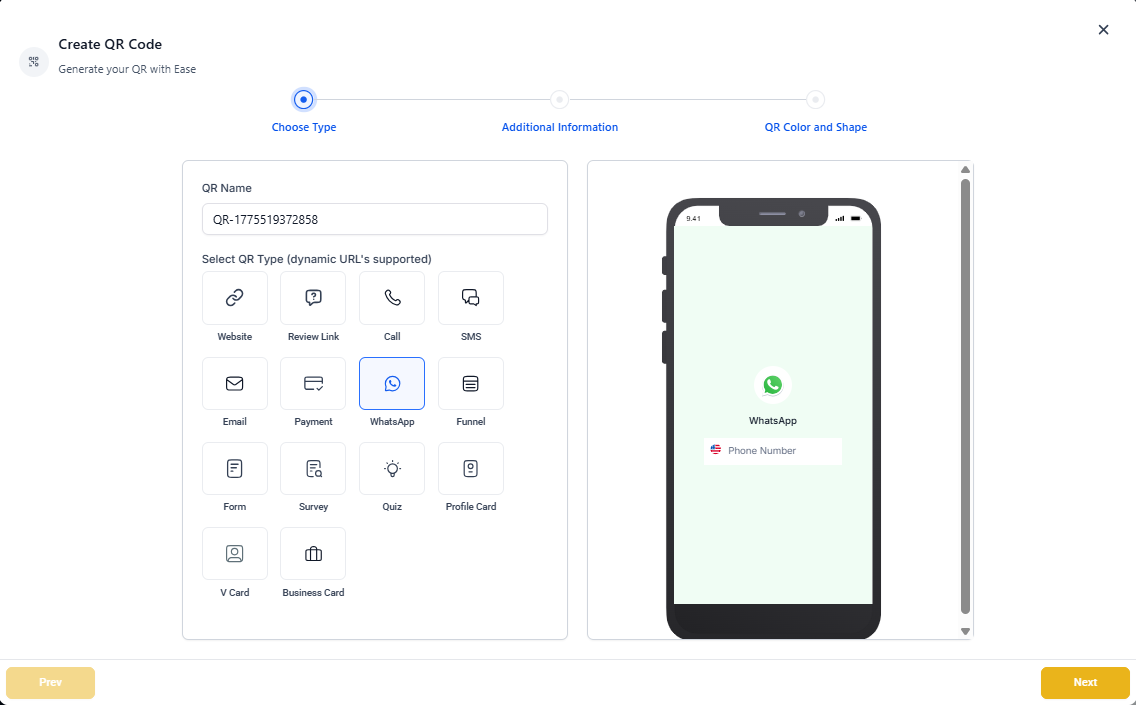
WhatsApp Chat QR Codes
Let families start a WhatsApp conversation with your center instantly.
- Add your WhatsApp phone number and optional pre-filled message
- Families scanning the code launch WhatsApp automatically
- Perfect for quick questions, tour scheduling, or enrollment support
Enrollment Page QR Codes
Link directly to any landing page or enrollment page to guide families through your enrollment process.
- Select an existing enrollment page and choose a specific page
- Perfect for marketing flyers, event booths, and yard signs
- Track QR scans to measure campaign performance
Form QR Codes
Open a registration form or waitlist form for instant lead capture.
- Select any form from your account
- Scanning launches the form in the family's browser
- Ideal for open houses, community events, and lobby signage
Survey QR Codes
Gather feedback from current families or prospects.
- Choose any survey from your account
- Survey launches when scanned
- Great for parent satisfaction surveys or post-tour feedback
Quiz QR Codes
Engage families with interactive quizzes that capture leads.
- Select a quiz from your library
- Quiz launches directly when scanned
- Perfect for "Find Your Perfect Childcare Program" or similar lead magnets
Customizing Your QR Codes
Make your QR codes match your brand:
- Choose custom colors that match your center's branding
- Select different shapes and styles
- Download high-resolution images for print materials
Using QR Codes in Your Marketing
Here are some effective ways childcare centers use QR codes:
- Open house signage — "Scan to Join Our Waitlist"
- Business cards — Link to your enrollment page
- Flyers and brochures — "Scan to Schedule a Tour"
- Yard signs — Drive traffic to your website
- Community event booths — Capture leads on the spot
- Parent handbooks — Link to payment portals or forms
- Email signatures — Quick access to schedules or resources
Frequently Asked Questions
Can I update a QR code's destination after printing it?
Yes. Your QR codes use dynamic URLs, which means you can update where they point without reprinting. Already distributed flyers with a QR code? Just change the destination in Enrollio.
Do I need to create forms and pages before making QR codes?
Yes. You'll need to create your enrollment pages, forms, surveys, or quizzes first. They'll then appear in the QR Code Builder dropdown.
Does WhatsApp work on desktop?
Yes. Families with WhatsApp Web or Desktop installed will be redirected to the appropriate app.
Can I track how many people scan my QR codes?
Yes. Each QR code includes scan tracking so you can monitor engagement and measure your marketing effectiveness.
Can I customize how my QR codes look?
Yes. You can customize the color, shape, and style to match your center's branding.
Can I use these QR codes in printed materials?
Absolutely. Download high-resolution QR images and use them in any print collateral, signage, or promotional material.
What size should my QR code be for printing?
For best results, QR codes should be at least 2cm x 2cm (about 0.8 x 0.8 inches). Larger is better for signs that families will scan from a distance.