
How to Organize Form Fields into Multiple Columns
Make your enrollment forms easier to scan and more professional-looking by spreading radio buttons, checkboxes, and image choices across multiple columns. This works great for questions like "Which programs are you interested in?" or "What days do you need care?"
How to Set Up Multi-Column Fields
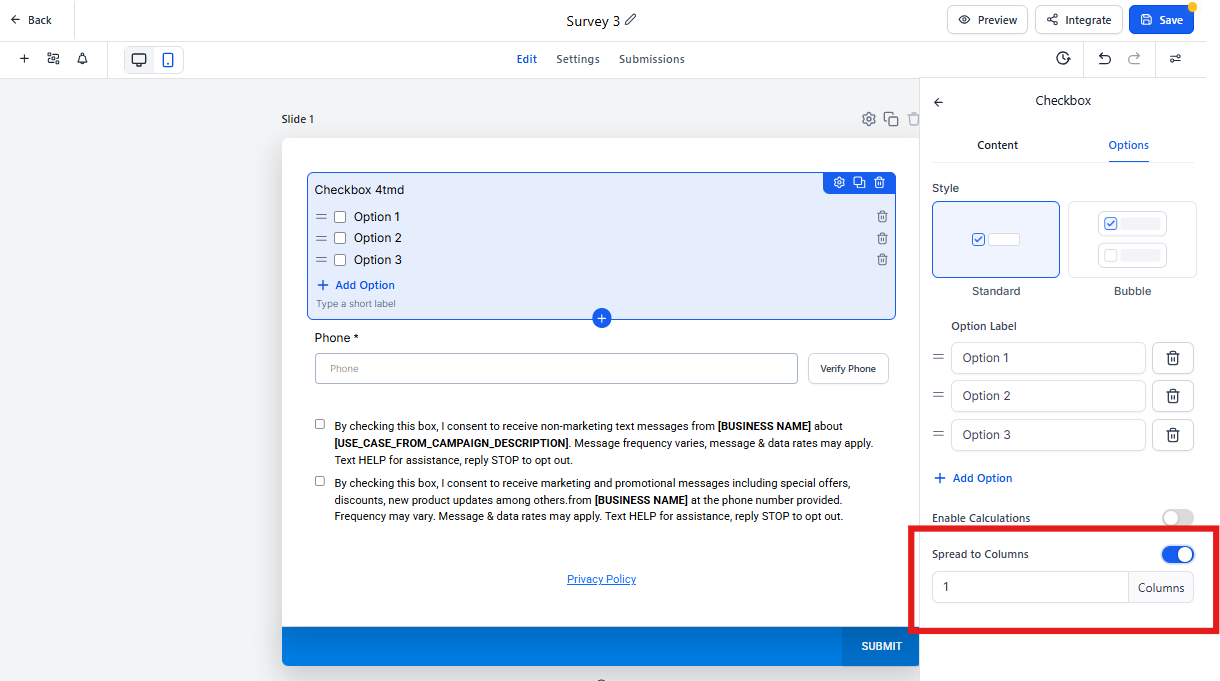
- Open your form builder and click on the field you want to adjust (radio buttons, checkboxes, or radio images).
- In the right settings panel, toggle on "Spread to Column."
- Choose how many columns you want.
Why Use This Feature
Cleaner forms: Instead of a long vertical list, you can display options side-by-side, making better use of screen space.
Easier for parents: When families can see all their options at once without scrolling, they're more likely to complete your form.
Column Limits by Layout Type
The number of columns you can use depends on your form's overall layout:
- Single column layout: Up to 5 columns per field
- Two column layout: Up to 2 columns per field
- Single line layout: Up to 5 columns per field
Pro Tip: This feature only affects new or edited forms. Your existing forms will stay exactly as they are unless you open them and make changes.