
Timezone Settings in Forms and Surveys
When parents fill out enrollment forms or tour requests, capturing their timezone helps you communicate at the right time. This feature automatically records where your families are located, so you can schedule follow-ups, send reminders, and reach out during their business hours.
Here's how to manage timezone settings in your forms and surveys.
Enabling Timezone Capture
Timezone capture is turned on by default in all Enrollio forms and surveys. You can adjust this setting anytime.
- Open the form or survey you want to edit
- Click Options in the form builder
- Find the Timezone toggle
- Switch it ON or OFF as needed
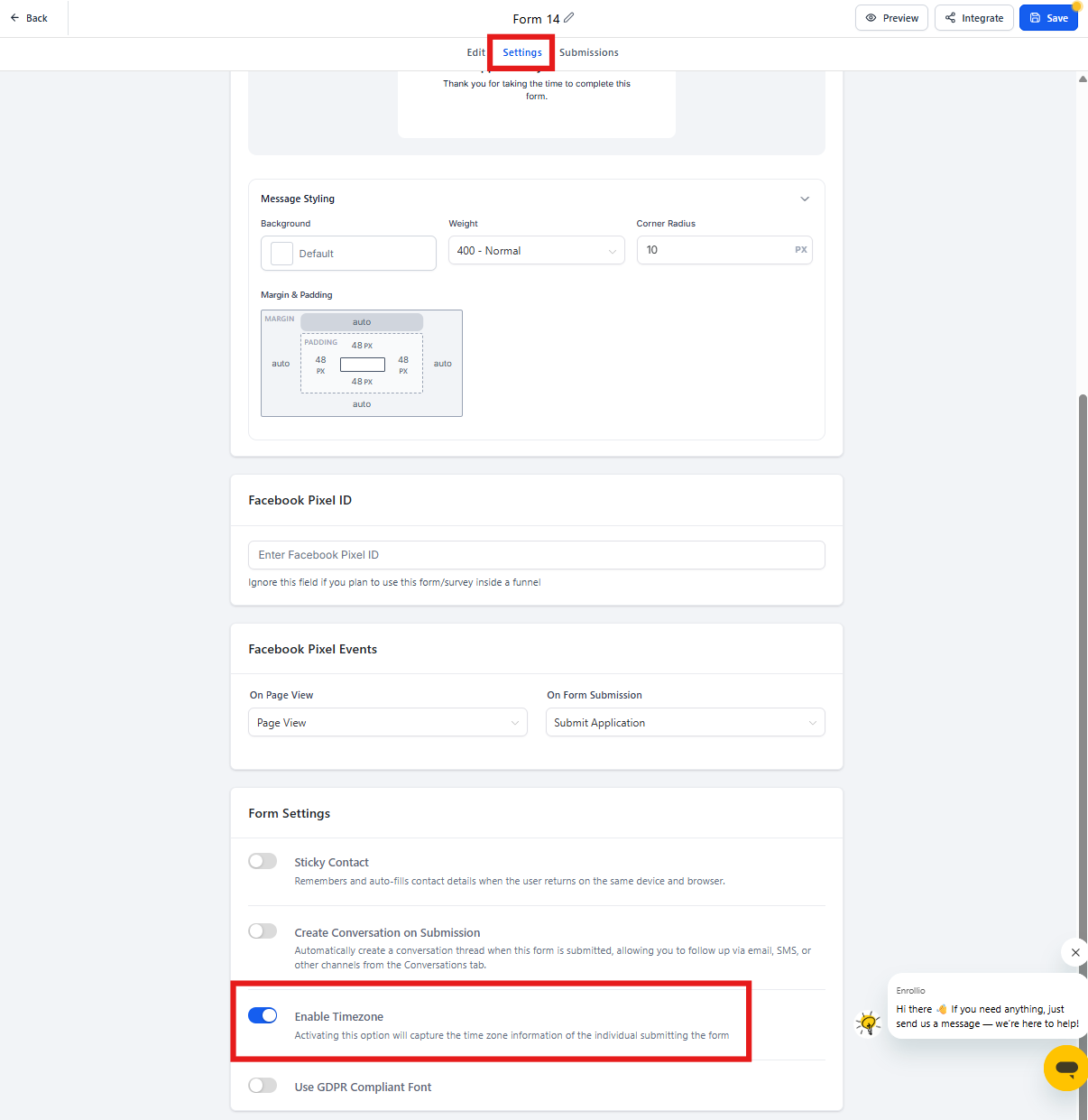
Pro tip: Keep this enabled if you serve families across multiple time zones or send automated text messages and emails. You'll avoid waking parents up at 6am with a tour reminder meant for 9am their time.
Viewing Timezone Data in Submissions
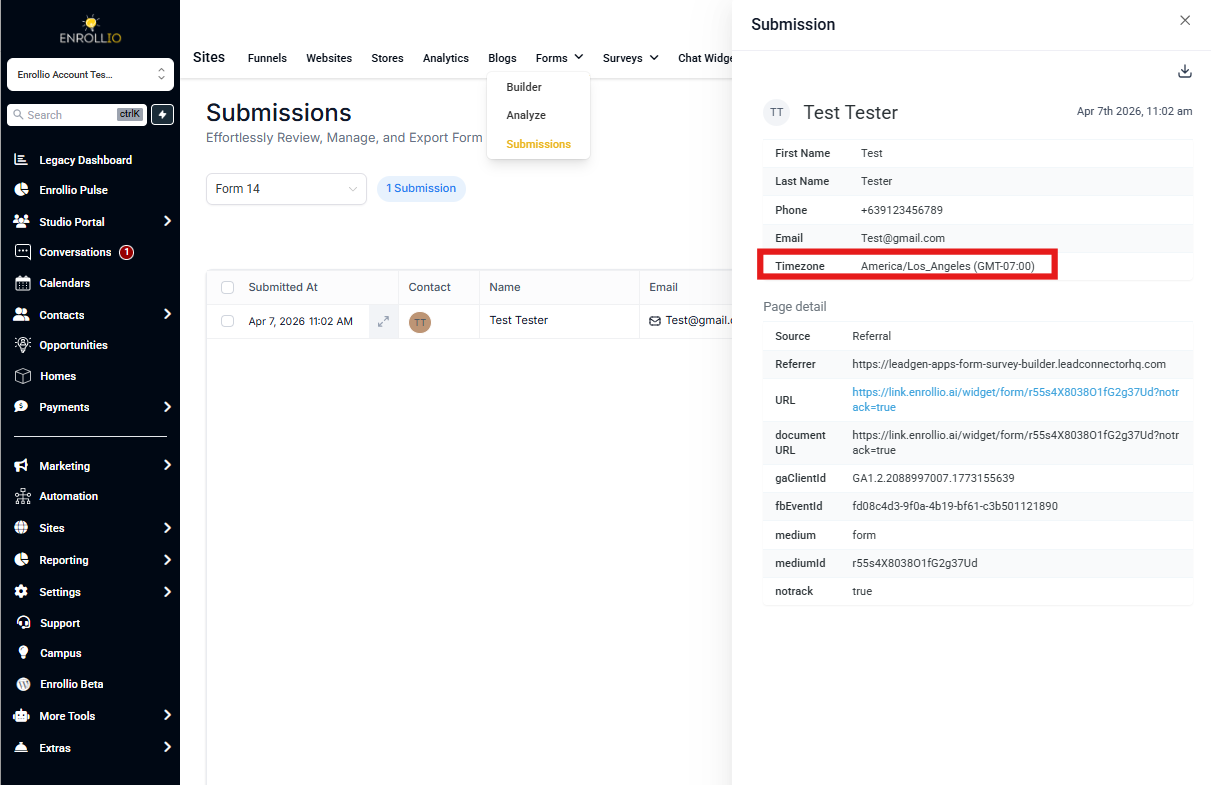
Once a parent submits a form, their timezone is automatically captured and stored with their response.
To view timezone information:
- Navigate to your form or survey
- Click Submissions
- Open any individual submission
- Look for the timezone field — it shows the region and GMT offset (example: "America/New_York (GMT-5)")
Using Timezone Data for Communications
The real power of timezone capture comes when you use it to send messages and emails at the right time for each family.
When you set up automations or scheduled campaigns, Enrollio can automatically adjust send times based on each parent's timezone. This means your 9am tour reminder goes out at 9am their time, not yours.
Pro tip: If you run a multi-location childcare business or offer virtual tours across states, timezone-aware messaging helps you maintain a personal, professional touch with every family.