
What Are Element Templates in Page Builder?
Element Templates let you save any page element—buttons, forms, headers, images—with all its styling intact. Once saved, you can drop that element into any enrollment page or site with a single click.
Think of it as creating your own library of pre-designed components. Build a signup button once, save it as a template, and reuse it everywhere.
Why Use Element Templates?
Stay on-brand across every page. Your enrollment pages, tour request forms, and welcome sites will all use the same approved buttons, headlines, and CTAs.
Build pages faster. Stop rebuilding the same elements from scratch. Just insert your saved template and move on.
Share across your team. Everyone in your account can access the same library, so your whole team stays consistent.
Perfect consistency. Fonts, colors, spacing—everything is preserved exactly as you designed it.
How to Save and Use Element Templates
Step 1: Open Your Page Builder
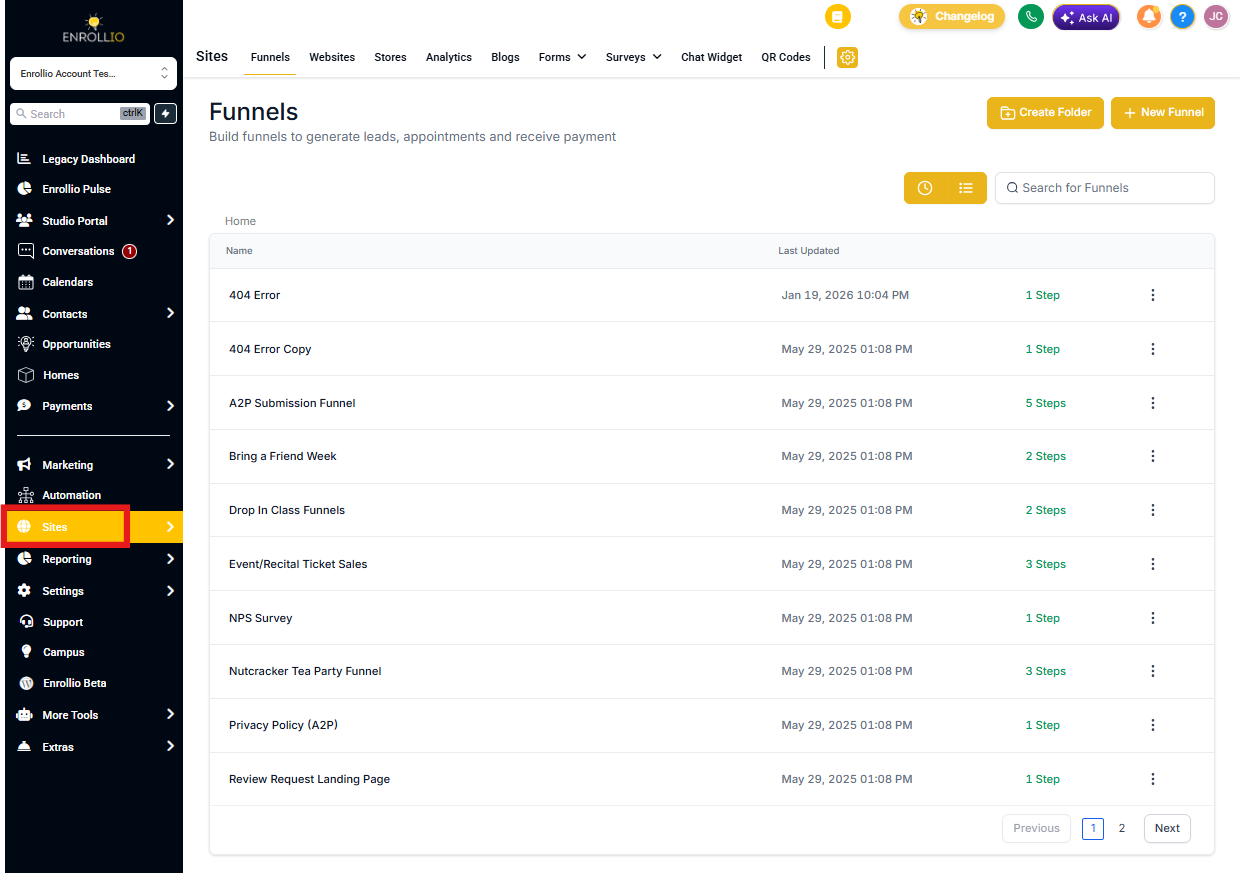
- Click Sites in your Client Account
- Create a new enrollment page or edit an existing one
Step 2: Design Your Element
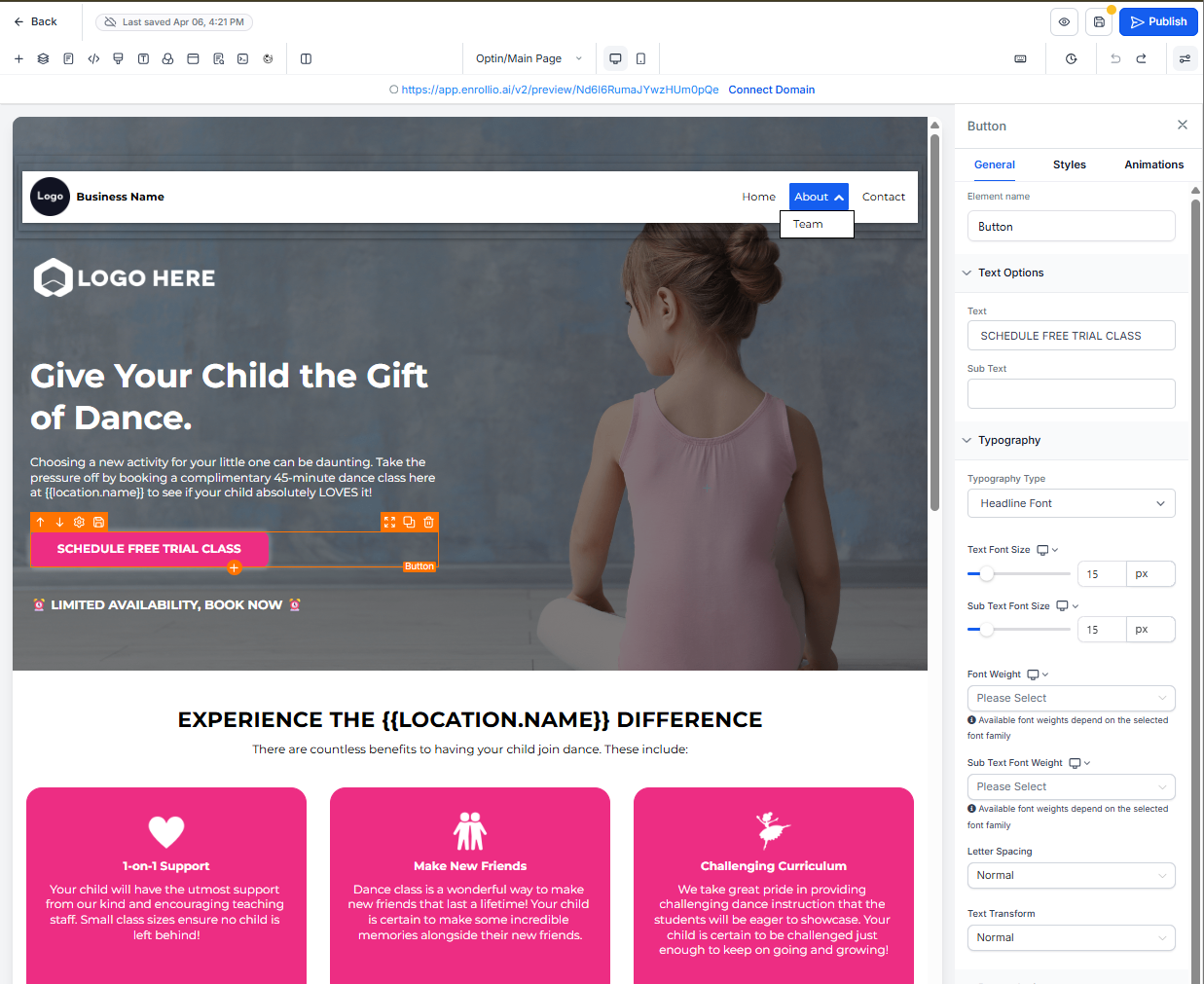
- Add or edit any element—a button, form, text block, image, whatever you want to save
- Style it exactly how you want it: colors, fonts, spacing, alignment
Step 3: Save It as a Template
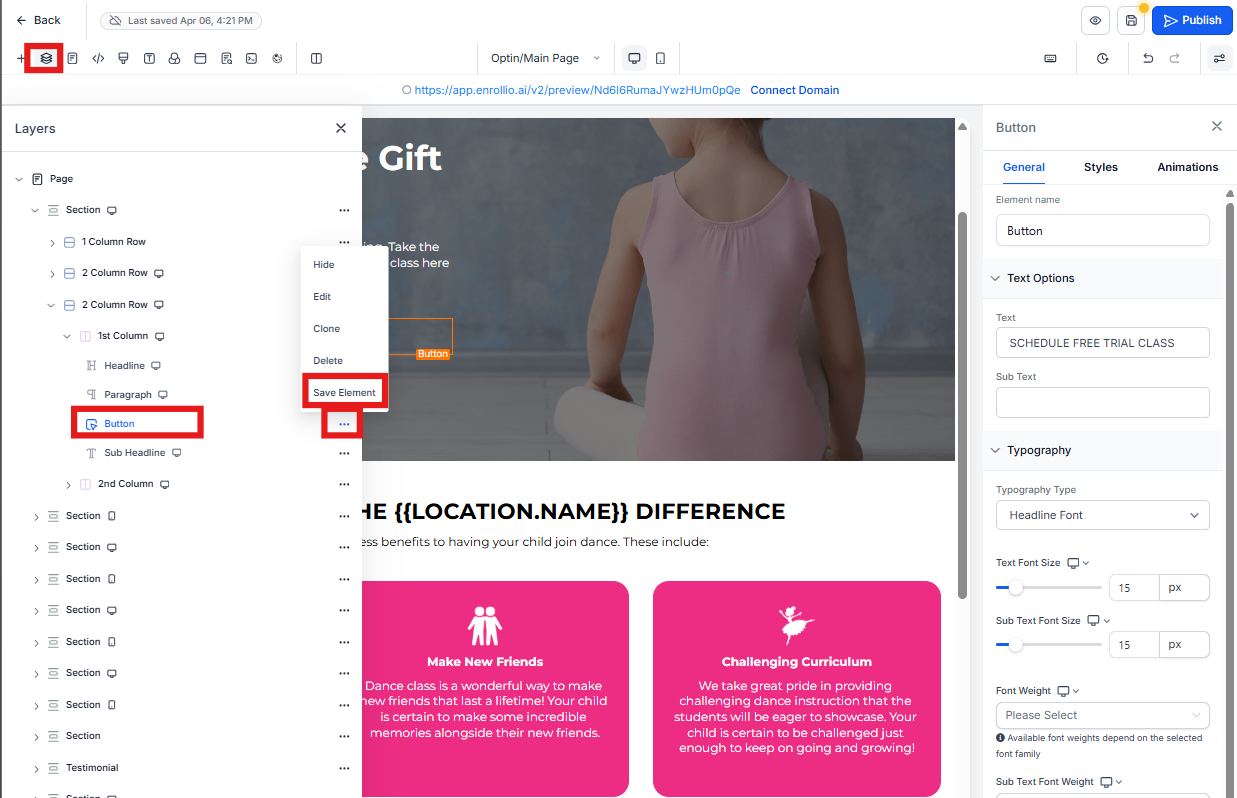
You have two ways to save:
- Quick save: Click the Save icon on the element's toolbar (appears when you select the element)
- Layer panel: Open Layers → click the ⋯ menu next to your element → Save Element
Give your template a clear name like "Primary Tour CTA Button" or "Enrollment Form Header." The more descriptive, the easier it'll be to find later.
Step 4: Use Your Template Anywhere
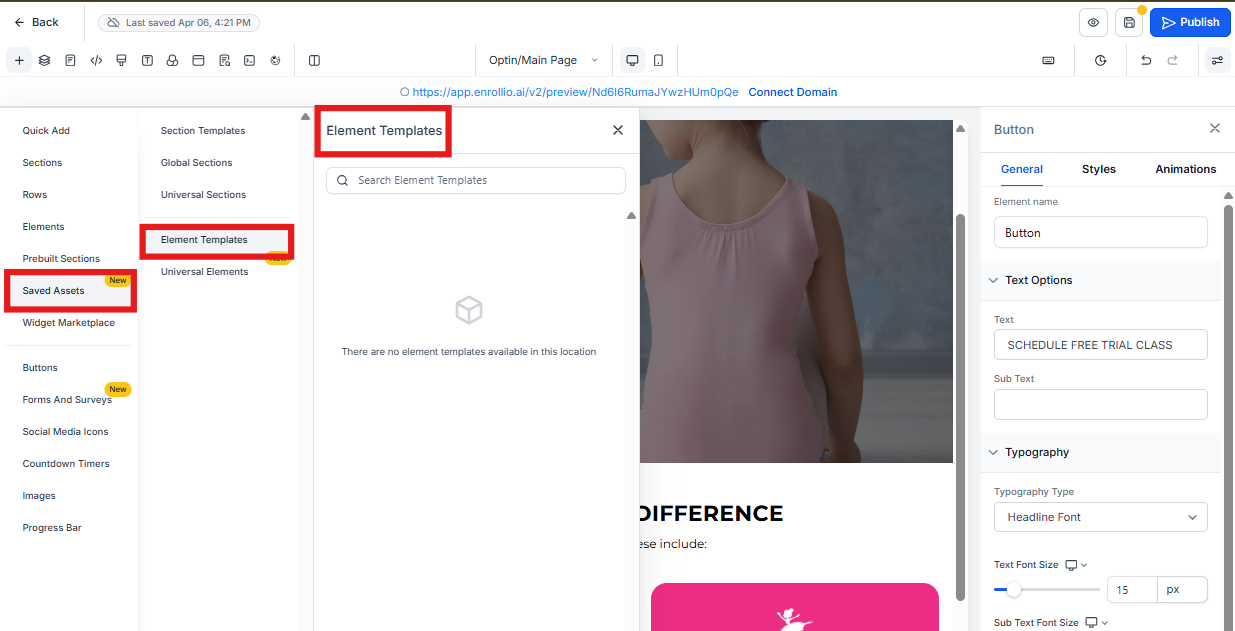
- Open any page in the builder
- Click Add Elements (+)
- Go to Saved Assets → Element Templates
- Click your saved template to insert it
Managing Your Template Library
Keep your library organized by using clear, descriptive names. Include what the element is and where it's used: "Blue Enrollment Button - Primary" or "Tour Request Form - Hero Section."
To rename or delete a template, go to Saved Assets → Element Templates in the page builder and click the menu next to any template.
Frequently Asked Questions
Do Element Templates update automatically like Global Sections?
No. Element Templates are static snapshots. If you insert a template on five pages and later edit one instance, the other four won't change. If you need elements that sync across pages, use Global Sections instead.
Who can see and use my saved templates?
Anyone with edit access to your Client Account can use any Element Template in the library. Templates are shared across your entire account.
Can I turn an existing element into a template?
Absolutely. Open any page, select the element you want to save, and click the Save icon. That element becomes a reusable template instantly.
Are fonts and colors preserved in templates?
Yes. Everything about the element's design is saved—fonts, colors, spacing, borders, shadows, the works.
Is there a limit to how many templates I can create?
There's no hard limit. Just keep your naming clear so you can find what you need quickly.
Can I organize templates into folders?
Not currently. Use a consistent naming system to keep things organized. Try prefixes like "Button -" or "Form -" to group similar elements together.