
QR Code Element in Page Builder
Give parents and visitors a simple way to open any link by scanning a QR code placed directly on your enrollment page or website. This article explains how to add and edit QR codes in the Enrollio Page Builder.
What is the QR Code Element?
The QR Code element lets you add a scannable code to any page that links to important destinations—your tour calendar, enrollment form, survey, payment link, or any external URL. You can select an existing QR code from your library or create a new one without leaving the page builder.
Place this element anywhere on your page, and parents can scan it with their phone camera (or click it) to reach the destination instantly. Perfect for open houses, printed materials, or directing families to specific enrollment steps.
Key Benefits
- Inline Creation and Editing: Create a new QR code or edit an existing one directly from the builder—no need to switch screens.
- Clear Destination: See exactly where the QR code will send parents before you publish.
- Smart Detection: If a previously selected QR code was deleted from your library, you'll be prompted to pick or create a new one.
- On-Canvas Control: Resize and position the element to fit your layout perfectly on both desktop and mobile.
How to Add a QR Code to Your Page
Follow these steps to place a working QR code on your enrollment page or website.
Step 1: Open Your Page
Navigate to Sites → Enrollment Sites (or Landing Pages) and choose the page you want to edit.
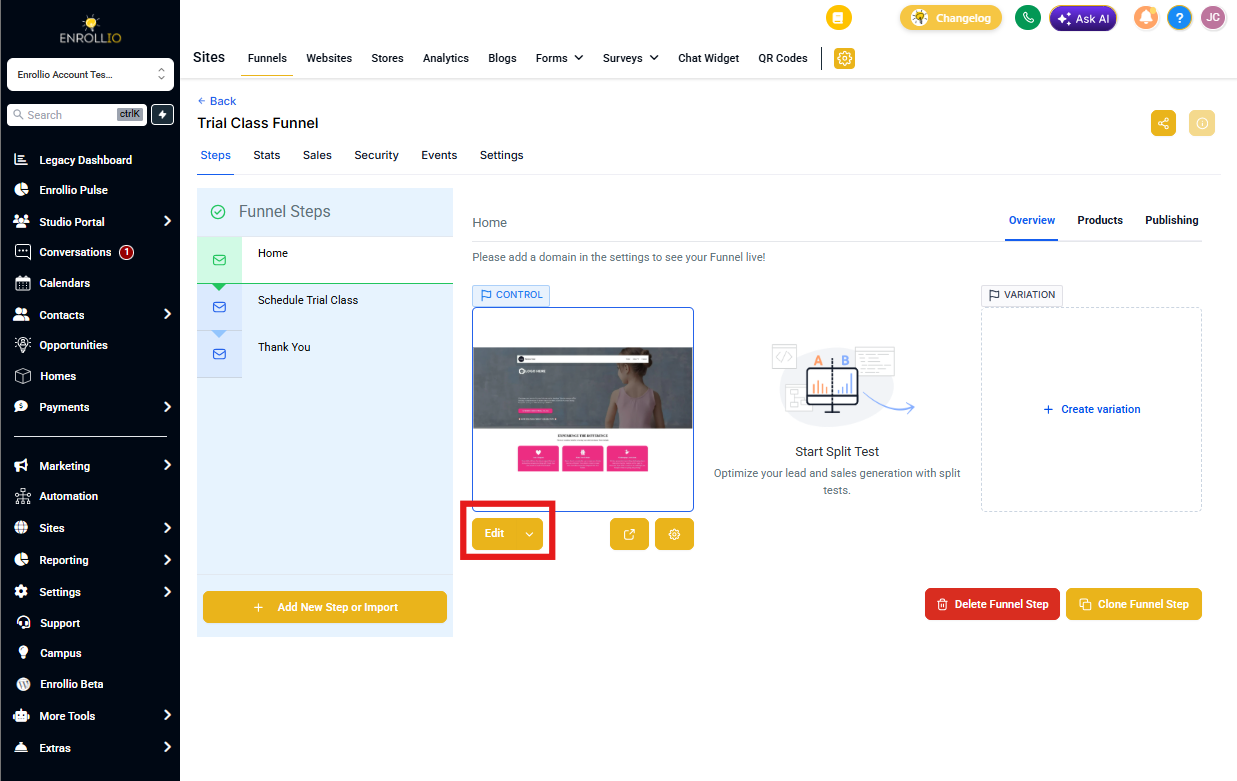
Step 2: Add the QR Code Element
- Click the + (add elements) icon to open the elements panel
- Scroll down to QR Code and drag the element onto your page
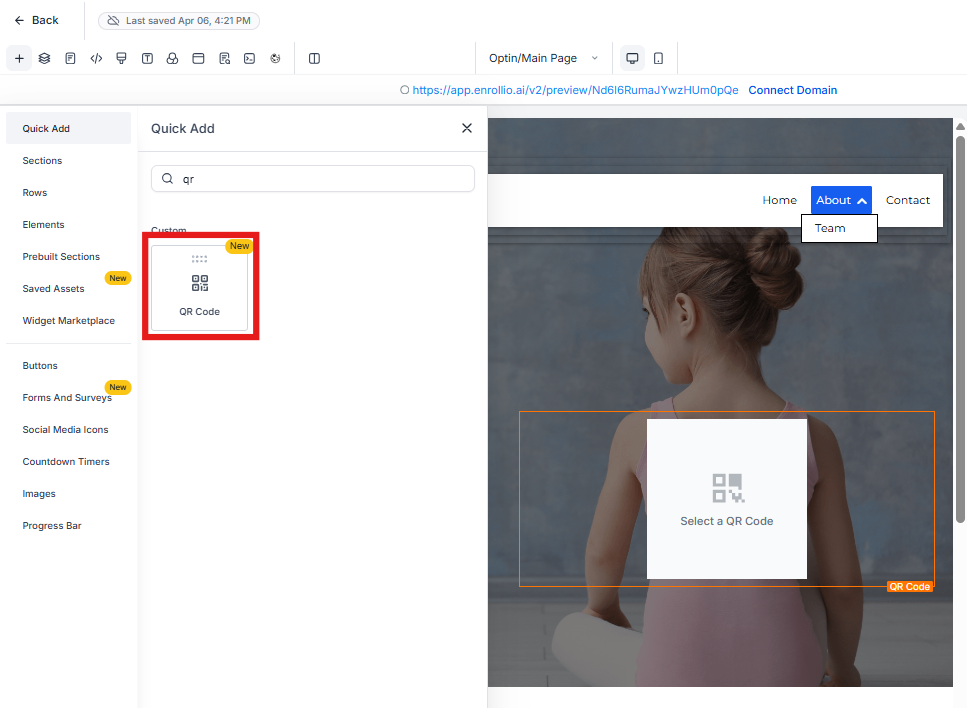
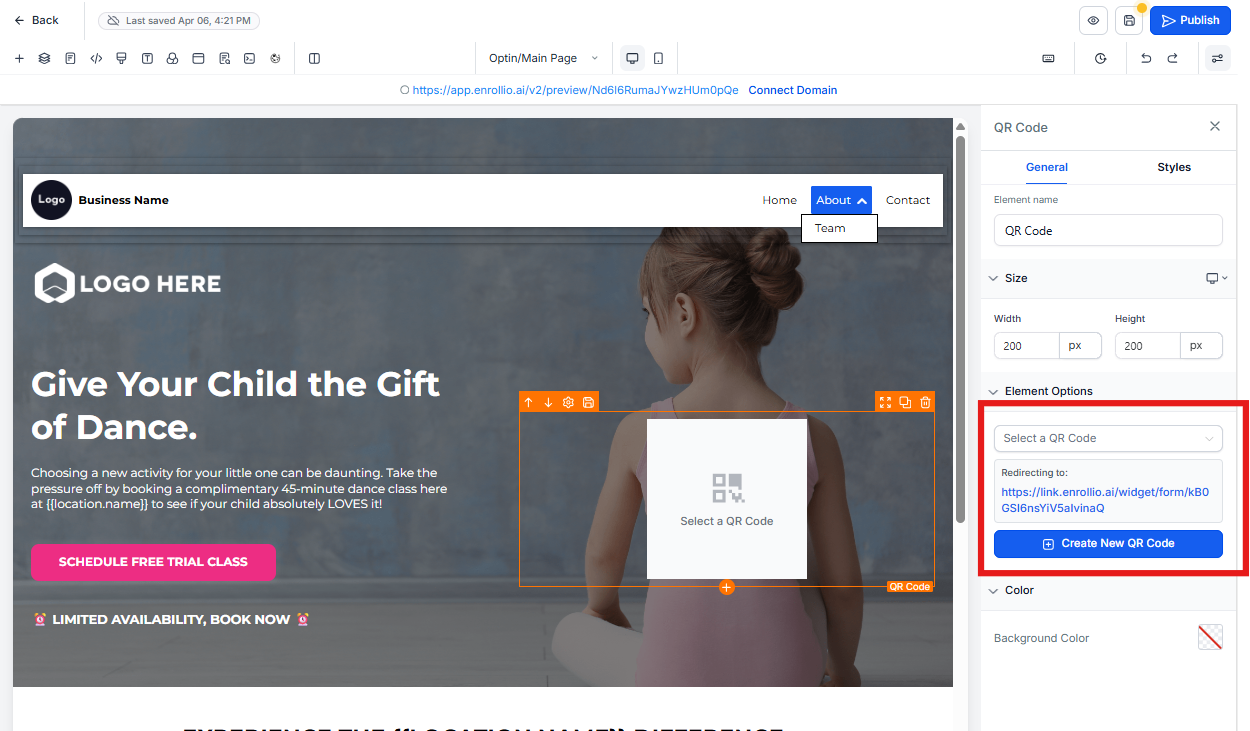
Step 3: Select or Create a QR Code
Use the dropdown menu to select an existing QR code from your library. To create a new QR code instead, click the text below the dropdown. This will open the QR Code builder where you can set your destination and design.
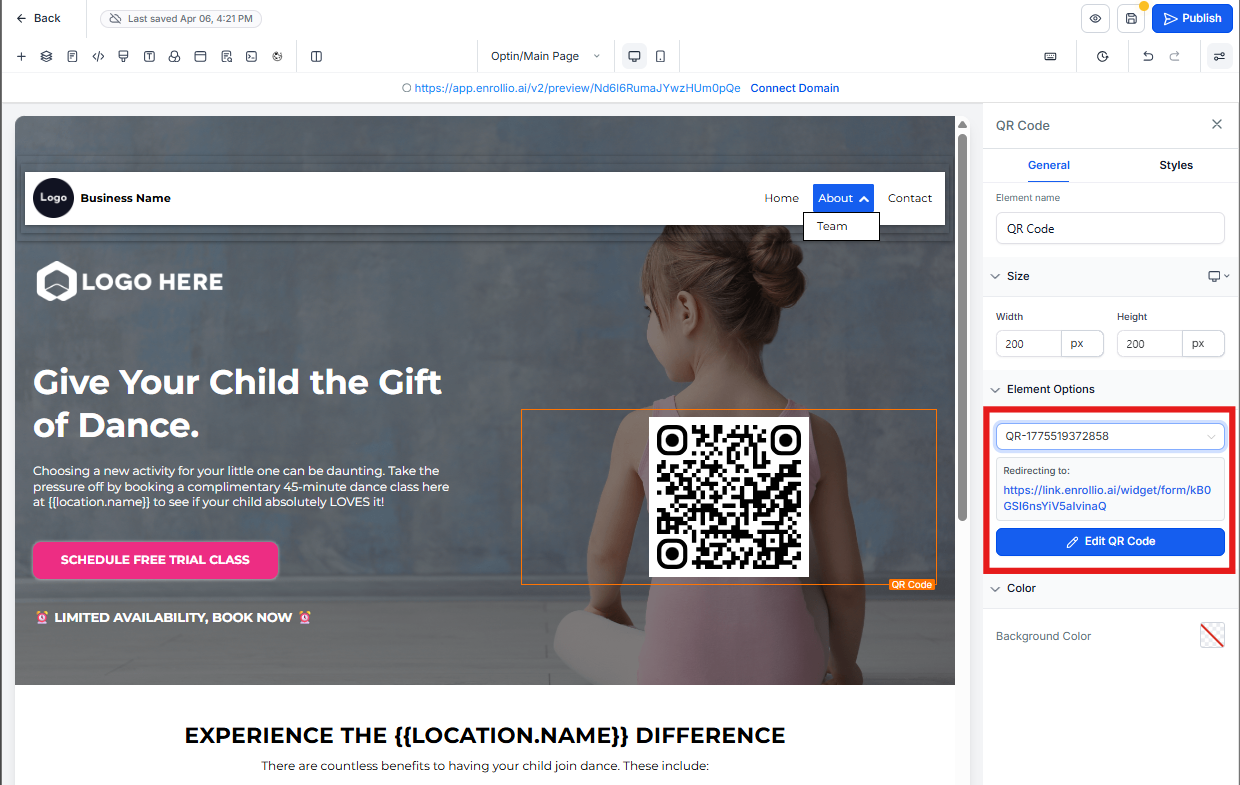
Step 4: Edit Your QR Code
To edit the QR code after you've added it:
- Click the QR code element on your page
- Click the blue Edit QR Code button in the settings panel
- Make your changes in the QR Code builder
- Update and publish your page
Frequently Asked Questions
Where are my QR codes stored?
Your QR codes are stored in your QR library for your center. You can access and manage them from the QR builder and from the element editor directly in the page builder.
Do I need to republish after editing a QR code's destination?
Yes. After updating the QR code or changing which one is selected in the element, you need to publish or update the page so parents see the latest destination.
What happens if I delete a QR code that's on my page?
The element will prompt you to pick another QR code or create a new one. Choose a replacement and republish your page.
Can I use the same QR code across multiple pages?
Absolutely. Once you create a QR code, it's available in your library to use on any page. This is helpful when you want the same tour link or enrollment form accessible from multiple places.
Related Articles
- QR Code Generation and Download Guide
- Bulk QR Code Creation
- Sites Overview
- QR Code Builder Redirect Options