Overview
This article walks you through troubleshooting common issues you might encounter while building and managing your enrollment pages and sites in Enrollio. Whether you're dealing with tracking codes, custom fields, image quality, or page speed, these steps will help you resolve issues quickly.
Common Issues and Troubleshooting Steps
1. Head Tracking Code Doesn't Appear in Page Source
Issue
When you view your page source, you don't see the tracking codes you added in Enrollio's settings.
Why This Happens
Enrollio injects tracking codes on the client side (in your visitor's browser), so they won't appear in the static HTML source code. What you see in "View Source" is just the initial page data before the browser processes it.
This is normal and expected. Your tracking codes—including Google Tag Manager and similar tools—are working correctly even though they don't show up in the source view.
2. Updated Custom Fields Don't Show on Your Enrollment Pages
Issue
You update a custom field value through an automation or directly in a parent's record, but the updated value doesn't appear when they visit your enrollment page.
Why This Happens
Enrollment pages display custom field data that's stored locally in the visitor's browser. When a parent fills out a form or survey, those values are saved to their browser's local storage and displayed on subsequent pages.
However, when you update custom fields through automations or by editing a parent's record directly, those changes only happen in Enrollio's database—not in the parent's browser storage. That's why they won't see the updated values on your enrollment pages.
Troubleshooting Steps
- Check how the custom field is being populated. Is it through a form submission or through an automation?
- If the field is updated by an automation, it won't display on enrollment pages because there's no browser storage entry.
- To make backend-updated fields visible:
- Add those fields to a form or survey so parents enter the data directly, or
- Use custom JavaScript to push backend values into the browser's local storage
3. Blurry or Slow-Loading Images
Issue
Some images on your enrollment pages appear blurry or take too long to load.
Why This Happens
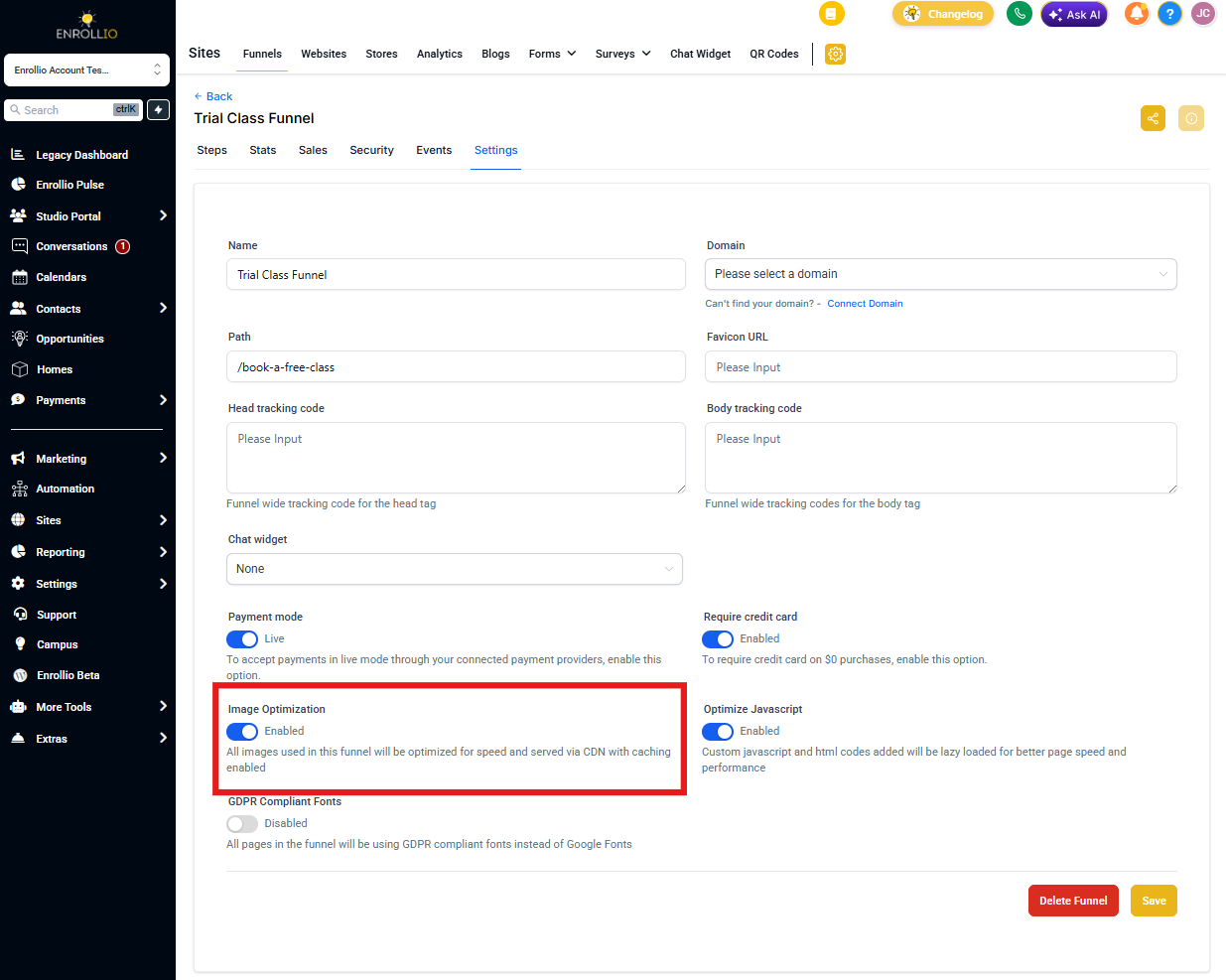
Enrollio's image optimization feature improves page speed by compressing images. Sometimes this compression can reduce image clarity, especially if the optimization is aggressive or the original image resolution is low.
Troubleshooting Steps
- Disable image optimization for specific images in the page builder
- For background images, turn off optimization in your page settings
- Upload higher-resolution images so they maintain clarity even after optimization
4. Custom Values Breaking or Not Displaying in Preview
Issue
Custom value placeholders (like {{contact.first_name}}) don't render properly on your enrollment page.
Possible Causes & Fixes
Hyperlink Issue: Check if any custom value in a text element has been accidentally converted into a hyperlink. Remove any hyperlinks from text containing custom values, as they prevent proper rendering.
AI-Generated Content Formatting: If you're using AI-generated content, special characters like \n (line breaks) can break the page display. Update your AI prompt to return HTML-formatted content, or use a text formatter to replace \n with <br/>.
5. Finding Which Page or Site Is Live
Steps to Identify
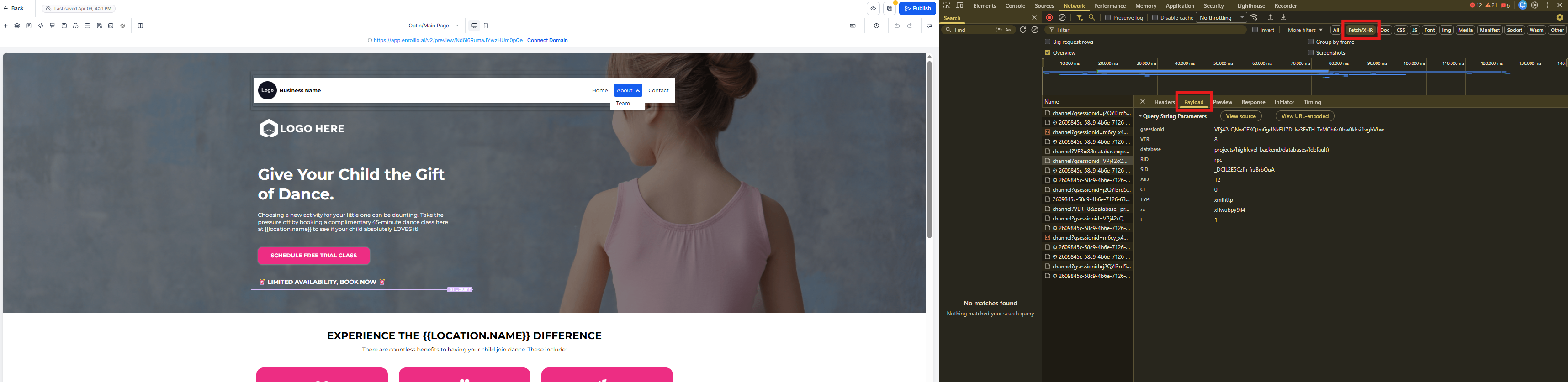
- Open the page in your browser
- Right-click and select "Inspect" to open Developer Tools
- Click the "Network" tab
- Clear the console and enable the "XHR" filter
- Reload the page
- Look for the event call in the network logs
- Open the payload section to find the page and site details
6. Page Not Displaying Correctly
Issue
Your enrollment page has alignment issues, elements are misplaced, or the page keeps refreshing continuously.
Troubleshooting Steps
Step 1: Remove custom code
Start by removing all custom code—this includes code elements, tracking codes in headers/footers, and custom CSS.
To find custom code elements:
- Open the page builder
- Press Ctrl + F (Windows) or Cmd + F (Mac)
- Search for "c-custom-code"
- Remove any custom code elements you find and check if the issue is resolved
Step 2: Check for specific issues
- Make sure no sections, columns, or elements have the "sticky" option enabled (sticky positioning only works in preview mode, not on live pages)
- Remove any expired countdown timer elements—they can cause display problems
- Open your browser console (F12) and look for errors
- If you see a "hydration error," contact Enrollio support for assistance
7. Slow Page Speed or Low Performance Score
Issue
Your enrollment page loads slowly, or performance analysis tools show low scores.
Recommended Tools
- PageSpeed Insights (by Google)
- GTMetrix
These tools analyze your page performance and provide specific recommendations for improvement.
Optimization Steps
- Review external scripts: Check for third-party scripts or CSS loading through tracking codes or custom code elements
- Evaluate page length: Very long pages with lots of content naturally load slower
-
Optimize images:
- Enable Enrollio's image optimization toggle, or manually compress images before uploading
- Best practice: Images that appear when the page first loads should be under 200kb for best mobile performance
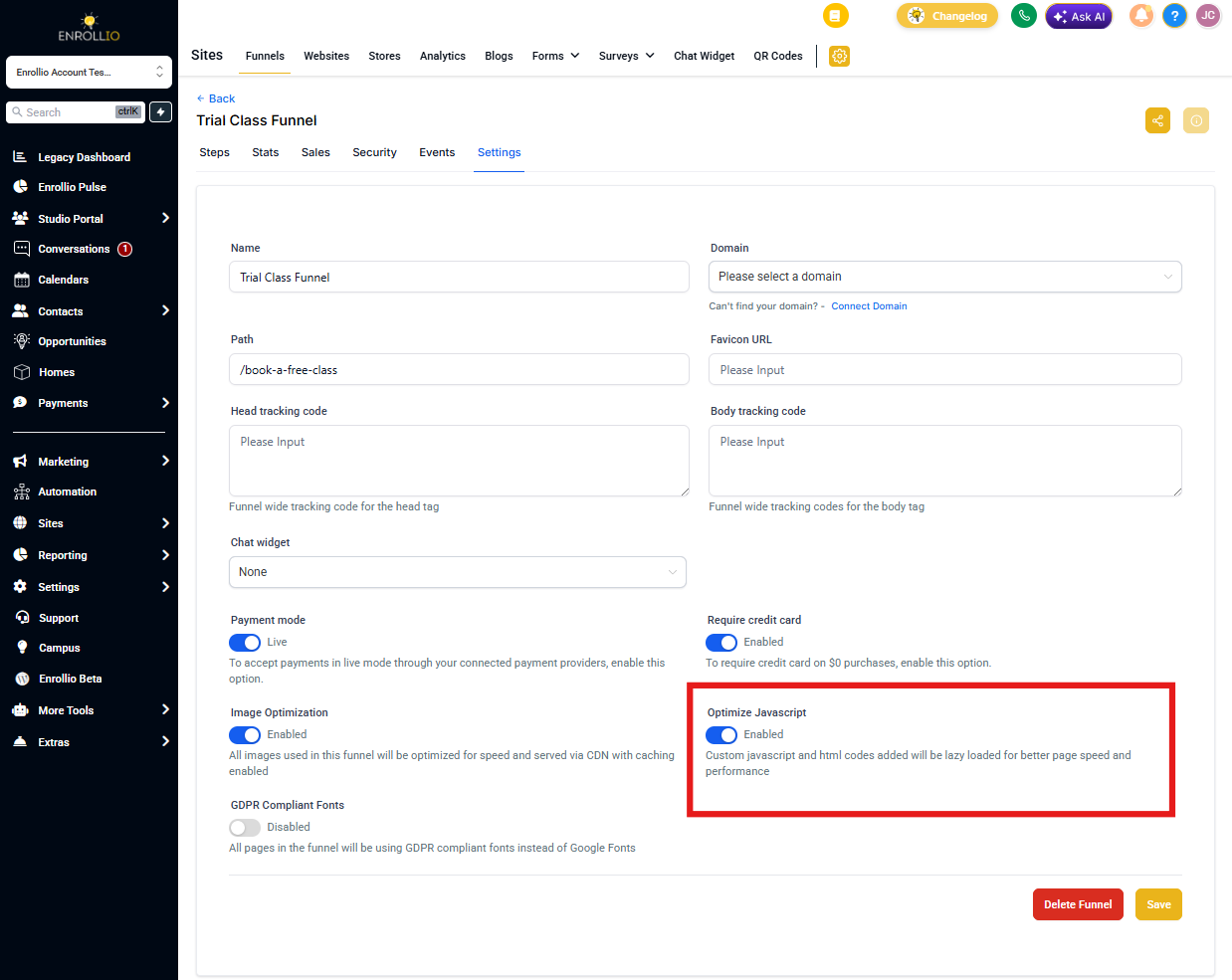
- Enable JavaScript optimization: Turn on "Optimize JavaScript" in your page settings. This delays non-essential scripts and improves blocking time
- Check for heavy elements: Look for custom code adding third-party widgets or heavy JavaScript
- Move heavy content down: Place forms, calendars, review widgets, and maps lower on the page (below the fold)
8. Security Headers Blocking Page Assets
Issue
Your enrollment page fails to load scripts, images, or styles properly after configuring security headers.
Common Causes
- Misconfigured or overly restrictive Content-Security-Policy values
- Line breaks or invalid characters in header values
- Restrictive directives blocking Enrollio's content delivery or third-party integrations
Troubleshooting Steps
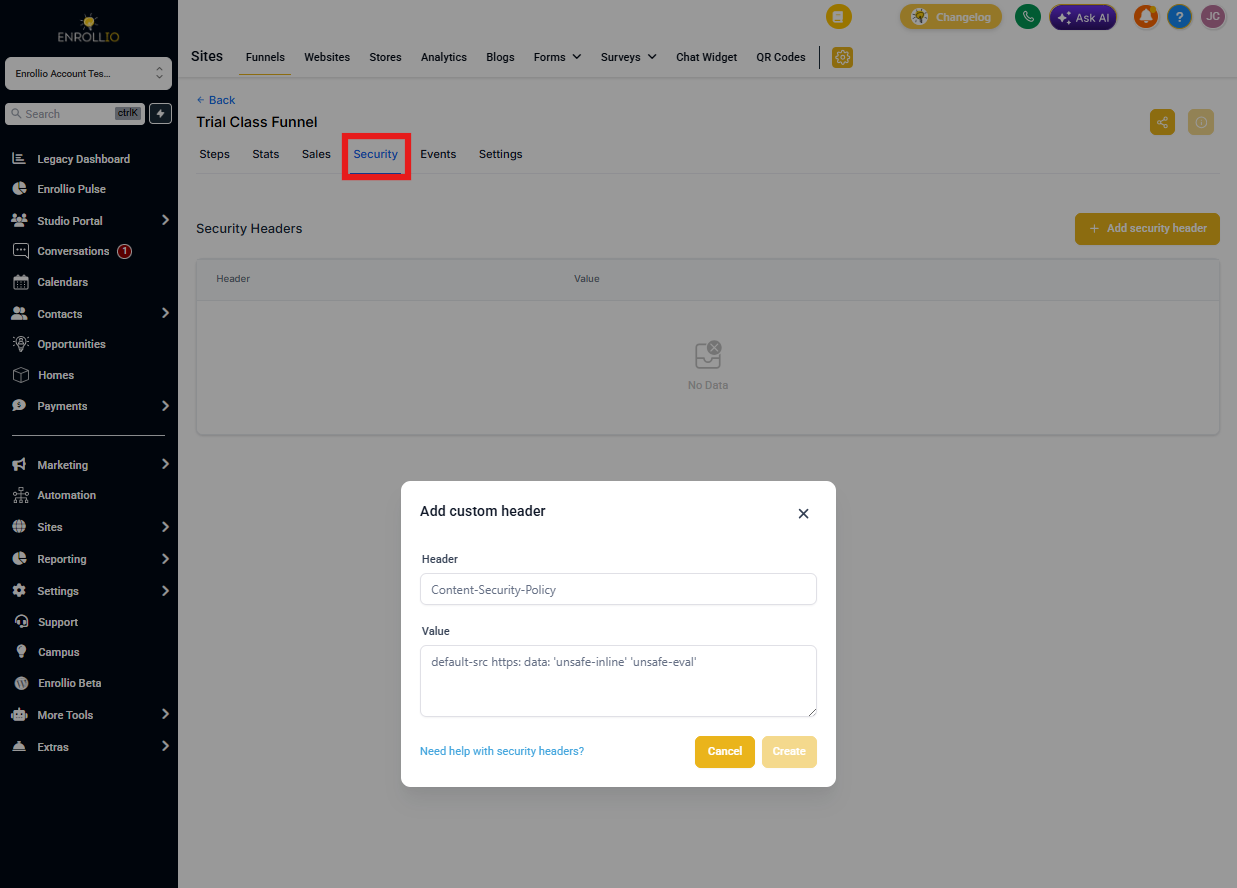
- Go to Sites → Settings → Security tab
- Review any custom headers you've added (Content-Security-Policy, Strict-Transport-Security, X-Content-Type-Options, X-Frame-Options)
- Temporarily remove or clear all custom headers
- Reload your page
- If the page loads correctly now, the issue was caused by one of your header configurations
- Make sure there are no line breaks or extra spaces in your header values