
Navigation Menus in the Enrollio Page Builder
Navigation menus help families move through your enrollment pages and site with ease. You can add links, dropdowns, nested items, and customize how your menu behaves on different devices. Recent updates include a wrap option that keeps your menu looking sharp on all screen sizes and smoother submenu interactions.
What Is a Navigation Menu?
A navigation menu is an interactive element that lets visitors jump between pages or sections of your enrollment site. It supports:
- Direct page links
- External URLs
- Dropdown menus
- Nested submenus
- Smooth scrolling to specific sections
- Automatic mobile responsiveness
You'll typically place navigation menus in headers and footers.
How to Add a Navigation Menu
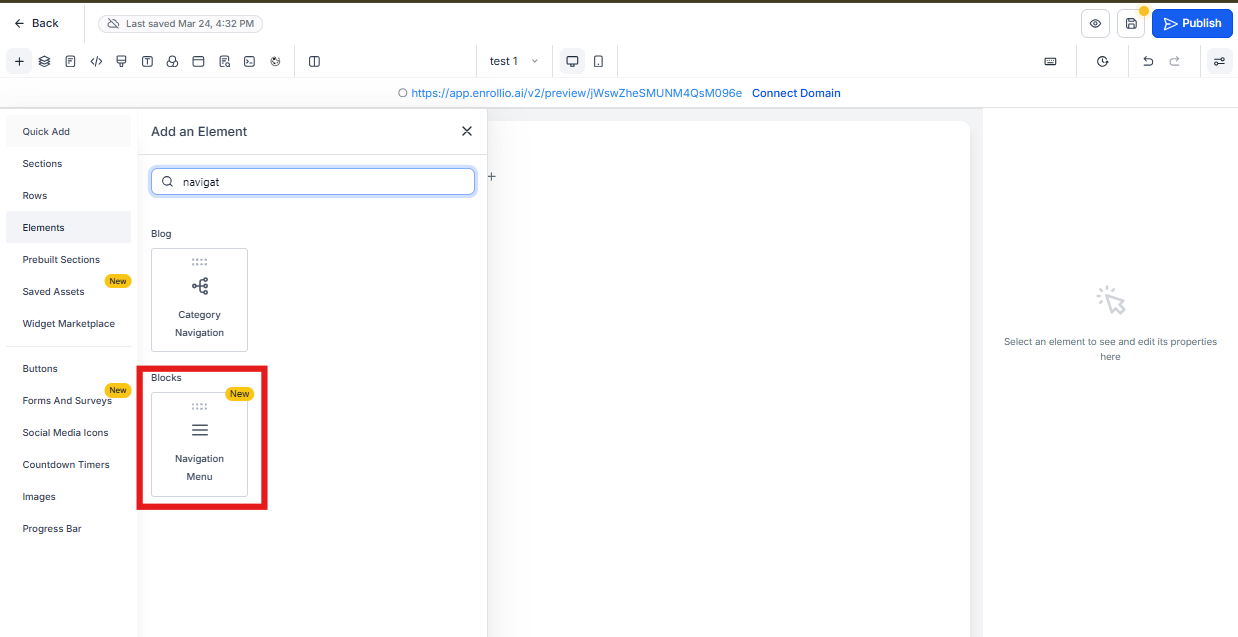
- Open your enrollment page or site in the Builder.
- Click Add Element.
- Select Navigation Menu.
- Drag the element into your desired section.
- Click the element to configure its settings.
Configuring Menu Items
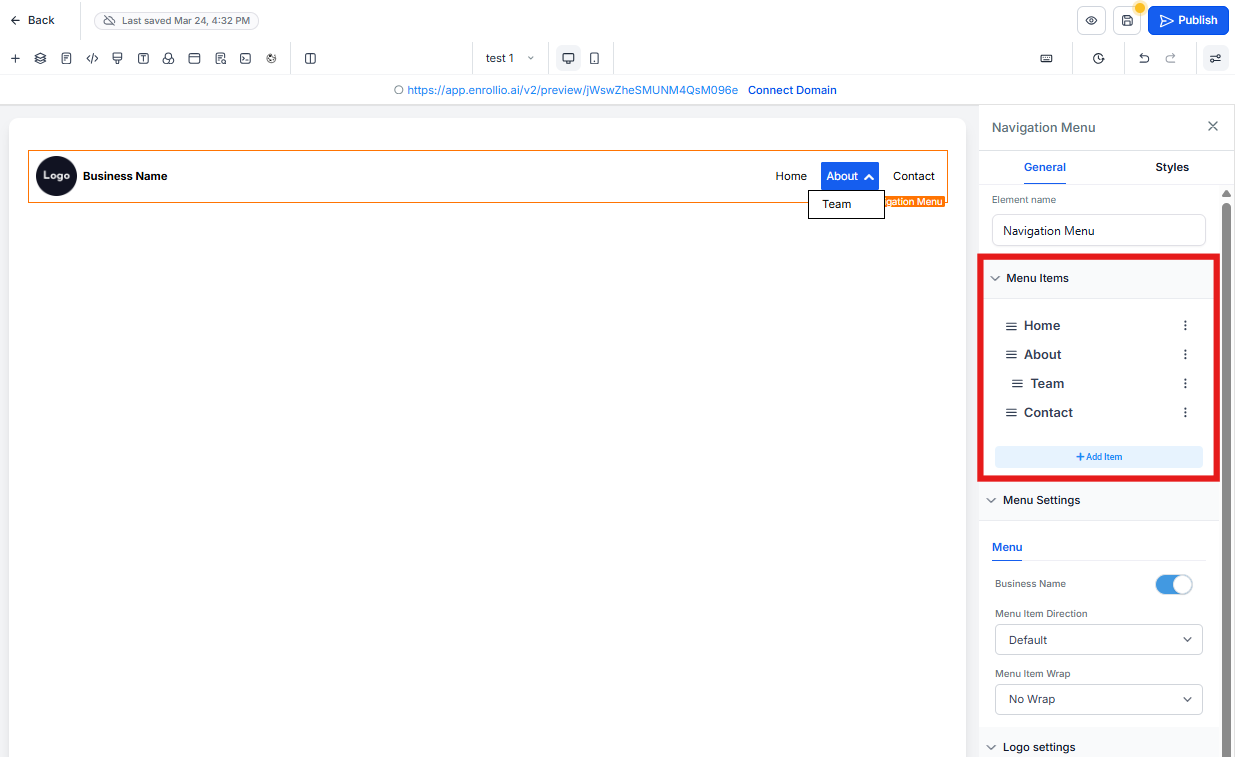
In the Navigation Menu settings panel, you can:
- Add new menu items
- Rename menu labels
- Link to internal pages
- Link to external URLs
- Add dropdown (child) items
- Reorder menu items
Creating a Dropdown Menu
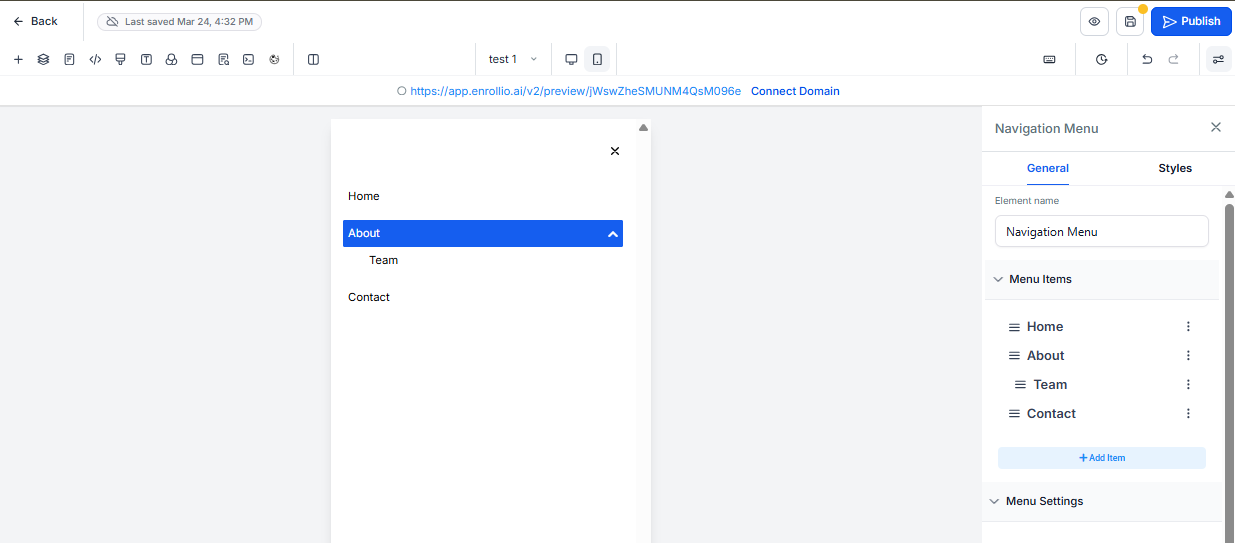
- Add a parent menu item.
- Click Add Sub Item under that item.
- Configure the child link.
- Repeat for additional nested items.
Wrap Option
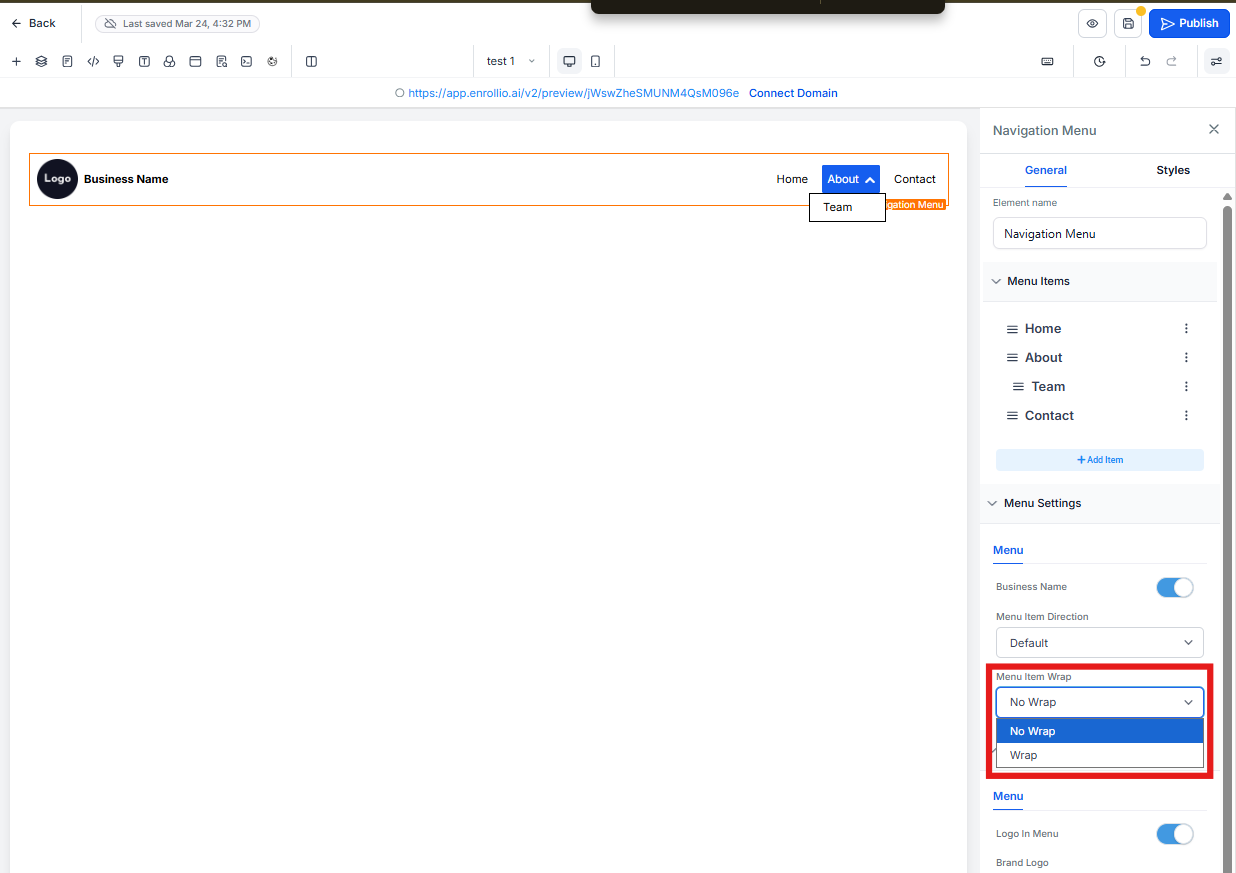
The Wrap option lets menu items automatically move to the next line when there isn't enough horizontal space. This prevents your menu from breaking and improves how it looks across different screen sizes.
Why It Matters
- Prevents menu overflow
- Improves responsiveness on smaller screens
- Maintains clean header alignment
- Reduces layout distortion
This is especially useful for:
- Menus with many items (like "About", "Programs", "Enrollment", "Tours", "Contact")
- Long menu labels
- Tablet and mid-sized screens
Submenu Styling Improvements
Submenu behavior has been enhanced for better visual consistency. Improvements include:
- More stable dropdown rendering
- Cleaner hover behavior
- Improved spacing and alignment
- Consistent submenu styling across devices
These updates eliminate visual inconsistencies and make navigation smoother for families browsing your site.
Mobile Behavior
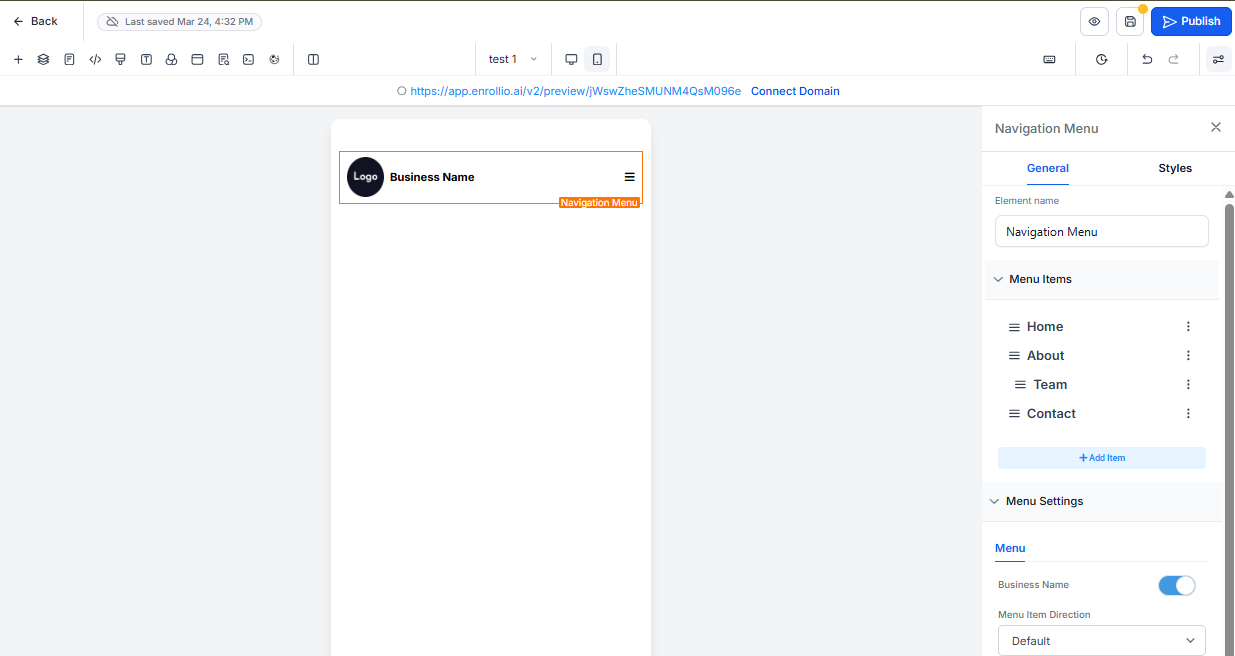
Navigation menus automatically adapt to mobile view. Depending on your configuration, menus collapse into a hamburger-style layout. Recent improvements ensure:
- Better touch responsiveness
- Improved dropdown interaction on mobile
- Consistent animation transitions
Always preview your enrollment pages on mobile before publishing to ensure families can navigate easily from any device.
Styling Options
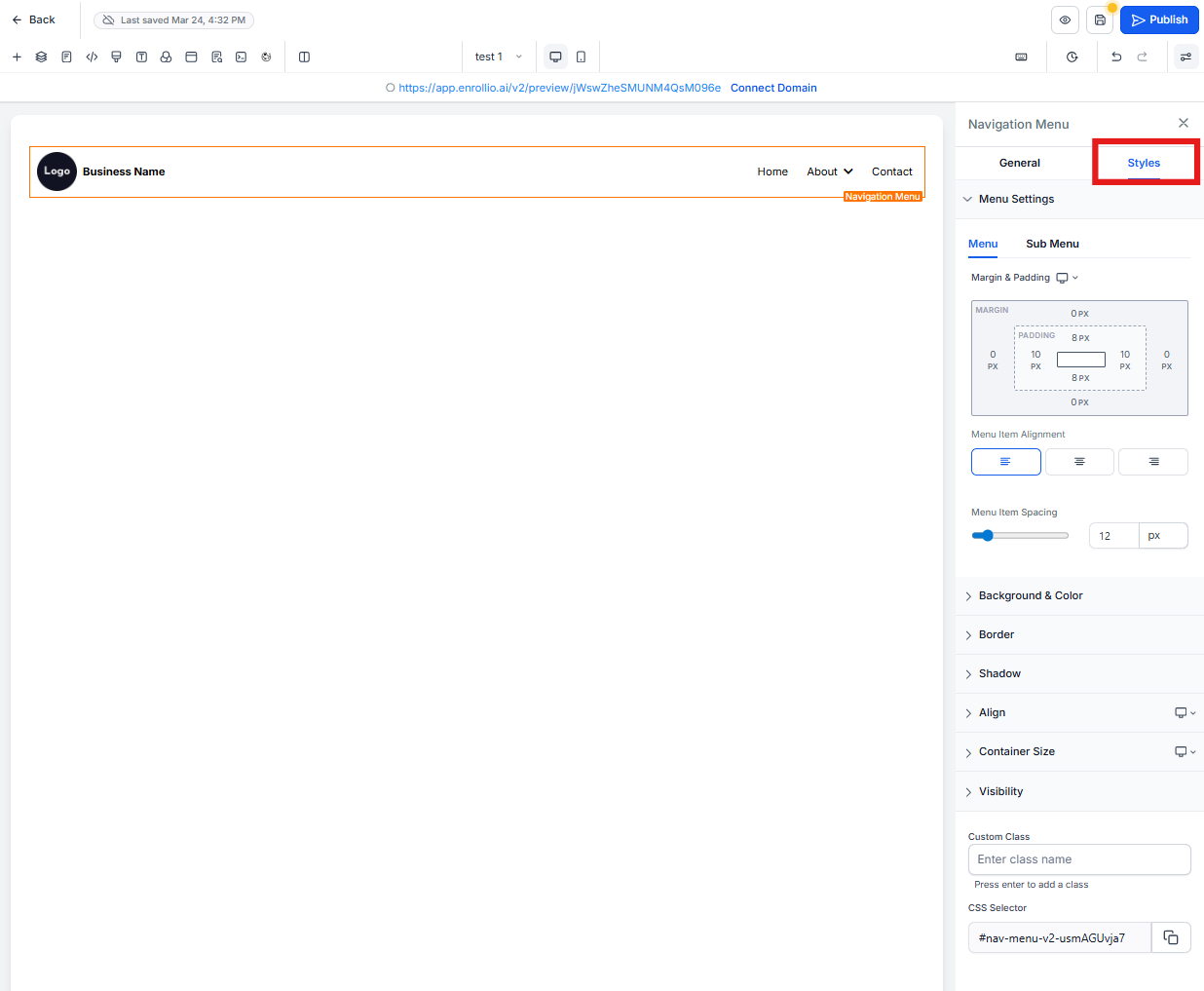
You can customize your navigation menu's appearance in the Style tab:
- Font style
- Font size
- Menu alignment (left, center, right)
- Spacing between items
- Background color
- Hover effects
- Dropdown appearance
Click the element and open the Style tab in the settings panel to configure these options.
Using Scroll-to-Section with Navigation Menus
You can configure menu items to scroll to specific sections on the same page. This works great for single-page enrollment sites or long landing pages.
With recent updates, scroll behavior now uses smooth scrolling instead of abrupt jumps, creating a more natural transition when families navigate within a page.
Best Practices
- Keep menu labels concise — "Tours" instead of "Schedule a Tour Today"
- Use dropdowns to organize complex navigation like multiple age groups or programs
- Enable Wrap when using multiple menu items to prevent overflow
- Test mobile view before publishing — families often browse on phones
- Avoid excessive nested submenu levels — keep it simple for busy parents
- Make your most important action (like "Enroll Now" or "Schedule Tour") stand out with a button style
Frequently Asked Questions
What does the Wrap option do?
The Wrap option allows navigation items to move onto a new line if they exceed the available width, preventing layout overflow.
Do submenu improvements require any settings change?
No. Styling and behavior improvements apply automatically to all navigation menus.
Is smooth scrolling enabled by default?
Yes. Scroll-to-section actions now use smooth scrolling automatically for a better experience.
Does this affect published enrollment pages?
Existing menus benefit from styling and smooth scroll improvements automatically. The Wrap option must be manually enabled if desired.
Will this change my manual styling settings?
No. Your existing style configurations remain intact.