
What Are Redirection Links?
Redirection links automatically change based on whether your countdown timer is active or expired. This gives families a different experience depending on when they click.
- Active Timer: Parents are sent to your live enrollment offer or event page
- Expired Timer: Parents are sent to a different page (like an "Offer Ended" or waitlist page)
Why Use Redirection Links?
Countdown timers aren't always obviously clickable. You'll get better results by using the timer link in more obvious ways:
- Attach it to a button with clear text like "Claim Your Spot"
- Use it with a call-to-action like "Click here to reserve"
- Link it to an image or enrollment form
Redirection links are especially useful when you're using the timer in email campaigns or external platforms where you need a direct link that automatically updates.
Where to Find Redirection Links
From the Countdown Timer Dashboard
- Go to Marketing → Countdown Timer
- Find your timer and click Copy Link
From the Email Builder
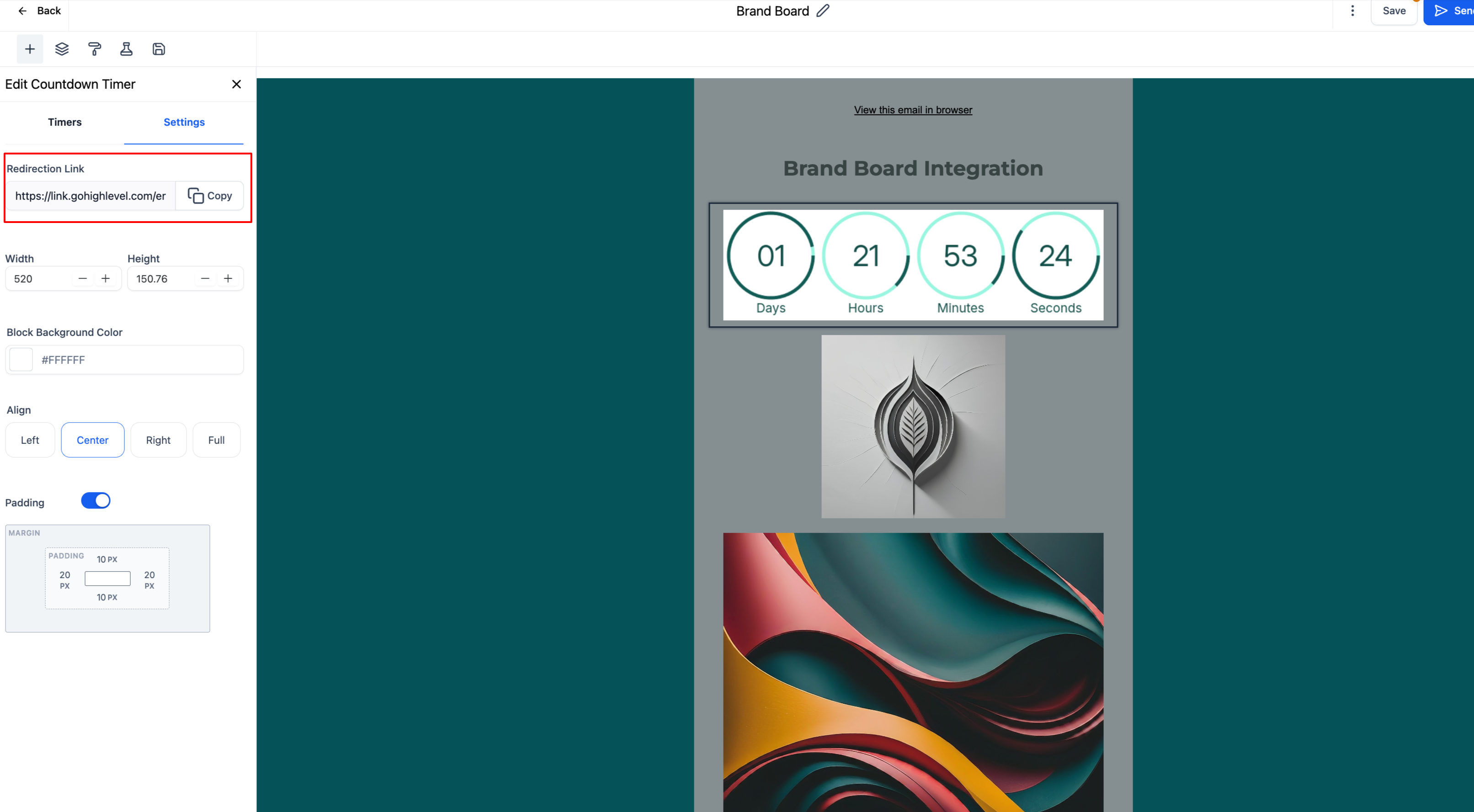
- Open your email in the Email Builder
- Click Settings
- Click Copy Redirection Link
On Enrollment Pages and Sites
When you add a countdown timer element to your enrollment pages or site, the redirection to the expired page is automatically configured. The timer won't restart on page refresh and will redirect families to your expiry page when time runs out.
How to Create a Timer with Redirection
- Go to Marketing → Countdown Timer
- Create or edit your timer
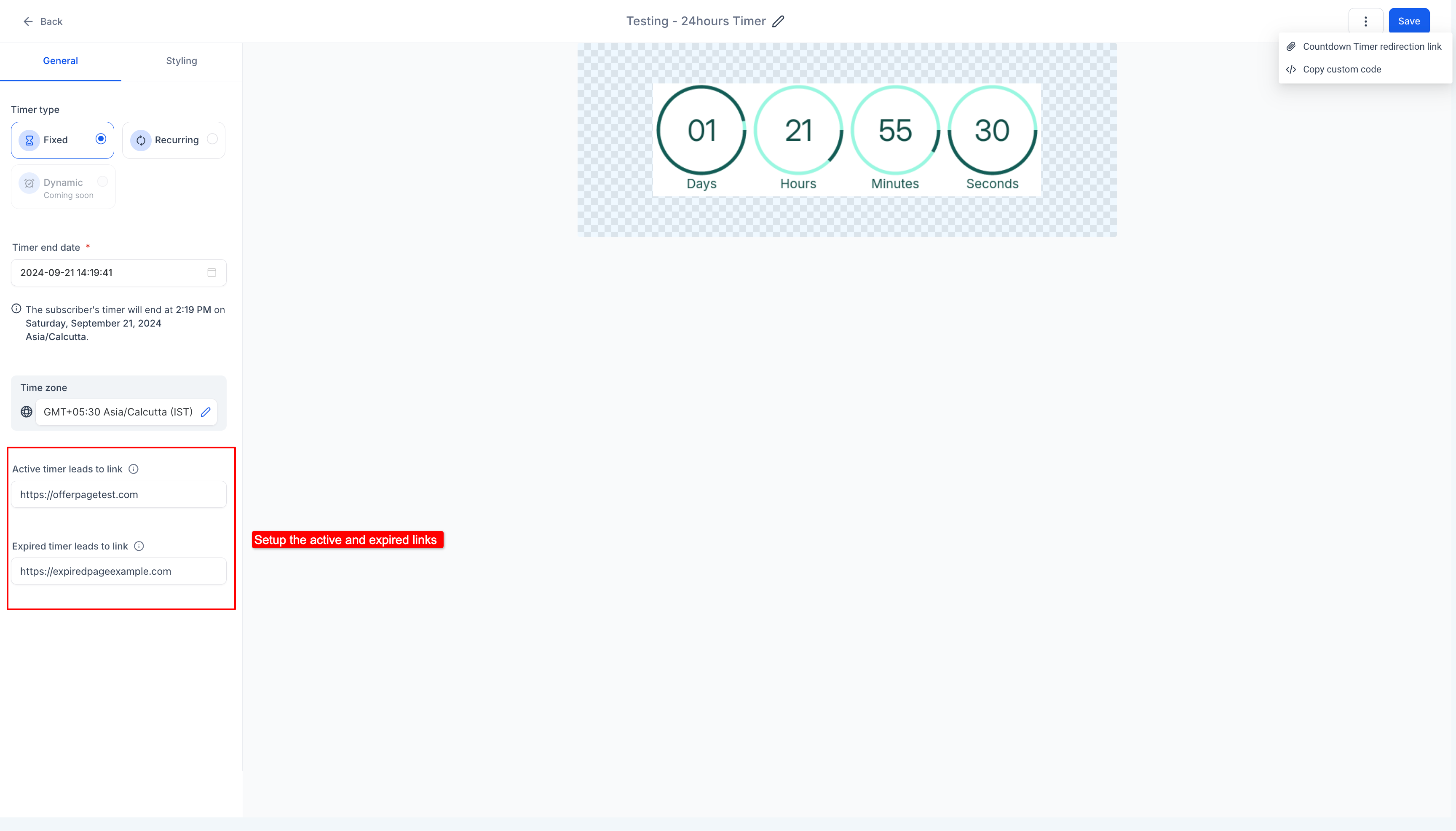
- Set the Active Link — where parents go before the timer expires (your enrollment offer page)
- Set the Expired Link — where parents go after the timer expires (waitlist page, "offer ended" page, etc.)
- Configure when the timer expires
- Click Save
Now your timer will automatically send families to the correct page based on whether your offer is still active.
Common Questions
When can I copy the redirection link?
After you've set both the active and expired links, you can copy the redirection link to use in emails, buttons, or other platforms.
Does the copy link work for all timer types?
For dynamic timers (personalized countdown for each family), the copy link isn't available for use across platforms. To use dynamic timers in your emails, copy the link while adding the timer element directly in the Email Builder.