
Purpose
This guide explains how to set up hourly tuition directly through the Enrollio Studio Portal. This new feature gives studio owners more flexibility and transparency by calculating tuition based on the total number of class minutes.
What It’s For
Dance studio owners who offer classes of varying lengths can now create flexible tuition plans. Instead of charging one flat rate, you can charge by class duration. This helps ensure accurate billing, builds trust with parents, and simplifies managing different schedules.
Key Features & Benefits
-
Flexible Tuition Plans – Create plans with custom minute ranges and flat rates.
-
Automatic Calculations – Enrollio automatically calculates tuition by total class minutes.
-
Draft & Review – Review, draft, and post tuition charges with full breakdowns.
-
Transparent Billing – Families can see clear charges for each class.
Step-by-Step Instructions
1. Access Hourly Tuition Settings
From the Studio Portal, go to the Payments section.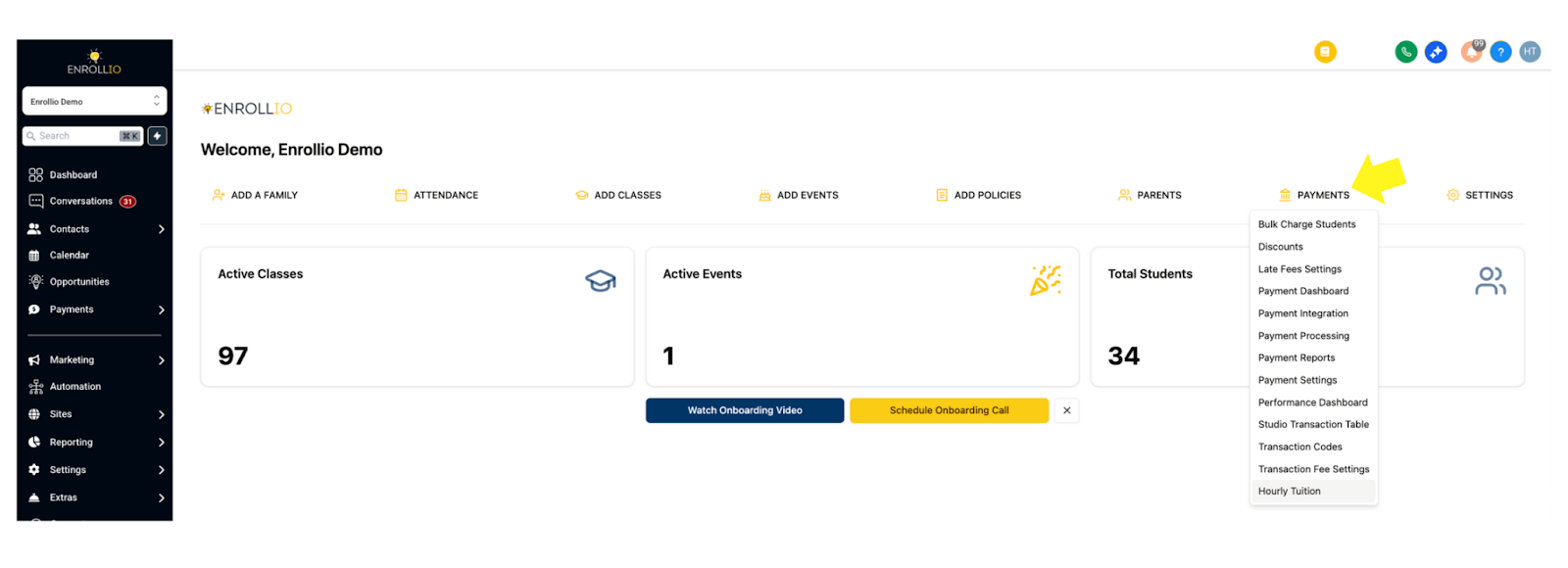
Scroll down and select Hourly Tuition.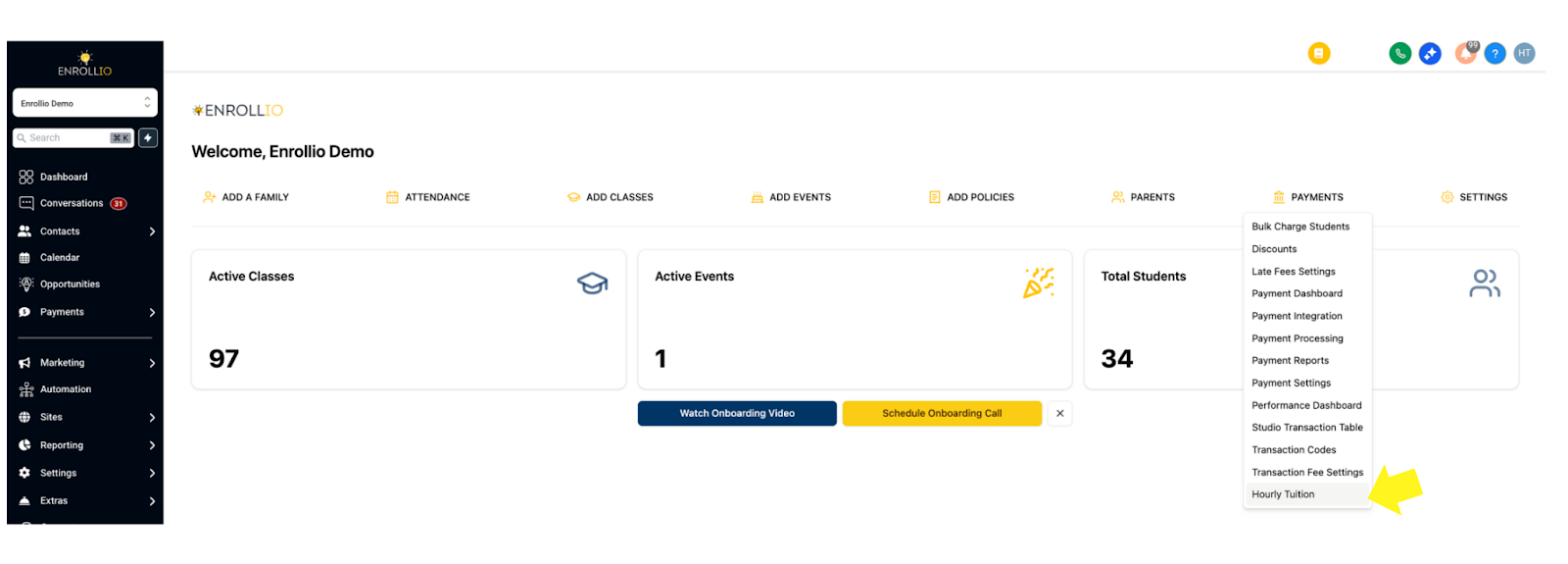
Click Manage Settings.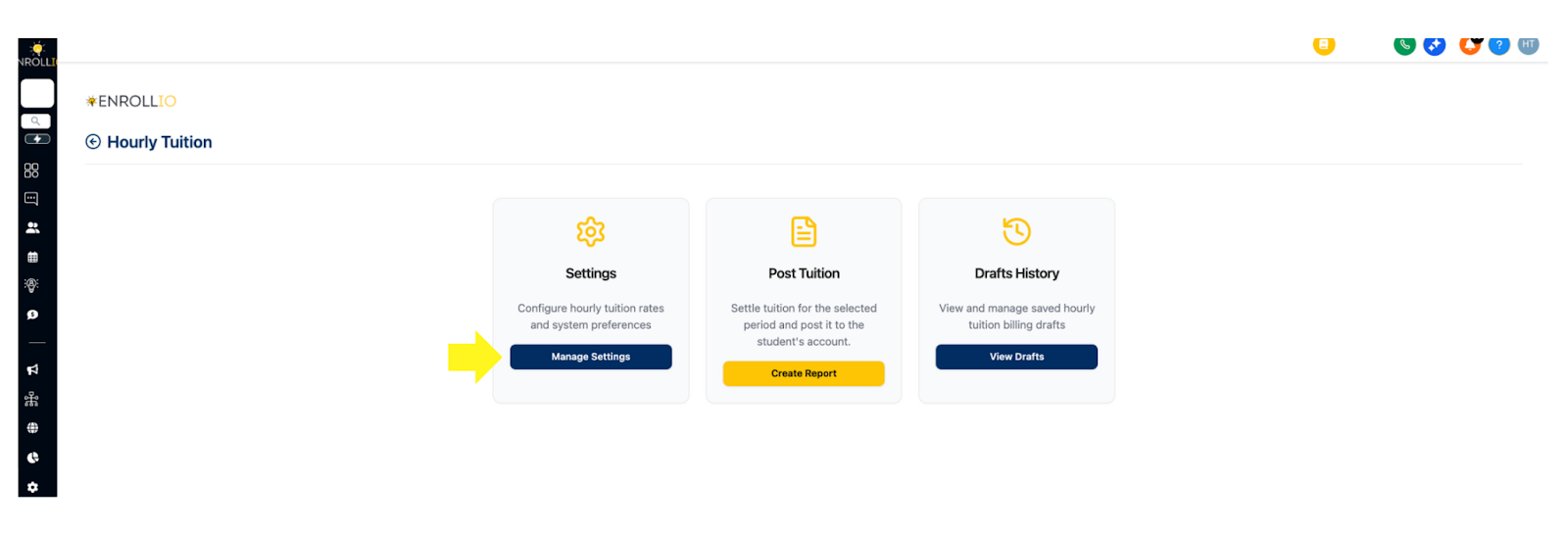
2. Create Hourly Tuition Plans
- Click Create Hourly Tuition Plan.
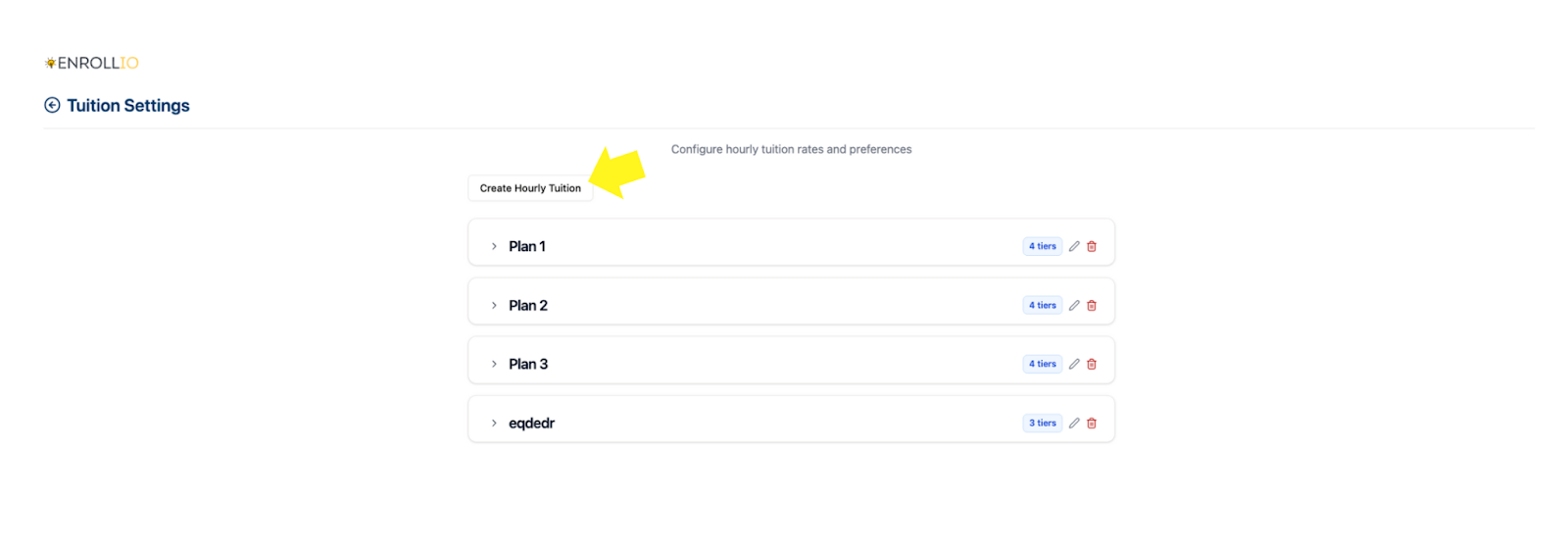
- Name your plan (e.g., “Plan 2” or “Ballet Hourly”).
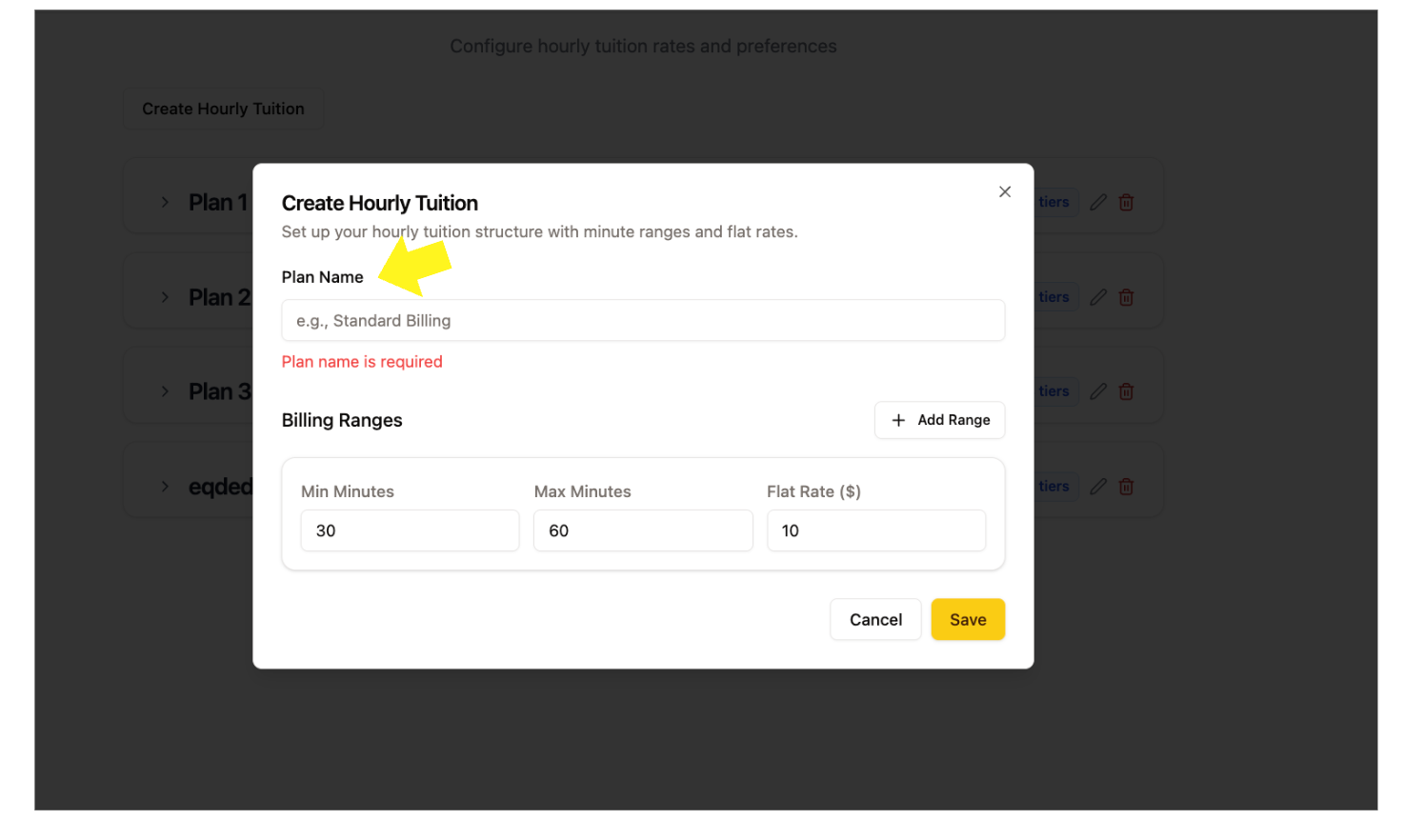
- Set time ranges (e.g., 30–60 minutes, 61–90 minutes, 91–120 minutes).
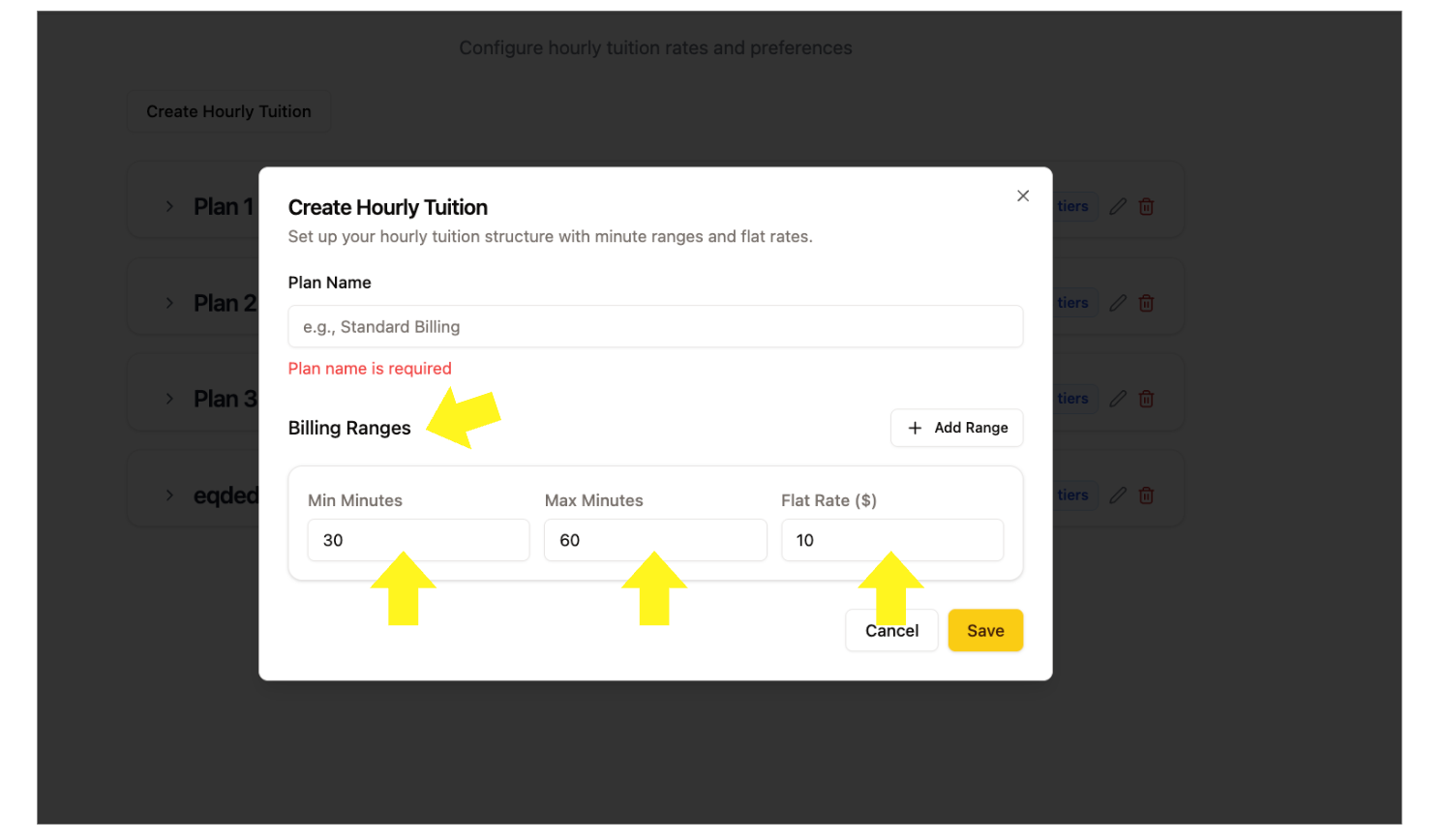
- Assign a flat rate for each range.
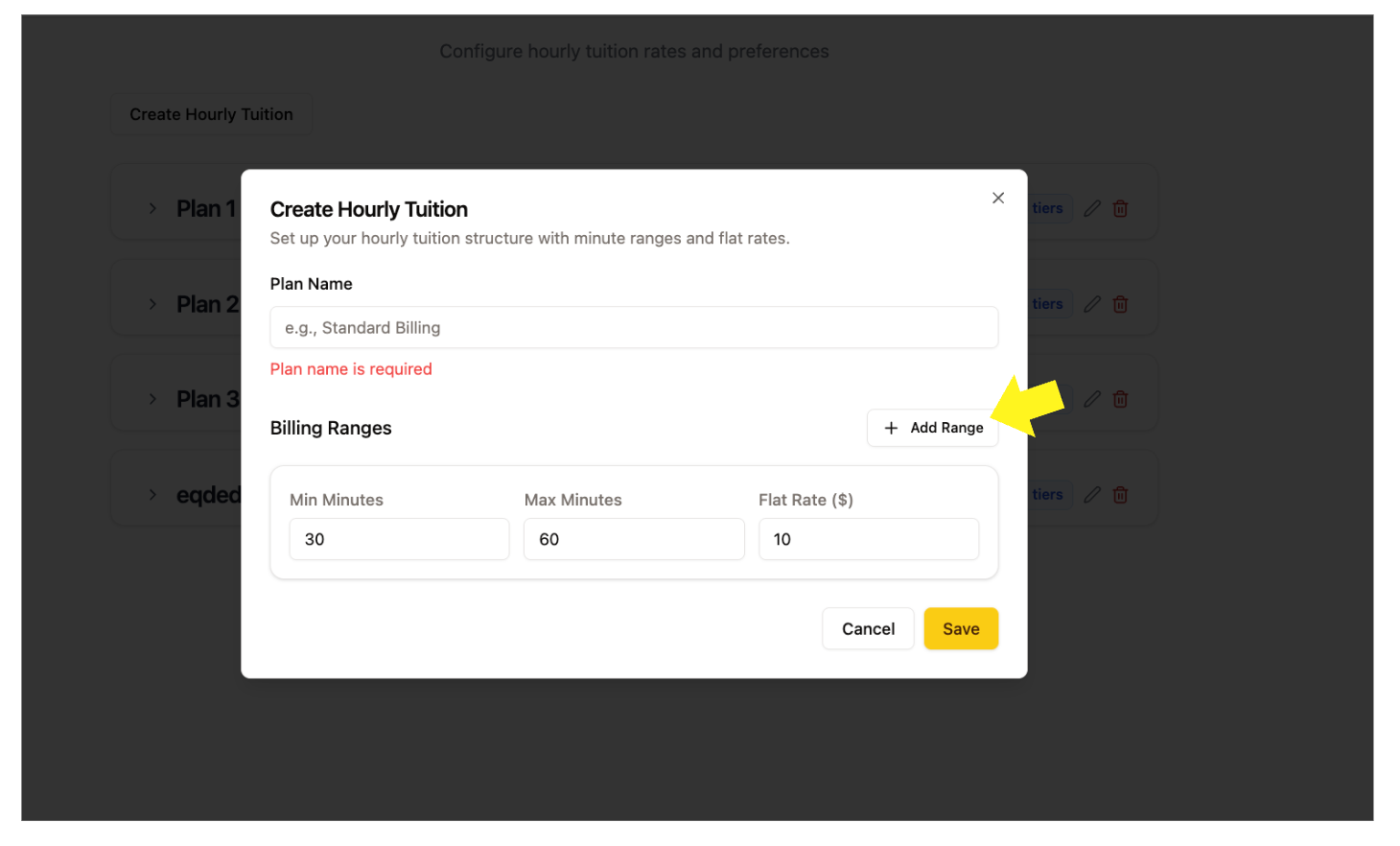
- Click Add Range to continue building.
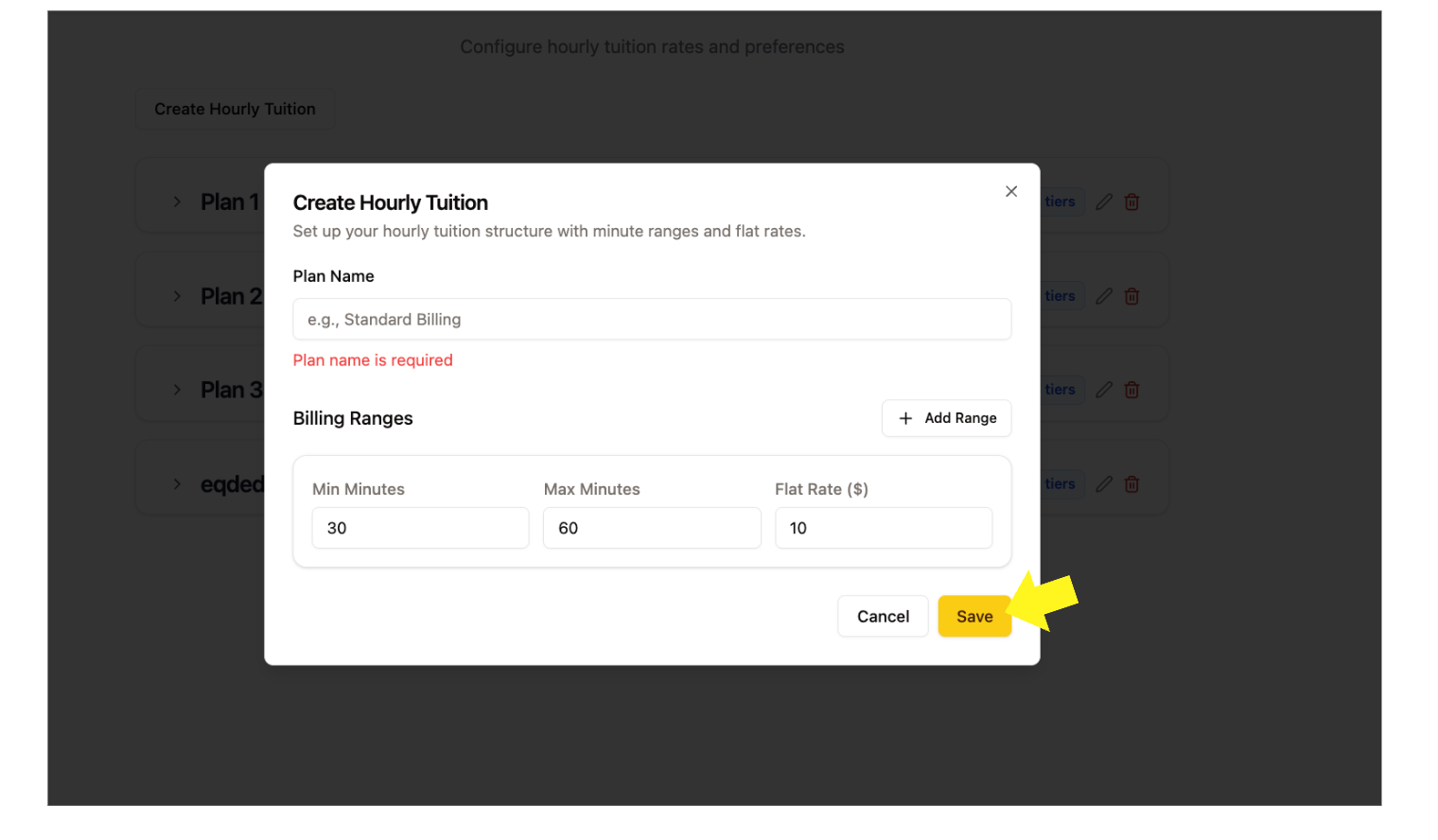
- Save your plan.
Tip: The system automatically starts each new range from the maximum of the previous one.
3. Assign Hourly Tuition to Classes
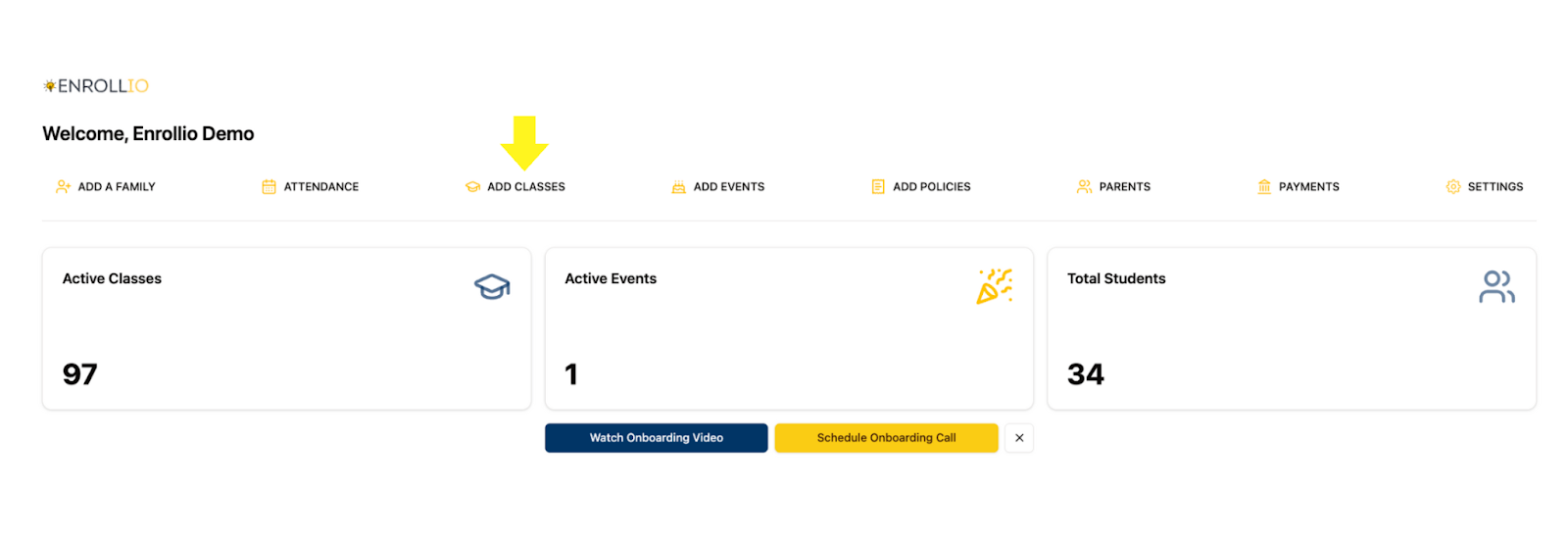
- Go to Add Classes in the Class Registration system.
- Upload a photo and fill in class details.

- In Billing Cycle, select Hourly.
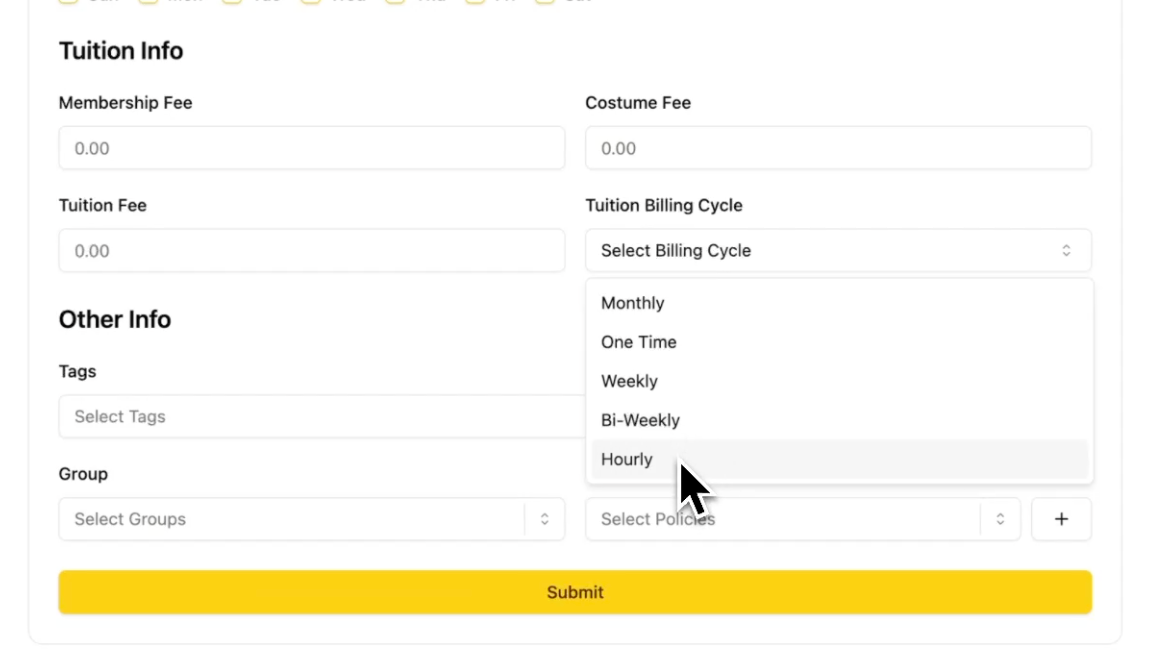
- Choose the tuition plan you created.
-
Save the class — it’s now available for sign-up.
4. Post Hourly Tuition
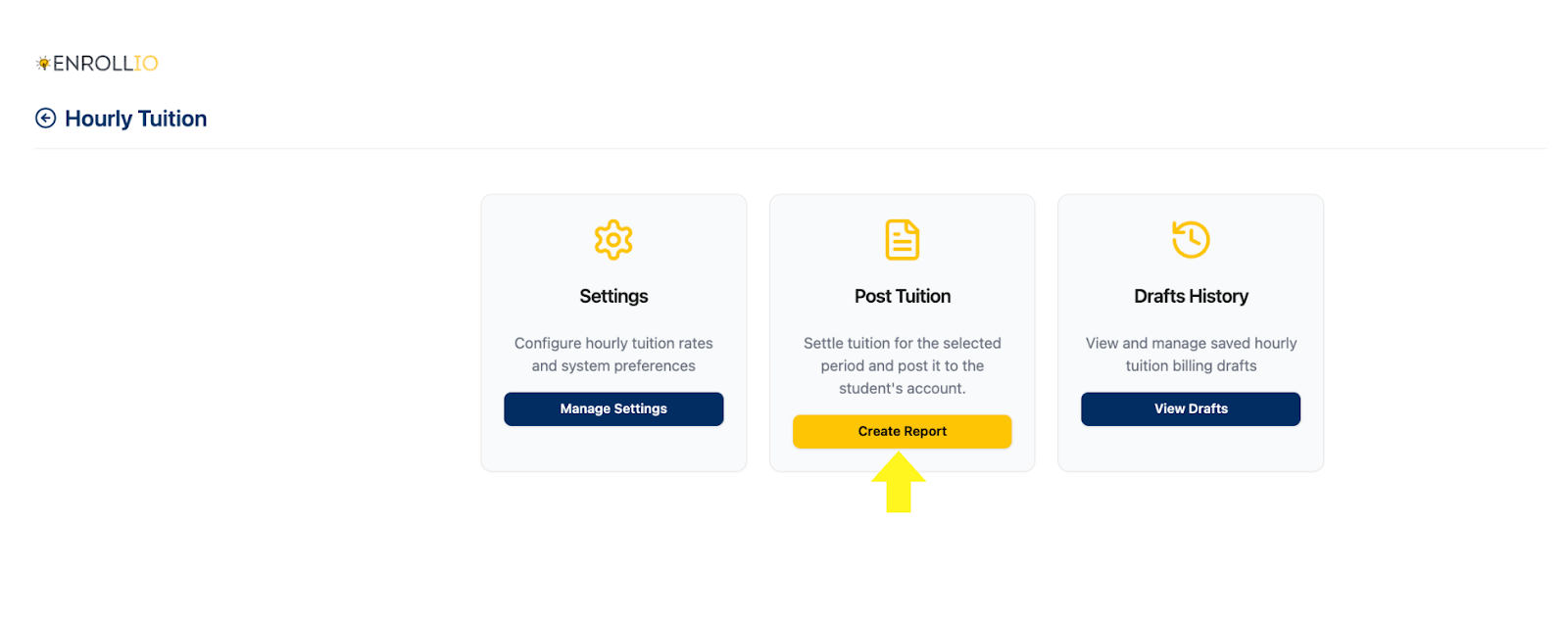
- Go to Payments > Hourly Tuition > Post Tuition.
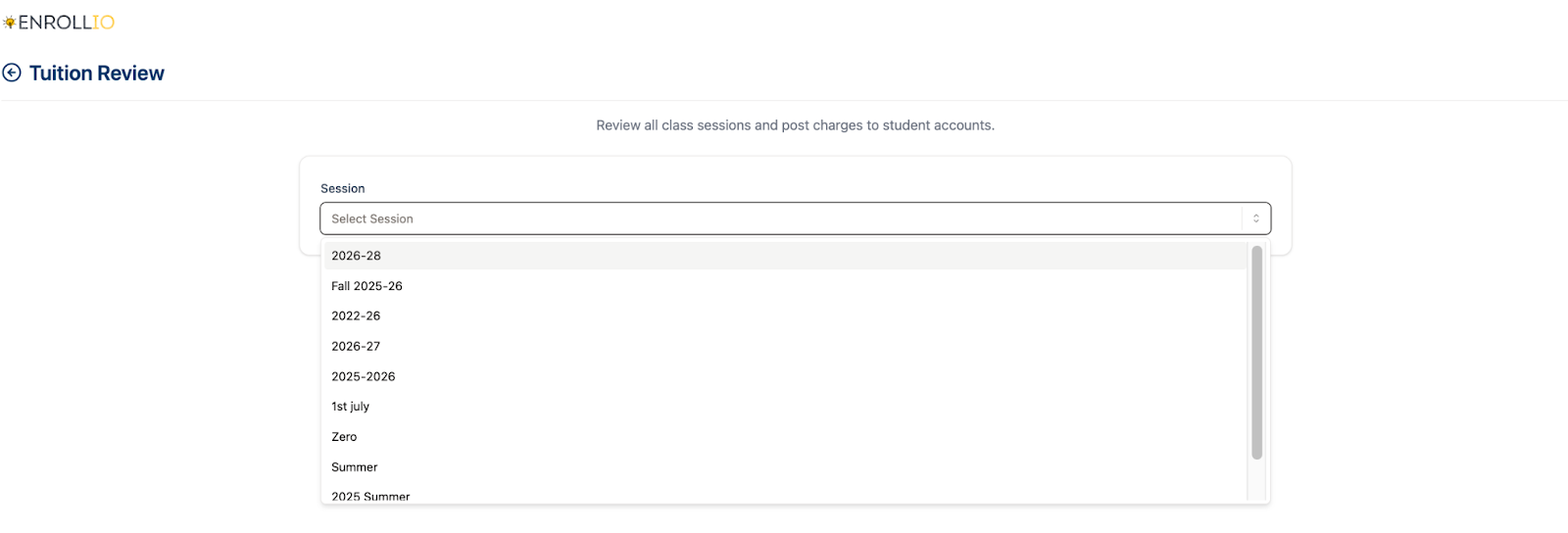
- Select the session (e.g., Fall 25–26).
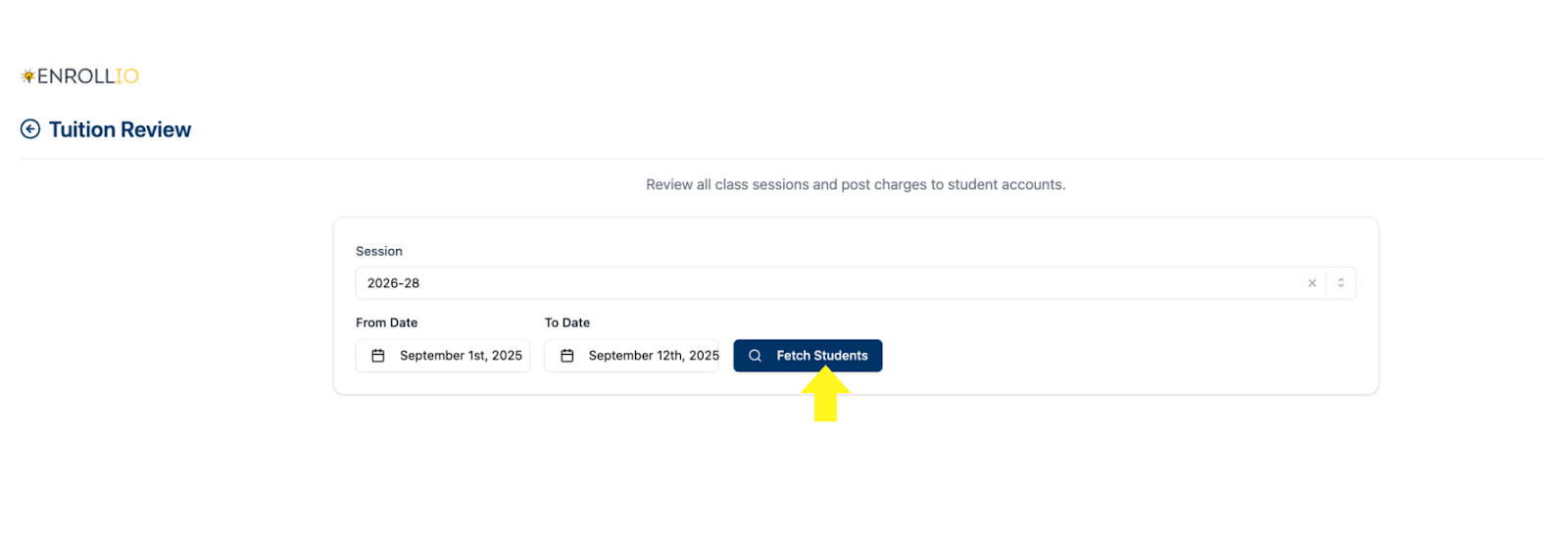
- Choose a date range (e.g., Sept 10 – Oct 10).
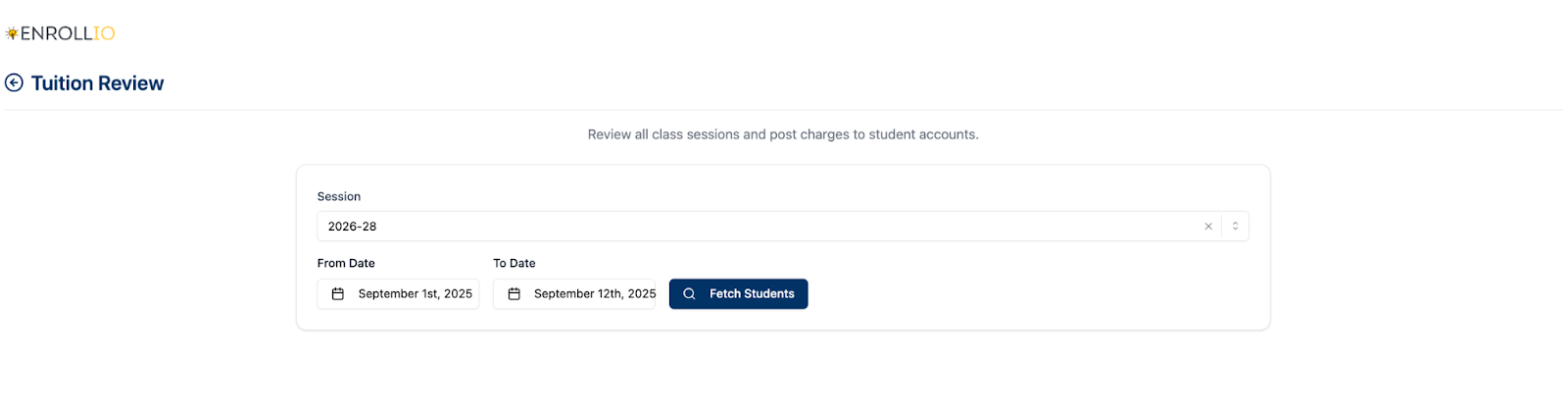
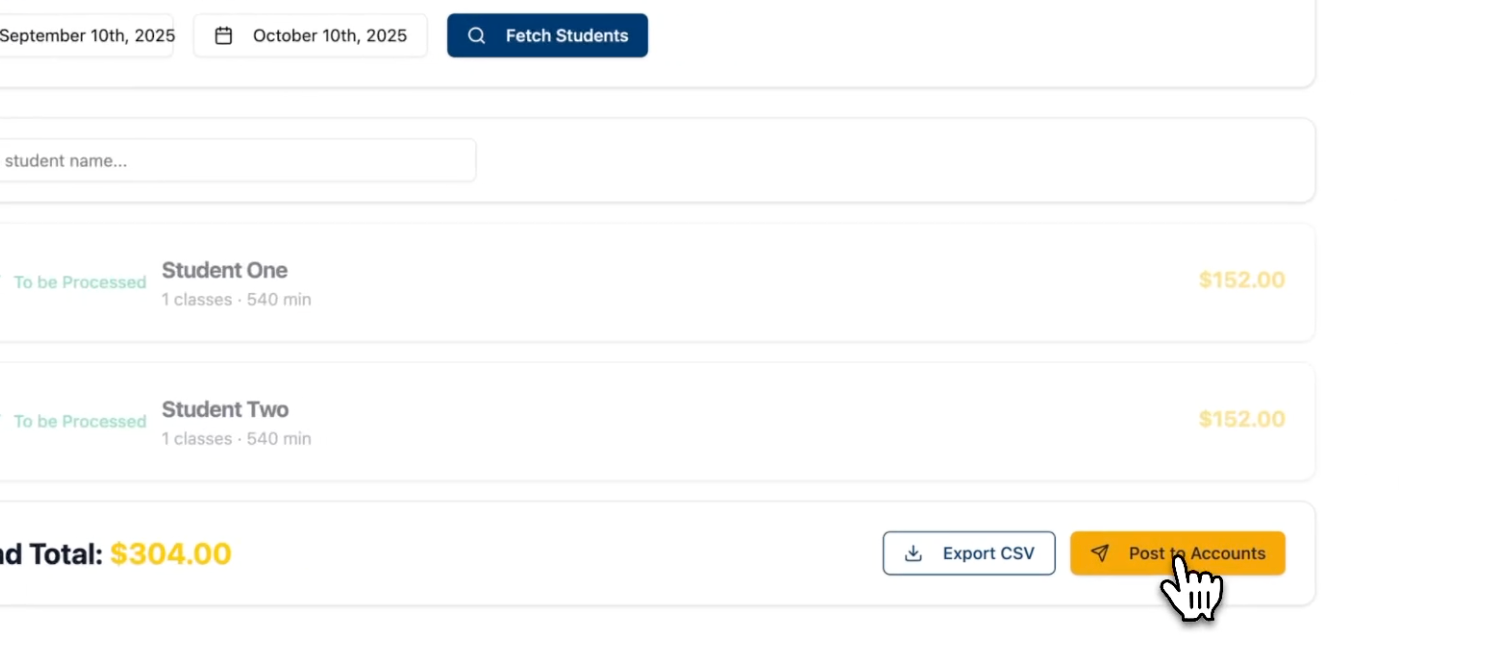
- Click Fetch Students.
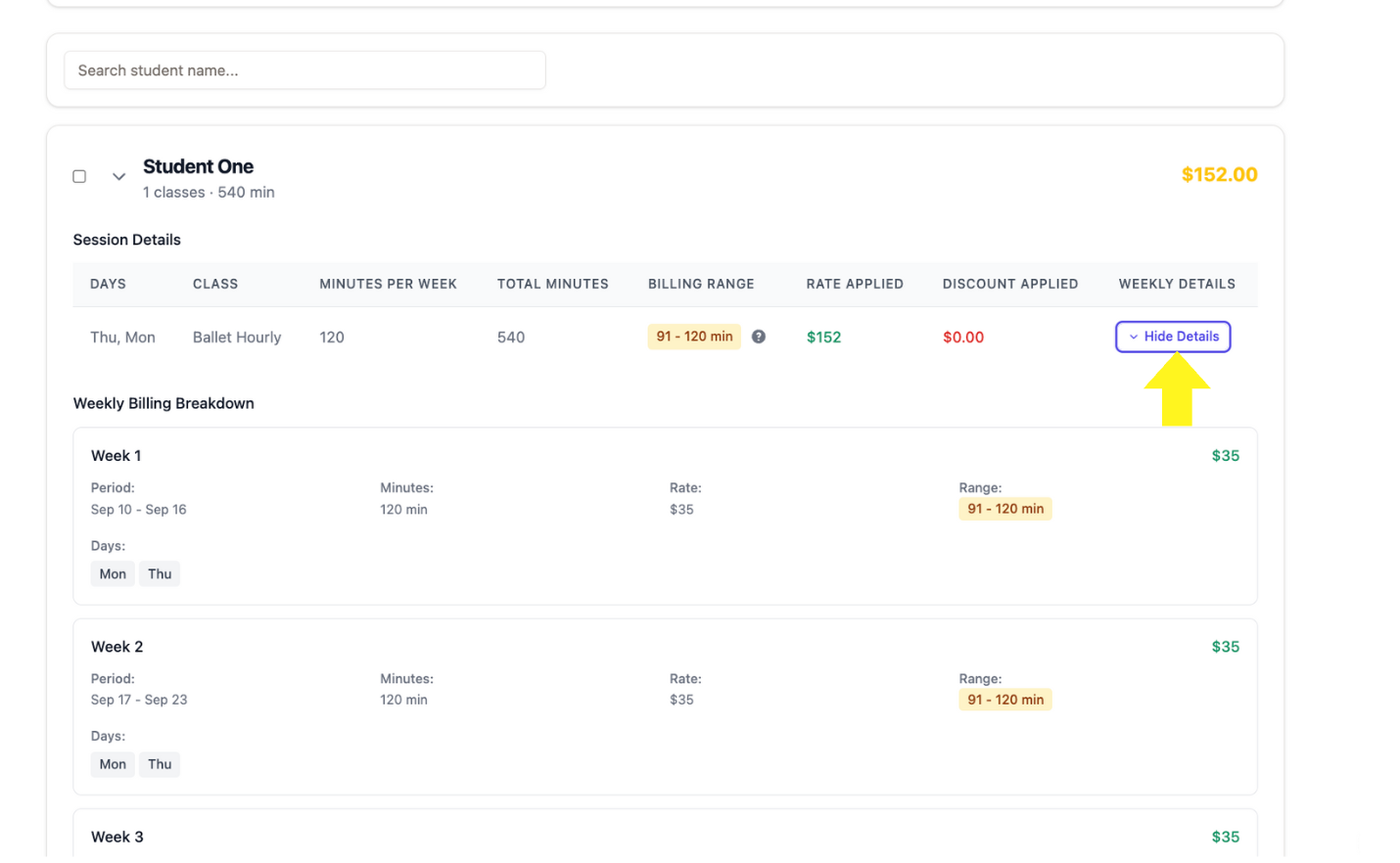
- Review billing details for each student.
- Apply discounts (percent or dollar amount) if needed.
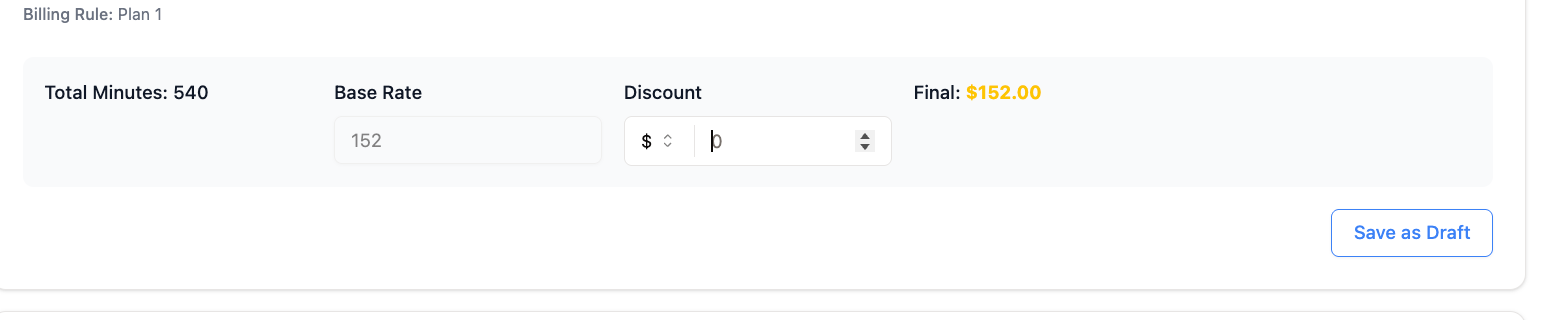
- Save as a draft, export as CSV, or post directly to accounts.
5. Finalize & Post to Accounts
- Once charges look correct, click Post to Accounts.
- You can:
- Schedule the payment for a future date, OR
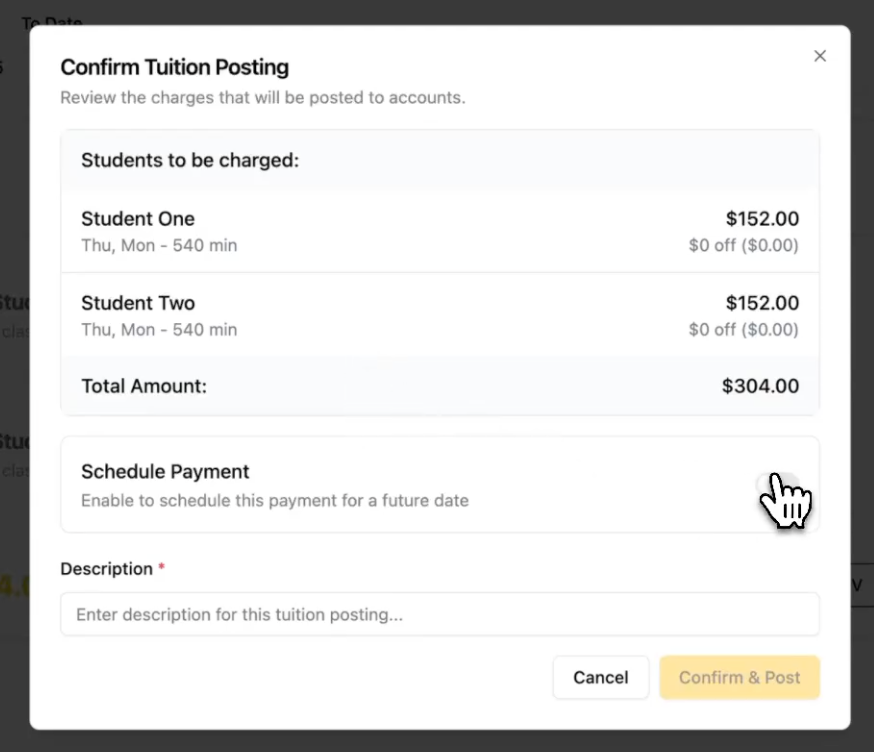
- Post immediately with a description (e.g., “Ballet Classes Hourly”).
- Schedule the payment for a future date, OR
- The charge will be applied to the parent portal and processed automatically.
6. View Drafts
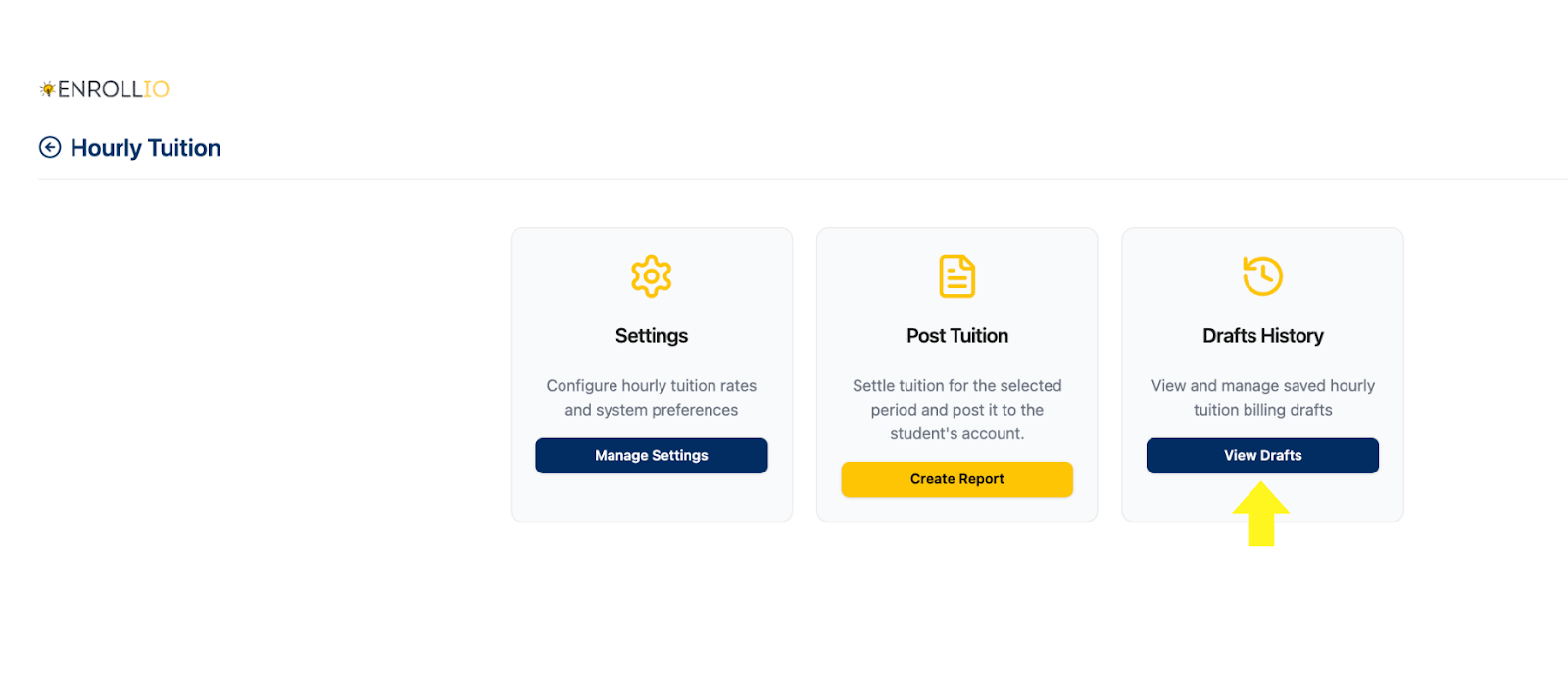
- If you saved a draft, you can view and manage it later in the Drafts section of Hourly Tuition.
Why It Matters
This feature has been long requested by studios using hourly-based billing. It gives flexibility for different class lengths, ensures transparent reporting for families, and saves administrators time.
Support Reminder
If you have any questions, please reach out to support@enrollio.ai and our team will be happy to help.