
Purpose
This guide explains how to use the new QR Code element in Enrollio’s Page Builder. With this feature, you can easily add QR codes to your pages that link visitors directly to any URL when scanned with a phone — making it simple to share registration links, event details, or promotions.
What It’s For
Dance studios can use QR codes on their website or funnel pages to give parents and students a quick, no-hassle way to access important links. For example, you might connect a QR code to your registration form, a payment link, or an event landing page.
Key Features & Benefits
-
Direct Linking – Add a QR code that connects visitors to any URL.
-
Inline Management – Create or edit QR codes directly inside the Page Builder.
-
Easy Selection – Search and scroll to quickly find the right QR code.
-
Clarity – View the destination URL when a QR code is selected.
-
Notifications – Get alerts if a previously selected QR code has been deleted.
-
Cross-Location Identification – Clearly see if a QR code comes from another location.
Step-by-Step Instructions
-
Open the Page Builder
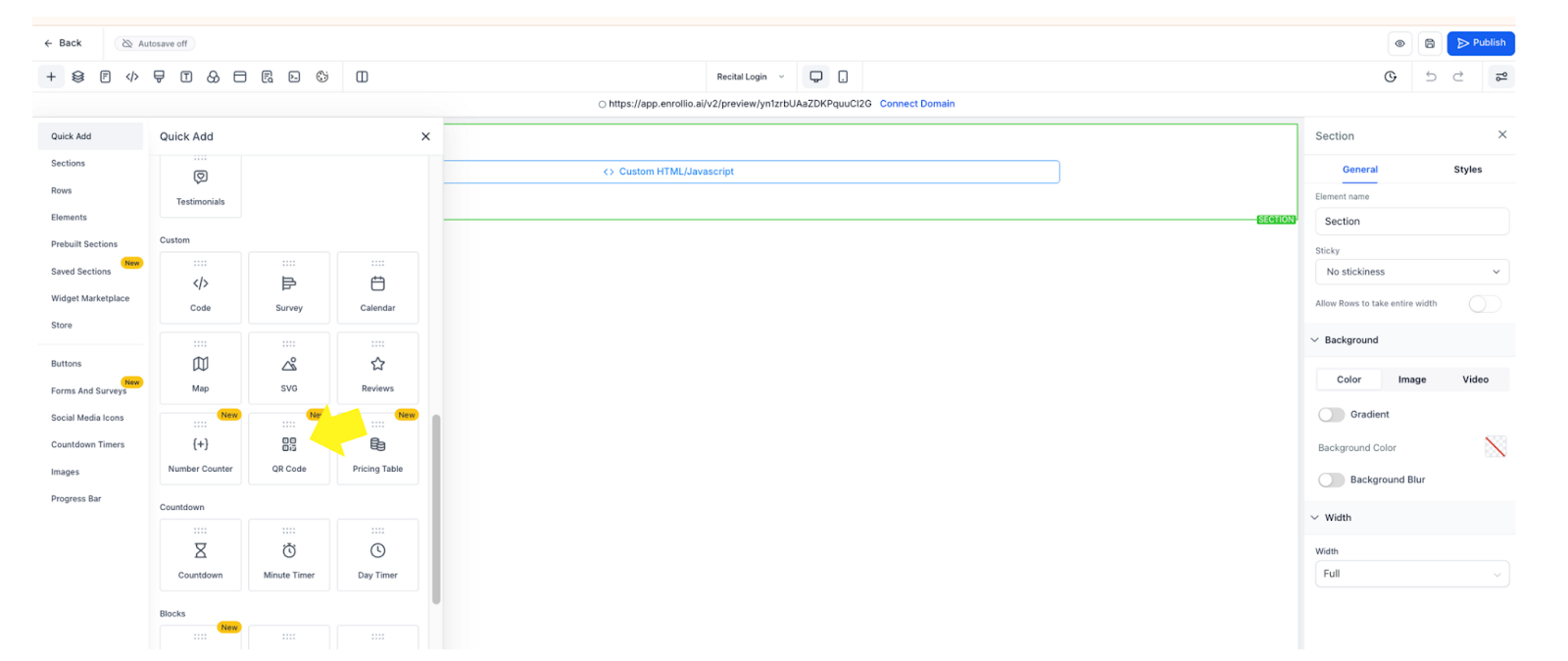
- Go to the page where you want to add a QR code.
- Go to the page where you want to add a QR code.
-
Add the QR Code Element
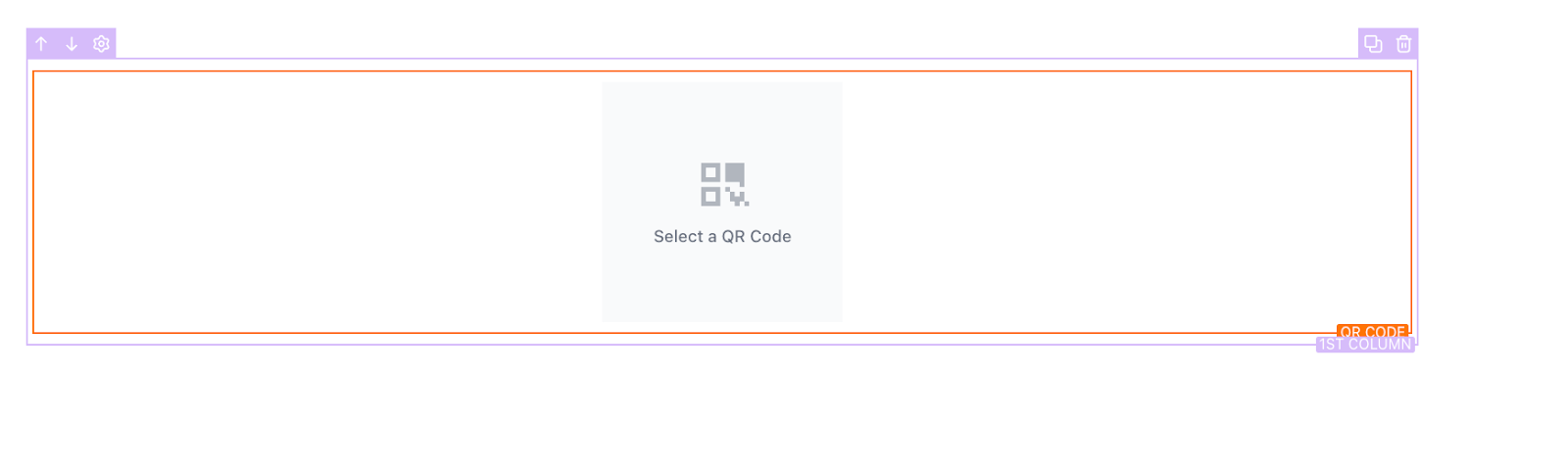
- In the Page Builder, select the QR Code element.
-
Drag and drop it into the section of the page where you want it to appear.
- In the Page Builder, select the QR Code element.
-
Choose or Create a QR Code
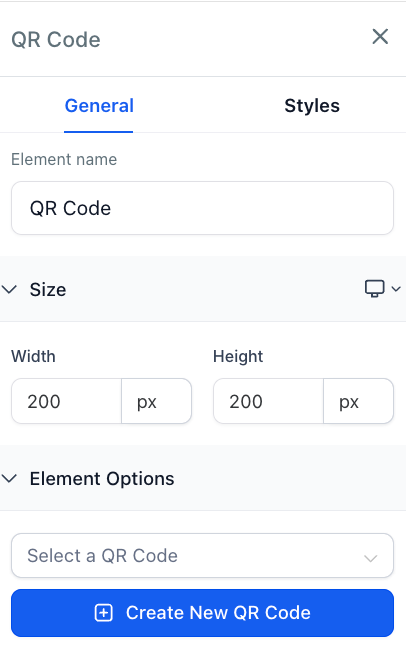
- Use the selector to search and choose an existing QR code.
-
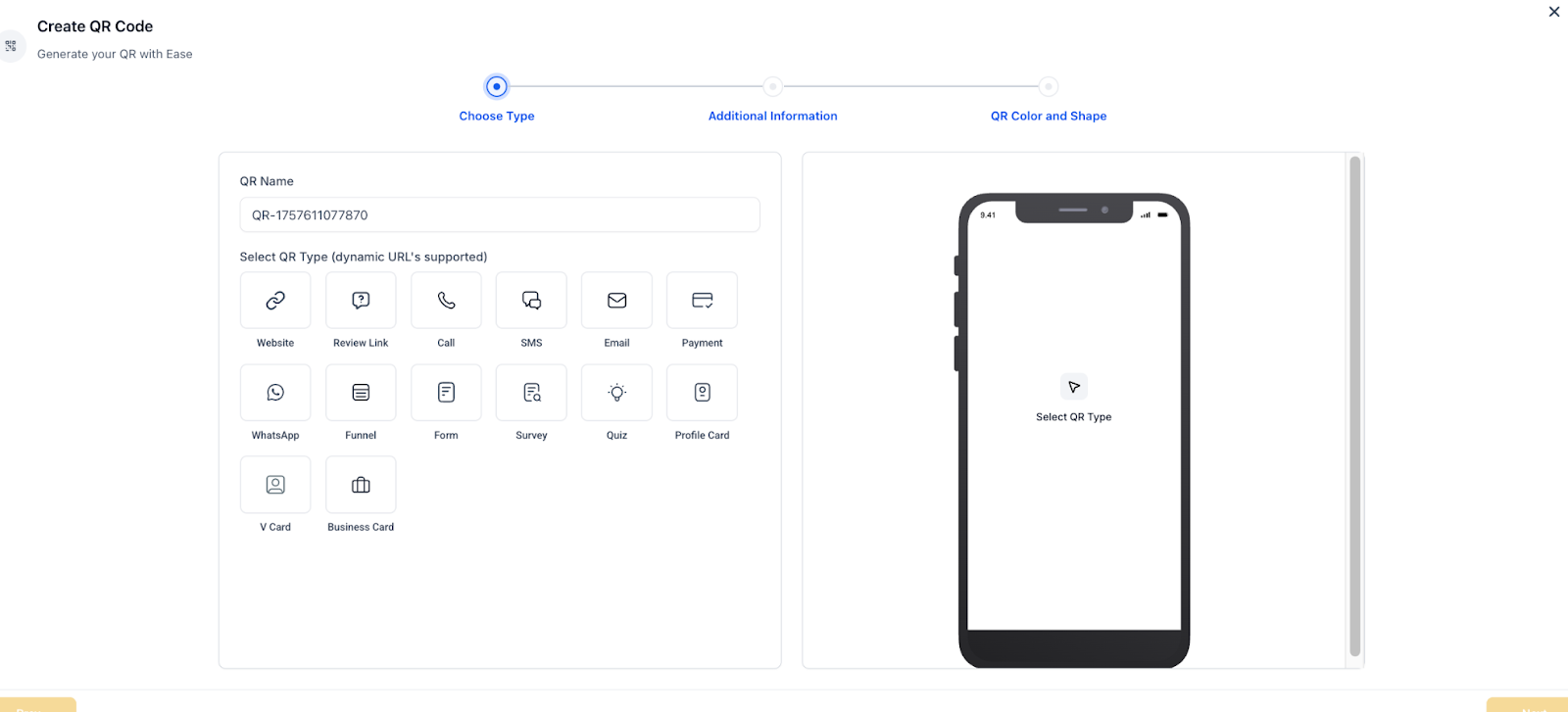
Or, click Create New QR Code and add your destination link.
- Use the selector to search and choose an existing QR code.
-
Review and Confirm
-
Check the destination URL that appears with the QR code.
-
Make sure it points to the correct page or resource.
-
-
Save and Publish
- Once everything looks good, click Save.
-
Publish your page so the QR code goes live for visitors.
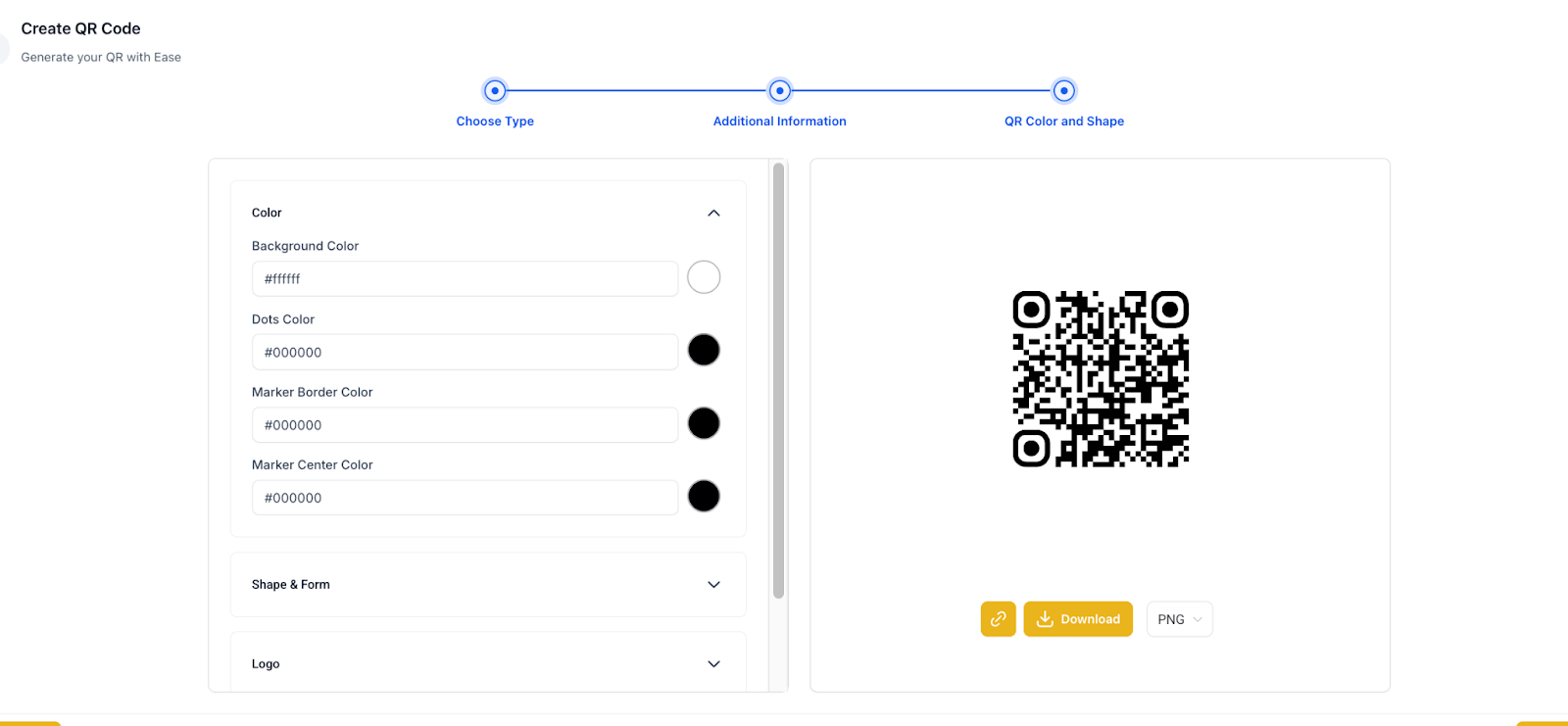
- Once everything looks good, click Save.
Why It Matters
QR codes are a fast, convenient way for families to interact with your studio. Whether it’s signing up for classes, paying fees, or checking event details, visitors can get where they need to go instantly by scanning a code.
Support Reminder
If you have any questions, please reach out to support@enrollio.ai and our team will be happy to help.