
Purpose
This guide explains how to set up and manage multiple popups on a single Enrollio website or funnel page. With this feature, you can connect specific buttons, images, or links to different popups, allowing you to deliver targeted messages without cluttering your page.
What It’s For
Dance studio owners often have different calls to action on a page—such as “Register Now,” “Learn More,” or “Join the Waitlist.” With multiple popups, each button can open a different popup, helping you show the right message to the right audience at the right time.
Step-by-Step Instructions
1. Create a New Popup
-
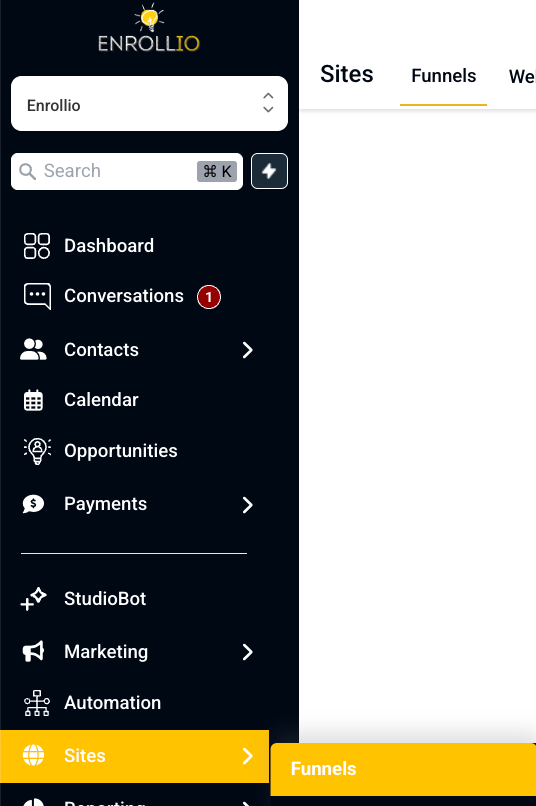
Open Site > Funnels .
-
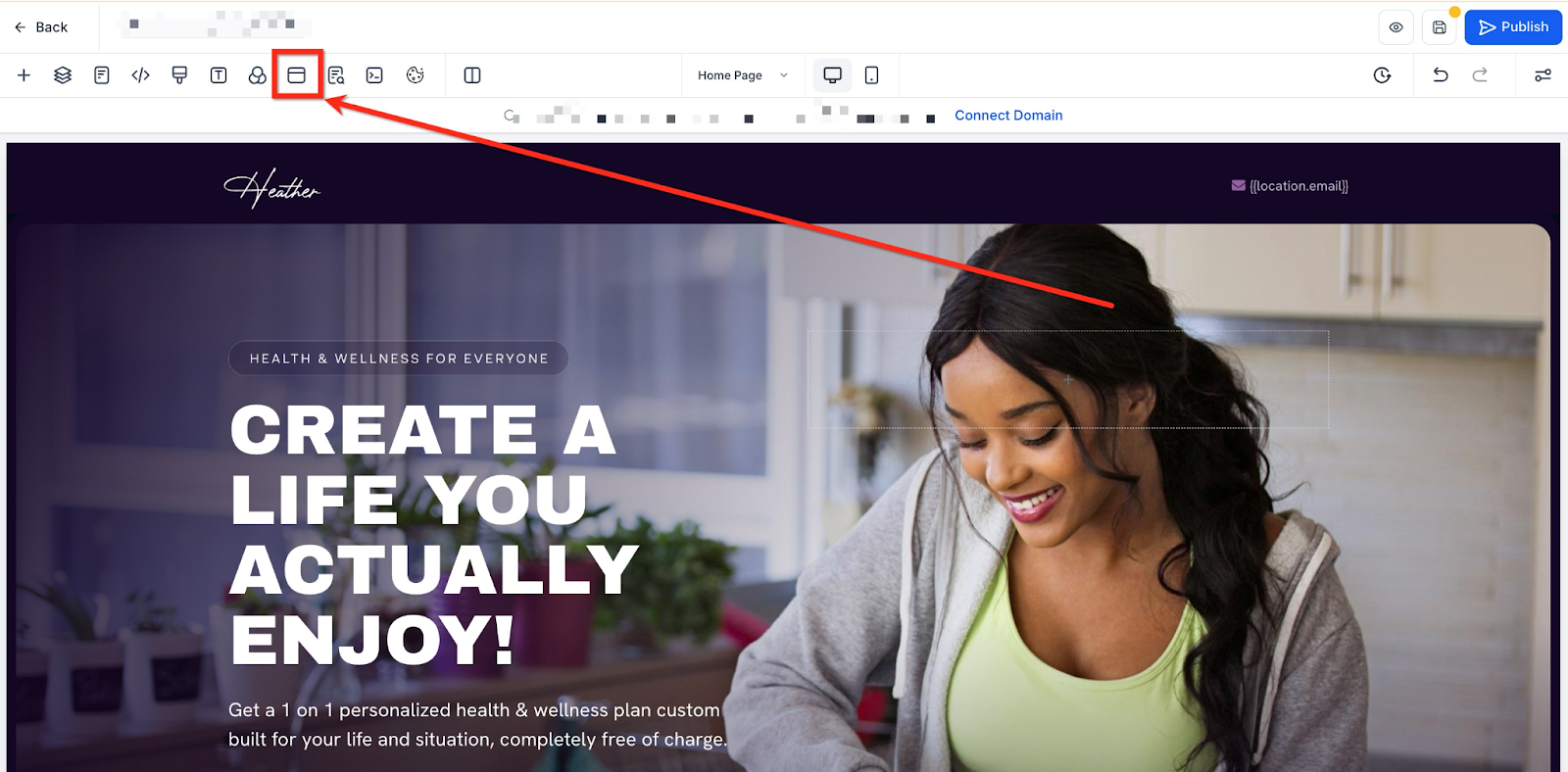
Click Popup Settings from the top navigation bar.
-
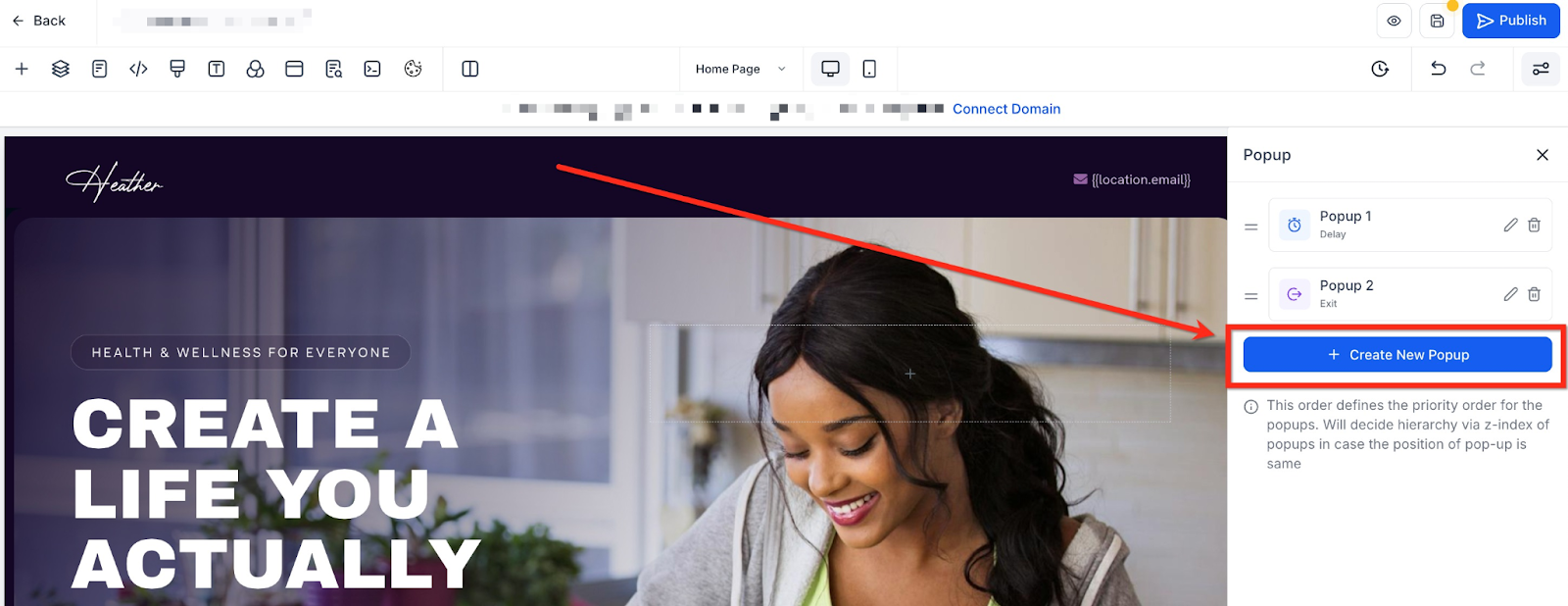
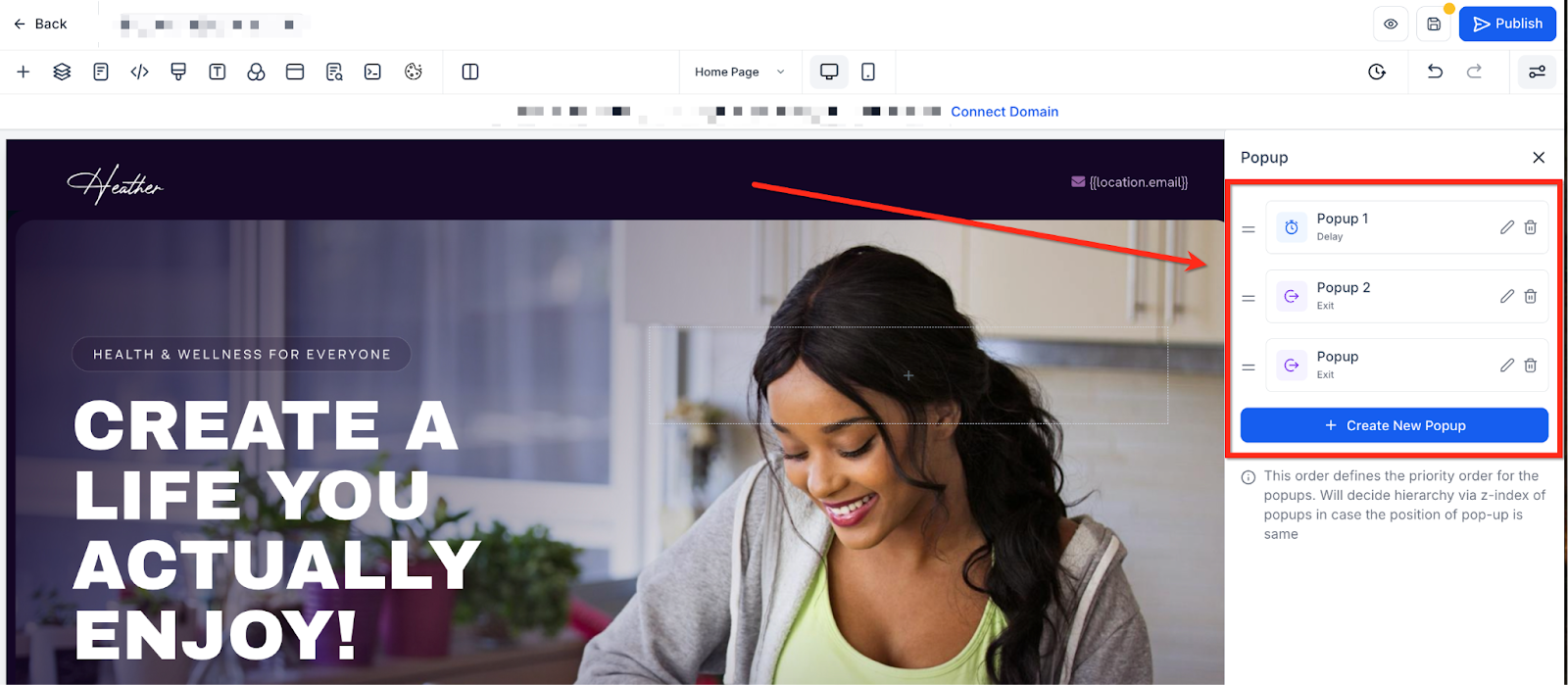
In the sidebar, click + Create New Popup.
-
Give the popup a descriptive name (e.g., “Register Now” or “Special Offer”).
-
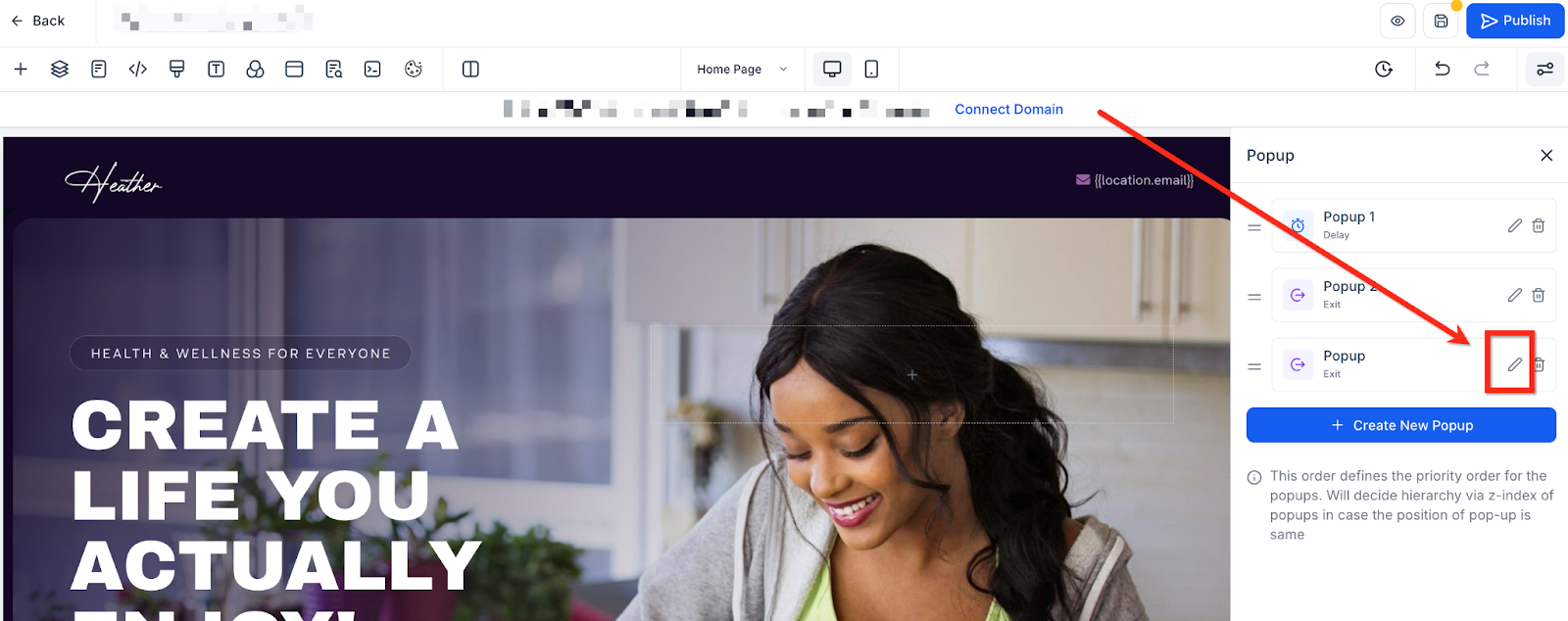
Click the Edit (Pencil) icon next to the popup you created.
-
Customize your popup just like you would edit a section—add text, forms, buttons, images, videos, or countdowns.
2. Customize Popup Appearance & Position
-
Popup Positioning – Choose left, center, or right placement.
- Visual Customization – Adjust background colors, overlays, and content.
-
Sizing & Spacing – Set margins, padding, and width for desktop, tablet, and mobile.
3. Set Popup Triggers
Popups can appear in different ways depending on your needs:
-
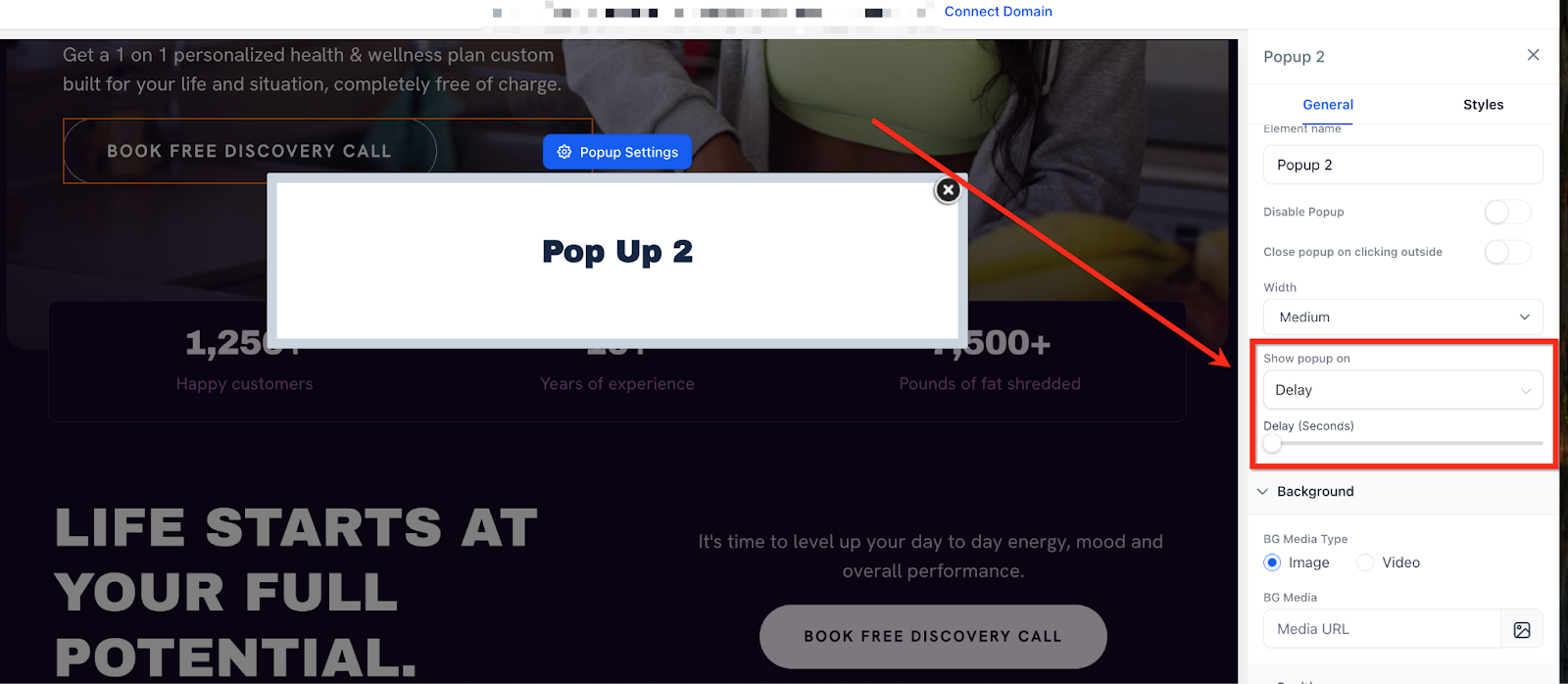
Delay – Show a popup after a set number of seconds.
-
Exit Intent – Show a popup when someone tries to leave the page.
-
None (Manual Trigger) – Link the popup to a button, image, or text so it opens when clicked.
To set a trigger:
-
Select the popup in the sidebar.
-
Open the Settings tab.
-
Under Show Popup On, choose Delay, Exit Intent, or None.
-
If using Delay, enter the number of seconds.
4. Link Popups to Buttons, Images, or Text
-
Select a button, image, or text element.
-
In the Link To dropdown, choose Open Popup.
-
Select the desired popup from the dropdown menu.
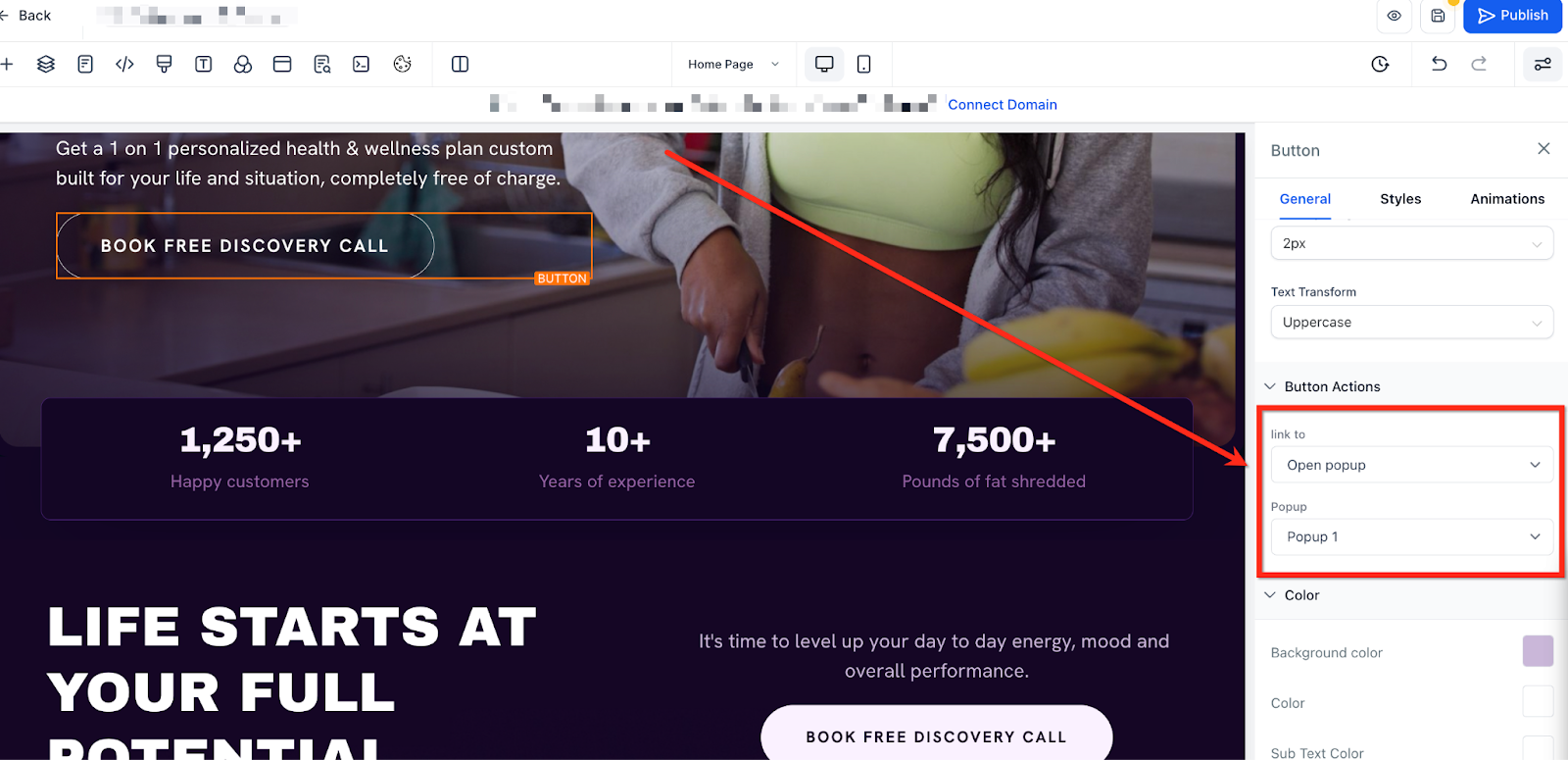
This allows different buttons or links on the same page to each trigger their own popup.
5. Manage Multiple Popups
-
Create New – Add more popups as needed.
-
Edit or Delete – Use the Pencil icon to edit or the Trash icon to remove.
-
Reorder – Drag popups in the sidebar to adjust priority (higher-ranked popups appear first).
Key Benefits of Using Multiple Popups
-
Improved Targeting – Show specific offers based on visitor behavior.
-
Cleaner Layout – Keep your page uncluttered while still sharing important messages.
-
Higher Conversions – Deliver the right offer at the right moment.
-
Easy Management – No coding or complex workarounds needed.
Frequently Asked Questions
Q: How do I prioritize one popup over another?
A: Reorder them in the sidebar; the top popup has the highest priority.
Q: Can each popup have different triggers?
A: Yes. Each popup can use its own trigger (delay, exit intent, or click).
Q: What if multiple popups use the same trigger?
A: The popup at the top of the sidebar list will display first.
Q: Can visitors close popups manually?
A: Yes, they can close popups by clicking the “X” or by clicking outside the popup (depending on your settings).
Q: How can I track popup performance?
A: Use the page’s Statistics tab or connect form submissions to your CRM pipeline.
Support Reminder
If you have any questions, please reach out to support@enrollio.ai and our team will be happy to help.