
Step-by-Step Guide to Facebook Integration in Enrollio
Facebook Integration in Enrollio allows you to directly sync prospective family data from Facebook Lead Ads into your CRM. Once connected, new leads can automatically trigger automations, populate enrollment pipelines, and initiate follow-up campaigns without manual imports.
Table of Contents
- Overview of Facebook Integration
- Key Benefits of Facebook Integration
- How to Connect Facebook to Your Account
- Frequently Asked Questions
Overview of Facebook Integration
Facebook integration allows you to connect your Facebook Business Page and sync prospective families directly into Enrollio. This connection supports Lead Ads created via Facebook's Instant Forms and enables powerful automation using Enrollio's automation features.
Once connected, you can also enable access to your Instagram Business account if it's linked to your Facebook page.
Key Benefits of Facebook Integration
Facebook integration allows you to automate prospective family capture from your Facebook ads:
- Prospective Family Automation: Automatically syncs new Facebook leads to your CRM as prospective families
- Form Field Mapping: Aligns Facebook form responses with your CRM fields
- Sync Options: Choose to pull in past leads or only new ones going forward
- Trigger Automations: Use form submissions to launch automated follow-up sequences
How to Connect Facebook to Your Account
Step 1: Go to Settings
Click Settings in the bottom-left corner of your screen.

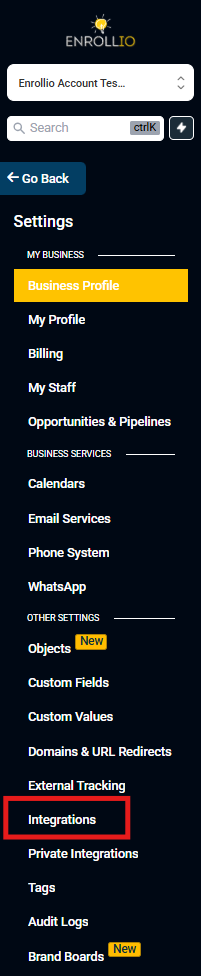
Step 2: Open Integrations
In the left-hand navigation within Settings, scroll down and click Integrations.
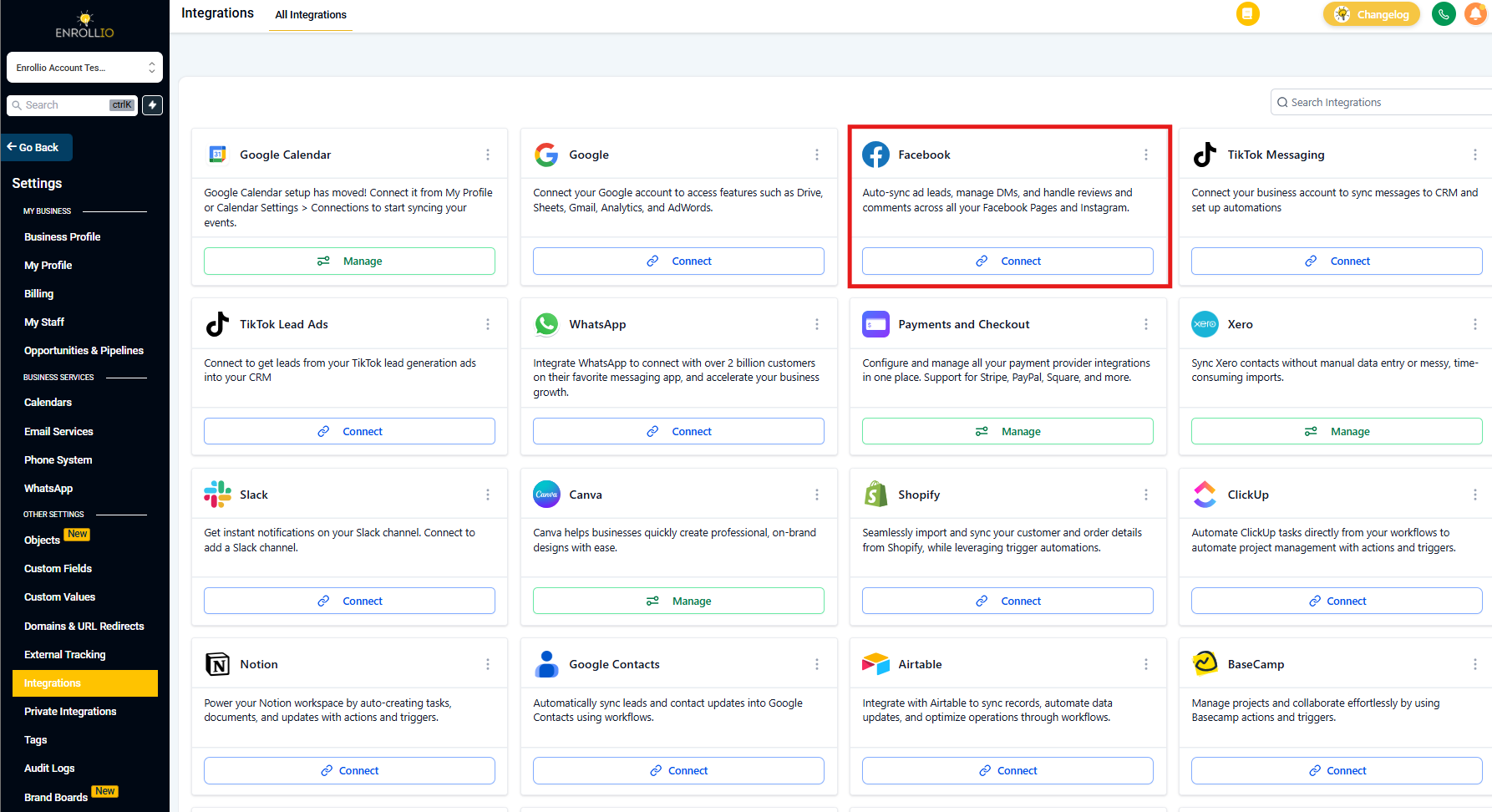
Step 3: Click the Facebook–Instagram Card
Find the Facebook–Instagram card and click Connect.
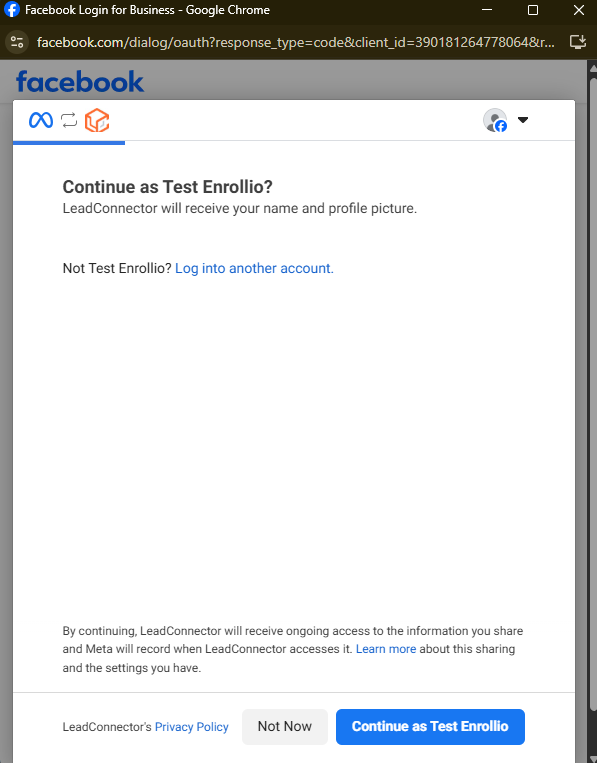
Step 4: Complete Facebook Login and Permissions
A pop-up window will ask you to log into your Facebook account. Make sure to:
- Log into the correct Facebook account
- Approve all required permissions (especially access to leads and page data)
- Select the correct Facebook Page to sync
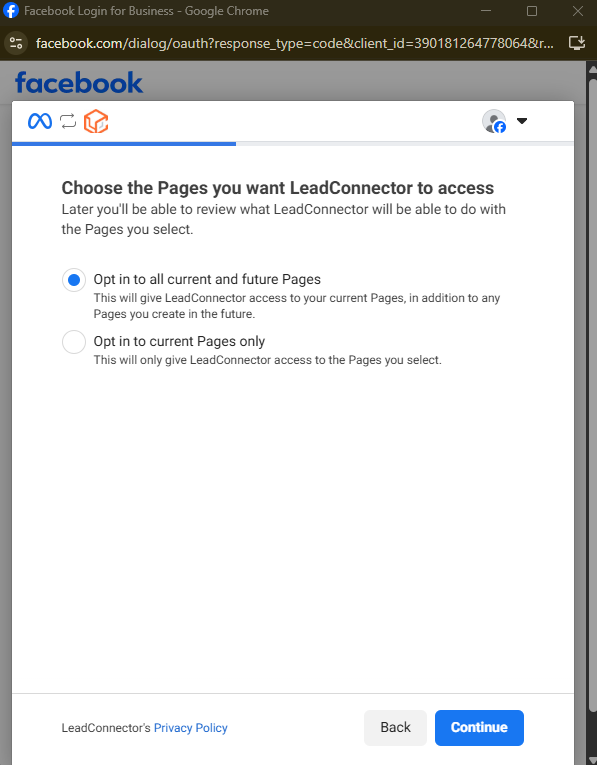
Step 5: Choose Page and Sync Options
After login, select:
- The Facebook Page you want to integrate
- Sync preference:
- All Leads: Pull in historical leads and all new leads going forward
- New Leads Only: Only sync leads submitted after this integration
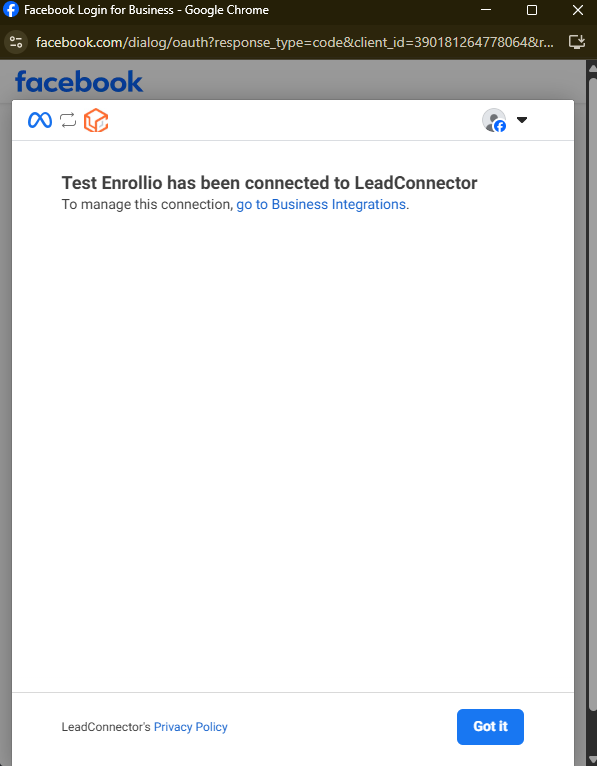
Step 6: Confirm Integration
Click Connect and Continue to finalize the integration. You'll see a green banner that says "Integration successful."
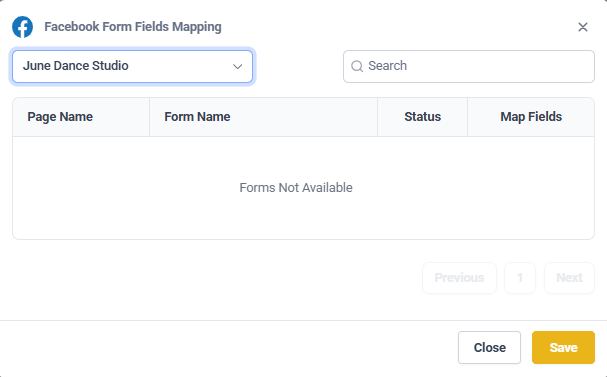
Step 7: Map Facebook Form Fields to CRM Fields
Map your Facebook form fields to the appropriate CRM fields inside Enrollio. This ensures every prospective family's data—like email, phone, and name—lands in the right place.
Frequently Asked Questions
What permissions are required to connect a Facebook page?
You must be an Admin of the Facebook Page and the associated Business Manager. If you see "page not visible," check these permissions and try again.
Can I connect more than one Facebook page?
Yes. You can connect multiple pages to your account—helpful if you operate multiple locations with separate Facebook pages.
What happens if my token expires?
You'll see a reconnection prompt in Enrollio. Simply click the prompt and re-authenticate your Facebook account to restore the connection.
Can I trigger an automation when a Facebook form is submitted?
Absolutely! Use the "Facebook Lead Form Submitted" trigger to launch automations when new prospective families come in. This is perfect for sending immediate welcome texts, scheduling tour follow-ups, or adding families to your waitlist.
How do I test if the integration is working?
You can use Facebook's Lead Ads Testing Tool or submit a test form manually to verify that the prospective family appears in your CRM.
Does this also integrate Instagram leads?
Yes, if your Instagram Business account is connected to your Facebook Page. Instagram lead forms will sync to Enrollio the same way Facebook leads do.
What should I do if leads aren't syncing?
First, check that your Facebook token hasn't expired (you'll see a notification if it has). Then verify your field mappings are correct and that the form you're using is properly connected. If issues persist, contact Enrollio support.