
Adding Video Previews to Your Emails
Want to share tour videos or welcome messages with prospective families? While email clients don't support embedded video playback, Enrollio's Video element creates a clickable thumbnail that links directly to your video content.
This guide shows you how to add video previews to your emails, customize thumbnails, and adjust settings for the best presentation.
What Is the Video Element?
The Video element lets you add a clickable video preview inside your emails. When parents click the thumbnail, they're taken directly to your video.
Why not embed the video directly? Due to technical limitations in all major email clients, videos can't play directly in emails. The Video element works around this by creating a preview image with a play button that links to your video URL.
How to Add a Video Preview
Note: The Video element is only available in the Design Editor when creating email campaigns or templates.
- Click Marketing in your left navigation
- Click Emails
- Click + Create Campaign and choose Blank, then Design Editor (or open an existing email template)
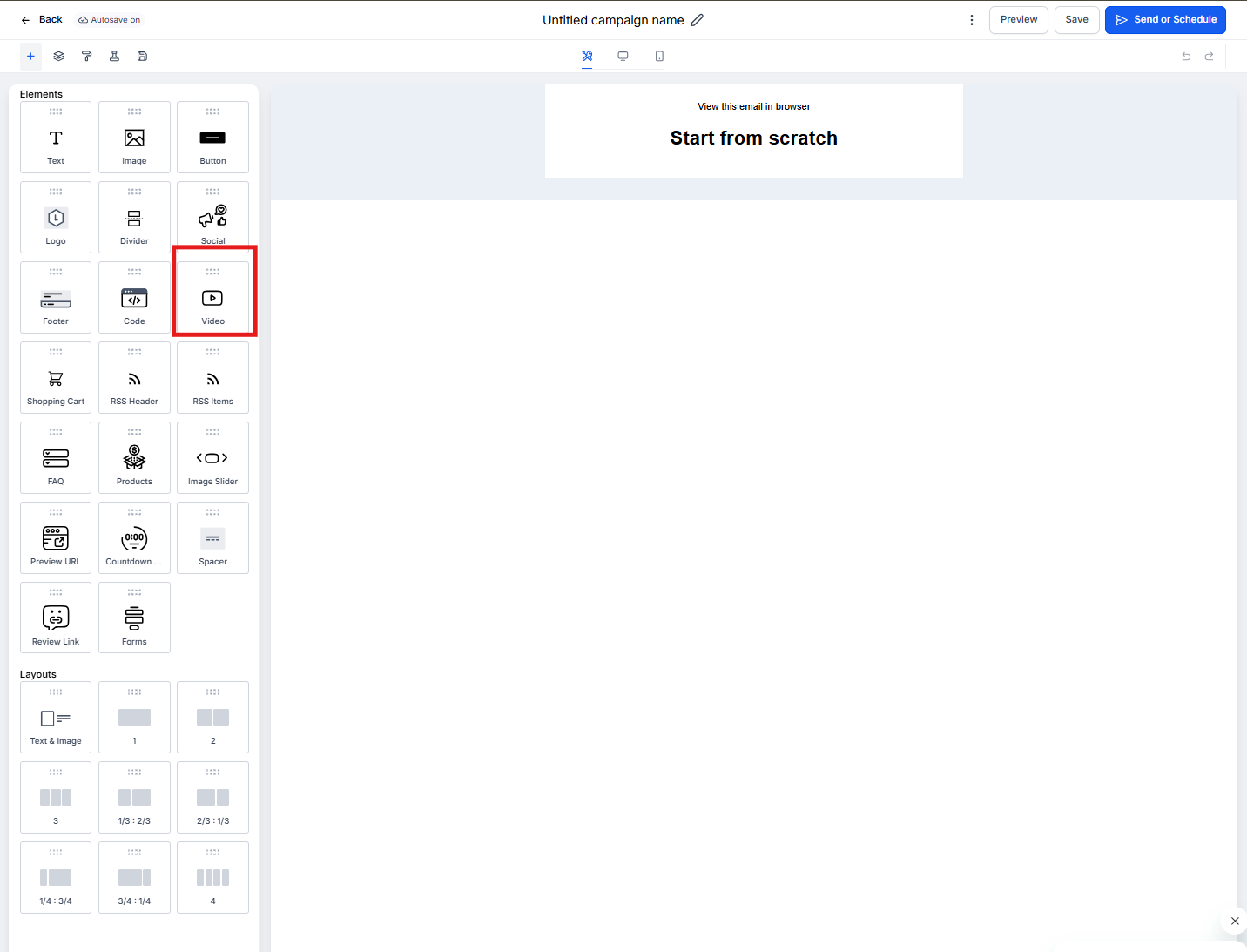
- In the left sidebar, find Video under the Elements section
- Drag and drop the Video element into your email layout
Video Configuration Options
After adding the Video element, click it to configure these settings:
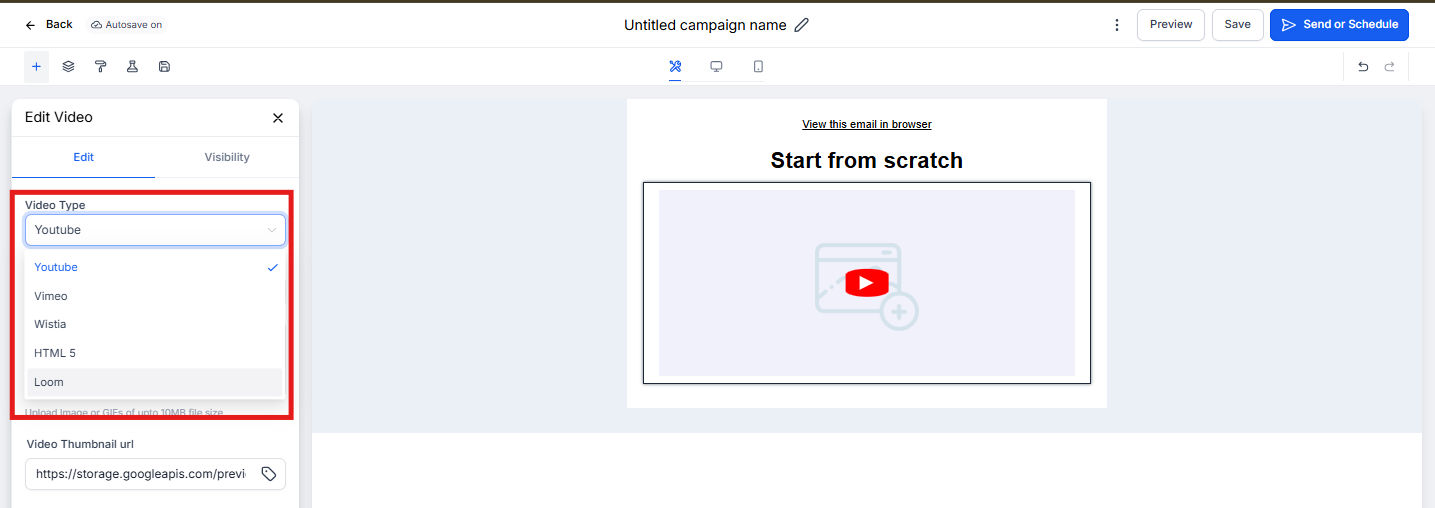
Video Type
Choose from four options: YouTube, Vimeo, Wistia, or HTML5.
When you select a video type, Enrollio automatically fetches the thumbnail from your video URL and styles the play button to match the platform (for example, YouTube videos get a red play button).
Video URL
Paste the full URL of your video here. If the preview can't fetch a thumbnail (for example, if you selected YouTube but pasted a Vimeo URL), you'll see a warning.
Pro Tip: If your video doesn't have a thumbnail, first add a video that does have one you like, then change the URL. The original thumbnail will remain.
Video Thumbnail URL
Enrollio automatically fills this field with the thumbnail from your video. You can also upload your own custom thumbnail:
- Click Replace to upload a custom thumbnail image
- Click Remove to clear the current thumbnail
Custom thumbnails are perfect for adding your center's branding or highlighting specific moments from your tour videos.
Width & Height
Control the dimensions of your video preview. If left blank, the video takes full width with auto height based on the image resolution.
Note: Video elements with custom dimensions are aligned to the left by default. To center a video, wrap it inside a 2 or 3 column layout, or adjust the padding.
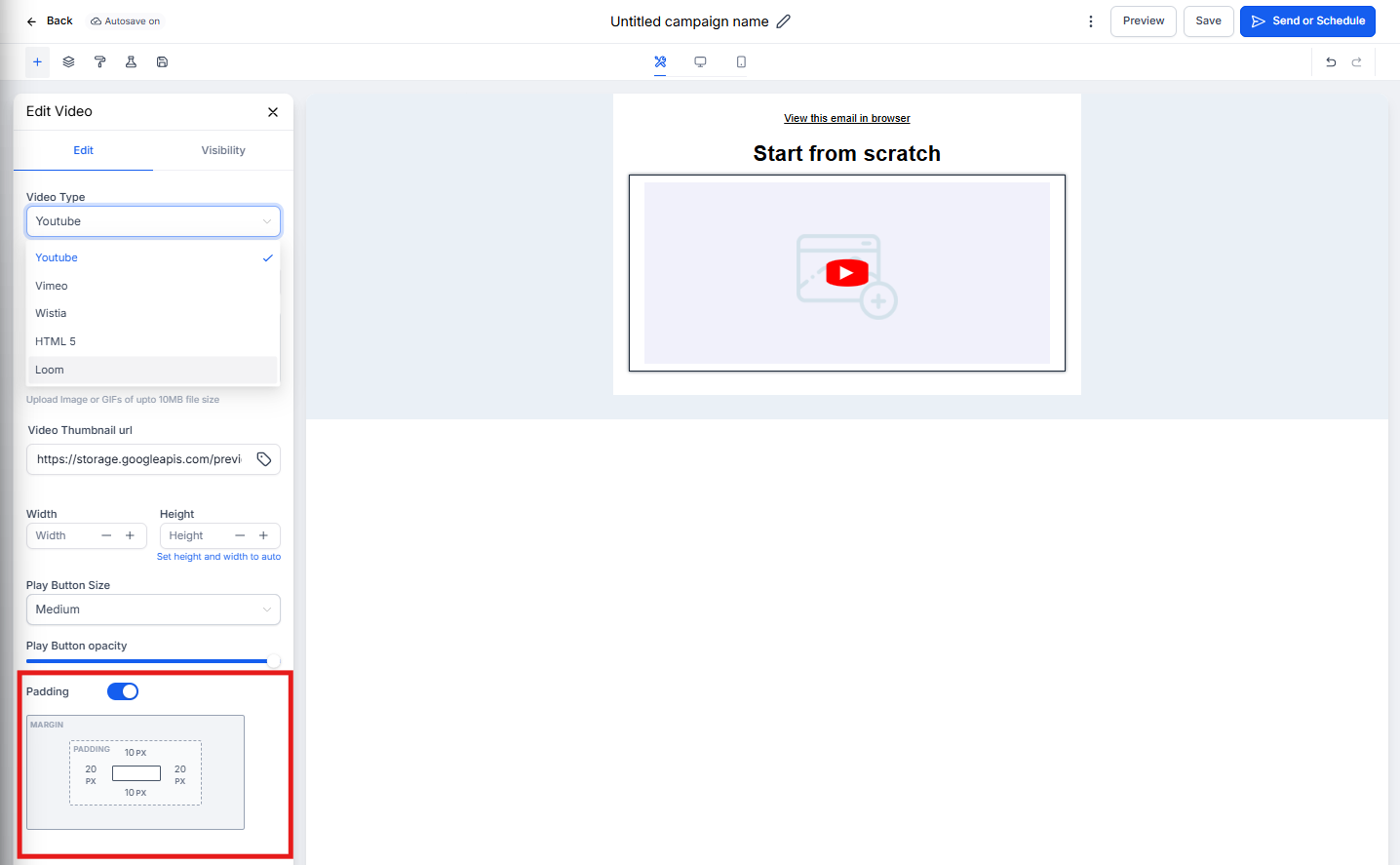
Padding
Add spacing around your video preview to control how it sits within your email layout. This is especially useful when placing videos near text or other elements.
Best Practices for Email Videos
- Use clear thumbnails: Choose images that clearly show what the video is about — parents should know if they're clicking on a center tour, testimonial, or welcome message
- Test your links: Always send a test email and click the video preview to confirm it links correctly
- Keep it relevant: Only include videos that add value to your message — tour videos for prospective families, welcome videos after enrollment, etc.
- Mobile-friendly sizing: Leave width and height blank to ensure your video preview looks good on all devices
Related Articles
- How to Use the Email Builder and its In-Line Editor
- How to Send a Regular Email Campaign
- How to Personalize Your Campaigns with Conditional Elements