
Ad Manager - Audience Controls
When creating ads to attract new families to your childcare center, targeting the right audience is critical. This guide walks you through the audience controls in Enrollio's Ad Manager, including geographic targeting and audience selection.
Table of Contents
- Where to Find Audience Controls
- How to Target Geographic Locations
- Understanding Intended Audience Types
Where to Find Audience Controls
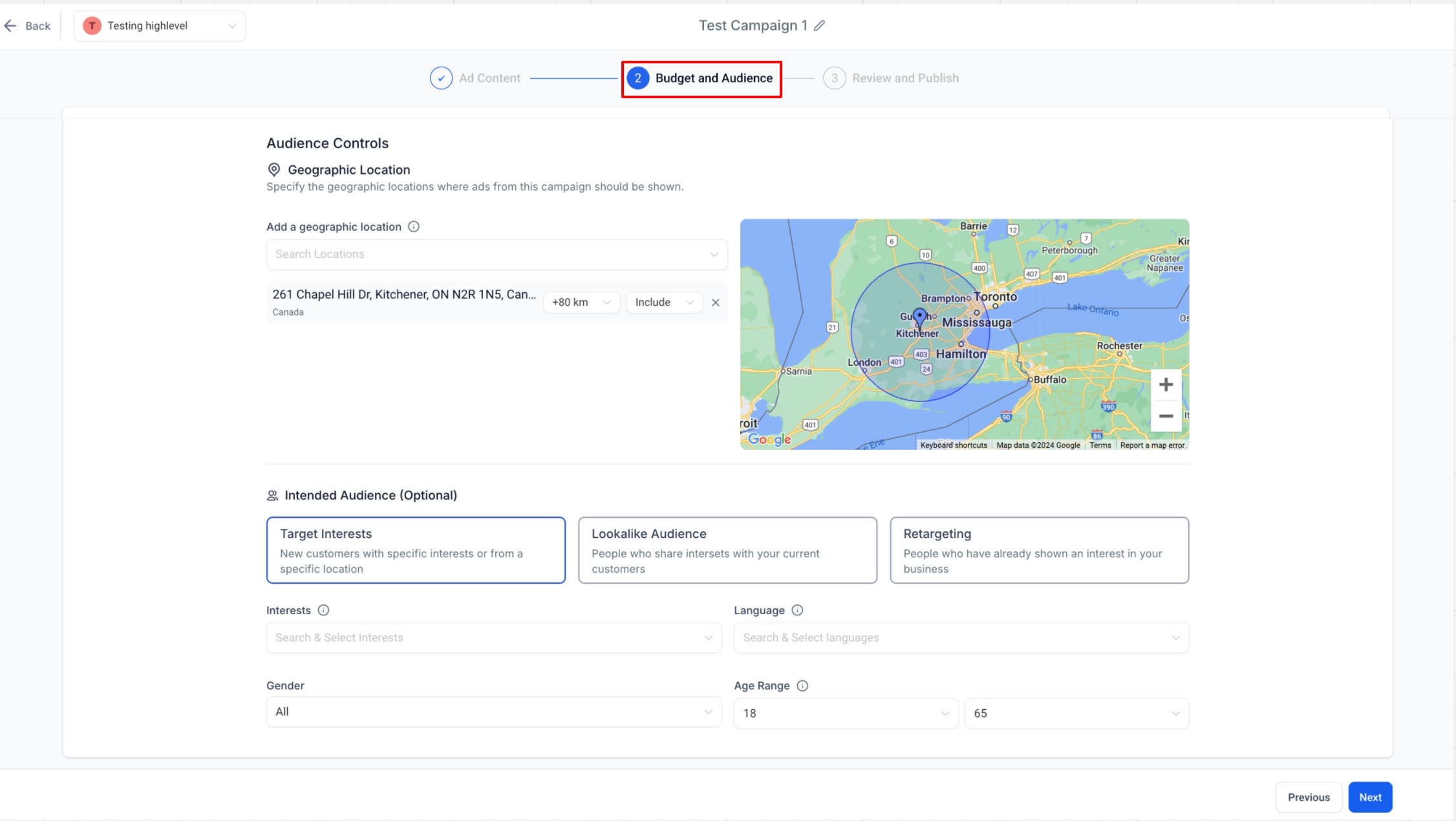
The second step of creating an ad campaign is "Budget and Audience." This step has two main sections:
- Budget - Where you set your daily or lifetime ad spend
- Audience Controls - Where you define who sees your ads
The Audience Controls section includes:
- Geographic Location - Target families in specific areas around your childcare center
- Intended Audience - Reach families based on interests, behaviors, or past interactions with your center
How to Target Geographic Locations
Most childcare centers serve families within a specific area. Here's how to set your geographic targeting:
Adding Locations
- In the "Search Locations" field, enter a city, town, state, country, or specific address
- Select the location you want from the dropdown results. You'll see it appear on the map
- Use the radius slider to define how far around that location to target families (available for specific addresses and neighborhoods)
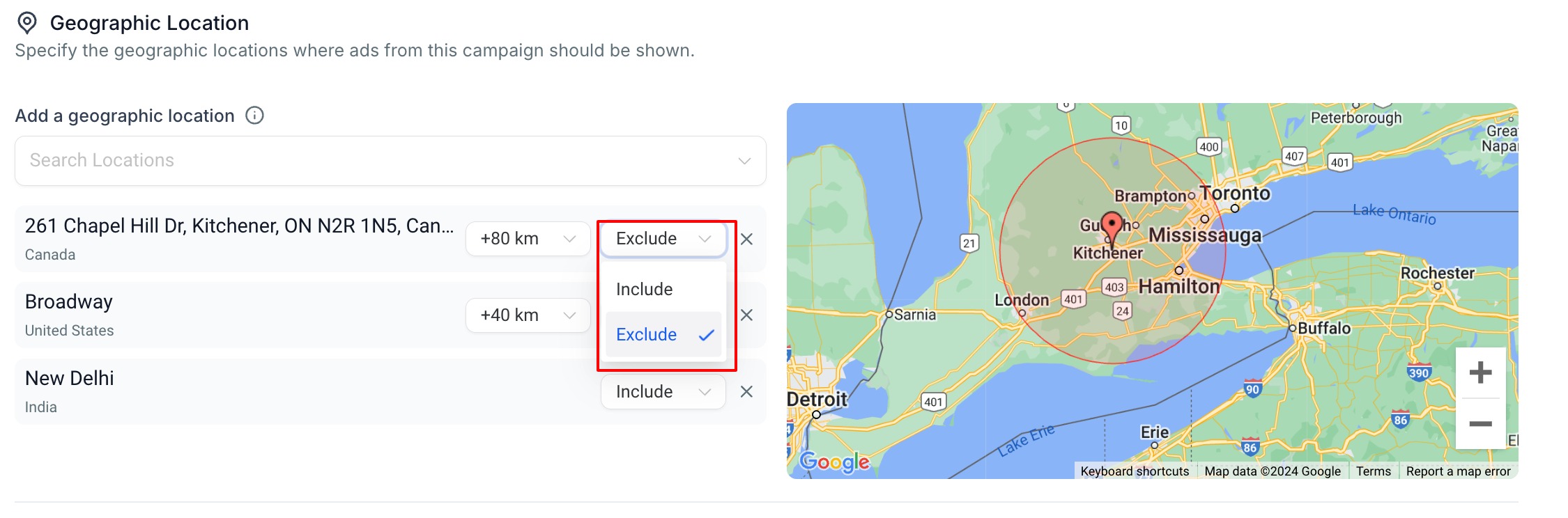
- Choose whether to Include or Exclude this area:
- Include - Show ads to families in this area
- Exclude - Don't show ads to families in this area (the location turns red on the map)
Removing Locations
Click the X icon next to any selected location to remove it from your targeting.
EU Political Ads (Google Ads Only)
If you're running Google Ads, you must confirm whether your campaign includes European Union political ads. Select one option:
- Yes - The campaign contains EU political ads
- No - The campaign does not contain EU political ads
You must make a selection before you can publish your campaign. Review Google's Political content policy for details.
Understanding Intended Audience Types
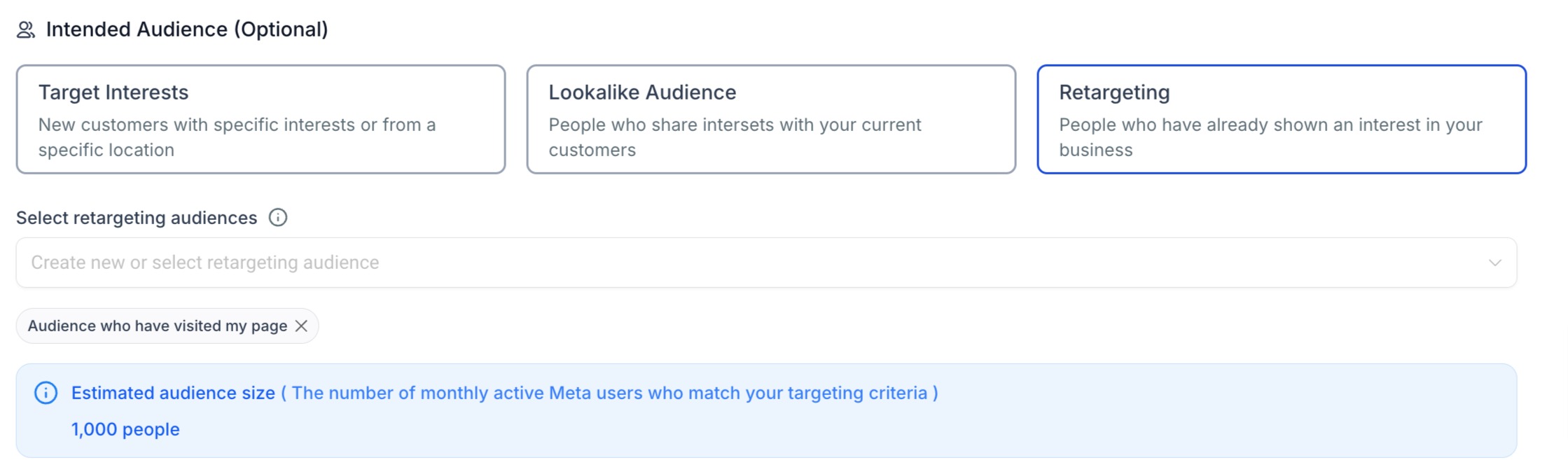
Enrollio offers three ways to define who sees your ads. Each approach helps you reach different types of families.
1. Target Interests
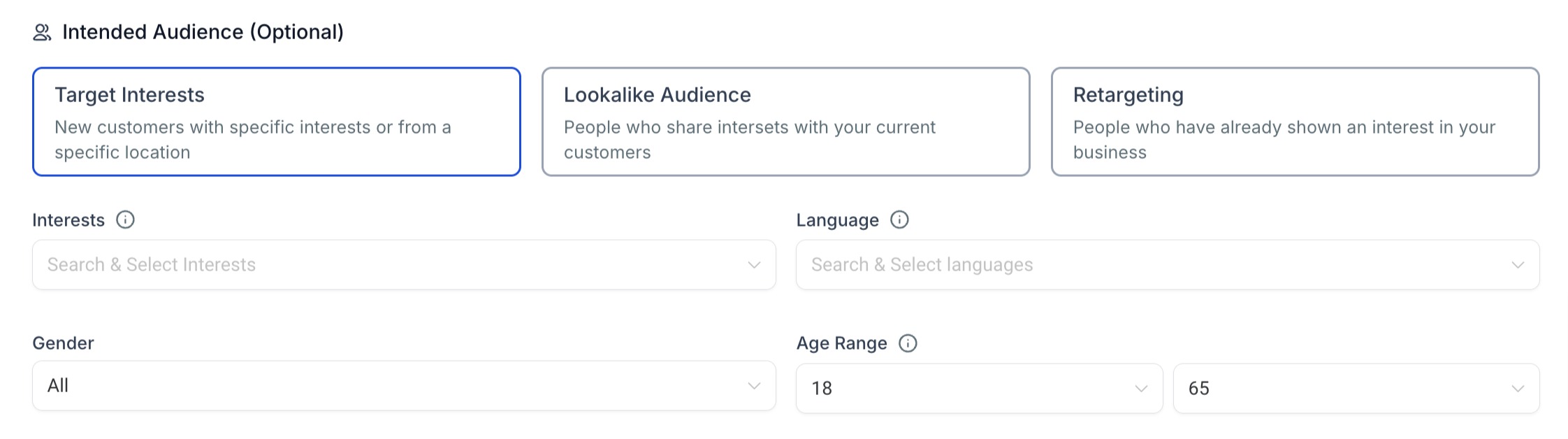
Reach new families based on their interests, demographics, and behaviors. This is ideal for attracting families who don't know about your center yet.
You can target by:
- Specific interests (select multiple from the dropdown)
- Language preferences
- Gender
- Age range
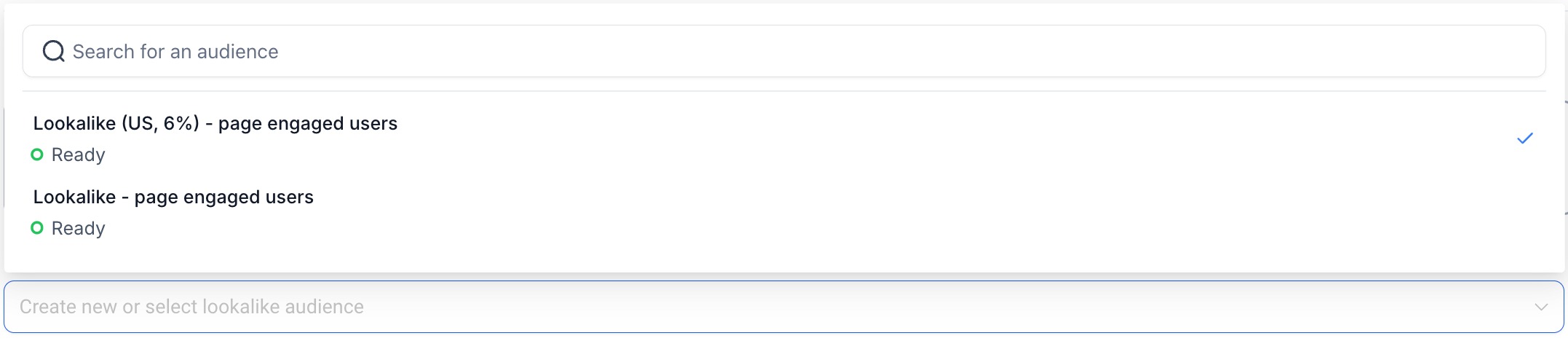
2. Lookalike Audiences
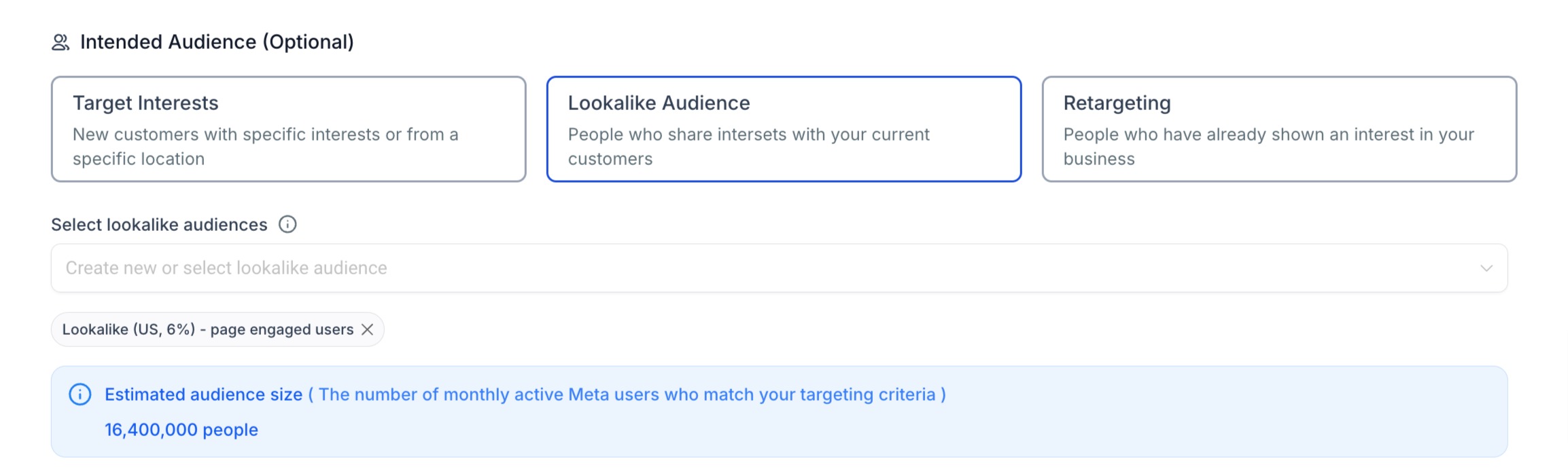
Find new families who are similar to your current parents. When you create a lookalike audience, Enrollio analyzes your existing families and finds people with similar characteristics.
Your ad reaches people who share traits with your current parent base, making them more likely to be interested in your center.
Select from the dropdown list of lookalike audiences you've created or imported from your connected ad account.
3. Retargeting
Re-engage families who have already interacted with your childcare center. This includes people who have visited your enrollment site, filled out a tour request, or engaged with your Facebook or Instagram posts.
Retargeting reminds families about your center and encourages them to complete their enrollment or schedule a tour.
Select from the dropdown list of retargeting audiences you've created using custom audiences or imported from your connected ad account.
Audience Status: Ready vs. Not Ready
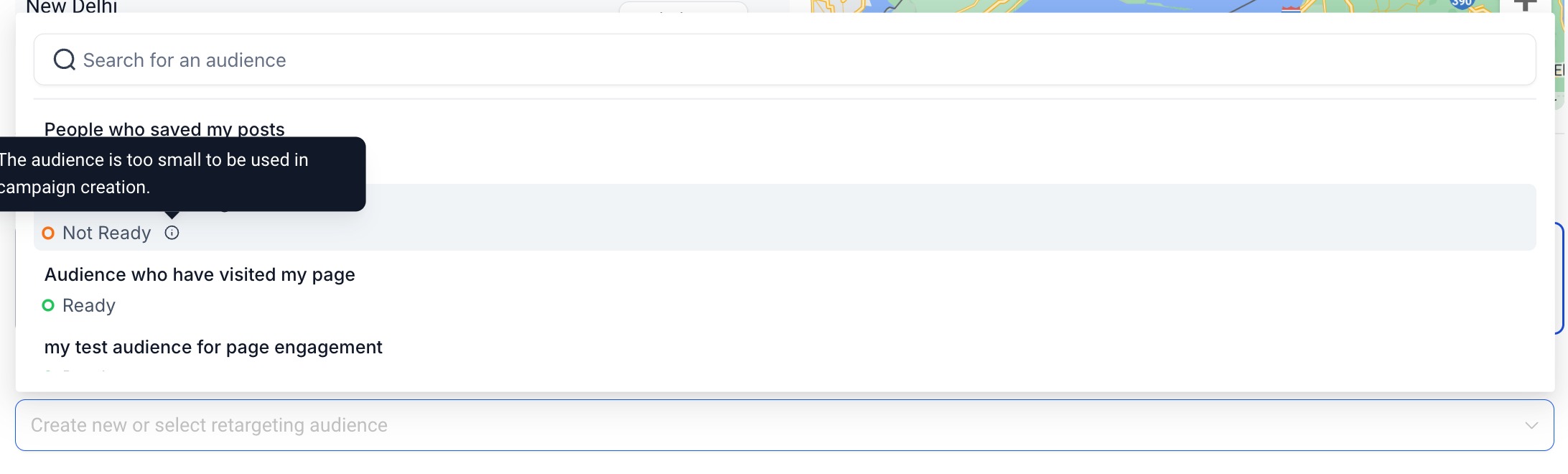
In the lookalike and retargeting dropdowns, you'll see audiences marked as "Ready" or "Not Ready."
- Ready - The audience has enough data to perform well. You can select it for your campaign
- Not Ready - The audience doesn't meet minimum requirements yet. Hover over it to see why it can't be selected
Combining Audience Types
You can select up to 15 lookalike audiences and 15 retargeting audiences per campaign.
While you can combine different audience types (for example, using both interests and lookalikes), this significantly reduces your audience size and may limit your ad performance.
Next Steps
Once you've defined your audience controls, you're ready to move on to creating your ad creative and copy. Your targeting settings ensure your ads reach the right families in your area.