
Adding Social Media Icons to Your Emails
The Social Element makes it easy to add social media icons with clickable links to your email templates. Help families connect with your childcare center on Facebook, Instagram, and other platforms while keeping your emails looking professional and polished.
What is the Social Element?
The Social Element is a drag-and-drop block that adds recognizable social media icons to your emails. Each icon links directly to your social profiles, encouraging parents to follow and engage with your center online.
You can customize the icon style, color, size, and alignment to match your center's branding. The icons are optimized to display clearly across all major email clients, so they'll look great whether parents open your emails on their phone or computer.
Note: Icons automatically adjust for mobile devices, ensuring a clean look on any screen size.
Why Use Social Media Icons in Your Emails?
Adding social icons to your emails helps you:
- Build community: Give families more ways to connect with your center
- Increase engagement: Drive traffic to your social platforms where you share updates, photos, and events
- Strengthen your brand: Maintain a consistent presence across all communication channels
- Stay top of mind: Keep families engaged even between email campaigns
Icons are fully customizable and work perfectly on both desktop and mobile.
How to Add Social Icons to Your Email
Follow these steps to add social media icons to your email template:
- Go to Marketing → Emails → Templates
- Open an existing template or click + New to create one
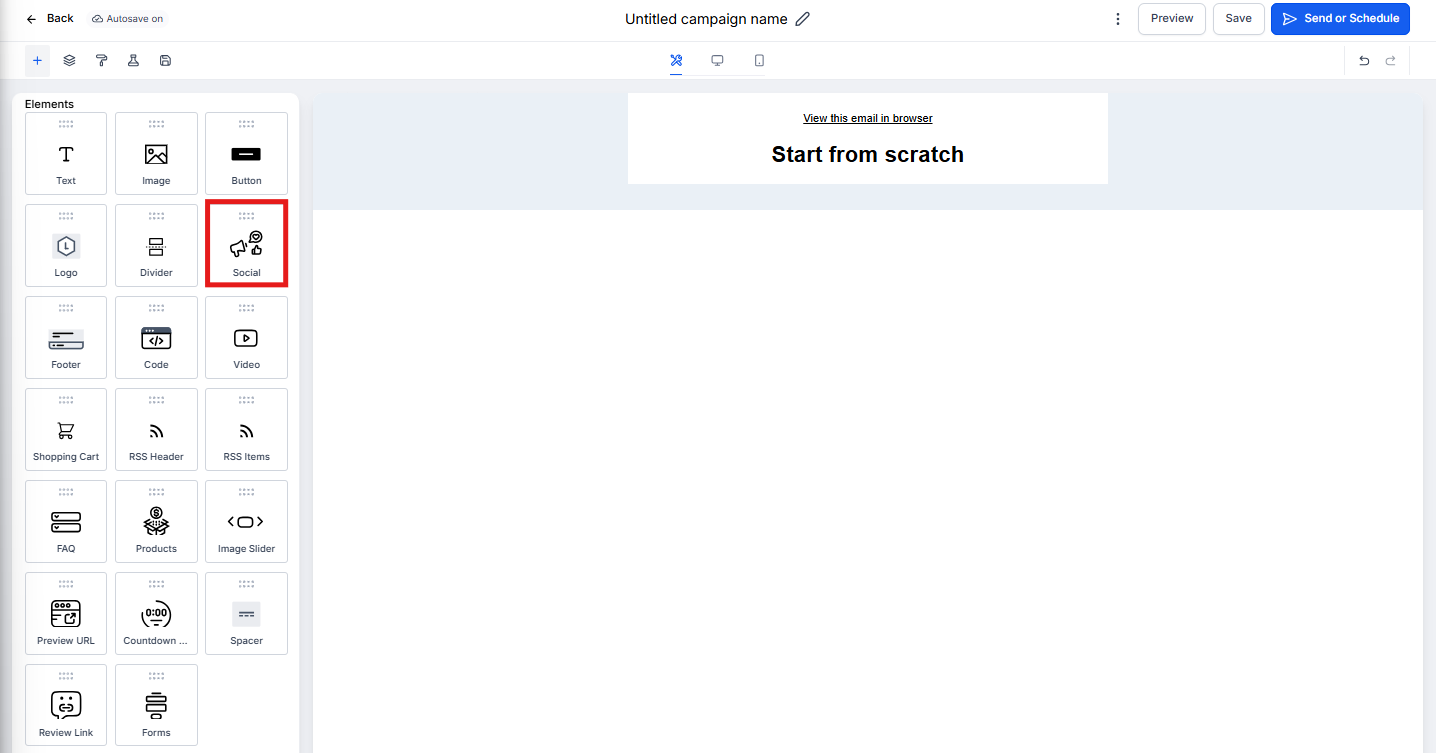
- In the Email Builder, click the Add Elements (+) icon in the left sidebar
- Find the Social Element under the Elements section
- Drag and drop it into your email (typically works best in the header or footer)
Customize Your Social Icons
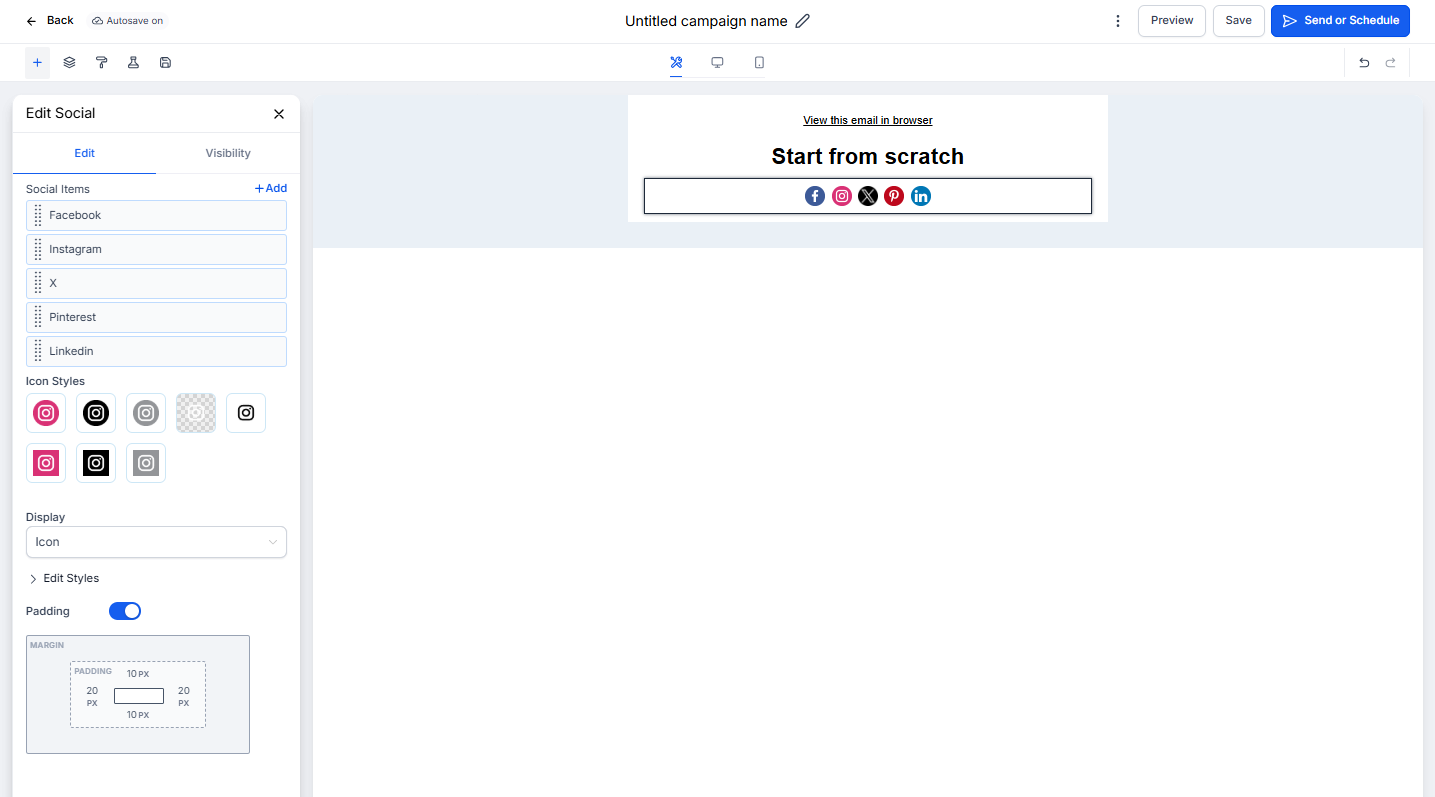
Once you've added the Social Element, click on it to open the editing panel. Here's what you can customize:
Select Your Platforms:
Choose which social media platforms to display. Popular options for childcare centers include Facebook, Instagram, YouTube, and TikTok.
Add Your Profile Links:
Paste the URL for each of your social media profiles. Make sure to test each link before sending.
Style Your Icons:
- Adjust icon size to fit your layout
- Choose between full color or monochrome icons
- Set icon shape (circle, square, or rounded)
- Control spacing between icons
Position and Alignment:
Align icons left, center, or right to match your email design. Add padding above or below to create breathing room in your layout.
Preview and Test
Always preview your email on both desktop and mobile before sending. Check that:
- All icons display clearly
- Links point to the correct profiles
- Spacing looks balanced
- Icons are easy to tap on mobile devices
Pro Tip: Place social icons in your email footer so they appear consistently across all your campaigns. This makes it easy for families to find and follow you without cluttering your main message.
Frequently Asked Questions
Which social media platforms can I add?
You can add icons for all major platforms including Facebook, Instagram, LinkedIn, X (Twitter), YouTube, TikTok, and Pinterest. Most childcare centers focus on Facebook and Instagram where parents are most active.
Can I add a platform that's not in the list?
Yes. Duplicate an existing icon, then replace its image and URL with your custom platform's logo and link.
Will the icons work on mobile devices?
Absolutely. The icons automatically resize and adjust spacing for smaller screens, ensuring parents can easily tap them on their phones.
Do I need to add social icons to every email?
It's up to you, but we recommend adding them to your email template footer. That way they'll appear automatically in all your emails without extra work.
What if I change my social media URLs?
Just edit the Social Element in your template and update the links. The changes will apply to all future emails using that template.