
Overview
Showcase your childcare center by attaching real photos to review requests in Enrollio. Visual context helps parents remember their experience, increases response rates, and strengthens social proof for prospective families researching your center.
Upload up to five images per request directly from the Send Review Request modal in the Reputation section. These photos appear with your message and in the parent's Conversations thread, making it easy for families to reference them when writing reviews.
Why Add Photos to Review Requests
Personal Touch: Include visuals of their child's classroom, art projects, or special moments that make each request feel unique.
Better Response Rates: Photos help parents recall specific memories, increasing the chance they'll click the review link and leave feedback.
Stronger Social Proof: Real photos from your center validate quality and create authentic testimonials that resonate with touring families.
Multi-Channel Delivery: Use the same images for both email and text message requests in one send.
Supported Channels
Email: Photos display below the email content as file attachments.
Text Message: Images are sent as message attachments.
WhatsApp: Not currently supported for image attachments.
Note: Adding photos to review requests is not yet available in the Enrollio mobile app.
File Requirements
- Maximum Photos: Up to 5 per request
- Supported Formats: JPG, PNG, JPEG
- Maximum File Size: 5 MB per image
How to Send a Review Request with Photos
Step 1: Open the Send Review Request Modal
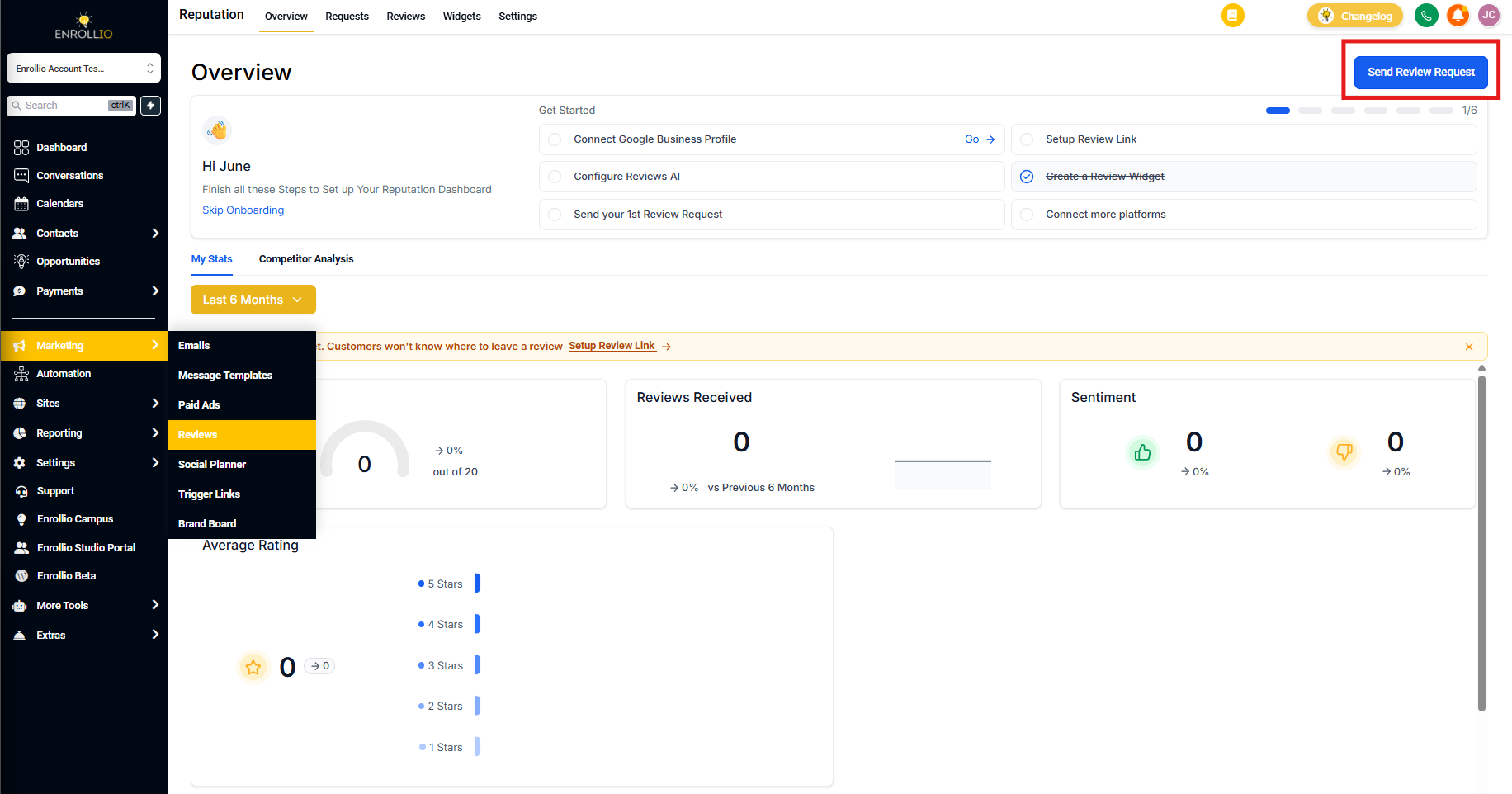
From your client account, click Reputation in the left navigation. Then click the blue Send Review Request button in the top-right corner.
Step 2: Select the Parent
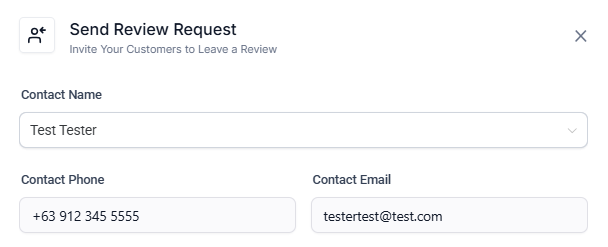
Search by parent name and select the correct family record. Make sure the contact has a phone number and/or email address based on which channels you plan to use.
Step 3: Choose Your Delivery Channel and Template
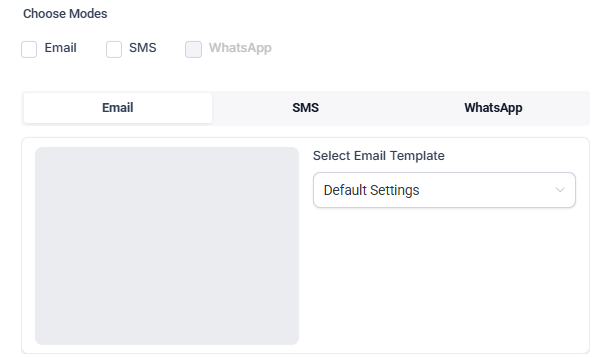
Use the Choose Modes checkboxes to select email and/or text message. (Remember: WhatsApp doesn't support images.)
Select your review request template from the Select Email Template and/or Select SMS Template dropdowns.
Step 4: Upload Your Photos
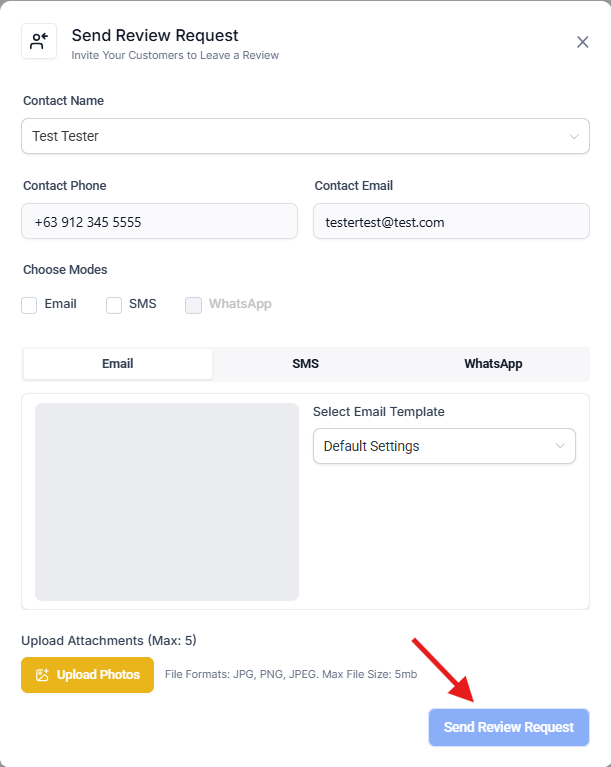
Click the Upload Photos button and select up to 5 images to attach. You'll see a preview of your selected photos directly below the button.

Step 5: Send the Request
Click the blue Send Review Request button to deliver your message with photos attached.
Pro Tips
Best Photos to Include:
- Classroom activities or projects their child participated in
- Special events or celebrations
- Learning moments or milestones
- Playground or facility highlights
Keep photos recent so parents easily recall the experience when writing their review.
Frequently Asked Questions
Will the same images be used if I send both email and text message requests?
Yes. When you select both channels, the same uploaded images are included in both the email and text message.
Are photos saved in templates or a media library?
No. Photos are added during each send and appear with the message in Conversations, but they're not stored in templates or your media library.
Is this available in the Enrollio mobile app?
Not yet. It's currently available in the web app, with mobile support planned for a future release.
Can I automate review requests with photos?
Not at this time. Image attachments must be added manually when sending review requests.