
What You'll Learn
This guide shows you how to use the Troubleshoot tool in your Facebook integration to quickly fix form mapping or permission issues and ensure your prospective families from Facebook Lead Ads sync smoothly into Enrollio.
What is the Troubleshoot Tool?
The Troubleshoot tool is a guided feature that helps you identify and fix common Facebook integration problems — like missing permissions or unmapped forms. It also includes an improved Sync Leads option to process any missed leads in just a few clicks, without manual troubleshooting.
Why This Matters for Your Center
These improvements help you manage your Facebook integration confidently without needing support:
- Fixes issues fast: Self-troubleshoot permissions and form mapping problems
- Prevents missed inquiries: Ensures forms are correctly mapped and permissions are current
- Promotes automation: Encourages automatic lead syncing instead of manual processing
- Cleaner interface: Streamlined design keeps you focused on what matters
How to Troubleshoot Your Facebook Connection
Follow these steps to fix Facebook integration issues using the Troubleshoot tool:
- Open your Facebook integration in Settings → Integrations
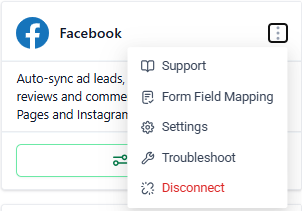
- Check the updated layout — Settings and Disconnect buttons are now in a three-dot menu for a cleaner view
-
Look for warning icons:
- If your Facebook forms aren't mapped, you'll see a warning icon. Click it to go directly to Facebook Form Field Mapping and fix the issue
- If permissions are missing, you'll see a different warning icon. Click it to start troubleshooting your connection
- Click Troubleshoot to enter the guided flow
-
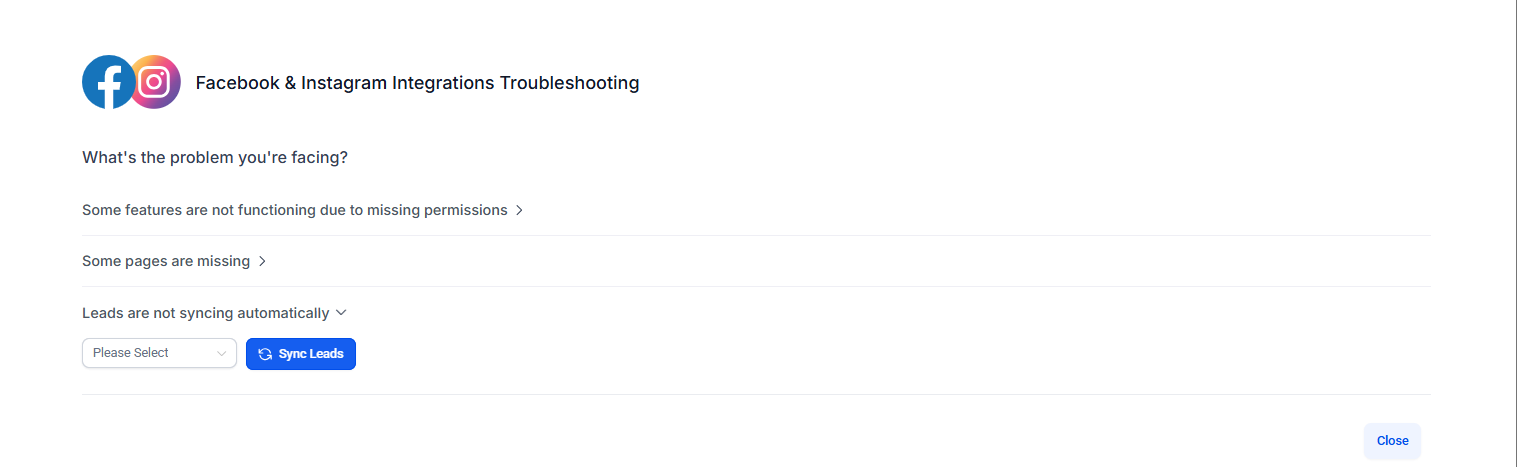
Inside the Troubleshoot flow:
- Review any highlighted permission issues or mapping warnings
- Use the Sync Leads option to process unprocessed leads if needed
-
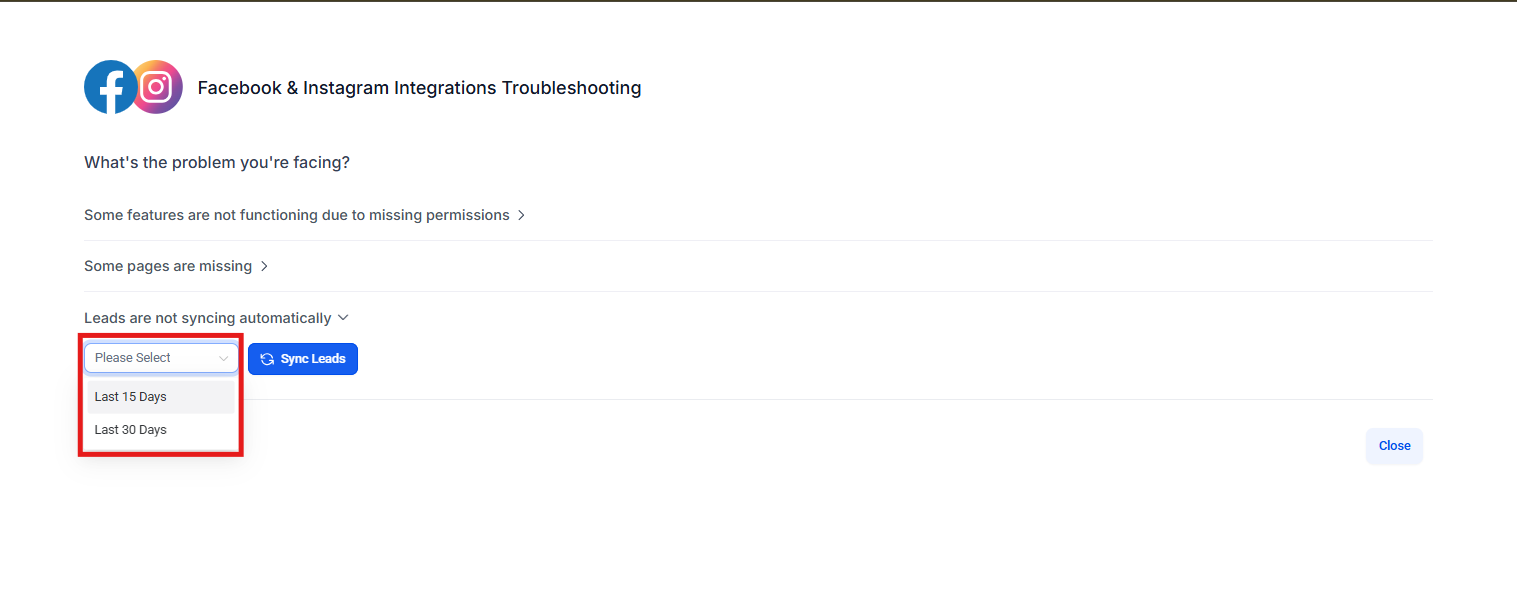
When using Sync Leads:
- Select the time range from the dropdown (past 7 days, 30 days, etc.)
- Review the summary showing what will be synced
- Confirm to start syncing leads for all mapped forms across all Facebook Pages connected to your account
- Verify that your prospective families from Facebook are now appearing in Enrollio as expected
Important Things to Know
Sync Leads is a troubleshooting tool — It's now intentionally placed under Troubleshoot to prevent misuse as a regular task. Only use it when prospective families aren't syncing automatically.
Syncs all pages at once — The feature now syncs all mapped forms across all Facebook Pages in your account simultaneously, rather than one page at a time.
Warning icons guide you — These icons point you directly to unresolved issues, reducing confusion and the need for support.
Proper setup is critical — Your Facebook integration depends on correct form mapping and permissions for continuous, automatic lead syncing.
Frequently Asked Questions
Q: Why did Sync Leads move under Troubleshoot?
A: Many users were treating it as a regular manual step rather than fixing the underlying problem. Moving it under Troubleshoot reinforces that it's for troubleshooting only.
Q: Will my leads sync automatically without using Sync Leads?
A: Yes! As long as your form mapping and permissions are correct, prospective families will sync automatically into Enrollio.
Q: Can I sync leads for just one page?
A: No. The updated design intentionally syncs all mapped forms across all pages to ensure no inquiries are missed.
Q: What happens if forms aren't mapped?
A: You'll see a warning icon. Click it to go directly to the form field mapping screen and fix the issue.
Next Steps
- Check your Facebook integration for any warning icons
- Use the Troubleshoot tool to resolve permission and mapping issues
- Only use Sync Leads when automatic syncing isn't working
- Set up your form mapping correctly to ensure all parent inquiries flow into Enrollio automatically
💡 Pro Tip: Once your Facebook forms are properly mapped and permissions are set, your prospective family inquiries will sync automatically — no manual syncing needed. Check your integration settings occasionally to ensure everything stays connected.