
Build a 5-Star Reputation and Bring Back Families — Without Manual Follow-Ups
Your childcare center's online reputation is no longer a bonus—it's the foundation of how new families find you, trust you, and decide to enroll with you. A strong reputation not only attracts new families but also reinforces trust with current parents. And if you're not consistently following up with families who haven't re-enrolled or completed their tours, you're likely leaving enrollment spots unfilled.
This guide shows you exactly how to automate your reputation management and family reactivation using Enrollio—without adding to your staff's workload. Whether you're running a single center or managing multiple locations, these strategies help you build long-term loyalty, fill open spots, and become the highest-rated childcare center in your area.
Table of Contents
- Part 1: Online Reviews — Your Most Powerful Childcare Marketing Tool
- Step-by-Step: Automate Your Review Collection
- Part 2: Family Reactivation — The Easiest Growth Lever You're Not Using
- How to Build a Reactivation Engine in Enrollio
- Bonus Campaigns That Boost Reactivation
- Final Takeaway
Part 1: Online Reviews — Your Most Powerful Childcare Marketing Tool
When parents search for "childcare near me" or "preschool near me," they rarely click the first result—they click the one with the highest rating and most recent 5-star reviews. Google knows this. So do your competitors.
A great reputation isn't built by chance—it's built by design.
Why Reviews Matter More Than Ever:
- 88% of parents trust online reviews as much as a personal recommendation
- 72% won't consider a center with less than 4 stars
- Reviews directly impact your Google Maps ranking and local SEO
- Reviews double as social proof, building instant credibility
Even if you run paid ads or have a beautiful enrollment site, a poor reputation—or too few reviews—can kill conversions.
Step-by-Step: Automate Your Review Collection
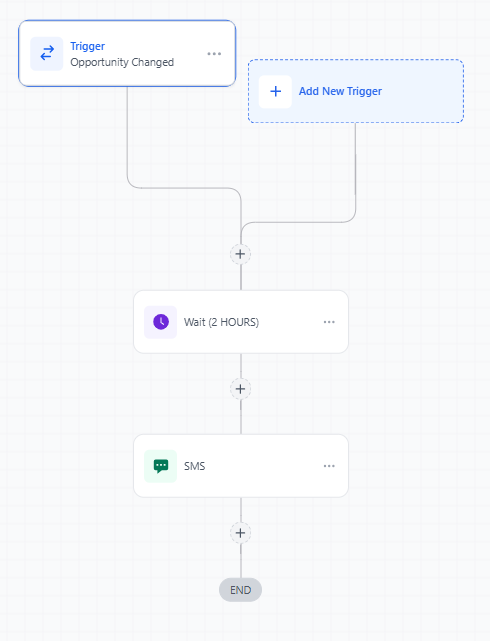
Step 1: Set the Trigger
Use Enrollio to trigger an automated review request after key moments in your family journey.
- Use enrollment pipeline status (e.g., "Enrolled" or "Tour Completed") as your automation trigger
- Build a short delay of 1–2 hours after the interaction (to avoid seeming too robotic)
- Send both text message and email with personalization (parent name, child name)
Step 2: Craft the Message
Your message should feel like a casual thank-you, not a marketing blast.
Text Message Example:
"Hi Sarah! Thank you for touring Little Explorers today. If you enjoyed your visit, would you mind leaving a quick Google review? It helps us grow and helps other families find great care. Here's the link: [Link]"
Email Example:
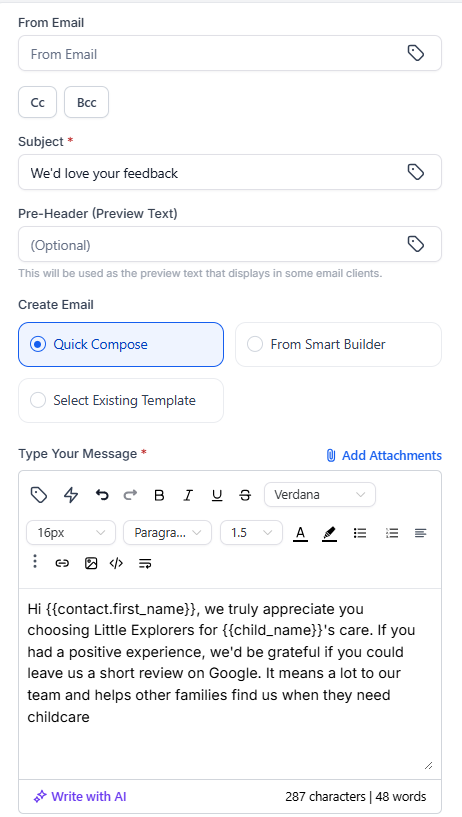
Subject: We'd love your feedback
Body: "Hi Sarah, we truly appreciate you choosing Little Explorers for Emma's care. If you had a positive experience, we'd be grateful if you could leave us a short review on Google. It means a lot to our team and helps other families find us when they need childcare."
Step 3: Make Leaving a Review Frictionless
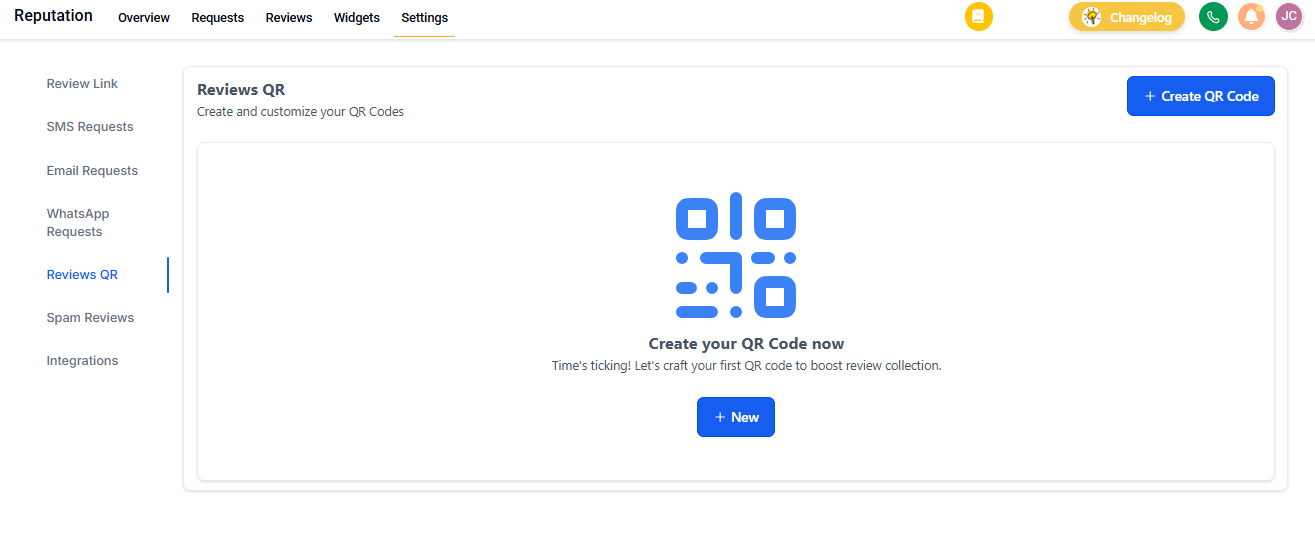
- Create a shortened Google Review link using Enrollio's built-in tools
- Add the link to your enrollment confirmation emails
- Display a QR code at your front desk with a "Review Us" prompt
- Include review links in email signatures for directors and staff
Step 4: Train Your Staff to "Plant the Seed"
Your front desk and teachers can casually mention during pickup or tours: "Hey, if everything felt good today, we'd love a quick review. You'll get a text link in a bit. It only takes a minute."
This in-person touch dramatically increases review rates—even with automation running.
Step 5: Respond to Every Review
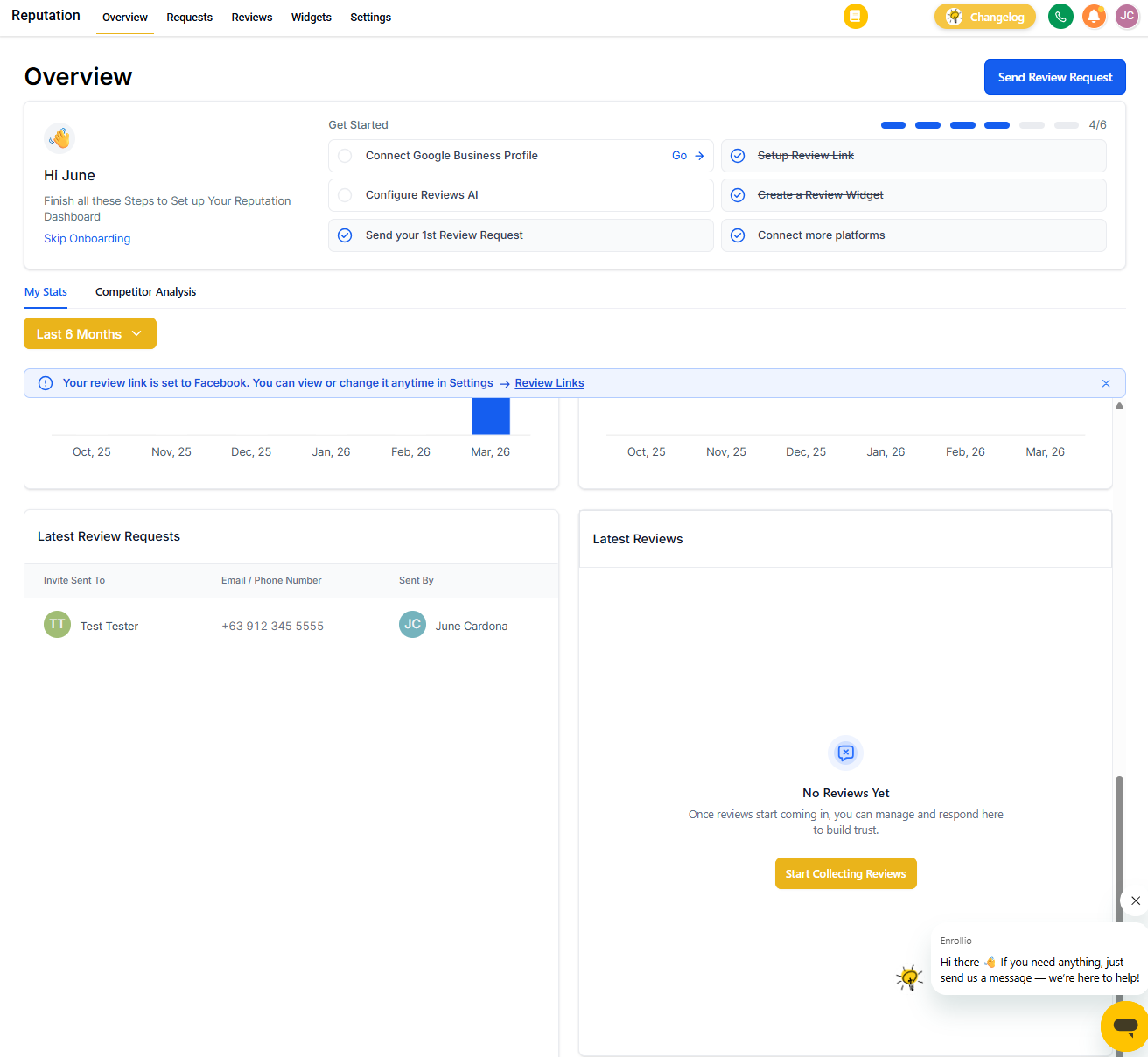
Google prioritizes businesses that actively engage with reviews. Reply to all reviews within 24–48 hours.
For positive reviews:
"Thanks so much, Jennifer! We're thrilled Emma is loving her time with us. Looking forward to watching her grow this year."
For critical feedback:
"Hi Michael, thank you for sharing this. We're sorry your tour didn't go as expected. Please call our office—we'd love the chance to make things right and address your concerns."
Part 2: Family Reactivation — The Easiest Growth Lever You're Not Using
It costs 5x more to acquire a new family than to reactivate an existing one.
Most childcare centers are sitting on a massive list of families who simply fell off their radar—because of life changes, scheduling issues, or they're not sure if you have openings. They don't need a hard sell. They need a nudge.
How to Build a Reactivation Engine in Enrollio
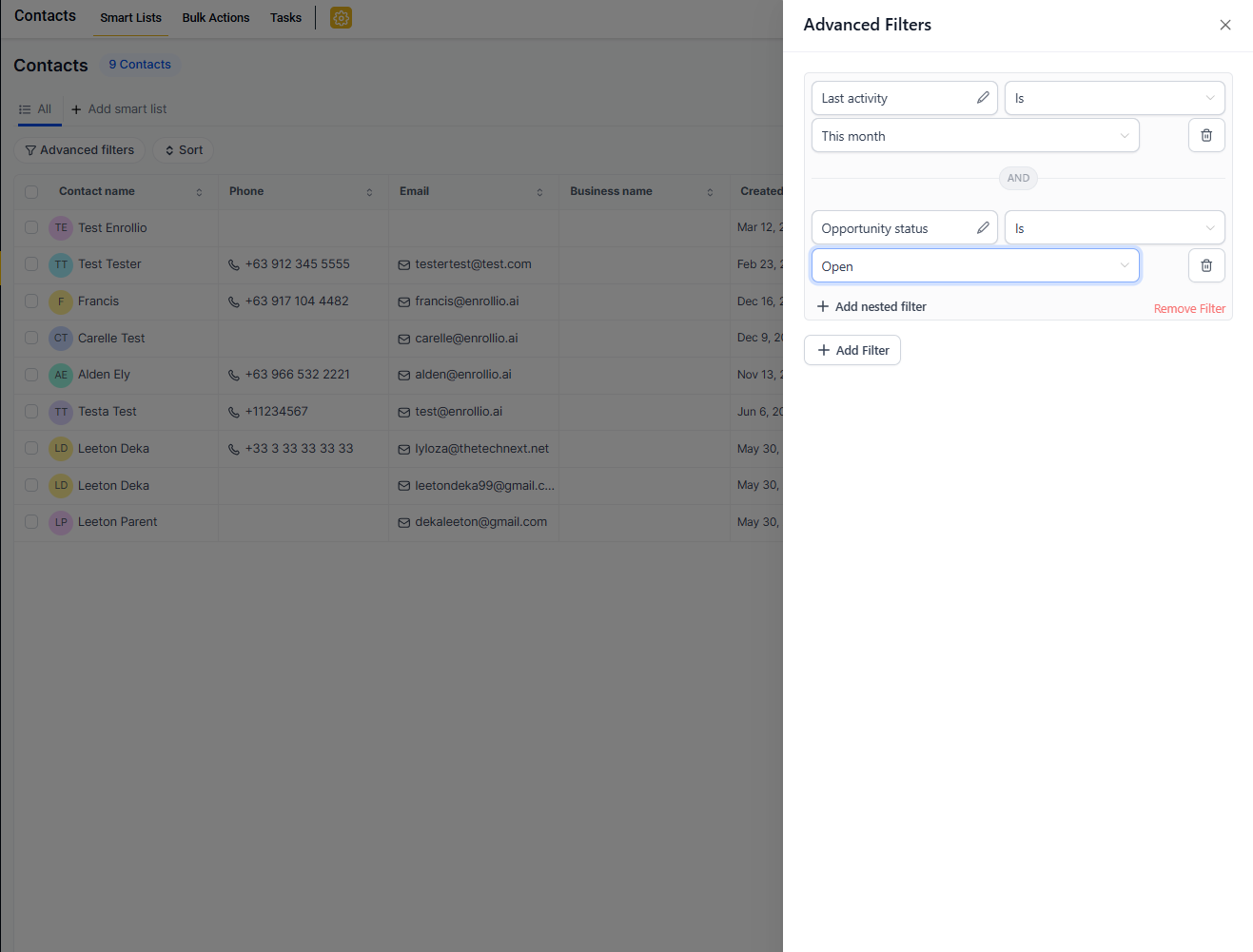
Step 1: Segment Your Inactive Family List
Use Enrollio's smart lists or filters to segment by:
- Last tour date (30, 60, 90, 180+ days ago)
- Enrollment status (toured but didn't enroll, waitlist but never followed up)
- Type of inquiry (infant care, toddler program, after-school)
Create tags like:
- "Tour No-Show"
- "Waitlist - Follow Up Needed"
- "Toured But Didn't Enroll"
Step 2: Write Reengagement Messages That Feel Personal
Avoid sounding corporate. These should feel like one-on-one check-ins.
Soft Reminder (30–60 Days):
"Hi Jessica, just checking in from Little Explorers! It's been a couple months since we last spoke—we'd love to have Jake join us. We have a few spots opening up in our toddler room. Ready to schedule a tour? Book here: [Link]"
Friendly Re-offer (90+ Days):
"Hey Amanda! We've waived our enrollment fee this week for families who toured earlier this year. Want to claim it? Just book your follow-up tour by Friday: [Link]"
Waitlist Follow-Up:
"Hi David, you reached out about our infant program a few months ago. We have two spots opening in August—want to secure one before they're gone? Let's chat: [Link]"
Step 3: Automate the Entire Journey
In Enrollio:
- Create a Smart List with criteria like "Last Activity > 90 Days" and "Pipeline Status = Toured"
- Trigger a reactivation automation with 2–3 messages spaced out over a week
- Use conditional logic (e.g., if they click but don't book, send a friendly nudge)
- Add internal alerts for your front desk to follow up if needed
Bonus Campaigns That Boost Reactivation
| Campaign | Messaging Hook | Best Use Case |
|---|---|---|
| Summer Enrollment | "Reserve your summer spot before we're full" | All prospective families in Q2 |
| Back to School | "Perfect timing to start preschool this fall" | Families with 3-5 year olds |
| Sibling Discount | "Your family qualifies for our sibling rate" | Current families with multiple children |
| New Program Launch | "We just opened a new infant room—you're first on the list" | Waitlist families for specific age groups |
Final Takeaway
Reviews build trust. Reactivations build enrollment.
And with Enrollio, both can happen without any extra admin work or pressure on your front desk team.
Once you set these automations up:
- Reviews come in week after week, building your Google ranking
- Inactive families return like clockwork
- Your enrollment pipeline fills with families who already know and trust you
Want help building these automations? Reach out to our support team or check out our other guides on enrollment automation.
You're already ahead—now let's put it on autopilot.