
WhatsApp Audit Logs
WhatsApp Audit Logs give you complete visibility into changes made to your WhatsApp Business setup. You can quickly see who made a change, what they changed, when it happened, and which WhatsApp asset it affected—essential for busy childcare centers managing parent communications.
What Are WhatsApp Audit Logs?
WhatsApp Audit Logs are part of Enrollio's shared Audit Logs system. Each entry records:
- The user who performed the action
- The action taken
- The timestamp
- The affected WhatsApp entity (such as a phone number, template, or flow)
These logs help you troubleshoot issues faster, maintain accountability across your team, and keep a reliable history of important WhatsApp changes.
Key Benefits of WhatsApp Audit Logs
Instant visibility: Quickly see who changed a WhatsApp number, template, or flow, and when it happened.
Greater accountability: Hold team members responsible for changes to WhatsApp assets across your account.
Faster troubleshooting: Use the audit trail to identify when a change caused an issue and who can help fix it.
Reduced miscommunication: Eliminate guesswork and back-and-forth when something breaks or behaves differently.
Stronger operational control: Keep a clear record of important WhatsApp configuration changes over time.
Actions Tracked for WhatsApp
The following WhatsApp-related actions are logged at the client account level:
| WhatsApp Entity | Logged Actions |
|---|---|
| Phone Number | Added |
| WhatsApp Business Account (WABA) | Deleted, Deactivated |
| Default Phone Number | Updated |
| Template | Created, Updated, Deleted |
| Phone Number Profile | Updated |
| Flow | Created, Published, Deprecated, Deleted |
Each event creates a time-stamped log entry so you can reconstruct what happened when changes impact your WhatsApp conversations with parents.
How to Access WhatsApp Audit Logs
WhatsApp Audit Logs are available inside each client account.
- Open the Client Account you want to review
- Go to Settings → Audit Logs
- Use the search and Module filter to focus on the WhatsApp-related activity you want to investigate
- Click any row to open the details drawer and review who changed what and when
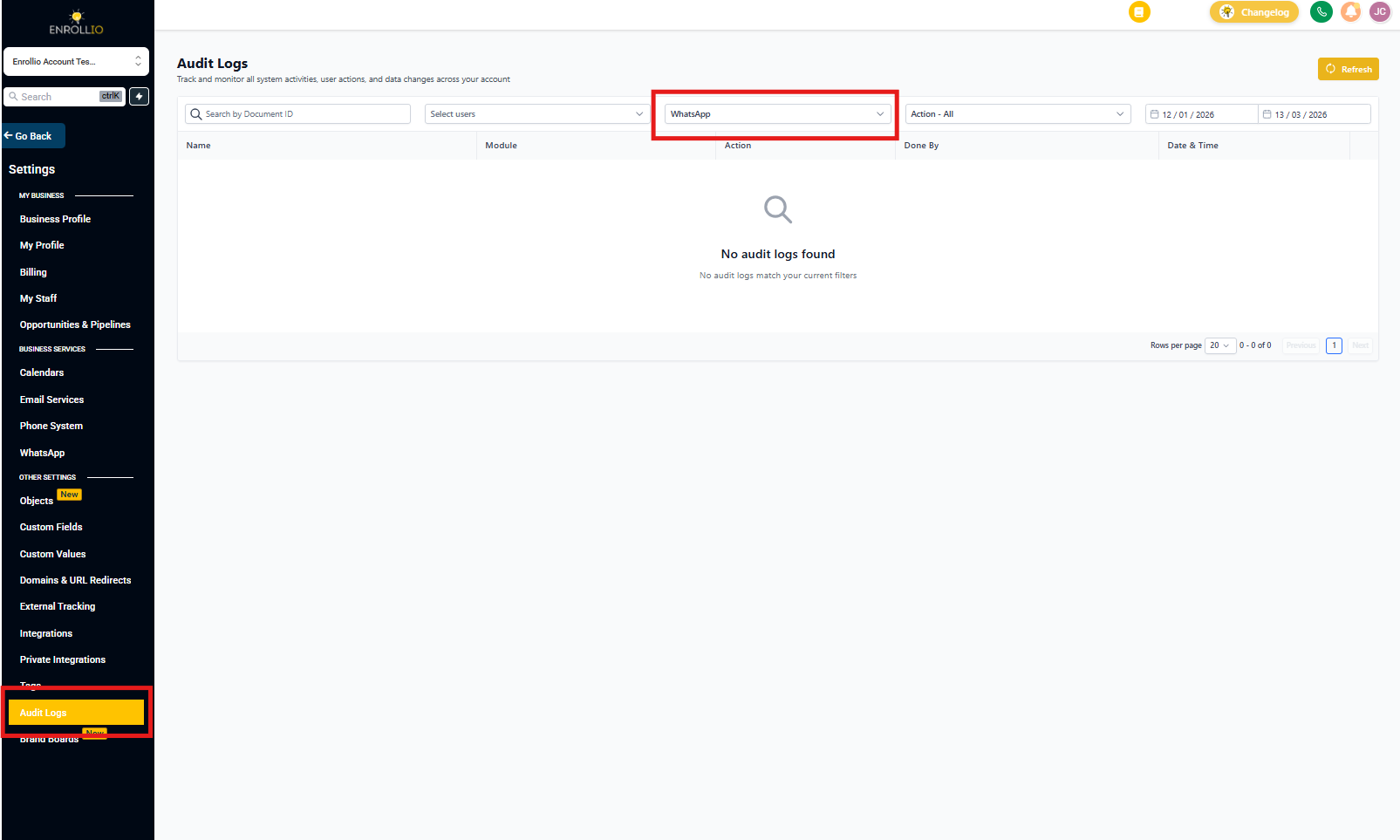
Using WhatsApp Audit Logs for Troubleshooting
Here are some common investigation scenarios:
A WhatsApp phone number disappeared or changed.
Check for events where a phone number was added, a default phone number was updated, or a WABA was deleted or deactivated.
Templates stopped sending or were modified unexpectedly.
Look for Template – Created / Updated / Deleted events to see which user changed or removed a template.
Flows behave differently than before.
Filter for Flow – Created / Published / Deprecated / Deleted to find recent configuration changes.
By reviewing the user, action, time, and entity, you can reduce guesswork, resolve issues quickly, and assign follow-up tasks to the correct team member.
Pro Tip: If you're rolling out a new WhatsApp enrollment campaign or tour reminder flow, check the audit logs afterward to confirm everything was configured correctly by your team.
Scope and Retention
WhatsApp Audit Logs are recorded at the client account level only.
Audit Log entries are retained for 60 days and then automatically removed, in line with other Audit Logs in Enrollio.
Frequently Asked Questions
Q: Are Audit Logs available in every client account?
Yes, access is provided at the client account level. Open the client account where WhatsApp is configured to view its logs.
Q: I don't see WhatsApp events, what should I check?
Confirm you're in the correct client account, expand your date range, and remove restrictive filters (like a specific user or entity) to broaden results.
Q: How long are WhatsApp audit events kept?
Audit events are retained for 60 days. Plan your review cadence accordingly.
Q: Can I get alerts when certain events happen?
Built-in notifications are not currently available. Consider scheduled log reviews during key enrollment periods or when launching new parent communication flows.
Q: Who can view Audit Logs?
Visibility depends on client account roles and permissions. Contact a client account admin if you can't access Settings → Audit Logs.