
Your chat widget contact form is now even more powerful with custom field support. Collect exactly the information you need from prospective families when they reach out via SMS, email, or WhatsApp chat.
What You Can Customize
Standard Fields: These are built into every chat widget contact form:
- Name (always required)
- Phone or Email (at least one is required — Phone is the default)
- Message
Custom Fields: Add up to 5 total fields to capture additional information like child's age, preferred start date, program interest, or any other details that matter to your enrollment process.
Supported Custom Field Types
You can add these field types to your contact form:
- Single Line Text
- Multi-Line Text
- Monetary
- Numeric
- Phone
- Date Picker
- Dropdown (Single Selection)
How to Add Custom Fields to Your Chat Widget
- Open your chat widget builder in Enrollio
- Navigate to the contact form settings
- Click "Add Custom Field"
- Select your field type from the dropdown
- Name your field (for example: "Child's Age" or "Program Interest")
- Toggle "Required" if families must fill it out before submitting
- Save your changes
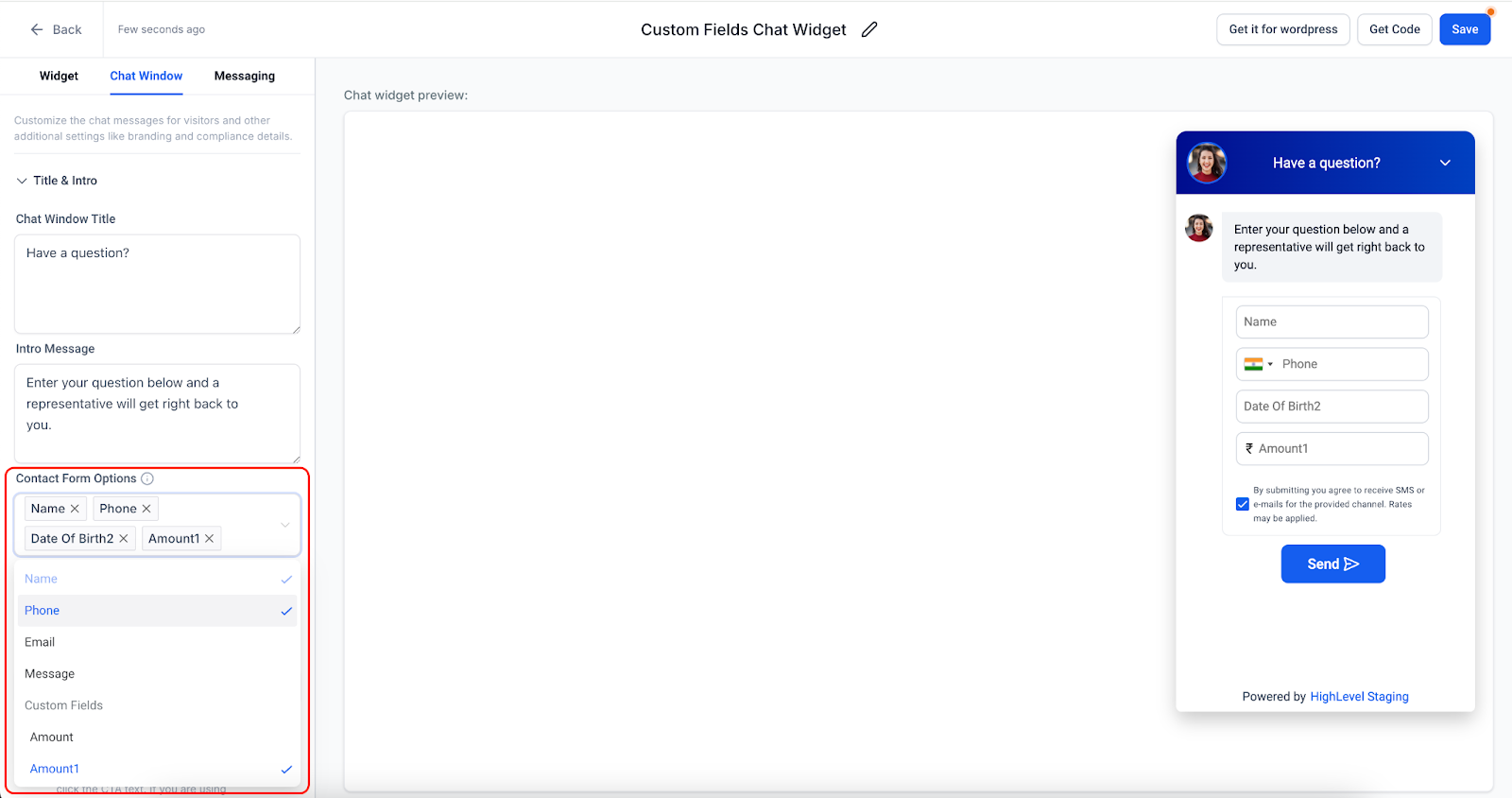
Field Limits and Requirements
Total Field Limit: You can have up to 5 fields total (including standard fields like Name, Phone, and Message).
Required Fields: When you mark a field as required, families will see an asterisk (*) next to it. They can't submit the form until they complete all required fields. This applies whether they're starting a new conversation or when you request their details during an active chat.
Automatic Validation: Enrollio automatically validates:
- Phone fields based on the selected country code
- Email fields for proper email format
International Phone Numbers
If you add two or more phone fields to your form, families can select their country code for proper formatting. The country flag selector appears automatically.
Note: If a family changes the country flag in one phone field, it automatically updates all other phone fields to match. This keeps the contact information consistent.
Important Notes
- Existing chat widgets won't change unless you edit them and mark new fields as required
- Standard fields (Name, Phone, Email, Message) are always required when you include them
- Custom fields are optional by default — toggle "Required" to make them mandatory