
Add Enrollio's Chat Widget to Your Wix Website
Want to connect with prospective families the moment they visit your website? Enrollio's chat widget makes it easy to answer questions about your childcare program in real-time and convert visitors into enrolled families.
This guide walks you through adding the chat widget to your Wix website using two simple methods.
Before You Start: Get Your Embed Code
First, you'll need to copy your unique chat widget code from Enrollio:
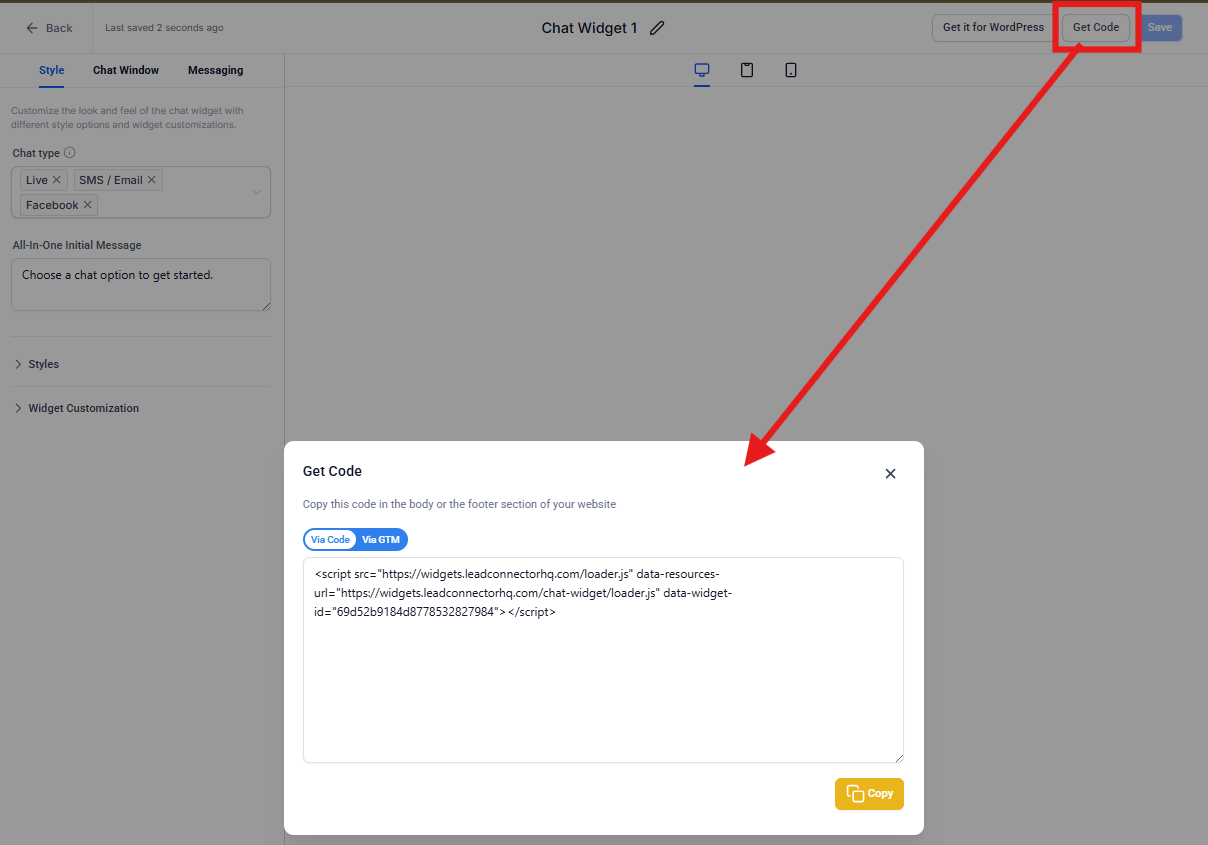
- In Enrollio, navigate to Sites > Chat Widget
- Click Get Code
- Copy the embed code to your clipboard
Method 1: Add Chat Widget Site-Wide (Recommended)
This method adds the chat widget to every page of your Wix site automatically. It's the easiest way to ensure no visitor misses the chance to connect with you.
- Log in to your Wix account and open your website's dashboard
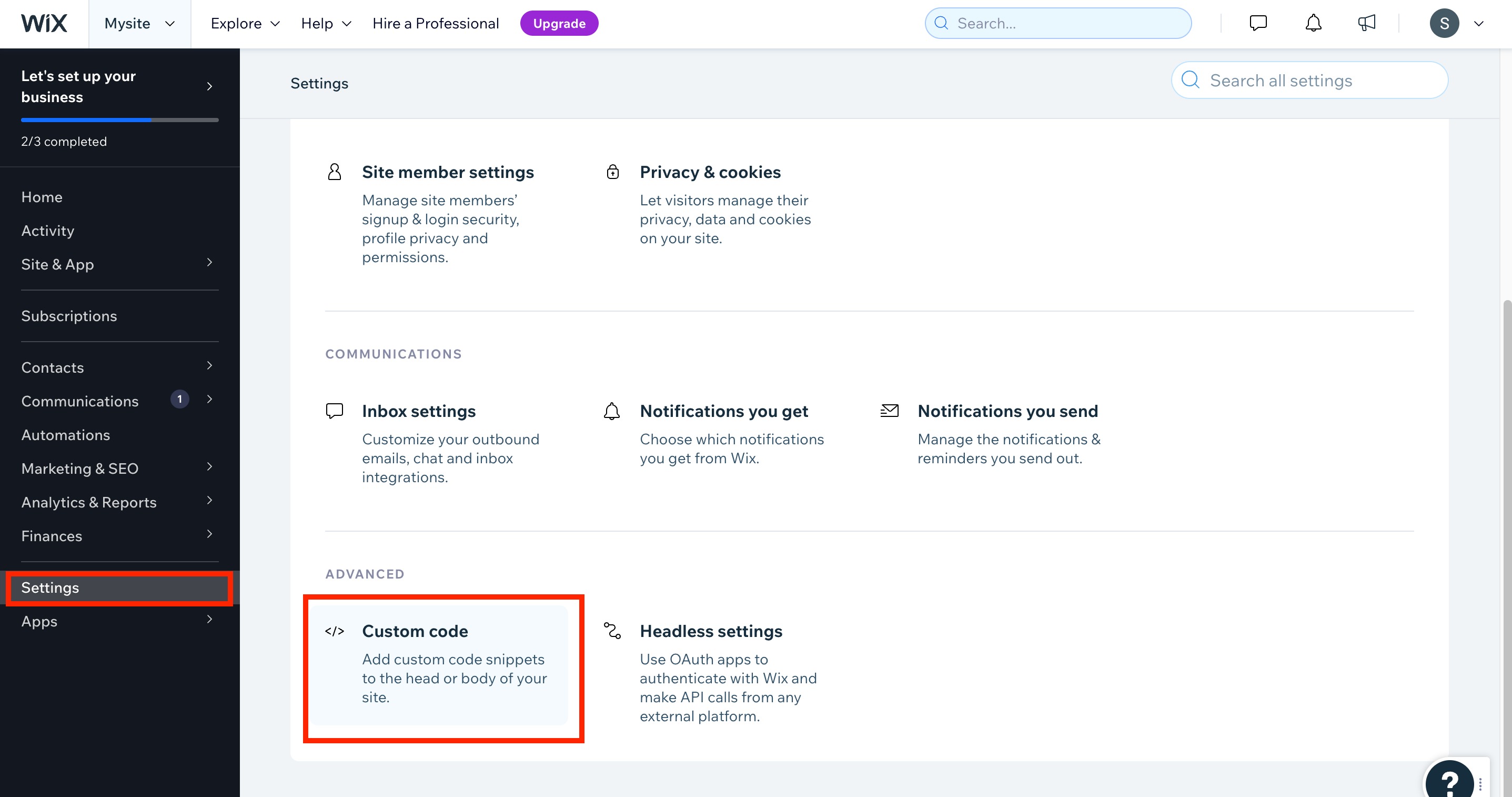
- Click Settings in the left menu
- Under the Advanced tab, select Custom Code
- Click Add Custom Code
- In the pop-up window, paste your Enrollio chat widget code
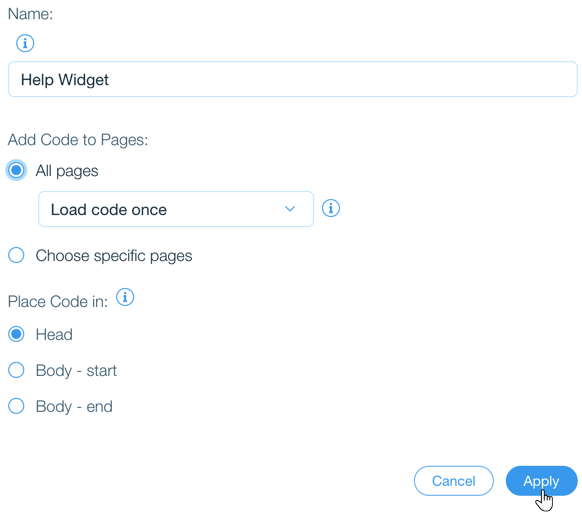
- Configure these settings:
- Name: Enter "Enrollio Chat Widget" (or any name you prefer)
- Add Code to Pages: Choose "All Pages" and select "Load code once"
- Place Code In: Choose "Head"
- Click Apply
Your chat widget will now appear on every page of your Wix site, ready to capture inquiries from interested families.
Method 2: Add Chat Widget to Specific Pages
If you only want the chat widget on certain pages (like your enrollment page or contact page), use this method instead:
- Sign in to your Wix account and click Edit Site from your dashboard
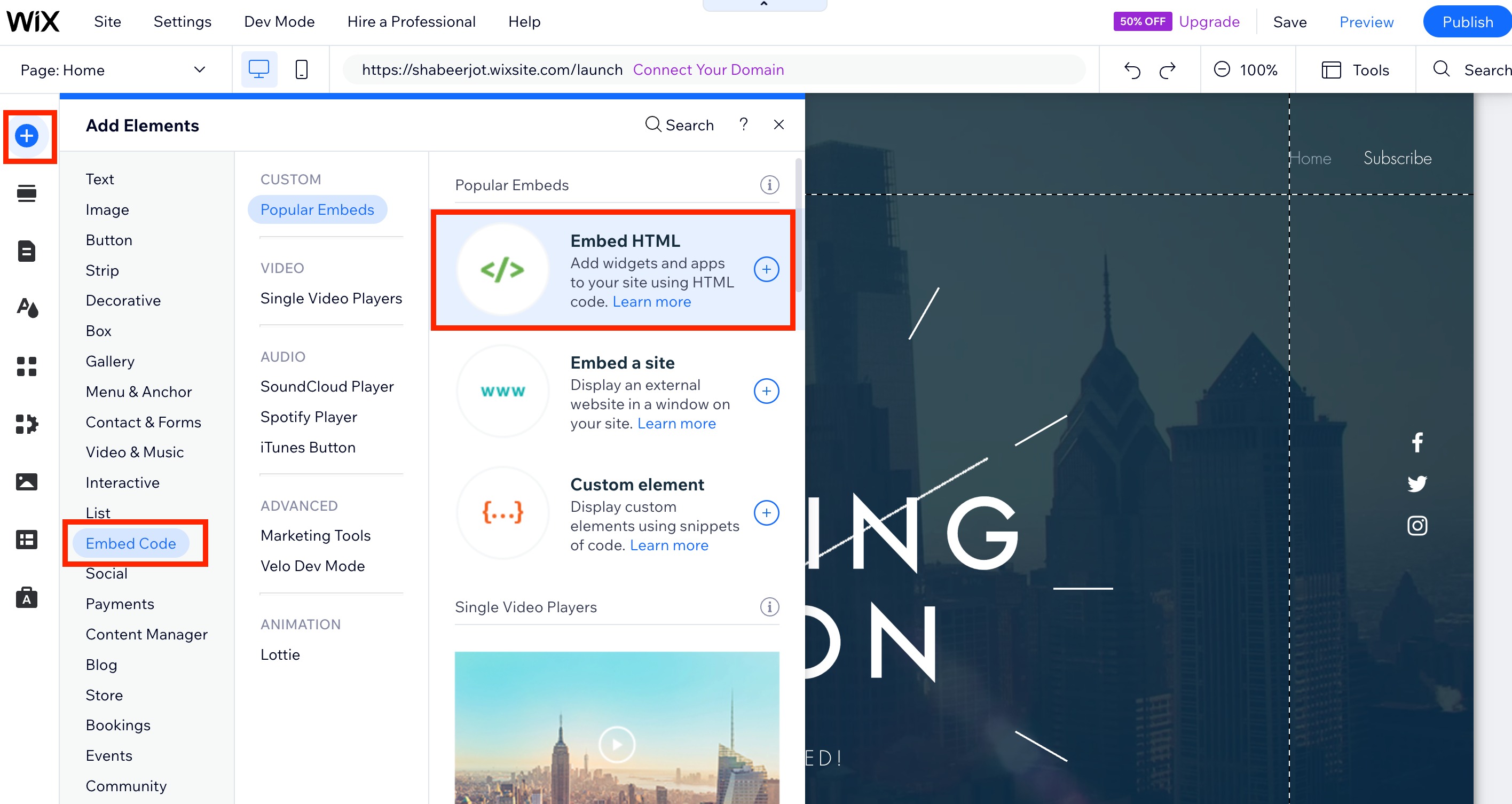
- In the Wix Editor, click the plus (+) icon in the left menu to open Add Elements
- Select Embed from the sidebar menu
- Under Popular Embeds, choose Embed HTML
- An HTML box will appear on your page. Click Code inside it
- Paste your Enrollio chat widget code into the text field
- Click Update
- Close the HTML Settings box
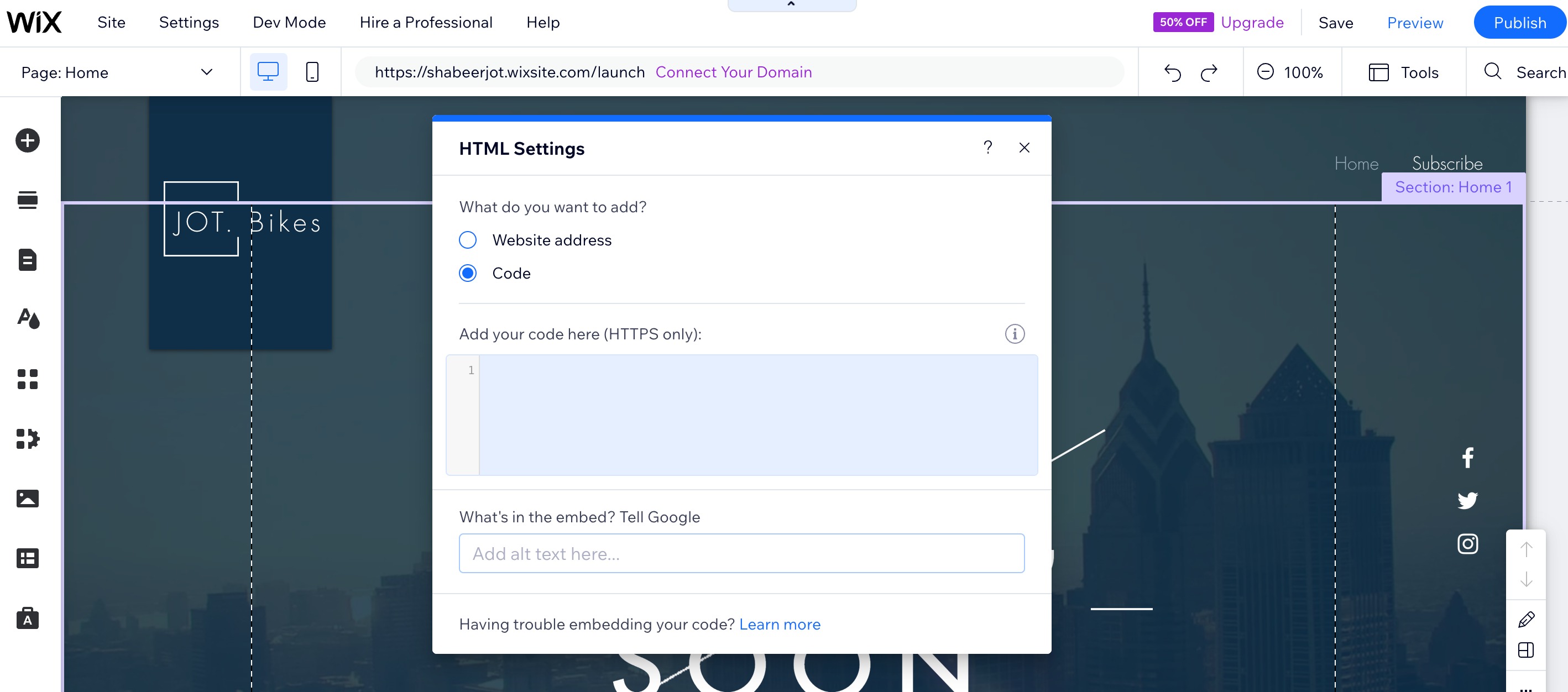
The chat widget will now be visible on that specific page. Repeat these steps for any additional pages where you want the widget to appear.
💡 Pro Tip
We recommend Method 1 for most childcare centers. Parents often browse multiple pages before deciding to reach out, and having chat available everywhere increases your chances of capturing their inquiry.
What Happens Next?
Once your chat widget is live, when parents message you through your website:
- Their information is automatically added to Enrollio as a new prospective family
- You can respond from the Enrollio dashboard or mobile app
- All conversation history is saved to their family record
- You can set up office hours to manage when chat is available
Ready to customize your chat widget's appearance and behavior? Check out our guide on Chat Widget Customizations.