
Add Enrollio's Chat Widget to Your Duda Website
Looking for an easy way to connect with families visiting your website and turn them into enrollments? Enrollio's chat widget is the perfect solution! This article walks you through adding the chat widget to your Duda website.
What You'll Learn
- How to get your chat widget embed code
- Two methods for adding the widget to Duda
Step 1: Get Your Chat Widget Embed Code
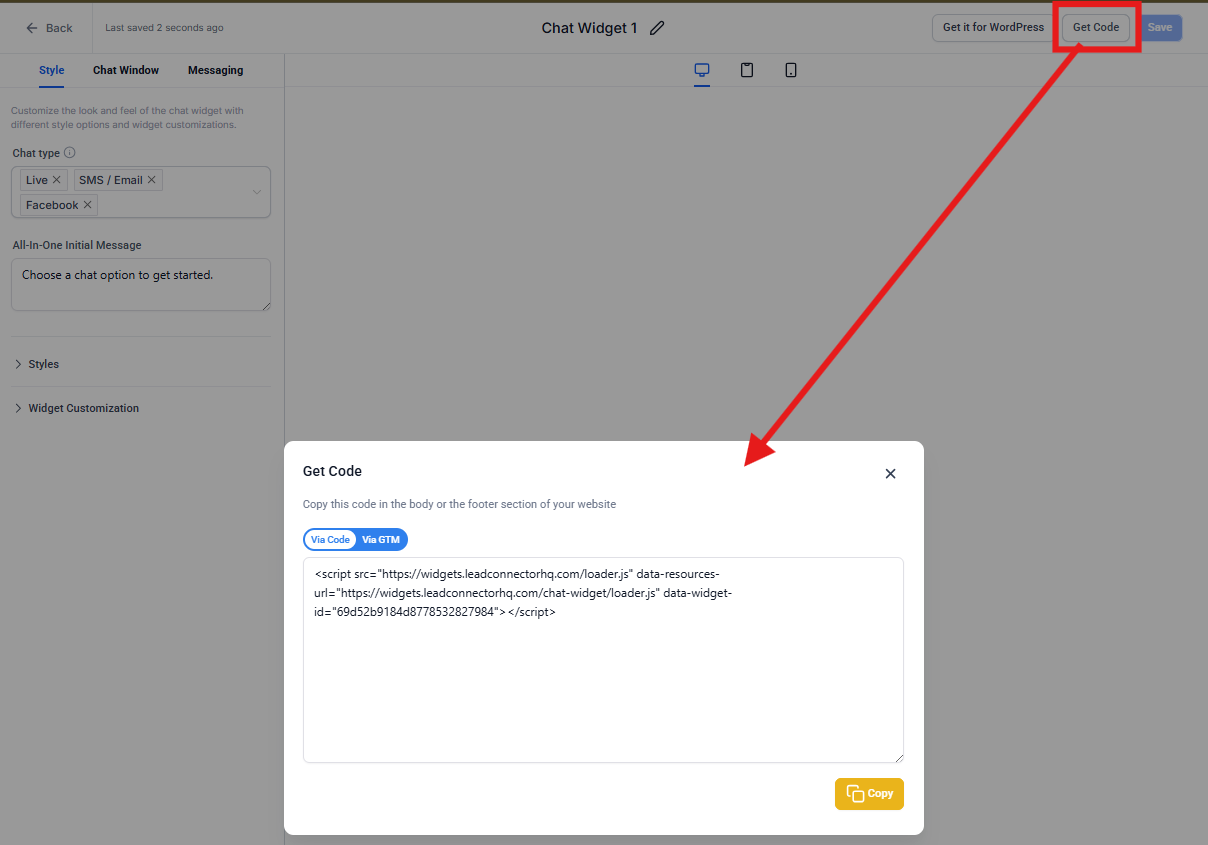
First, you need to copy your unique chat widget code from Enrollio:
- In Enrollio, go to Sites Chat Widget
- Click Get Code
- Copy the embed code to your clipboard
Step 2: Add the Widget to Your Duda Site
You have two options for adding the chat widget. Choose whichever works best for you.
Method 1: Add to Site Header (Recommended)
This method adds the chat widget to every page of your site automatically.
- Log in to your Duda account and open your website's editor
- Navigate to the site where you want to add the chat widget
- Click Edit Site
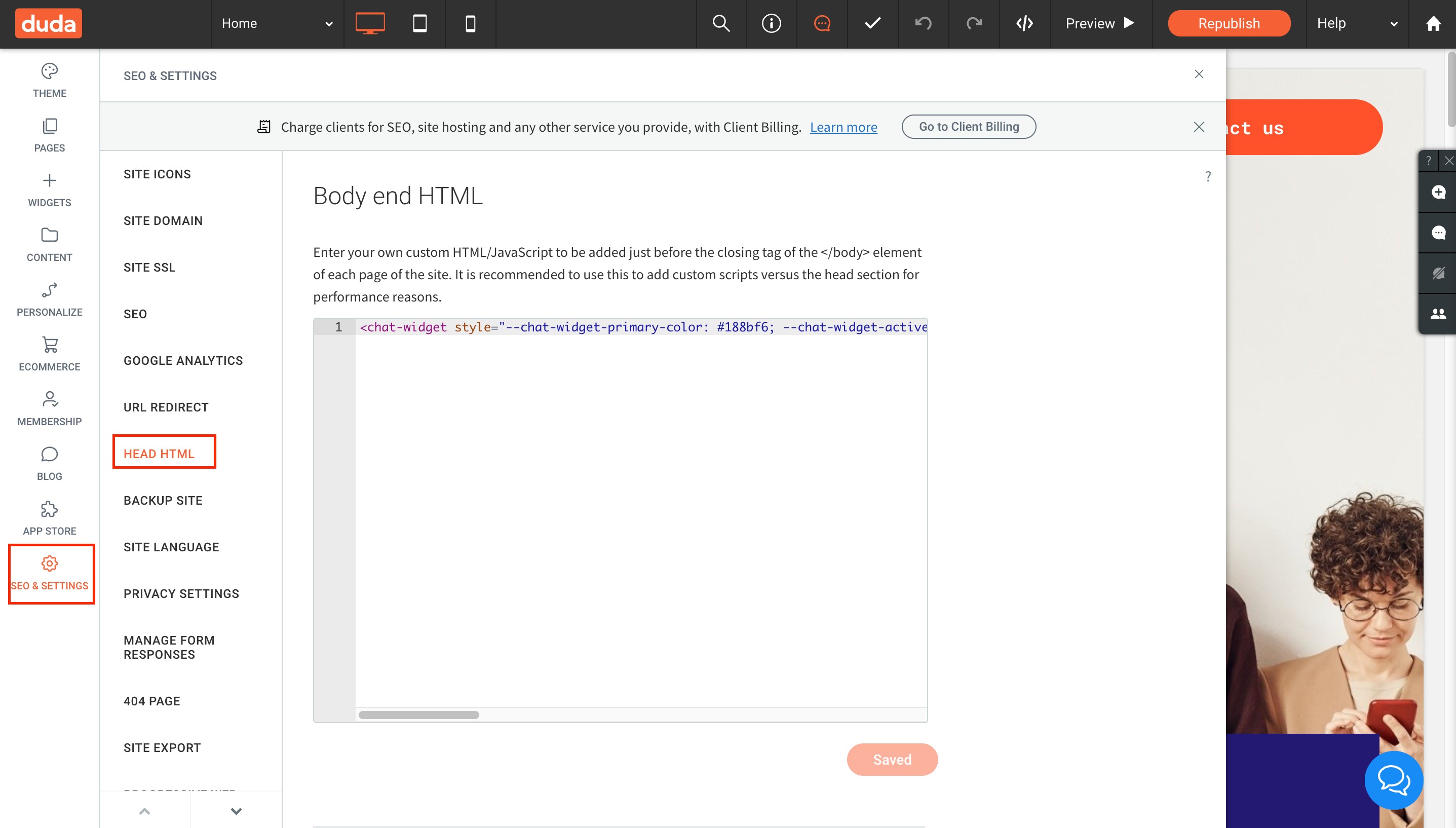
- In the left column, click Settings
- Click Head HTML
- Paste your Enrollio chat widget embed code into the editor
- Click Save
- Preview your site to confirm the chat widget appears and works correctly
Pro Tip: This method is best for most childcare centers because it ensures families can reach you from any page they visit.
Method 2: Add Using an HTML Element
This method lets you place the chat widget in a specific location on individual pages.
- In the Duda editor, drag and drop an HTML element onto the page where you want the chat widget
- Double-click the HTML element to open the HTML editor
- Paste your Enrollio chat widget embed code into the editor
- Click Save
- Preview the page to ensure the widget appears where you want it
You're All Set!
Your chat widget is now live on your Duda site. Families can now message you directly while browsing your enrollment information, scheduling tours, or asking questions about your program.
Pro Tip: Make sure your chat widget settings in Enrollio match your business hours so families know when to expect a response. Go to Sites Chat Widget to customize your availability and automated responses.