
Add Enrollio's Chat Widget to Your Weebly Website
Want to connect with prospective families the moment they visit your website? Adding Enrollio's chat widget to your Weebly site makes it easy for parents to ask questions and schedule tours directly from your website.
This guide walks you through two simple methods to add the chat widget to your Weebly site.
Before You Start: Get Your Chat Widget Code
First, you'll need to copy your unique chat widget code from Enrollio:
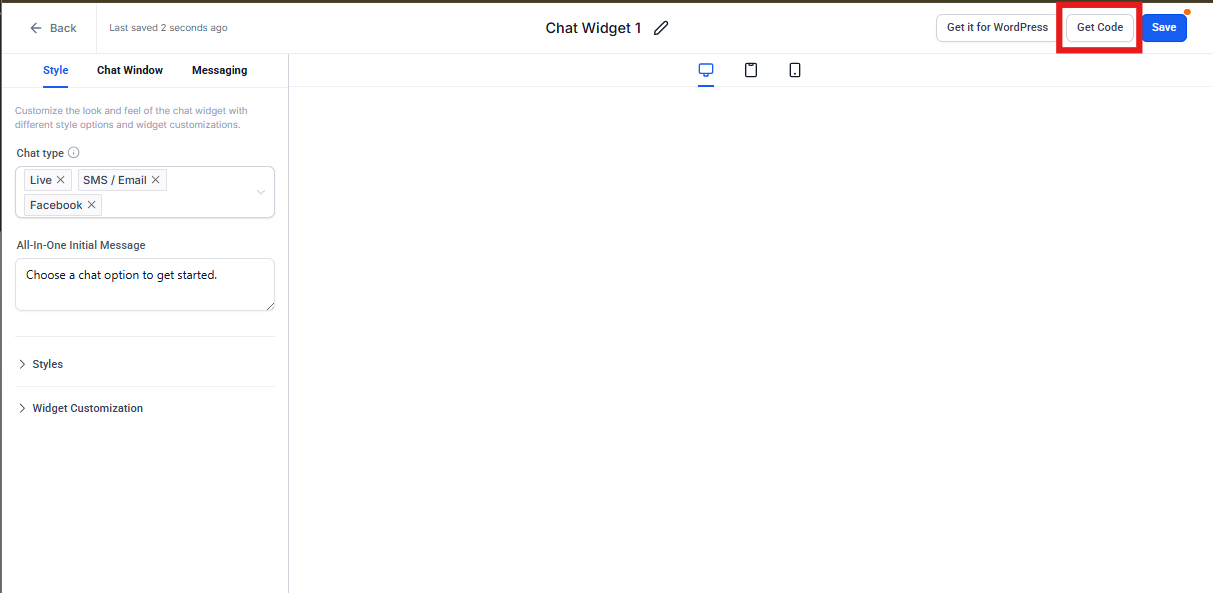
- In Enrollio, navigate to Sites → Chat Widget
- Click Get Code
- Copy the embed code to your clipboard
Method 1: Add Chat Widget Using Header Code Injection
This method places your chat widget on every page of your Weebly site automatically.
- Log in to your Weebly account and open your website editor
- Click Settings in the left-hand menu
- Select SEO from the options
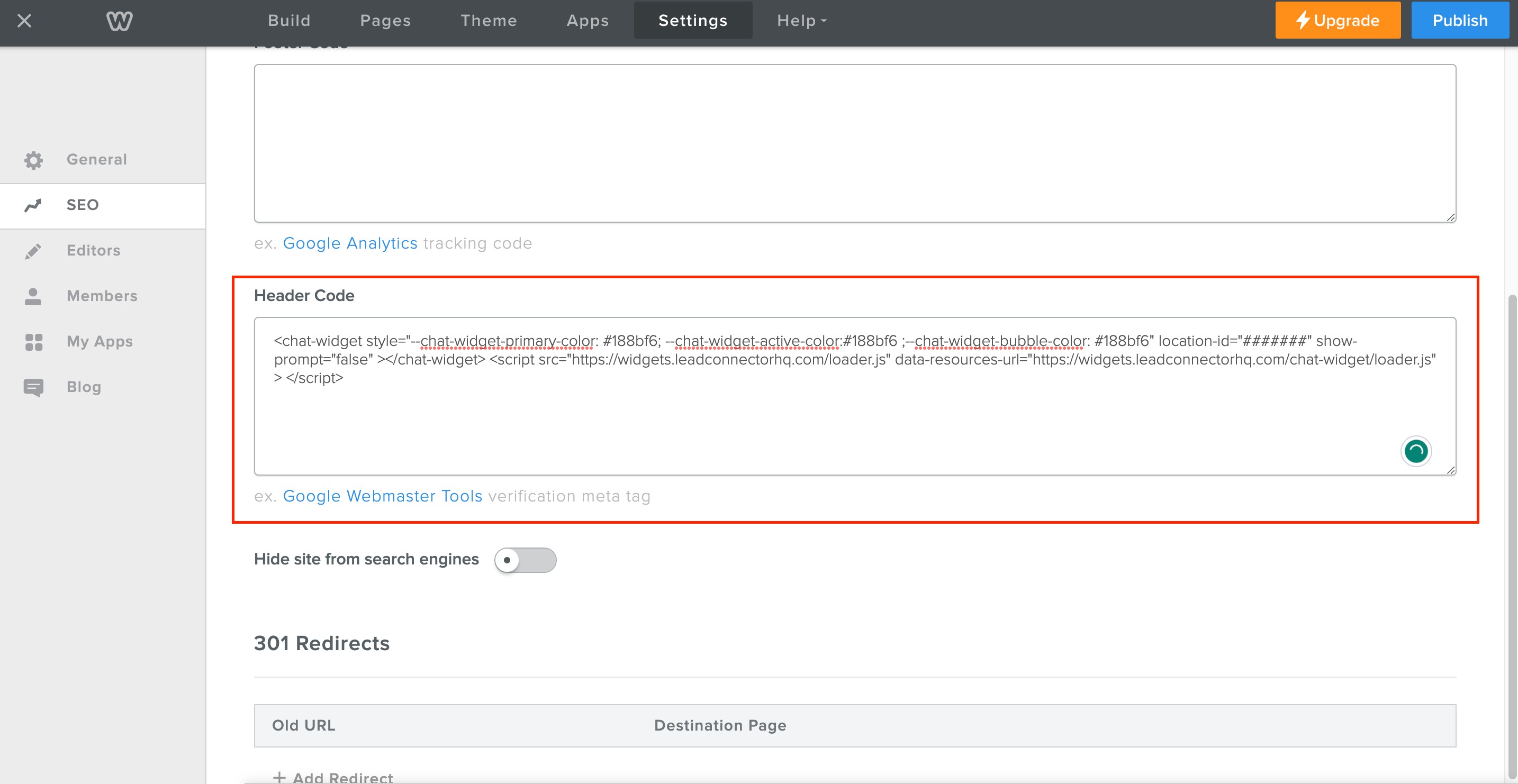
- Scroll down to the Header Code Injection section
- Click Edit
- Paste your Enrollio chat widget code into the Header Code Injection box
- Click Save
Method 2: Add Chat Widget Using Custom HTML Element
This method lets you place the chat widget on specific pages or in specific locations.
- Log in to your Weebly account and open your website editor
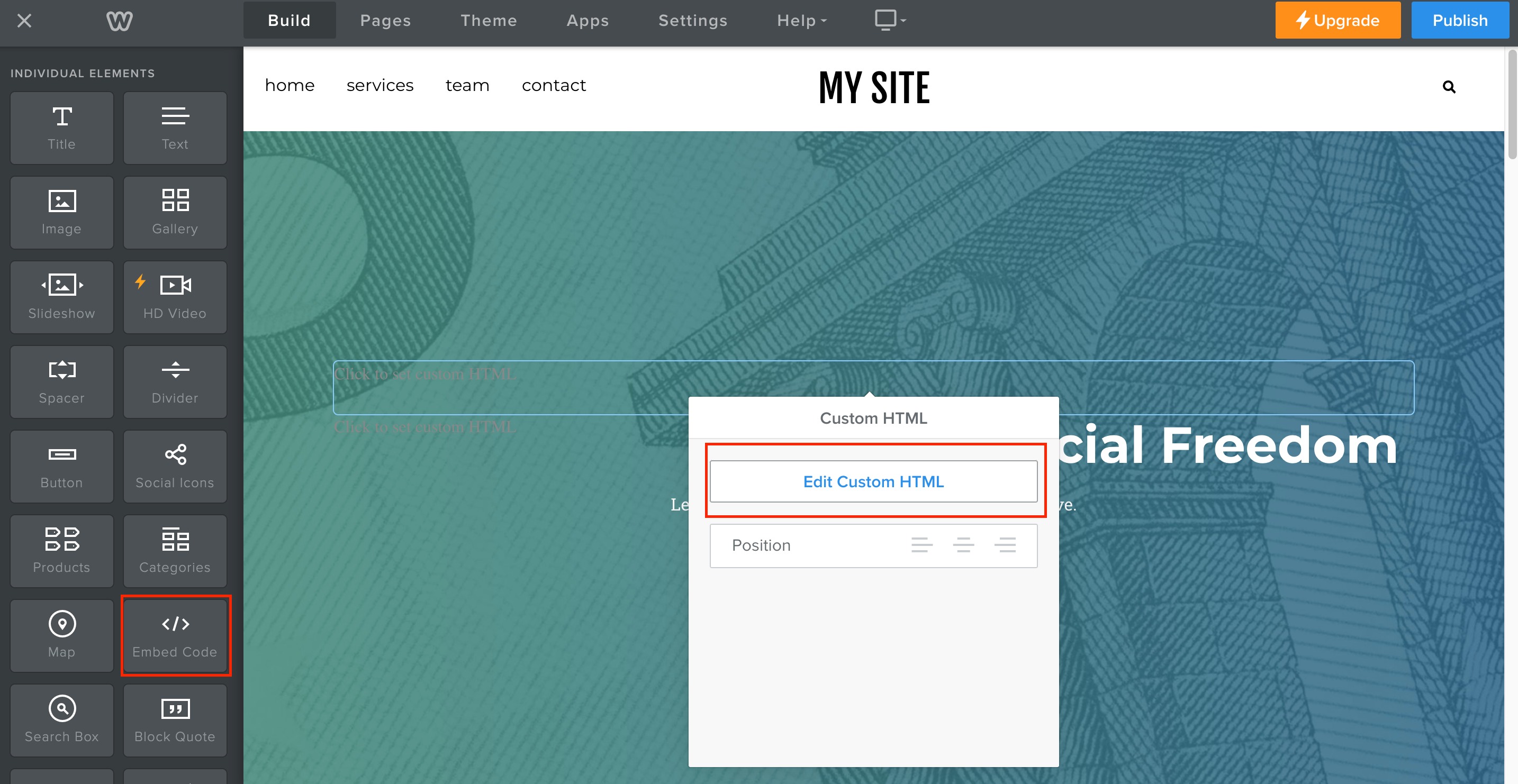
- Click Elements in the left-hand menu
- Select Custom HTML/Embed Code from the options
- Drag and drop the Custom HTML element onto your page where you want the chat widget to appear
- Paste your Enrollio chat widget code into the Custom HTML element
- Click Publish to save your changes
Next Steps
Once your chat widget is live, you can customize its appearance and behavior in Enrollio. Visit Sites → Chat Widget to:
- Customize your widget colors and branding
- Set business hours for live chat
- Configure automated responses when you're offline
- Route conversations to specific team members
Your chat widget is now ready to help you connect with prospective families and answer their questions in real-time!