
How to Set Up and Use Trigger Links in WhatsApp Templates
Add Trigger Link tracking to your WhatsApp templates in Enrollio to capture button (or link) clicks, branch automations, and follow up based on real parent engagement—no extra integrations needed.
This guide explains what the feature is, the two ways to add tracked CTAs, setup steps, and limits to help you launch quickly and confidently.
Table of Contents
- What is Trigger Link in WhatsApp Templates?
- Key Benefits of Trigger Link in WhatsApp Templates
- Prerequisites
- WhatsApp Trigger Link Options (Choose One or Use Both)
- Button Limits & Design Guidelines
- How to Set Up & Use Trigger Links in WhatsApp Templates
- Frequently Asked Questions
What is Trigger Link in WhatsApp Templates?
WhatsApp Templates Trigger Link Support lets you place tracked, automation-ready CTAs in WhatsApp templates. When a parent taps a Trigger Link (as a button or inline link), Enrollio records the click so your automations can branch immediately—similar to Trigger Links in email and text messages—enabling targeted offers, timely reminders, and measurable engagement.
Works with: WhatsApp V2 sending action inside Automations
Tracks: Which CTA/link a parent tapped
Automates: Branches on Trigger Link Clicked, sends follow-ups, sets tags, updates fields, etc.
Design options: Trigger Link Button (recommended) or Inline Trigger Link in the body text
Key Benefits of Trigger Link in WhatsApp Templates
These benefits help you decide when to use Trigger Links and how to structure templates for the best conversion and clean analytics.
- Click-level attribution: See exactly which CTA a parent tapped for precise routing.
- Smarter automation: Branch automations on the clicked link and send tailored next steps.
- Faster testing: Run controlled A/B tests on button labels or link destinations to improve conversion.
- Clean handoffs: Use tags/fields from clicks to personalize follow-ups with families.
- No extra tools: Track natively in Enrollio—no external tracking required.
Prerequisites
Confirm access and approvals first so your templates send and track correctly.
- Active WhatsApp connection (Enrollio WhatsApp subscription) and completed Meta onboarding
- Account access with permission to create Templates and edit Automations
- One or more Trigger Links created (Marketing → Trigger Links → Links)
- Approved or approvable WhatsApp V2 templates (category, sample content, and variables filled correctly)
WhatsApp Trigger Link Options (Choose One or Use Both)
You can place tracked CTAs as buttons or inline links. Buttons are cleaner and easier to tap; inline links are useful when your copy needs a sentence-level link.
- Trigger Link Button (recommended): Add a button whose type is Trigger Link and map it to your link.
- Inline Trigger Link (body text): Insert a variable and map it to a Trigger Link; the link appears inside the message body.
Button Limits & Design Guidelines
Keep CTAs clear and compliant to maximize clicks and prevent confusion.
- Limit: Total buttons per message ≤ 2 (Trigger Link buttons + normal buttons).
- Prefer 1–2 focused CTAs to reduce choice overload.
- Use descriptive labels (e.g., "Schedule a Tour," "View Availability") that map cleanly to automation branches.
- Provide sample content for variables during template creation to streamline Meta approval.
- If sending a follow-up template later (no reply yet), prepare/approve that template in advance.
How to Set Up & Use Trigger Links in WhatsApp Templates
Follow the sequence below—from creating Trigger Links to building click-based branches—so you can test quickly and deploy safely.
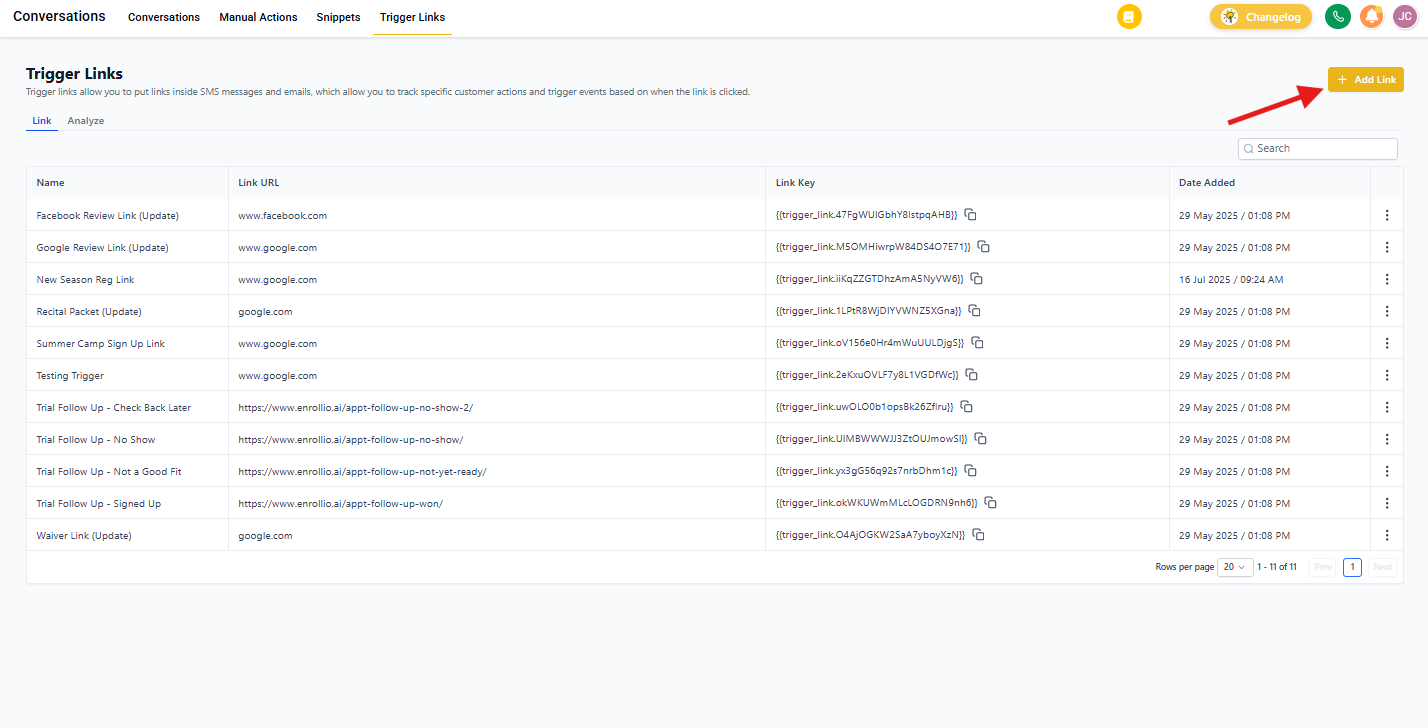
Step 1: Create a Trigger Link
- Go to Marketing → Trigger Links → Links.
- Click Add Link, name it (e.g., "Tour Booking Page"), and paste the destination URL (e.g., your tour booking page).
- Click Save.
Step 2: Create a WhatsApp Template
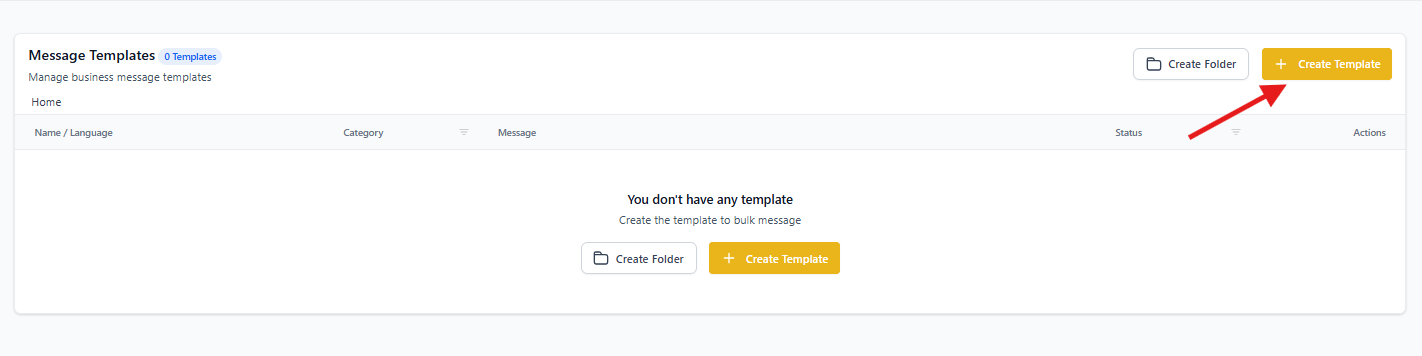
- Go to Settings → WhatsApp → Templates and click Create Template.
- Fill in Template name, set Category (e.g., Marketing), and Language.
- (Optional) Add a Header (e.g., Image logo) for visual impact.
- Write the Body copy. Add variables where needed (e.g., parent First Name); include sample content for approval.
- (Optional) Add a Footer (e.g., "Reply STOP to opt out").
Step 3: Add a Triggered CTA
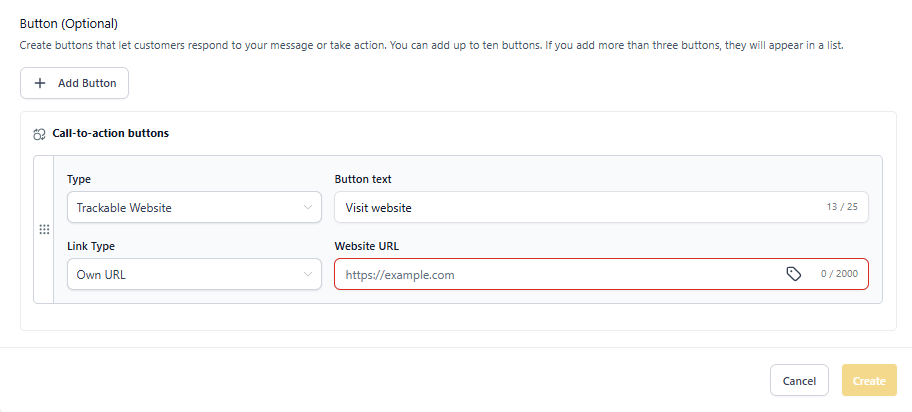
A) Trigger Link Button (recommended)
- In the template editor, add Button → Type: Trigger Link.
- Select the Trigger Link you created in Step 1.
- Keep total buttons ≤ 2.
- Click on the Create button.
B) Inline Trigger Link (body text)
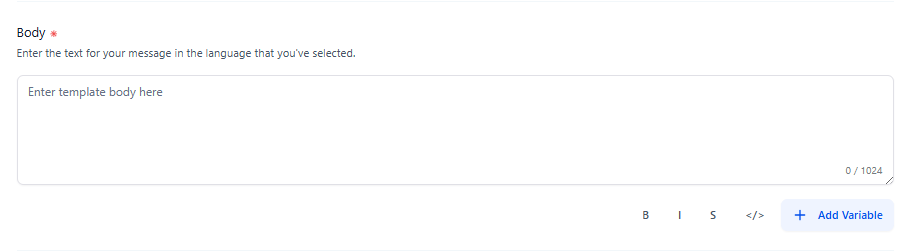
- Place the cursor in the Body where the URL should appear.
- Click Add variable, then map that variable to your Trigger Link (e.g., "Tour Booking Page").
- Add sample content (paste the destination URL) for Meta approval.
Step 4: Submit and Approve
- Click Create/Save to submit the template to Meta for approval.
- After approval, your template will show as Active.
Step 5: Track via Automation
- Go to Automation → Automations → Create from scratch (name it e.g., "Track Tour Interest – WhatsApp").
- Click Add New Trigger.
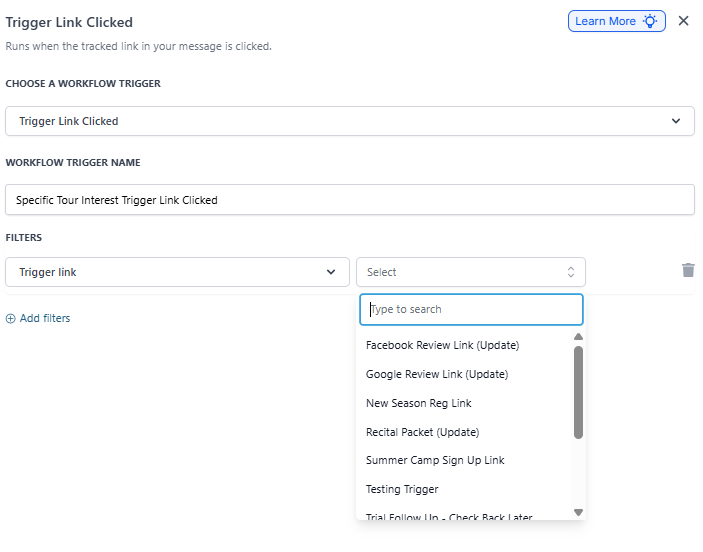
- Select Trigger Link Clicked as the automation trigger.
- Click on the Add Filters button and from the select drop-down, choose Trigger Link.
- Then select the link you previously created and used in the WhatsApp template.
- Click on the Save Trigger button.
- Publish the automation and monitor results in Automation History and Template Analytics (deliver, read, button clicks).
Frequently Asked Questions
Q: Do I need integrations to track button clicks?
No. Trigger Links are tracked natively in Enrollio and can power automation branches.
Q: What's the difference between a Trigger Link button and an inline Trigger Link?
Buttons are cleaner and easier to tap; inline links live in the body text. Both track clicks and can trigger automation branches.
Q: How many buttons can I use in one message?
The combined total of Trigger Link buttons and normal buttons is two.
Q: Can I follow up if the parent hasn't replied yet?
Yes, but use an approved template for outbound messages that fall outside a reply window.
Q: How do I know which CTA performed best?
Use Template Analytics and Automation History to compare button/link clicks and downstream conversions.
Q: Can I personalize the template (e.g., first name)?
Yes. Insert variables and include sample content for Meta approval; the variable will render per family at send time.