
WhatsApp - Organize Templates Using Folders
Managing WhatsApp templates in Enrollio is now easier than ever with the Template Folders feature. This update lets you group, organize, and track your WhatsApp templates with folders, subfolders, and improved reporting—making template management streamlined and scalable for busy childcare centers.
What is WhatsApp Template Folders?
WhatsApp Template Folders is an organizational tool within Enrollio that allows you to create custom folders and subfolders for your WhatsApp templates. Instead of scrolling through a single, flat list, you can now categorize templates by use case, enrollment campaign, or any structure that fits your workflow.
This helps your team quickly locate, manage, and update templates—especially as your library of parent communications grows.
Key Benefits of WhatsApp Template Folders
Organizing your WhatsApp templates with folders brings several practical advantages:
- Improved Organization: Group templates by campaign (like enrollment drives or tour confirmations), staff role, or communication type for quick access.
- Custom Hierarchies: Nest folders inside folders to mirror your center's structure or parent communication flows.
- Faster Template Management: Add, move, or locate templates without scrolling through long lists of parent messages.
- On-the-Fly Folder Creation: Create folders while moving templates or folders, making organization flexible and intuitive.
- Breadcrumb Navigation: Always see your current folder path, making it easy to navigate complex folder structures.
- Enhanced Reporting: Delivered message counts and weekly delivery trends are now visible directly on the templates table for instant insights.
How to Organize WhatsApp Templates Using Folders
Setting up WhatsApp Template Folders ensures your templates are organized from the start, saving time and reducing errors as your library grows. Here's how to get started:
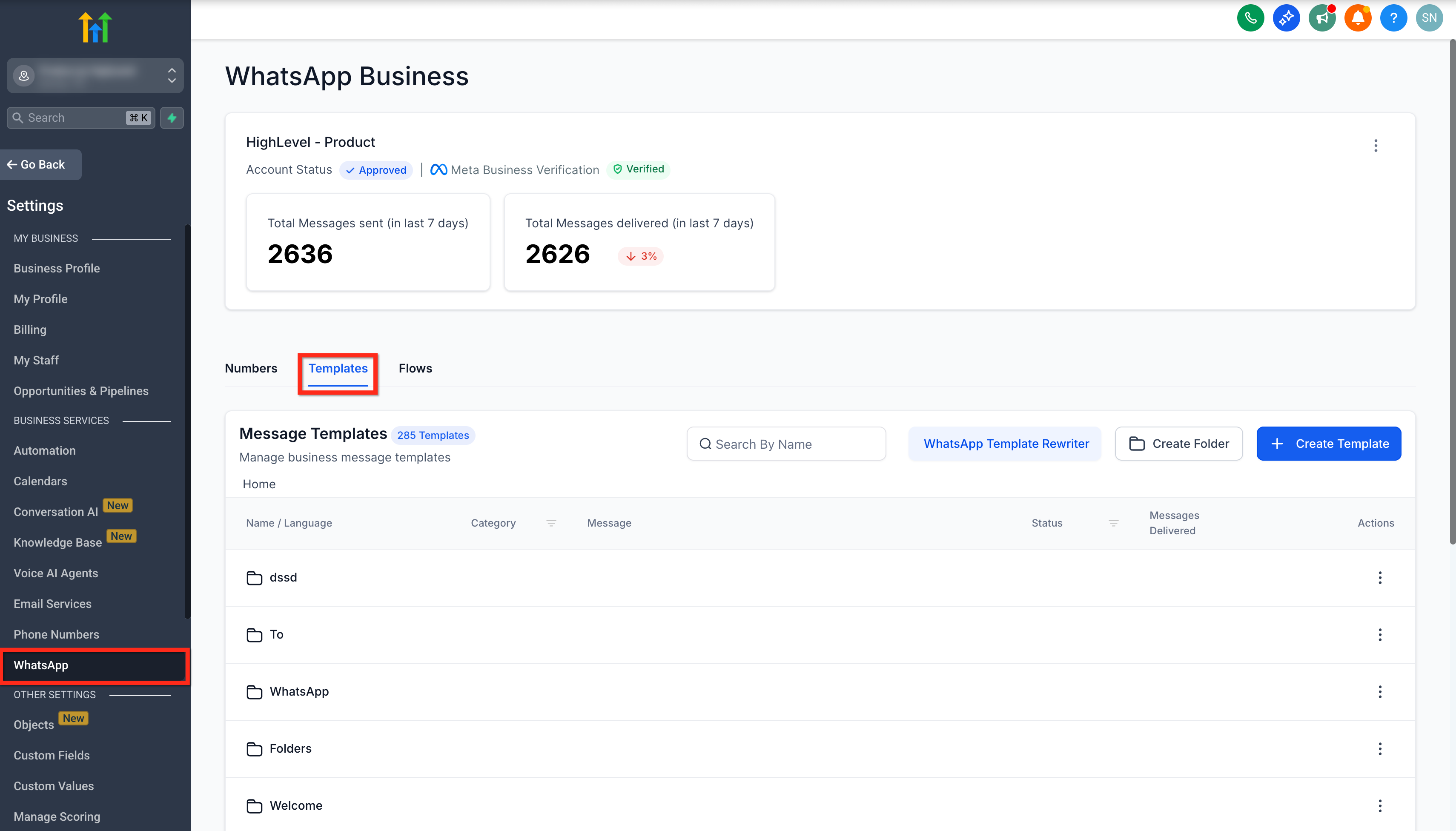
Step 1: Navigate to WhatsApp Template Settings
- Click Settings in your Enrollio dashboard.
- Select the WhatsApp tab.
- Navigate to the Templates tab.
Step 2: Create a New Folder
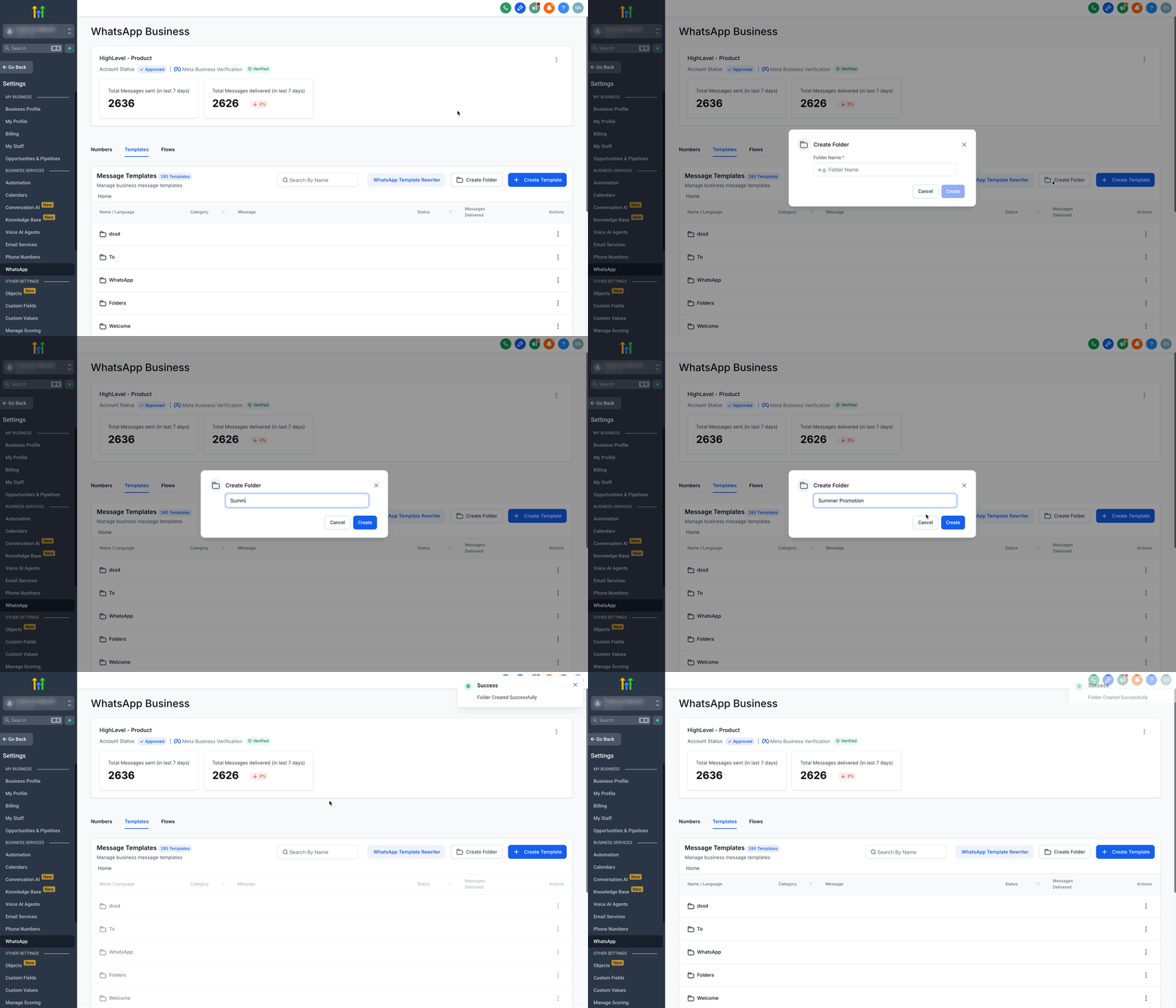
- Click the Create Folder button.
- Enter a folder name (like "Tour Confirmations" or "Enrollment Reminders").
- Click Create to save the folder.
Step 3: Create Subfolders
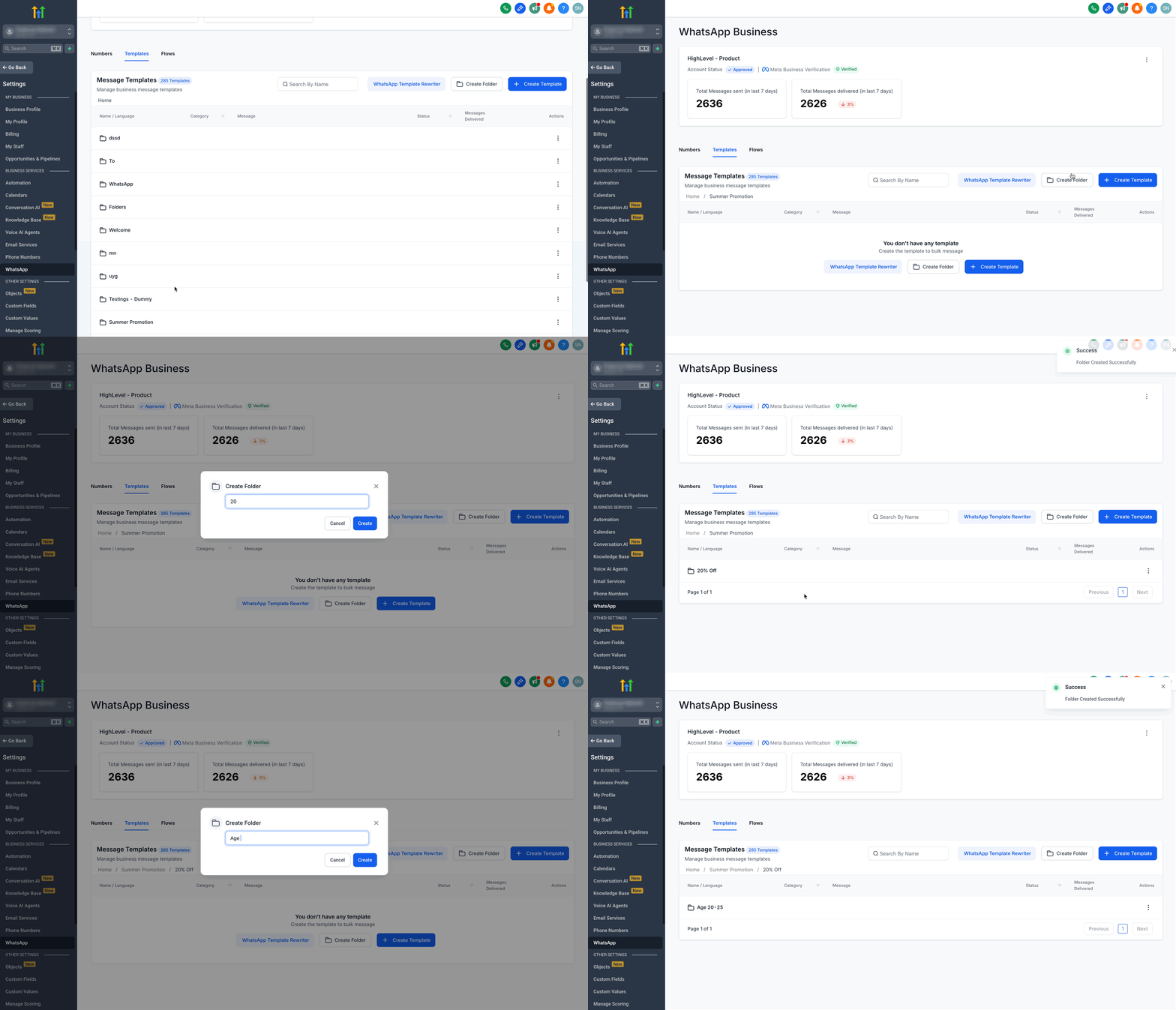
- Click on an existing folder's name to open it.
- Click Create Folder again to create a subfolder inside the parent folder.
- Name the subfolder and click Create.
Note: You can create as many hierarchies as needed for your center's organization.
Step 4: Use Breadcrumb Navigation
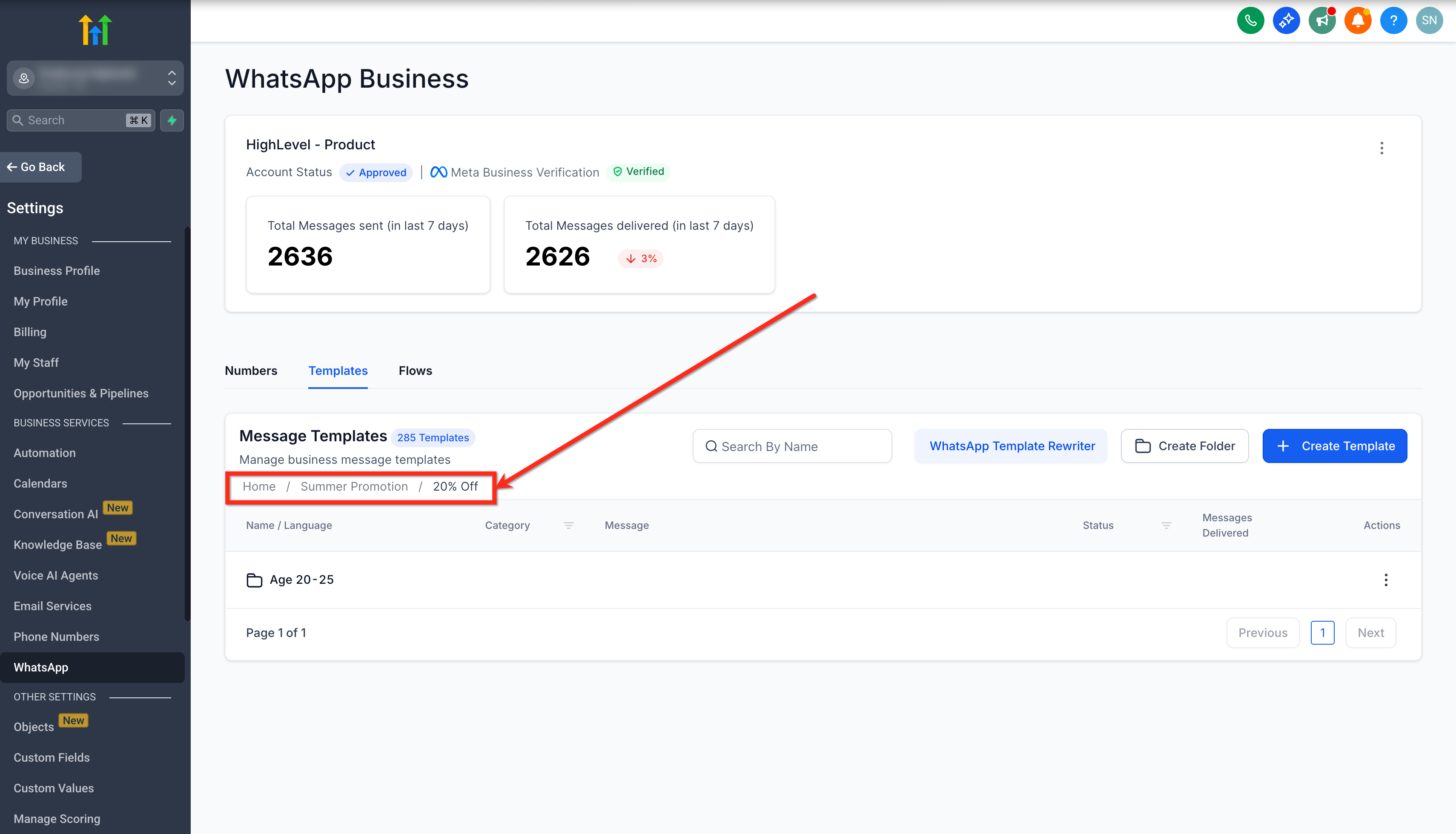
Use the breadcrumb trail at the top of the page to see where you are in the folder hierarchy. Click any folder name in the breadcrumb to navigate back to parent folders or return to the root Home folder quickly.
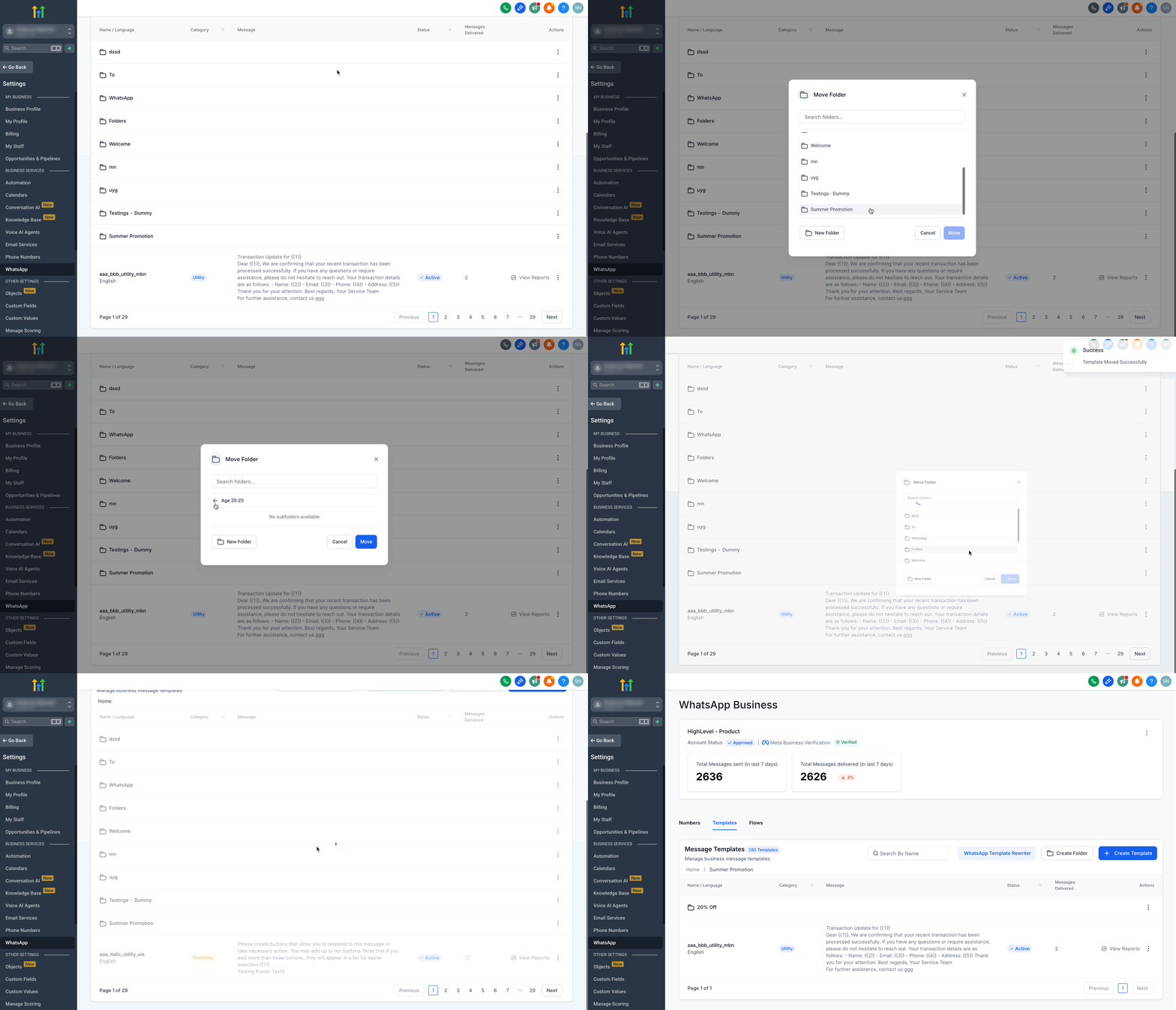
Step 5: Move a Template into a Folder
- Locate the template you want to move in the main template list or inside any folder.
- Click the three-dot menu under the template's Action column.
- Select Move to Folder.
- Choose the desired folder or subfolder where you want to move the template.
- Click Move to complete the action.
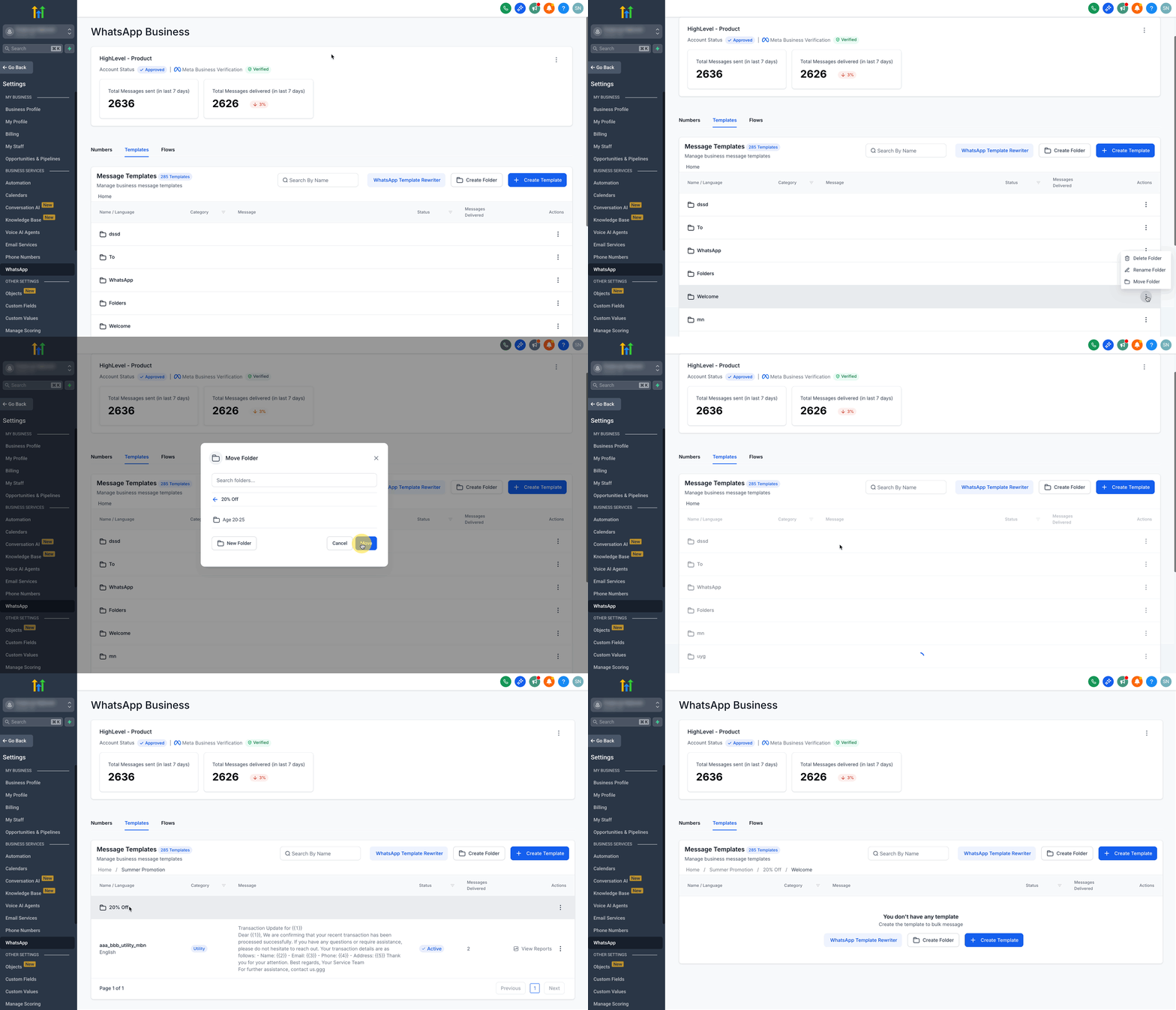
Step 6: Move Folders into Other Folders
- Locate the folder you want to move in the main list or inside any folder.
- Click the three-dot menu of the folder under the Action column.
- Choose Move Folder.
- Select the destination folder where you want to nest it.
- Click Move to confirm.
Step 7: View Template Performance Metrics
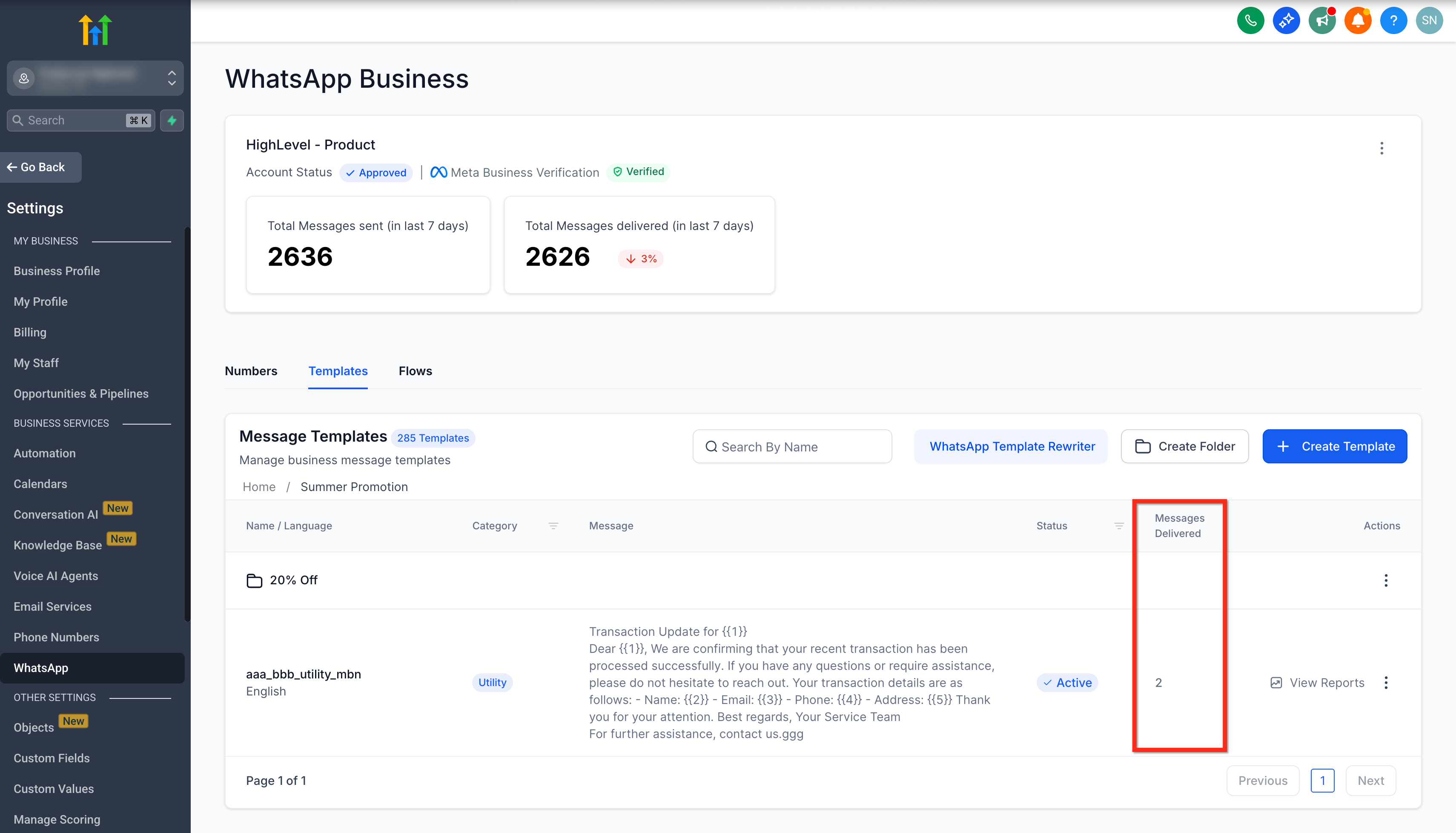
Next to each template, view the Messages Delivered count directly in the list view. Click View Report to access detailed analytics:
- Messages Sent
- Messages Delivered
- Messages Read
- Button Clicks
You can filter analytics by start and end date to track performance over specific enrollment periods.
Note: Analytics exclude messages sent to or from the EU, UK, and Japan.
Understanding Template Metrics
Delivered Message Count
See how many messages each template has delivered right from the templates table. This helps you track which parent communications are most active without running separate reports.
- Instantly compare template usage across your communications.
- Identify high-performing templates at a glance.
Weekly Delivery Trends
Monitor weekly delivery trends with relative percentage comparisons. This feature lets you quickly spot increases or decreases in template usage from week to week—perfect for tracking enrollment season spikes or tour inquiry patterns.
- Visualize delivery trends directly in the templates table.
- Make informed decisions about template optimization based on parent engagement.
Flexible Folder Creation
Folders can be created at any time, including while moving templates or folders. This flexibility means you never have to interrupt your workflow to organize your templates.
- Create new folders as your communication needs evolve.
- Easily restructure your template library as your enrollment processes change.
Frequently Asked Questions
Q: Can I nest folders as deeply as I want?
Yes, you can create multiple levels of folders and subfolders to match your center's organizational needs.
Q: Will moving a template to a folder affect its approval or status?
No, moving templates between folders only changes their organization, not their approval or delivery status.
Q: Can I search for templates across all folders?
Yes, the search function allows you to find templates regardless of their folder location.
Q: Can I rename or delete folders after creating them?
Yes, use the three-dot menu on any folder to rename or delete it.
Q: Can I share folders between staff members?
Folders follow account-level access permissions. If a staff member has access to WhatsApp templates, they can view all folders.
Q: What happens if I delete a folder with templates inside?
The templates will be moved to the parent folder, ensuring no data is lost.
Q: Can I export templates from a folder?
Template export functionality remains unchanged; you can export templates individually as needed.