
WhatsApp lets you share rich media with families — photos of your facility, enrollment documents, videos of activities, and more. Here's how to set up an automation that sends media files through WhatsApp.
How to Send Images, Videos, Audio, and Documents via WhatsApp
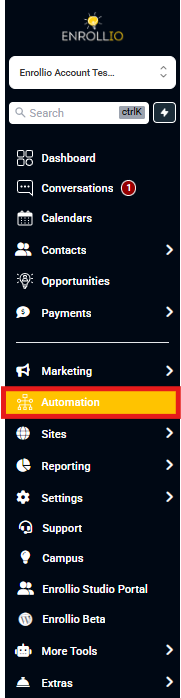
Step 1: Go to the Automations tab in your Enrollio dashboard.
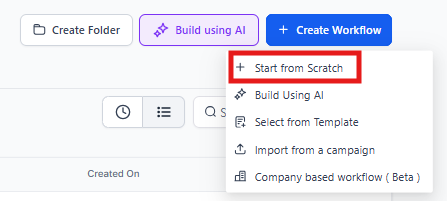
Step 2: Click Create Automation, then select Start from Scratch.
Step 3: Click the "+" icon to add your first automation step.
Step 4: Search for "WhatsApp: Customer Service Window Check" and select it.
This step ensures your message only sends when the family's 24-hour response window is active.
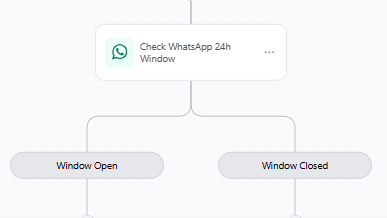
Step 5: Under the Open section (meaning the window is active), click the "+" icon to add the next action.
Step 6: Search for and select "Send WhatsApp Media" or similar action.
Step 7: Configure your media message:
- Choose your From Number (your connected WhatsApp business number)
- Select the Media Type from the dropdown (Image, Video, Audio, or Document)
- Upload or link to your media file
- Add an optional caption or message
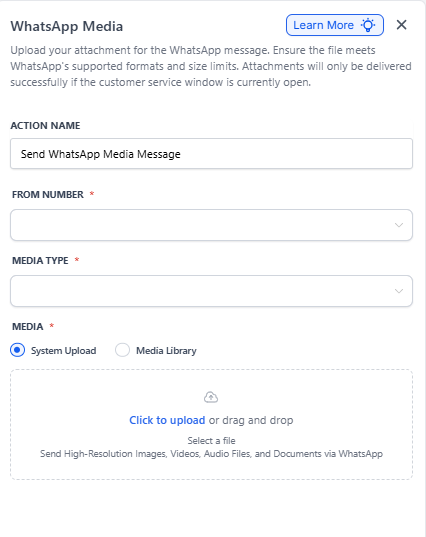
Step 8: Click Save Action to complete the step.
Step 9: Publish your automation when you're ready to make it live.
Frequently Asked Questions
How do I ensure the automation only sends during the active conversation window?
Always include the "WhatsApp: Customer Service Window Check" step at the beginning of your automation. This prevents messages from failing by checking if the 24-hour window is still open before sending media.
Can I test the media message before sending it to families?
Yes! Once your automation is published, you can trigger it in test mode to confirm the media sends correctly. Send yourself a test message first to verify everything looks right.
What types of media can I send via WhatsApp?
You can send:
- Images — facility photos, classroom shots, activity pictures
- Videos — virtual tours, daily activity highlights
- Audio files — voice messages, announcements
- Documents — enrollment forms, policies, schedules (PDF, DOC, etc.)
How do I choose which WhatsApp number to send from?
In the WhatsApp media action settings, select your desired number from the From Number dropdown. This shows all WhatsApp business numbers connected to your Enrollio account.
What happens if I try to send media outside the 24-hour window?
The message won't send. WhatsApp requires an active conversation window for media messages. If you need to re-engage a family after 24 hours, you'll need to use an approved WhatsApp template message first to reopen the conversation window.