
Meta Chose Not to Deliver
What This Error Means
When you see this error, it means Meta (WhatsApp's parent company) decided not to deliver your message to maintain healthy engagement on their platform. This typically happens with marketing messages sent to families who haven't been engaging with your messages recently.
WhatsApp limits how many marketing messages reach families who are less likely to read them. This keeps the platform useful for everyone and prevents your childcare center from being flagged for sending unwanted messages.
Why This Happens
WhatsApp tracks how families interact with your messages. If a family hasn't opened or responded to your recent marketing messages (like enrollment reminders, event announcements, or promotional content), WhatsApp may stop delivering additional marketing messages to them.
This is part of Meta's Per-User Marketing Template Message Limits — essentially a way to protect families from message fatigue while keeping your account in good standing.
How to Fix It
Don't Retry Immediately
If you get this error, resist the urge to resend right away. Instead, wait before trying again. Start with a few hours, then increase the wait time if needed. This shows WhatsApp you're respecting their limits.
Understand the Limits
Marketing messages are restricted based on how families engage with your messages. However, once a family responds to any message, you can send unlimited free-form messages in that conversation.
Pro tip: If you have an active marketing conversation with a family, you can send one additional marketing message without hitting the limit.
Best Practices to Avoid This Error
- Make messages timely: Send enrollment deadlines, tour reminders, or event notices when they're most relevant
- Personalize your content: Reference the family's child by name or mention specific programs they've shown interest in
- Add clear value: Share exclusive updates, important policy changes, or special offers that matter to your families
- Monitor engagement: Track which messages get opened and responded to, then adjust your strategy accordingly
Why This Matters for Your Center
Following these limits improves your message delivery rates and keeps families engaged. High-quality engagement also makes your account eligible for more WhatsApp features, helping you communicate better with your families.
Message Undeliverable
What This Error Means
This error appears when WhatsApp cannot deliver your message for technical reasons. The most common causes are:
- The family's phone number isn't registered on WhatsApp
- The recipient hasn't accepted WhatsApp's latest Terms of Service
- The recipient is using an outdated version of WhatsApp
How to Fix It
1. Verify the Phone Number
Confirm that the family's phone number in your Enrollio account is correct and registered on WhatsApp. Ask them to confirm their number if you're unsure.
Note: If you're sending authentication templates to families in India, these messages cannot currently be delivered due to WhatsApp restrictions.
2. Check WhatsApp Compliance
The family may need to accept WhatsApp's latest terms and policies. If they're seeing prompts in their WhatsApp app, they'll need to accept these before receiving messages from you.
3. Update WhatsApp Version
Ask families to update their WhatsApp app to the latest version:
- Android: Version 2.21.15.15 or later
- iOS: Version 2.21.170.4 or later
- KaiOS: Version 2.2130.10 or later
4. Test Communication
Ask the family to send a test message to your center's WhatsApp number. This confirms their account is working properly and opens a conversation window for follow-up.
Pro tip: If you can't reach a family on WhatsApp, use email or SMS to help them troubleshoot their WhatsApp account issues.
Tips for High-Quality Conversations
Maintaining a strong quality rating prevents delivery errors and keeps families engaged with your messages. Here's how to optimize your messaging approach:
Creating Effective Business Messages
Expected
Get explicit permission before adding families to your WhatsApp messaging. When parents complete your enrollment form or tour request, include a clear opt-in checkbox for WhatsApp updates.
Timely
Send messages when they matter most:
- Enrollment deadline reminders a week before the cutoff
- Tour confirmations 24 hours in advance
- Seasonal updates when families are planning (back-to-school, summer programs)
- Payment reminders a few days before they're due
Relevant
Personalize every message with a clear purpose:
- Use the child's name and age group
- Reference their specific program or classroom
- Include a clear next step ("Book your tour here" or "Complete enrollment by Friday")
Improving Your Quality Rating
Manage Opt-Ins Carefully
Only message families who have explicitly agreed to receive WhatsApp messages from your center. Always include a clear way to opt out, like "Reply STOP to unsubscribe from these updates."
Create Engaging Content
Make every message count. Don't overwhelm families with daily messages — focus on quality over quantity. A weekly update is often better than daily reminders.
Monitor and Adjust
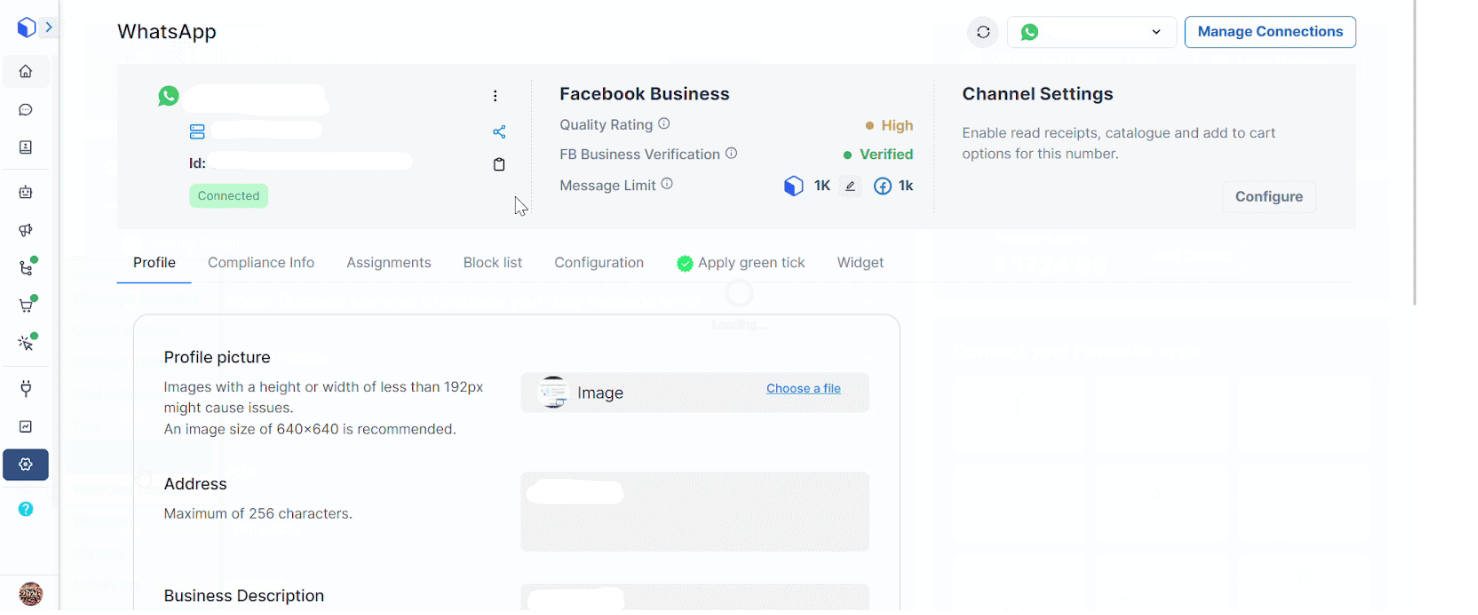
Check your message quality history in WhatsApp Manager. Look for patterns in which messages perform well and which ones get blocked or ignored. Adjust your templates based on what's working.
Review Your Templates
Audit any new message templates you've added in the past week. If you notice delivery issues starting around the same time, one of your new templates may be causing problems. Check that all templates comply with WhatsApp Business and Commerce Policies.
Quick Quality Checklist
- ✓ Families opted in to receive messages
- ✓ Messages are timely and relevant to their enrollment journey
- ✓ Content is personalized with child/family details
- ✓ Clear opt-out instructions included
- ✓ Not sending more than 1-2 marketing messages per week
- ✓ Templates reviewed and compliant with WhatsApp policies