
Understanding WhatsApp Policy Violations
To maintain high-quality conversations on WhatsApp, Meta may restrict WhatsApp Business accounts that repeatedly violate their policies. This can affect your ability to communicate with parents and prospective families.
If you receive a notification that your WhatsApp Business account has violated a policy, you can view the details and file an appeal. All policy violations can be appealed within 90 days of being received.
View Details of the Policy Violation
Follow these steps to see what policy was violated and understand the restrictions on your account:
- Go to Business Support Home.
- Click View my accounts below the My accounts section.
- Scroll down until you see the business portfolio that your restricted WhatsApp Business account is connected to. It may say Assets restricted next to it.
- Click on the business portfolio.
- Scroll down to the WhatsApp accounts section until you see the restricted account. It may say Account issues or Account disabled next to it.
- In the Available for review tab of the Activity issues section, click on the policy issue.
- Click See details to view complete information about the violation.
Image unavailable: Recovering Your Restricted Meta Account | BotPenguin Documentation
What You'll See in the Violation Details
The policy violation details will show you:
- Summary of which policy was violated and a link to the full policy
- Any active restrictions on your account
- What happens if the violation occurs again
- How to avoid future policy violations
- Steps you can take to resolve the violation
- How to file an appeal
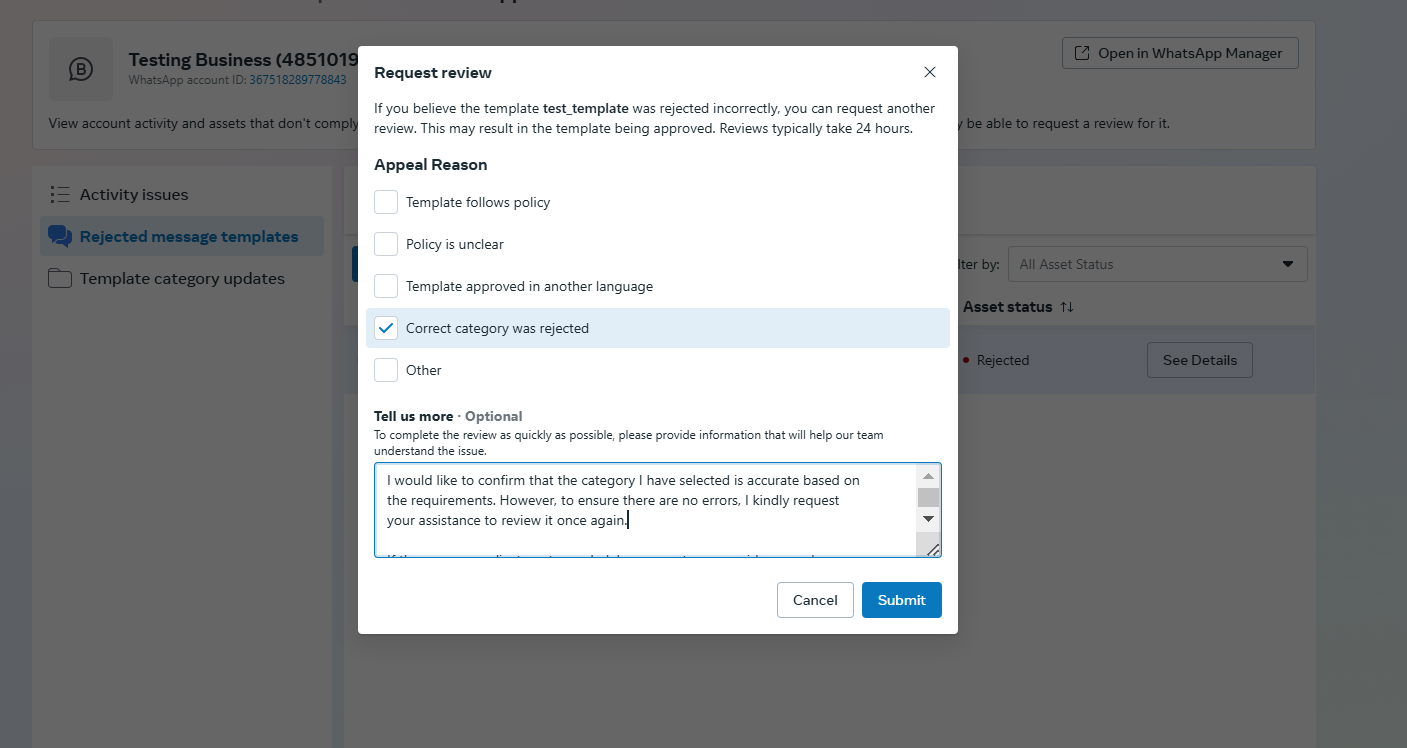
File an Appeal and Request a Review
If you believe your account didn't violate WhatsApp's policies, you can request a review. Here's how:
- Follow the steps above to navigate to the Available for review tab in the Activity issues section.
- Select the policy issue you want to appeal.
- Click Request review.
- Select an Appeal reason from the dropdown menu.
- [Optional] Provide additional details to help the review team understand your situation. Be specific about how your messaging relates to childcare enrollment and parent communications.
- Click Submit.
What Happens Next
Reviews typically take 24 hours to complete. You can check the status of your appeal in the In review tab.
The review may result in the policy violation being reversed and restrictions lifted. You'll receive a notification once the review is complete.