
Schedule WhatsApp Messages
Schedule WhatsApp messages to send at the perfect time — whether you're confirming a tour for tomorrow morning or sending enrollment reminders over the weekend. You can schedule both WhatsApp template messages and regular messages to families.
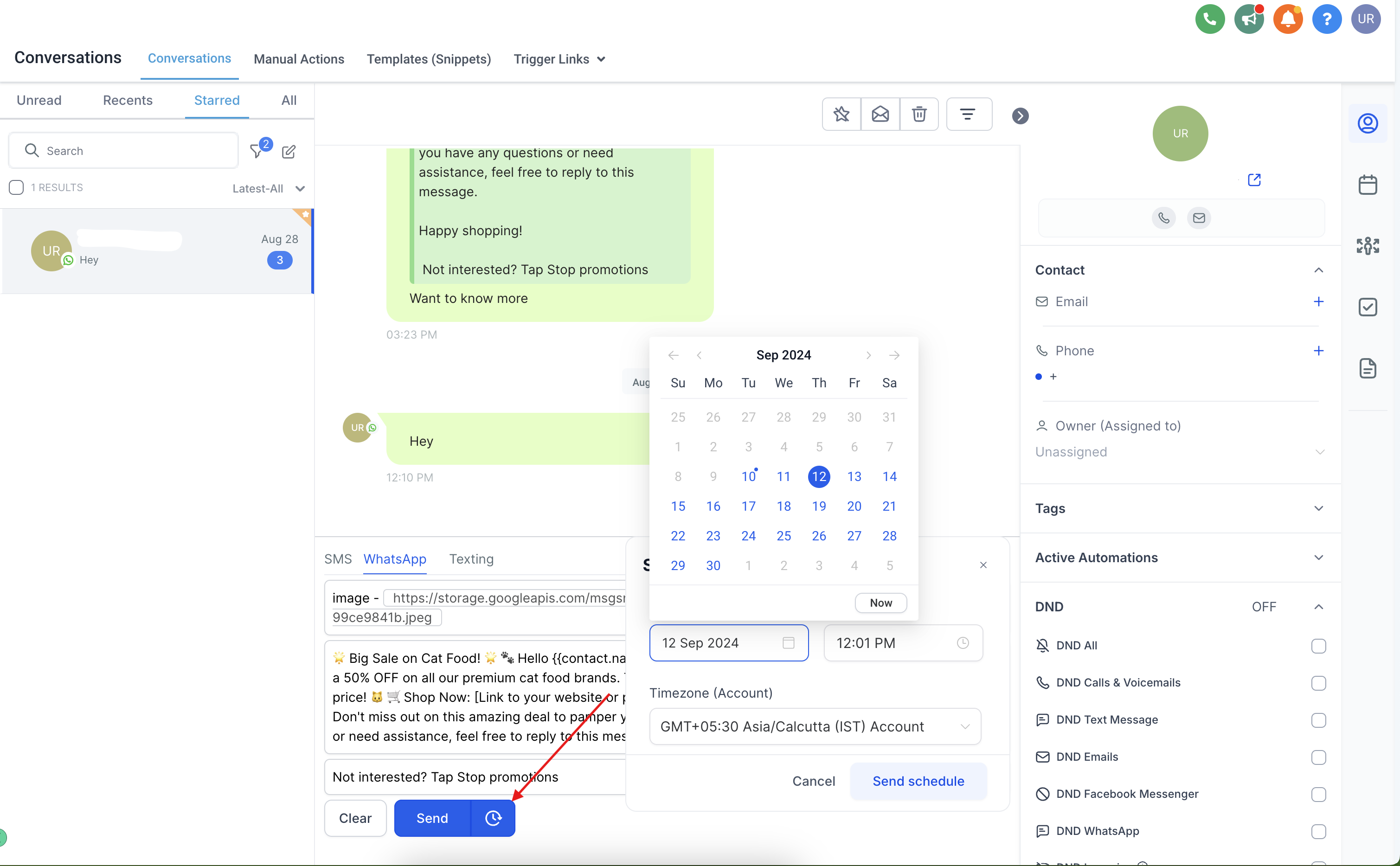
Schedule a WhatsApp Template Message
Template messages can be scheduled for any future date and time — perfect for appointment reminders, enrollment deadlines, and program updates.
- Go to Conversations and select the parent or family you want to message
- Click WhatsApp in the conversation view
- Select the template message you want to send
- Click the calendar icon next to the Send button
- Choose your desired date and time (must be in the future)
- Click Schedule Send
Schedule a Regular WhatsApp Message
You can schedule regular (non-template) messages, but only within the 24-hour Customer Service Window after a family messages you first.
What's a Customer Service Window?
When a family sends you a WhatsApp message, you have 24 hours to reply with regular messages. After that window closes, you'll need to use a template message instead.
Steps to Schedule a Regular Message
- Go to Conversations and select the family
- Click WhatsApp in the conversation view
- Type your message in the text field
- Click the calendar icon next to the Send button
- Choose a date and time within the next 24 hours (based on when they last messaged you)
- Click Schedule Send
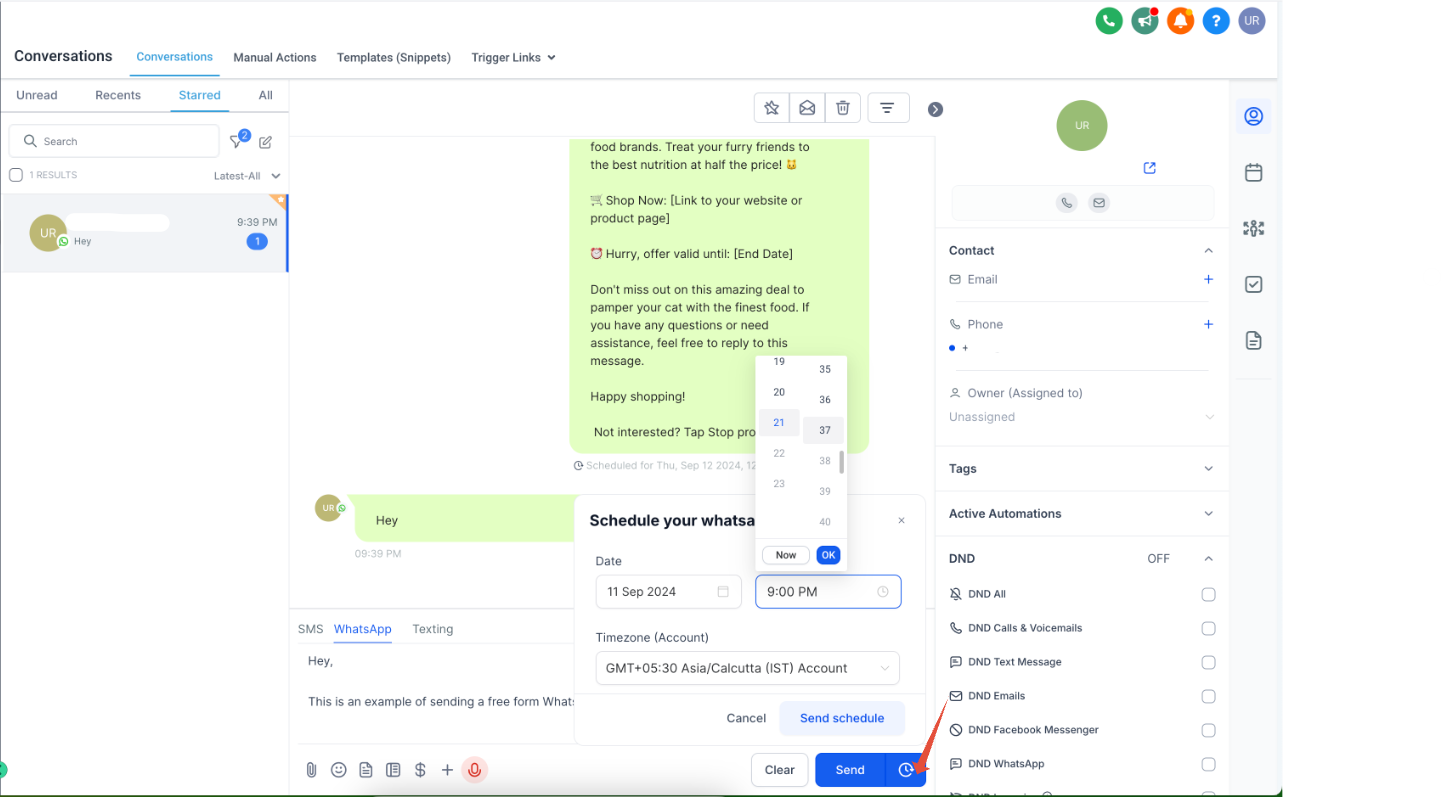
Important: You can only schedule regular messages up to 24 hours from the family's last inbound message. After that, you'll need to use a template message.
Managing Scheduled Messages
Once scheduled, your message appears in the conversation with a timestamp showing when it will send. You'll see a confirmation in the chat thread.
If you need to change a scheduled message, delete it and create a new one. Scheduled messages can't be edited directly.
Frequently Asked Questions
Can I schedule WhatsApp template messages for any time?
Yes. Template messages can be scheduled for any future date and time — no 24-hour restriction.
Why can I only schedule regular messages for 24 hours?
WhatsApp's Customer Service Window only stays open for 24 hours after a family messages you. After that, you need to use pre-approved template messages to continue the conversation.
What happens if I try to schedule a regular message outside the 24-hour window?
Enrollio won't let you schedule it. You'll need to use a WhatsApp template message instead, which you can schedule for any future time.
Can I edit a scheduled message after I set it up?
Not directly. To make changes, delete the scheduled message and create a new one with your updates.
How do I know my message was scheduled successfully?
After you click "Schedule Send," you'll see the message appear in the conversation thread with the scheduled send time. A confirmation shows it's queued to send.
What are good use cases for scheduling WhatsApp messages?
Great uses include:
- Tour reminders sent the evening before
- Enrollment deadline reminders
- Program start date confirmations
- Payment reminders during business hours
- Weekly updates sent at consistent times