
How to Integrate Facebook Messages with Enrollio
Connect your childcare center's Facebook page to Enrollio so you can respond to parent inquiries directly from your inbox. All Facebook messages will appear alongside texts, emails, and other conversations in one unified view.
Why Connect Facebook Messages?
Many families discover childcare centers through Facebook and send messages with questions about availability, pricing, or tours. By integrating Facebook Messages with Enrollio, you'll:
- Never miss a parent inquiry
- Respond faster from one central inbox
- Automatically track conversations in each family's record
- Set up automated responses for common questions
Before You Start
You'll need admin access to your childcare center's Facebook page. If you manage multiple locations with separate Facebook pages, you can connect each one.
How to Connect Your Facebook Page
- In Enrollio, click Settings in the left sidebar
- Select Integrations
- Find Facebook Messenger and click Connect
- Log in to Facebook when prompted
- Select the Facebook page(s) you want to connect
- Click Authorize to grant Enrollio access
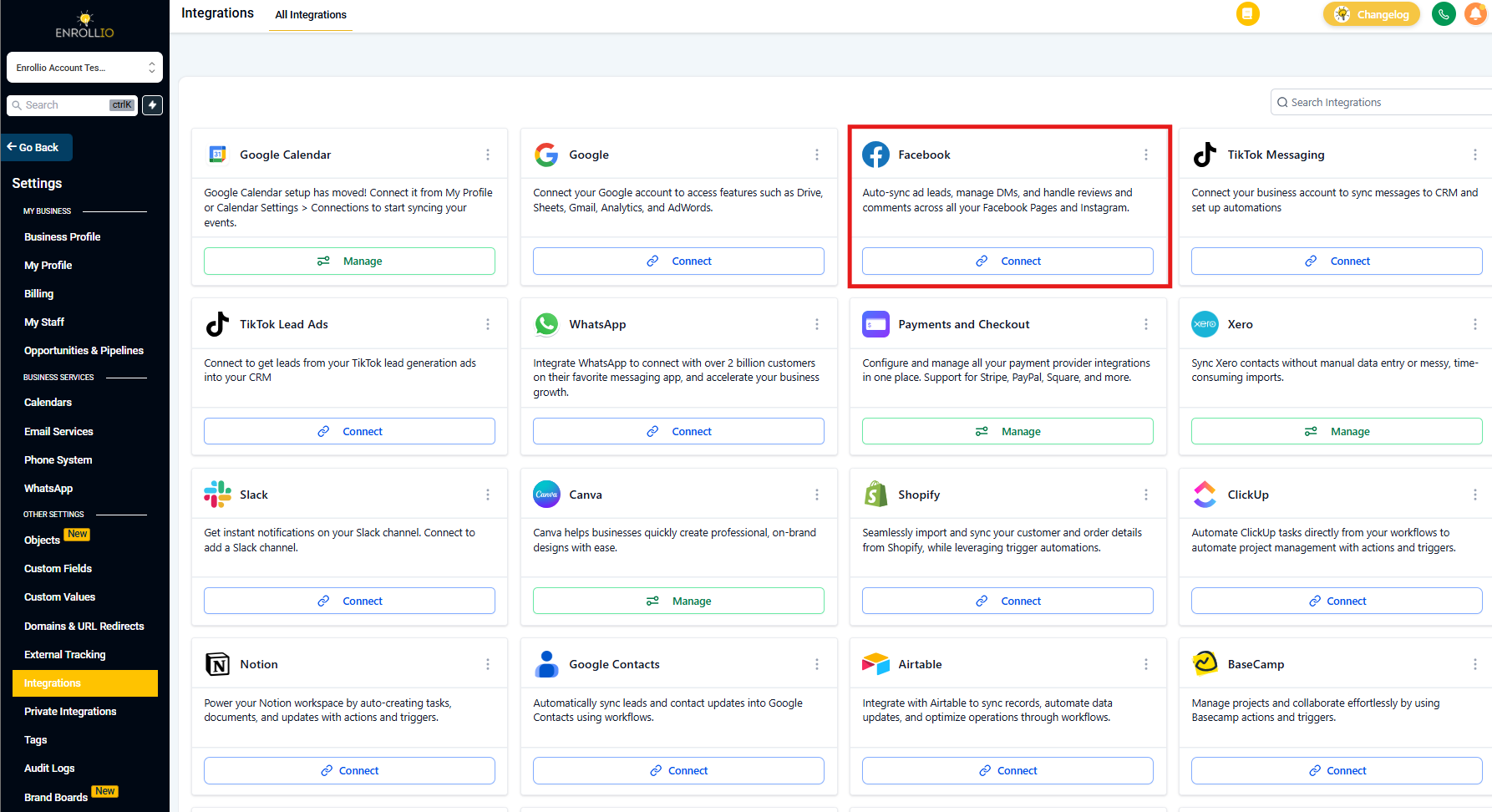
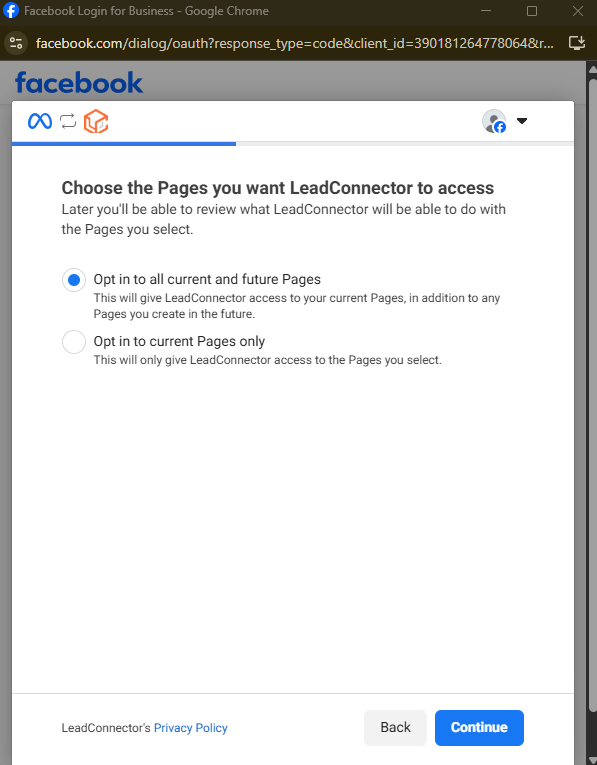
Once connected, you'll see a green "Connected" status next to Facebook Messenger in your integrations list.
How Facebook Messages Appear in Enrollio
When a parent messages your Facebook page, the conversation automatically appears in your Enrollio inbox. You'll see:
- The parent's name and profile picture
- A Facebook icon indicating the message source
- The full conversation thread
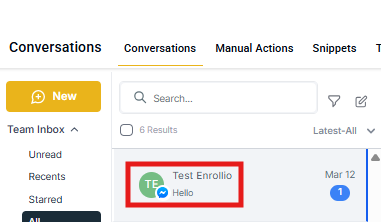
If the parent already exists in your system, the message attaches to their record. If they're new, Enrollio creates a prospective family record automatically.
Responding to Facebook Messages
Reply to Facebook messages just like any other conversation in Enrollio:
- Open the conversation from your inbox
- Type your response in the message box
- Click Send
The parent receives your reply as a Facebook message. The entire conversation stays synced between Facebook and Enrollio.
Set Up Automated Responses
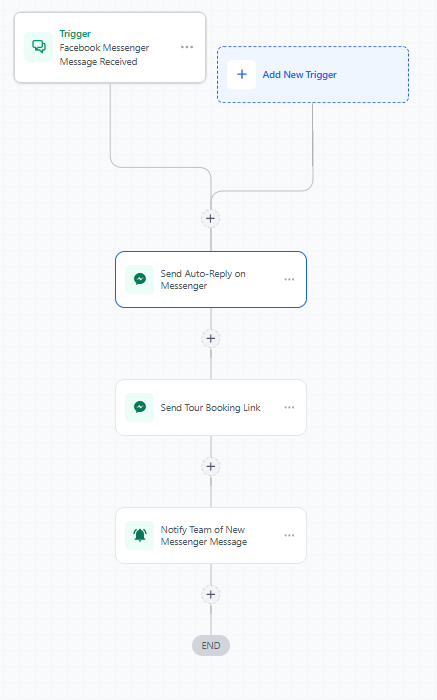
Create automations that trigger when parents message you on Facebook:
- Go to Automations in the left sidebar
- Click Create Automation
- Choose When a message is received as your trigger
- Select Facebook Messenger as the channel
- Add actions like sending a reply, creating a tour booking link, or notifying your team
Managing Multiple Facebook Pages
If you operate multiple locations, connect each center's Facebook page separately. Messages from each page will appear in your inbox with the page name displayed, so you can quickly identify which location the inquiry is for.
Troubleshooting Connection Issues
Connection failed or disconnected: This usually means Facebook needs to re-authorize the connection. Go to Settings Integrations and click Reconnect next to Facebook Messenger.
Messages not appearing: Check that your Facebook page has messaging enabled in Facebook's page settings. Also verify you've selected the correct page during the connection process.
Can't find the integration: Make sure you're logged into your main Enrollio account (not a staff member view with limited permissions).
Need More Help?
If you're having trouble connecting Facebook Messages, reach out to our support team. We're here to help you stay connected with families however they prefer to reach you.