
You can now personalize and automate your recurring review request emails in Enrollio's Reputation Management! Set different email templates for each follow-up, ensuring every interaction feels more engaging and tailored to your families.
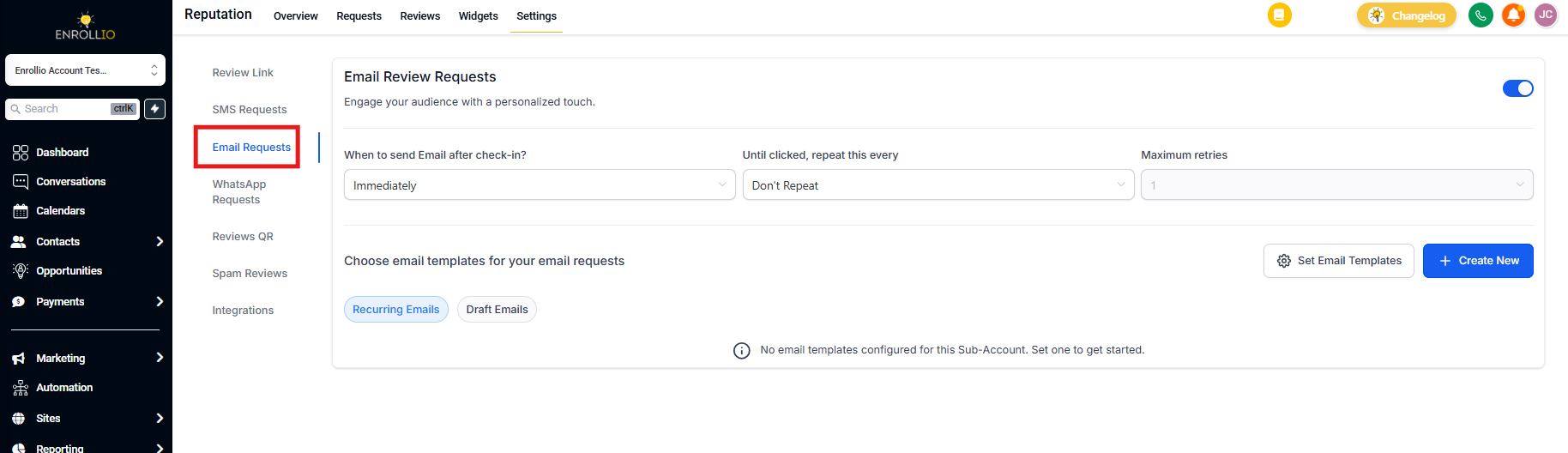
Step 1: Navigate to Email Review Requests
Open Reputation Management in your Enrollio dashboard.
Go to the Email Review Requests section.
Step 2: Enable Recurring Review Requests
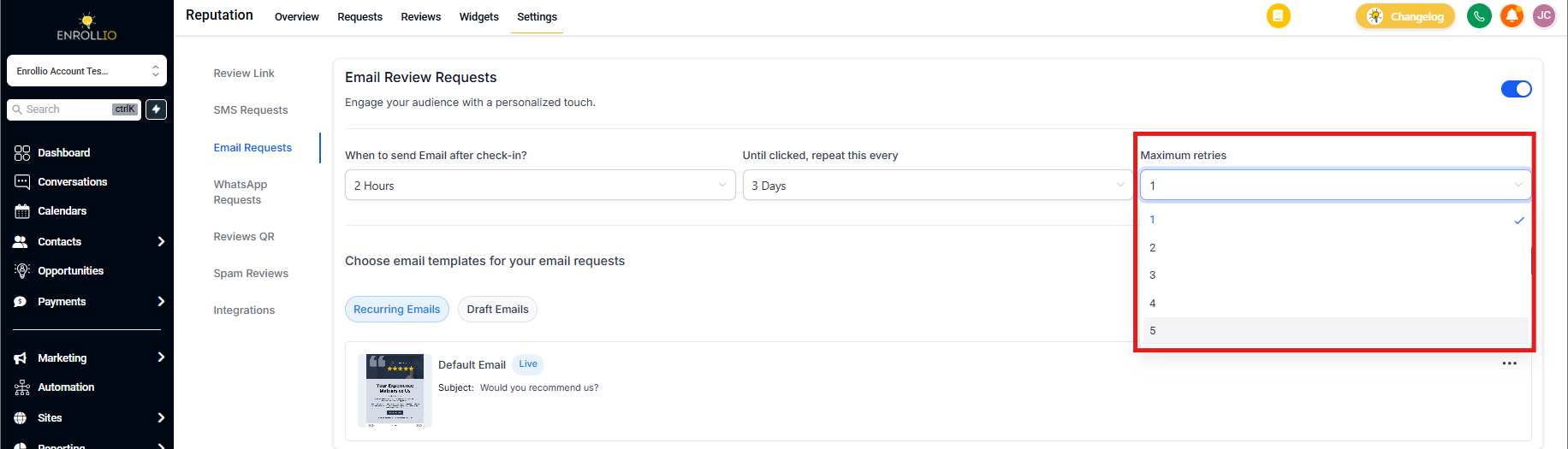
Locate the Maximum Retries option.
Enable Recurring Review Requests to allow multiple follow-ups.
Step 3: Select Email Templates and Set Email Subjects
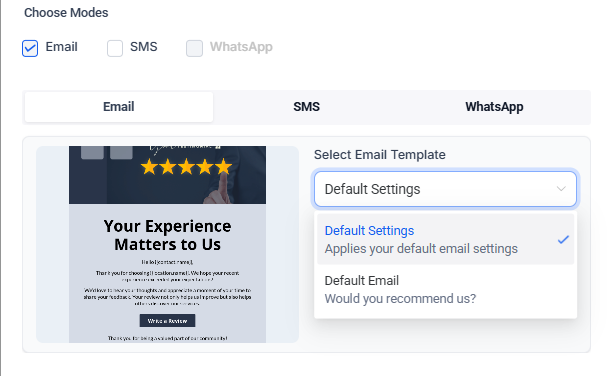
Choose different email templates for each follow-up message. You can select from pre-designed templates or create your own custom templates.
Set a unique Email Subject for each recurring email to keep your messages fresh and engaging.
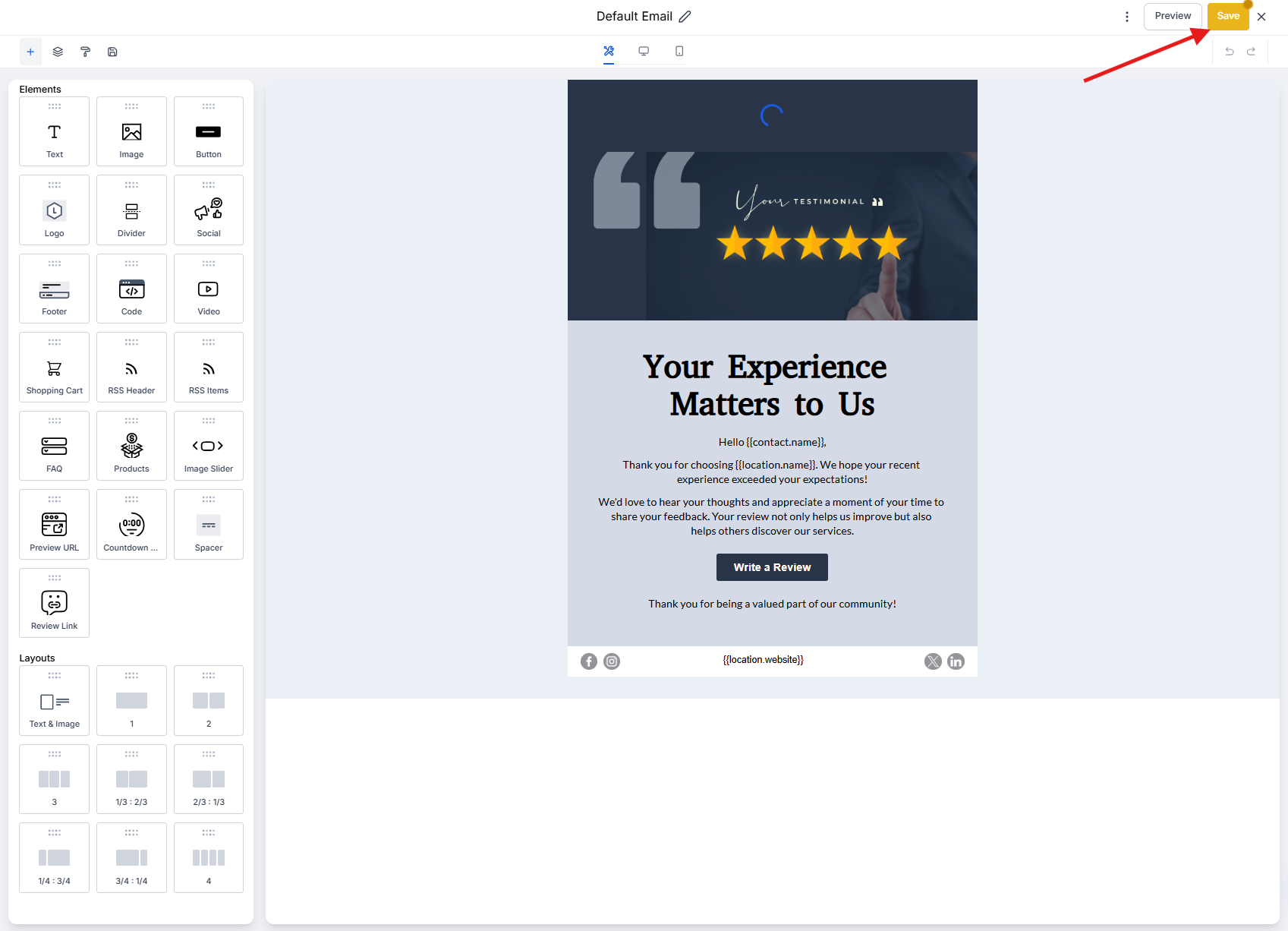
Step 4: Customize Your Email Content
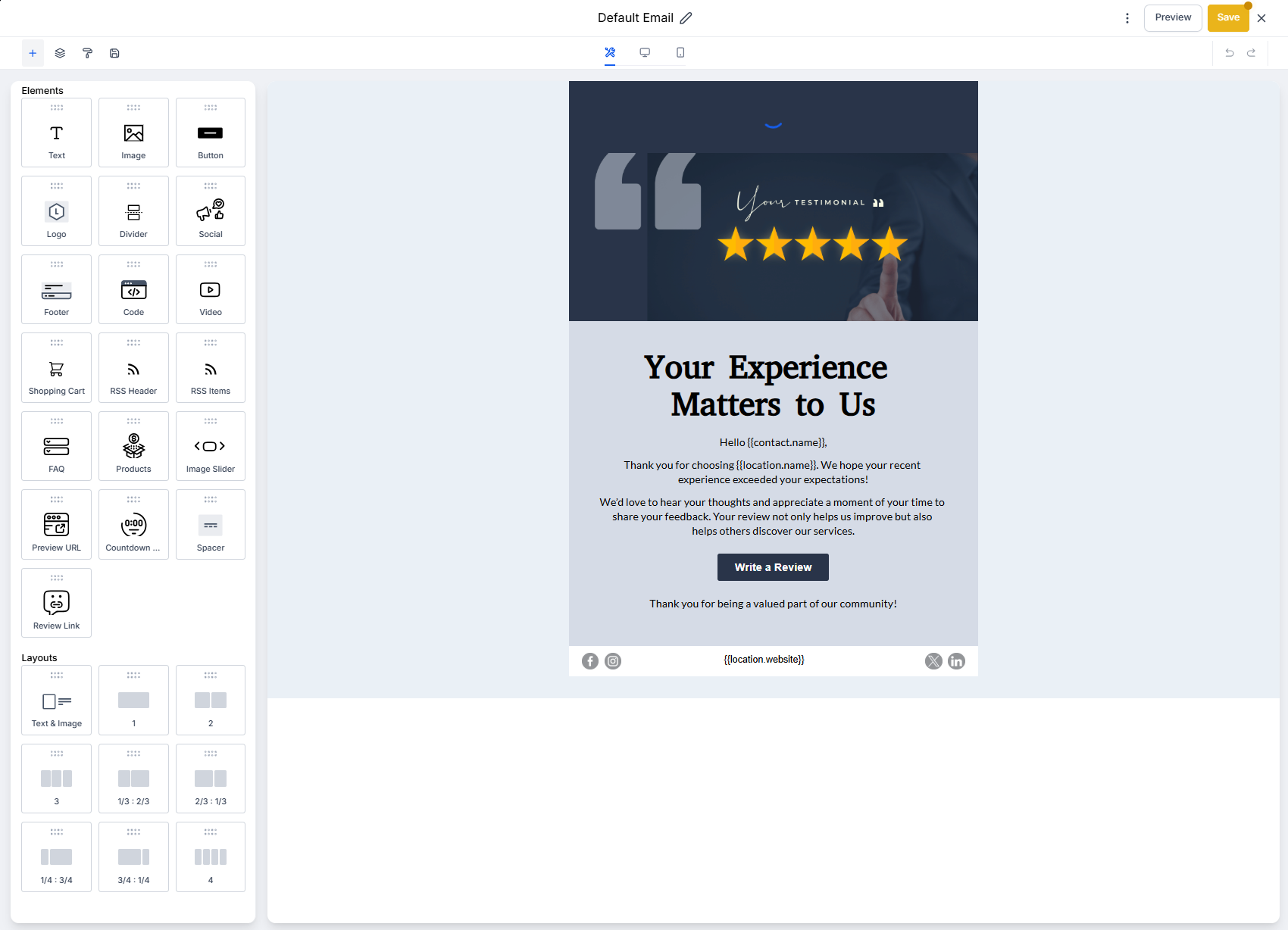
Modify the content using the Email Builder to align with your childcare center's voice and brand.
Add personalization elements like parent names, child names, or enrollment dates to enhance engagement and make each message feel personal.
Step 5: Save and Activate Recurring Emails
Review your settings to ensure all email sequences are properly assigned with the correct templates.
Click Save & Activate — your recurring review request emails will now be sent automatically using the templates you've selected.
By using multiple email templates for recurring review requests, you can maintain engagement with families, improve response rates, and strengthen your childcare center's reputation. Set up your templates today and watch your review conversions grow!