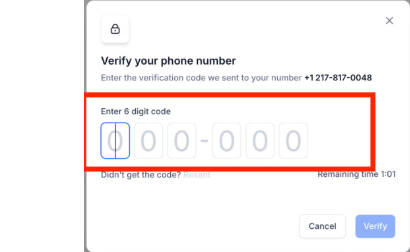
If you're unable to receive the OTP (One-Time Password) when verifying your WhatsApp number in Enrollio, this guide will help you identify and fix the issue.
Why This Happens
The most common reason OTP verification fails is that your phone number is already registered with WhatsApp Business App or regular WhatsApp Messenger. A number can only be actively used on one WhatsApp platform at a time.
Check if Your Number Is Already Registered
Before troubleshooting further, verify whether your phone number is currently active on WhatsApp Business App or regular WhatsApp Messenger. If it's already registered, WhatsApp will block OTP delivery during setup.
Method 1: Use WhatsApp's Click to Chat Feature
- Open a web browser
- Enter this URL (replace with your full number including country code):
https://wa.me/<countrycode><phonenumber>
Example:https://wa.me/19175551234 - Press Enter
What the result means:
- If WhatsApp opens → Your number is registered (either personal or business)
- If you see "Phone number shared via url is invalid" → Your number is not registered
Method 2: Check Inside WhatsApp Business App
- Save the number in your phone contacts
- Open WhatsApp
- Start a new chat and search for the contact
What to look for:
- If the contact appears → The number is on WhatsApp
- If the contact doesn't appear → Not registered
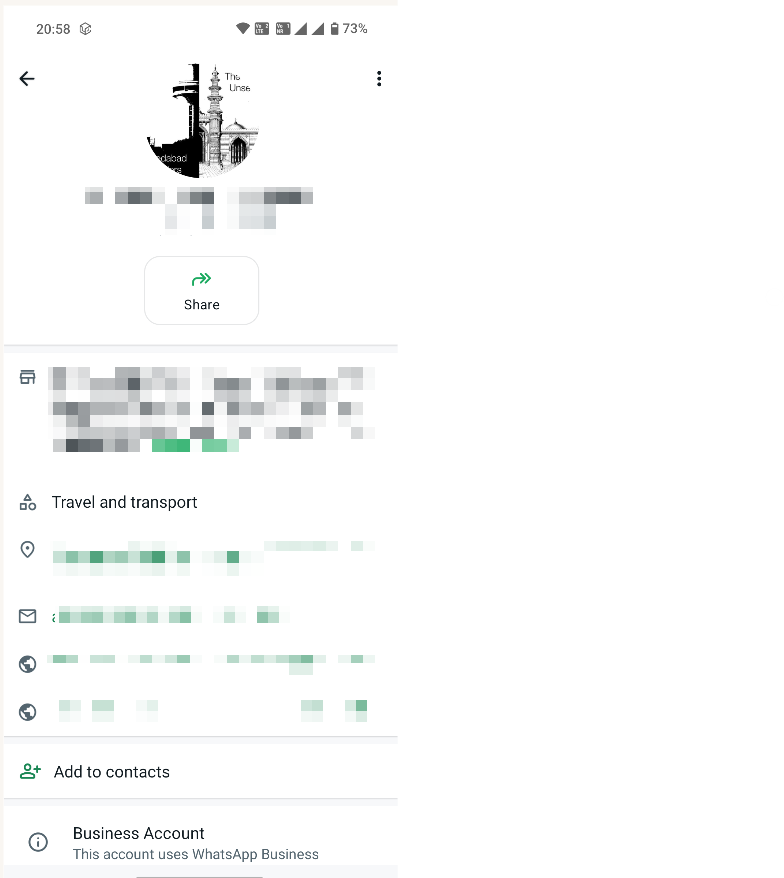
- If you see "Business Account" or "Verified Business" on the profile → It's registered as a business account
How to Fix the Issue
Option 1: Use a Different Phone Number (Recommended)
The easiest solution is to use a fresh phone number that has never been registered on WhatsApp. Then proceed with your Enrollio WhatsApp setup using the new number.
Option 2: Remove the Existing WhatsApp Account
If you must use the same number, follow these steps carefully:
- Install WhatsApp (Business or regular) on your mobile device using the same number
- Open WhatsApp and go to Settings
- Select Account → Delete Account
- Confirm deletion of the WhatsApp account
- Wait a few minutes, then retry your WhatsApp setup in Enrollio
⚠️ Important: Deleting your WhatsApp account will permanently remove all chat history and data associated with that number.
Still Not Receiving the OTP?
If your phone number is not registered on any WhatsApp platform and you're still unable to receive the OTP, contact Enrollio support with these details:
- Phone number (with country code)
- Your Enrollio account name
- Screenshot or exact error message shown during OTP verification
- Approximate time of the failed OTP attempt
Our support team will investigate the issue further with Meta.