
The WhatsApp Business Onboarding Checklist helps you quickly explore and activate key features connected to your Enrollio account. This guided experience gets you up and running with WhatsApp so you can start connecting with prospective families right away.
What is the WhatsApp Business Onboarding Checklist?
Think of this checklist as your roadmap after connecting WhatsApp to Enrollio. It guides you through the most important next steps so you can start communicating with families effectively.
Instead of wondering what to do next, you'll see clear action items that link directly to key features like message templates, automations, and chat widgets.
Why Use the Onboarding Checklist?
This checklist is designed to help you get the most value from WhatsApp in the shortest time possible:
- Discover Features Faster: Find tools like Chat Widgets, Automations, and Smart Lists without hunting through menus
- Save Time: A structured checklist means less guessing and more doing
- Use More of Enrollio: Direct links help you explore capabilities you might not know about
- Stay Motivated: Clear action steps keep you moving forward during setup
What's Included in the Checklist
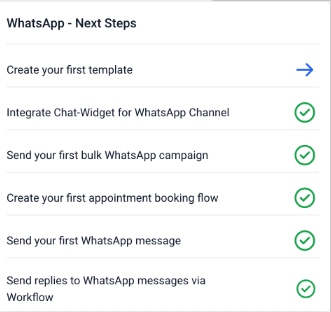
The checklist highlights six key actions to help you start using WhatsApp Business effectively:
- Create Message Templates: Set up pre-approved templates for common communications with families
- Add Chat Widget to Your Site: Let families message you directly from your enrollment site
- Send Bulk Campaigns: Use Smart Lists to reach specific groups of prospective families
- Automate Tour Bookings: Set up flows that let families schedule tours through WhatsApp
- Start Direct Conversations: Message prospective families one-on-one
- Build Automations: Configure automated responses and follow-ups to nurture leads
How to Use the Onboarding Checklist
Getting started with the checklist is simple:
- Complete your WhatsApp Business setup in Enrollio (follow this guide if you haven't yet)
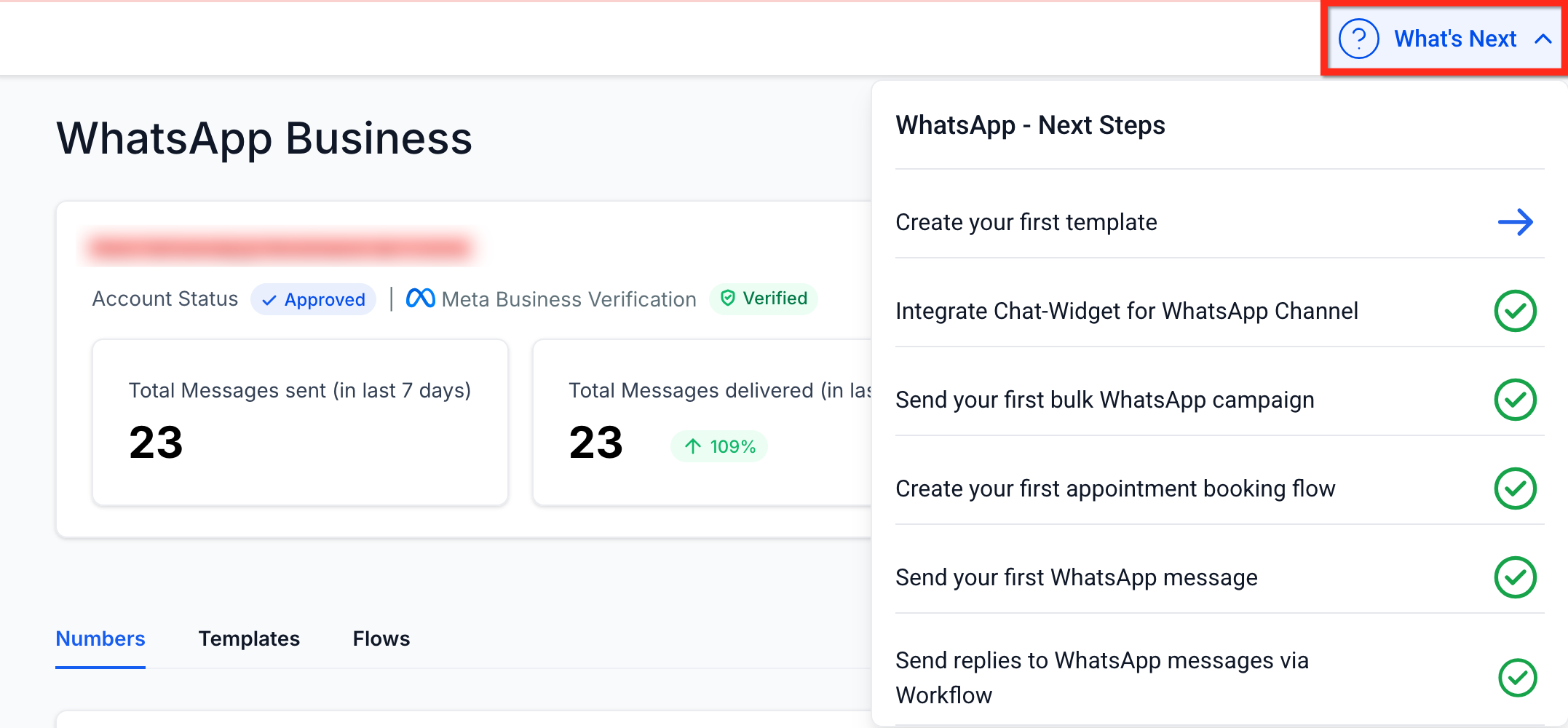
- Once WhatsApp is connected, you'll see a What's Next button appear automatically
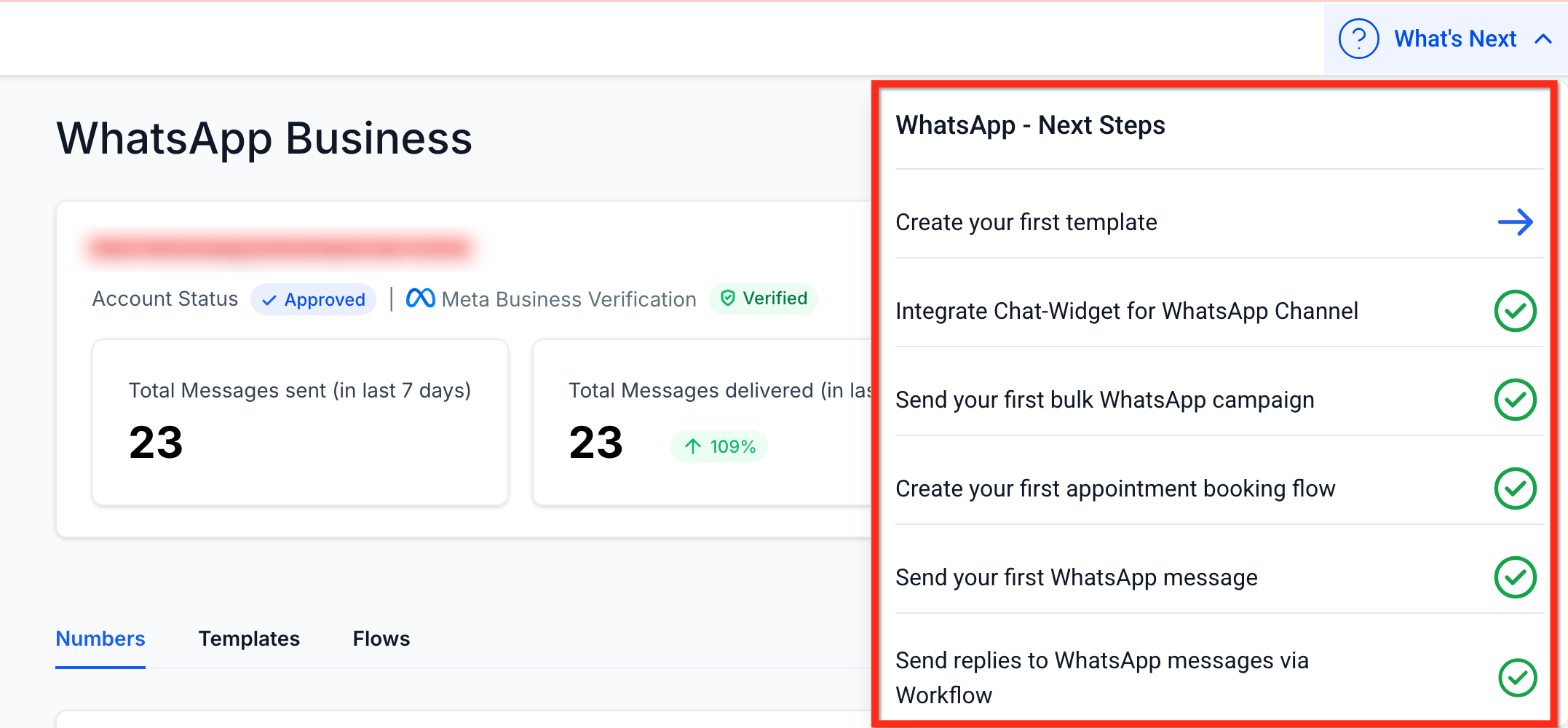
- Click What's Next to expand the checklist and view all six action items
- Click any item to jump directly to that feature
- Watch for green checkmarks as you complete each task
Frequently Asked Questions
Can I customize the checklist items?
The checklist items are carefully selected to ensure you explore the most valuable WhatsApp features. Customization isn't available, which helps maintain a consistent onboarding experience.
What happens after I complete the checklist?
You'll have a solid foundation for using WhatsApp to communicate with prospective families. You'll know how to send messages, automate follow-ups, and collect tour bookings—all through WhatsApp.
Can I access the checklist again later?
Yes! You can reopen the checklist from the same location anytime after setup. It's always there if you need a refresher.
Does every Enrollio account see this checklist?
The checklist appears for any account with WhatsApp Business successfully connected. If you haven't set up WhatsApp yet, complete that first and the checklist will appear.
Related Articles
- WhatsApp Full Setup Guide
- WhatsApp Messaging Limits
- How to Set Up WhatsApp for a Client Account
- WhatsApp Pricing and Billing Guide
- How to Create a WhatsApp Template