
With WhatsApp Media actions in Enrollio, you can automatically send multimedia content—images, videos, documents, and audio—to parents and families directly from your automations. This is perfect for sharing enrollment forms, tour confirmation videos, program photos, or welcome documents.
Before You Start
Important: You can only send WhatsApp media while the 24-hour customer service window is open. This window opens each time a parent sends you an inbound WhatsApp message and lasts for 24 hours from that message.
How to Send Media via Automation
Step 1: Add the WhatsApp Media Action
- Go to Automation in your Enrollio dashboard
- Open an existing automation or create a new one
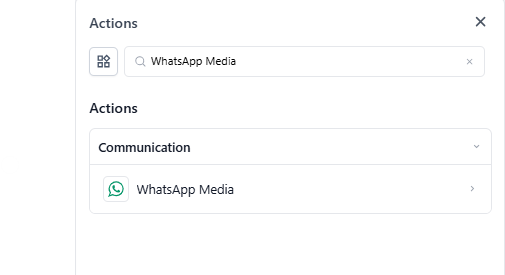
- Click Add Action and search for "WhatsApp Media"
- Select WhatsApp Media from the results
Step 2: Add Customer Service Window Check
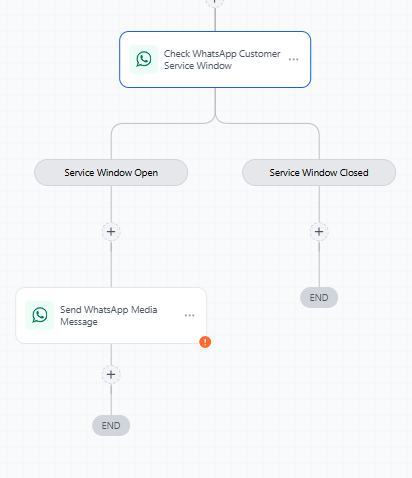
Before the media action, add a WhatsApp: Customer Service Window Check step. This ensures your message only sends when the window is open and prevents delivery failures.
Step 3: Configure Your Media Message
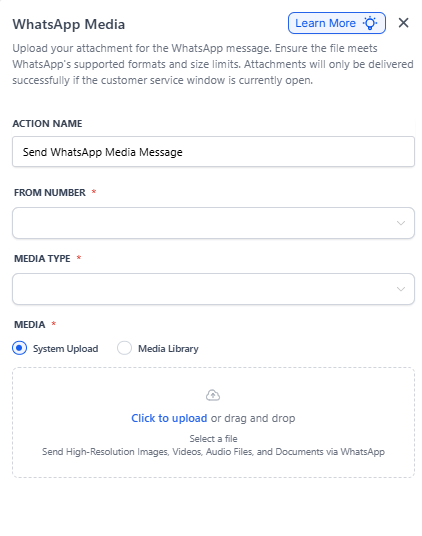
- FROM number: Select your WhatsApp business number
- Media Type: Choose Image, Video, Audio, or Document
- Upload media: Click to upload your file or paste a URL
- Caption: Add your message text (optional for images, videos, and documents)
Media File Requirements
Make sure your files meet WhatsApp's size and format limits:
- Images: JPEG or PNG, up to 5 MB
- Videos: MP4 or 3GP, up to 16 MB (H.264 video, AAC audio)
- Audio: AAC, AMR, MP3, M4A, or OGG, up to 16 MB
- Documents: TXT, PDF, DOC/DOCX, PPT/PPTX, XLS/XLSX, up to 100 MB
Files larger than these limits will fail to send.
Common Use Cases for Childcare Centers
- Send tour confirmation with a photo of your facility
- Share enrollment forms as PDF documents
- Welcome new families with a video tour
- Send program schedules or lunch menus
- Share classroom photos with prospective parents
- Deliver signed documents after e-signature completion
Frequently Asked Questions
When can I send WhatsApp media messages?
Media messages can only be sent while the 24-hour customer service window is open. The window opens each time a parent sends you an inbound WhatsApp message and lasts for 24 hours from that message's timestamp.
Are media messages free inside the 24-hour window?
Yes! All media (images, videos, documents, and audio) sent during an open service window is free, and you can send unlimited media messages.
What happens if I try to send media after the 24-hour window closes?
The media message will fail. To re-open the window, you need to send an approved WhatsApp template message to the parent first.
Can I add captions to every media type?
Captions work for images, videos, and documents. Audio files don't support captions—any text you enter will be ignored.
How long is WhatsApp media available for download?
- Inbound media (received from parents): Available for 7 days
- Outbound media (sent by your center): Available for 30 days
After this period, the media link expires and can no longer be accessed. If you need to keep important media longer, download and store it securely within the timeframe.
Troubleshooting
Media not sending? Check these common issues:
- Is the 24-hour customer service window open? Use the window check step.
- Is your file within the size limits?
- Is the file format supported?
- Is your WhatsApp business number properly connected?